Viewing Your Emails
If an email you were expecting simply never arrived, DeepFilter may have found it suspicious and set it aside. DeepFilter does not delete emails that look harmful or unwanted; it holds them in a safe area called "quarantine". The reason is simple: the filter sometimes gets it wrong and stops an email you were genuinely waiting for. Quarantine exists so that you can see those emails and rescue them.
You see these emails in the portal, which opens through the link in the quarantine summary email your administrator sends you. This page explains what you will see in that portal and how to review a suspicious email safely and rescue it if needed.
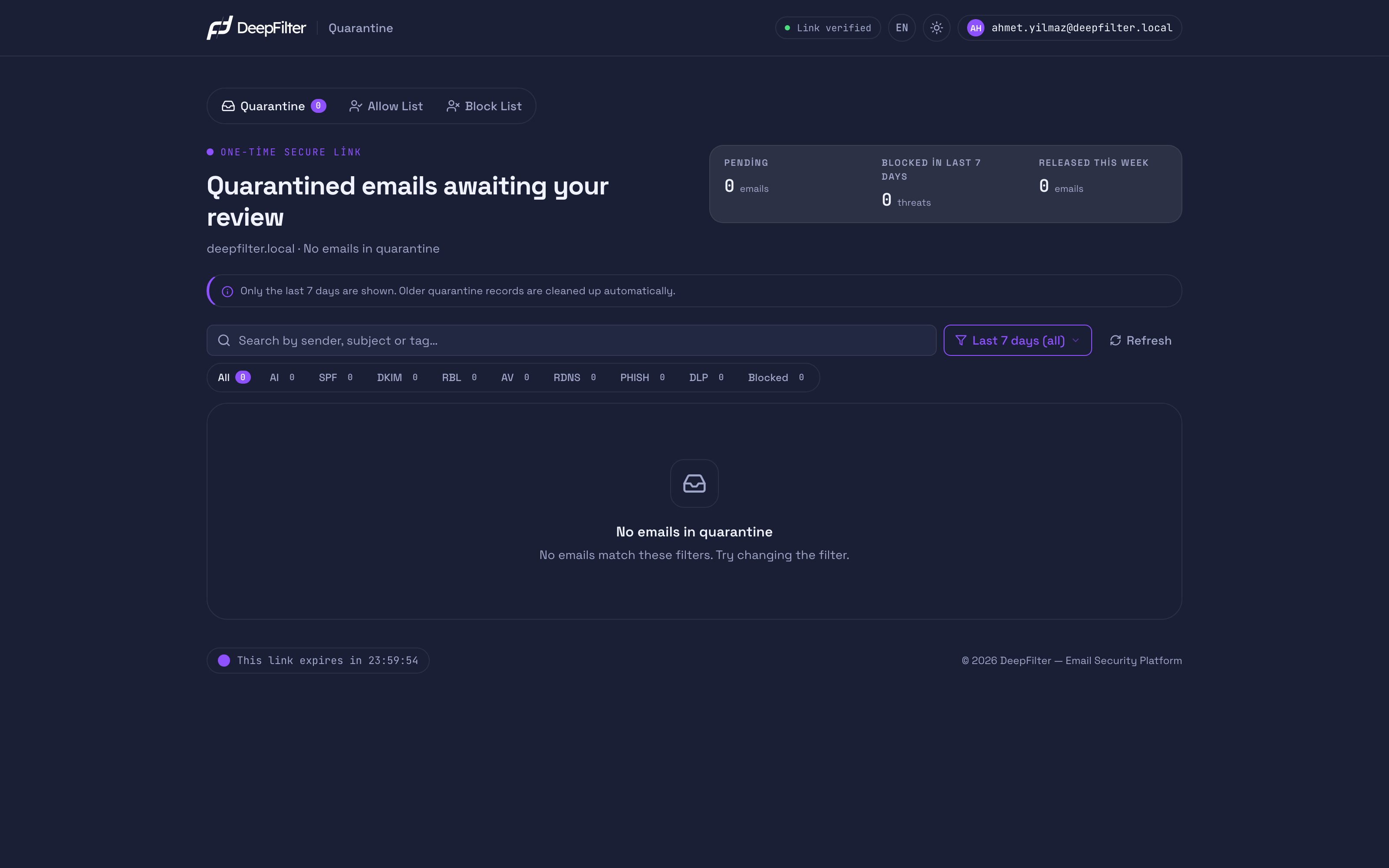
How you get into the portal
You open the portal by clicking the link inside the quarantine summary email your administrator sends. The link is unique to you and opens only your own quarantine; you do not need to enter a username or password.
The link is temporary: it is valid for 24 hours after it is sent. During that time, the portal shows you only the emails addressed to your own address that were set aside within the last 7 days.
The link has to expire in order to stay secure. Once the 24 hours are up, the link no longer works; to open the portal again you need a new quarantine summary email. How often that email is sent depends on your administrator's setting; if it does not arrive, contact your administrator.
If you open the portal and see a locked information screen, your administrator may have turned off access to it. This is not an error; it is an organization's choice. If you want access, contact your administrator.
The three summary figures at the top
The three counters at the very top of the page give you a short summary of your quarantine. They are for information only; you do not need to click them.
- Pending — The number of emails currently waiting for your review. These are emails that have not yet reached your inbox and are being held to one side.
- Blocked in last 7 days — The number of threats stopped for security reasons over the past week. This figure covers the emails still pending as well as those you released or deleted this week, so it can be higher than the "Pending" figure.
- Released this week — The number of emails you let through this week by deciding "this email is safe, let it into my inbox".
Reading an email in the list
The list below the counters shows the pending emails row by row. Before you open an email, the details in its row help you tell whether it is a message you were expecting or genuinely unwanted mail.
In each row you see:
- Date — The day and time the email tried to reach you. If you know when the email you are expecting was sent, this makes the right row easier to find.
- Sender — The address of the person or organization that sent the email. In the small box to the left of the address there is a two-letter country code showing the country the email was sent from. An email you were not expecting, coming from an unfamiliar and distant country, may deserve extra suspicion.
- Subject — The email's subject line. To its left is a small tag (badge) that sums up why the email was found suspicious. For example, phishing that tries to lure you to a fake site, malware with a dangerous attachment, bulk advertising, or technical inconsistencies in the sender's identity. You see the tag's full explanation when you preview the email.
- Score — A number and a red bar showing how suspicious the email was found to be. The higher the number, the greater the suspicion. The score is shown out of 10; for emails carrying very high suspicion the value can go above 10. This column appears only on wide screens; on narrow screens and on tablets it is not in the list, but you can always see the score when you preview the email.
- Action — The icons for previewing, releasing and deleting the email. These actions are explained in the sections below.
Previewing an email safely
Opening a suspicious email in your own inbox is risky: an image inside it can track you, and a link can take you to a fake site. The portal's preview removes that risk. It shows you the email so you can read it, but it makes it harmless first.
To preview an email, click its row in the list or the eye icon in that row. The preview that opens gives you three safety guarantees:
- Images are not loaded. The pictures inside the email are not displayed. That way, disturbing content does not appear on your screen and tracking images hidden inside emails do not work. As a result, the sender cannot tell that you read the email.
- Links cannot be clicked. The address of a link in the email may appear as text, but you cannot click it. There is no chance of ending up on a harmful site by accident.
- Only text is shown. The email's visual design, and any code that might be hidden inside it, is not run; the email is shown as plain text.
If the email you are previewing is richly formatted, this information band appears above it: "This email is HTML formatted. For your safety only the plain-text view is shown." This is a normal message showing that the protection is active. If the email is very long, the text is shortened; you can open the rest with "Show more".
Next to the preview there are cards that help you assess the email:
- Threat score — The larger version of the score in the list. It shows how suspicious the email was found to be.
- Classification — The tag's full explanation; it tells you in one sentence why the email was found suspicious (for example a phishing or brand-impersonation signal).
- Triggered rules — The list of signals that stopped the email. Some of the wording here may look technical; you do not need to understand all of it — together the entries build a picture of the suspicion.
- Show headers — When you open it, it shows details such as sender, recipient, subject, date and size.
Rather than opening an email from a sender you are unsure about directly in your inbox, preview it here first. Because the preview shows the email in a harmless form, it is the safest way to review it.
Searching, filtering and refreshing
If there are a lot of emails in the list, there are three ways to find what you are looking for.
- Search box — Type the sender's name, the email address, a word from the subject, or the tag. The list instantly filters down to the matches. For example, if you are waiting for an email from a particular company, you can find it quickly by typing the company's name.
- Category bar — Filters emails by type. If you want to see only those suspected of phishing, or only those containing malware, click the relevant tag. Next to each tag is the number of emails it covers.
- Date menu — When the portal opens it shows only today's emails. To see the whole of the last week, choose "Last 7 days (all)" from the date menu.
If you want to see the most up-to-date version of the list, click Refresh; the emails are loaded again.
Rescuing a safe email
If you are sure that an email in quarantine is in fact safe and really should reach you, you can release it and move it to your inbox.
Prerequisites
- Make sure the email comes from a trusted sender you were expecting. If you are not sure, preview it first.
Steps
- Preview the email and check its sender and content.
- Click the check icon in its row in the list, or the release button on the preview screen.
Verification — how to know it worked
- The email is delivered to your inbox and the "Released this week" counter at the top goes up by one.
Do not release an email you are unsure about. A released email goes straight to your inbox; if it really is harmful, it is no longer behind the protection. If you have any doubt, leave the email where it is.
If you see a lock icon instead of the release icon, your account has not been granted that permission; to have an email delivered to your inbox, contact your administrator.
If you are sure an email is unwanted, you can remove it from your list with the bin icon. Deleting is usually unnecessary: if you do nothing, an email drops off the list by itself after seven days.
Troubleshooting
- The link does not work or says "expired". The link is valid for 24 hours only. Wait for a new quarantine summary email and open the portal again with the link in it. If the email does not arrive, contact your administrator.
- The portal does not open; I see a locked screen. Your administrator may have turned off portal access. Contact your administrator for access.
- It says "Could not load preview". The email's content may no longer be readable (usually the email has been processed and moved). Even then, the score and classification details remain visible.
- The sender country shows as "??". The country the email was sent from could not be determined. This is not a problem; you can still review the email.
- I cannot release an email; there is a lock icon. Your account has not been granted this permission. Contact your administrator.
- An older email I was expecting is not in the list. The portal shows only the emails from the last 7 days; quarantine records older than seven days are deleted automatically and cannot be brought back (not even by your administrator). So when you spot an email you were expecting, do not put off acting on it.