Accessing the Portal
If an email you were expecting did not arrive, DeepFilter may have set it aside for security reasons. DeepFilter checks the emails sent to you before you see them. Anything it considers harmful or unwanted (spam) is kept out of your inbox. These emails are not deleted; they are held in a safe waiting area called quarantine.
The quarantine portal is the page where you see those waiting emails. If one of them was set aside by mistake and is in fact safe, you can bring it back to your inbox. This depends on the permission your administrator has granted you. This page explains how to get into the portal.
No account or password needed
You do not need to create an account or enter a username or password to reach the portal. There is only one way in: the secure link inside the Quarantine Summary email sent to you.
That link is unique to you. When you click it, it takes you straight to your own quarantined emails; it never opens anyone else's. The link is valid for 24 hours, and you can open it more than once during that time.
The reason for this design is simplicity. Because there is no password, there is nothing to remember. There is also no password that could be stolen. Since the link is personal, every user sees only their own quarantined emails.
While you are in the portal, the countdown on the page shows you how much longer your link stays valid.
For security, the link stops working 24 hours after it reaches you. If you click it after that, the portal does not open; you see the "Link expired" warning. All you need to do then is wait for the next Quarantine Summary email. Every new summary carries a new link that is again valid for 24 hours.
Getting into the portal
Prerequisites
- A Quarantine Summary email must have reached you. Your administrator decides how often these emails are sent. If you have not received one yet, see the "Troubleshooting" section.
Steps
- Open the Quarantine Summary email in your inbox.
- Click the secure link inside the email. The link appears either as a button or as link text.
- The quarantine portal opens in your browser. You are not asked for anything else.
Verification — how to know it worked
- At the top of the page you see "Link verified" with a green check, together with your own email address. Just below it, your emails waiting in quarantine are listed.
Your emails in the portal
When the portal opens, you go straight to your quarantined emails. The three counters at the top of the page sum up your situation at a glance.
- Pending — The number of your emails currently held in quarantine and waiting for your decision. If an email you were expecting is here, you can find it in the list below.
- Blocked in last 7 days — The total number of emails blocked for you over the past week.
- Released this week — The number of emails you took out of quarantine and moved to your inbox this week.
Below the counters is the list of your emails waiting in quarantine. You can scan the list with the search box, filter it by category or date, and preview each email. The list shows at most 100 emails at a time.
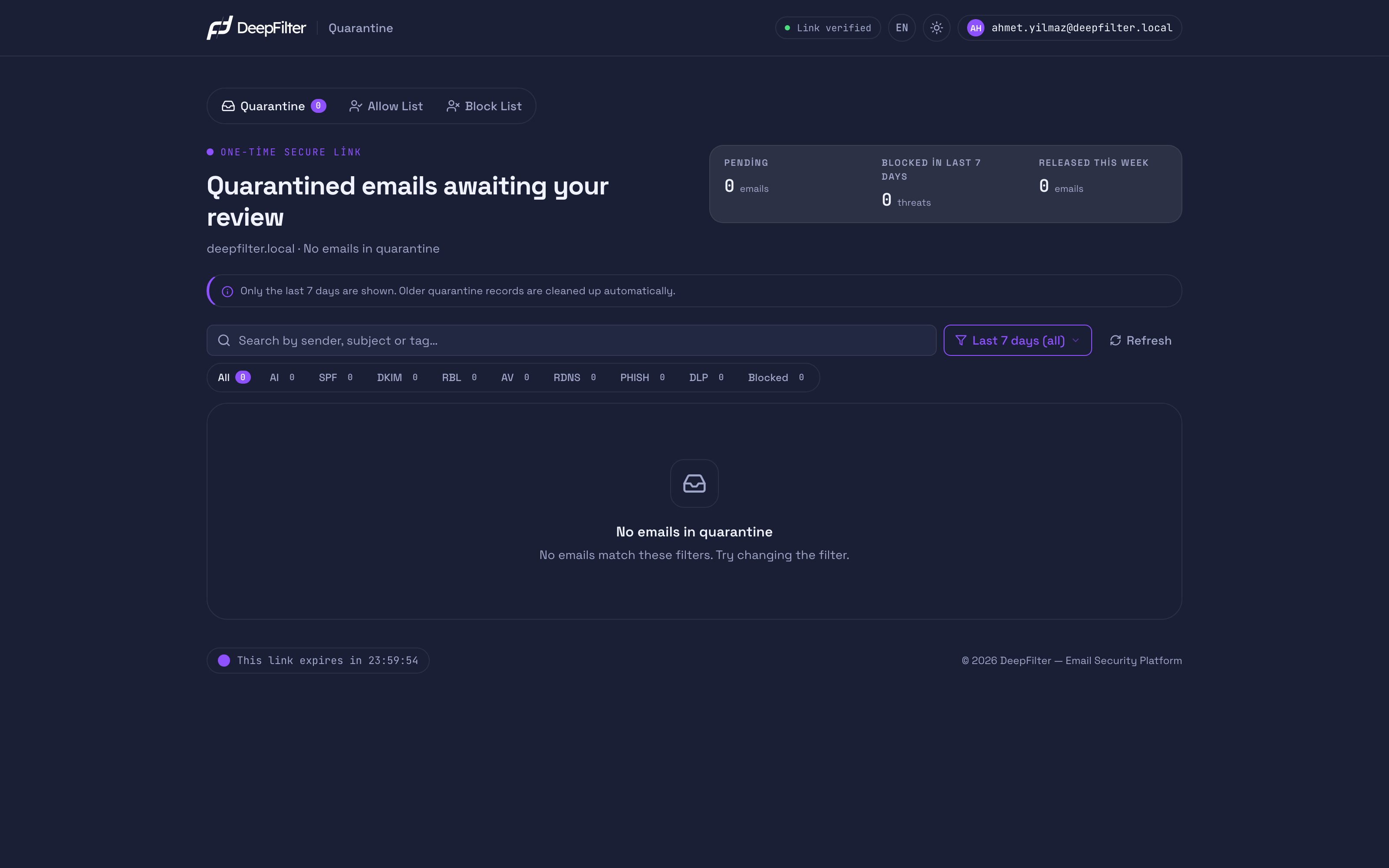
The portal shows only emails from the last 7 days. Older records are cleaned up automatically and do not come back to the list. So when a Quarantine Summary email reaches you, it is best to open the portal in good time and check for the emails you are expecting.
Troubleshooting
If you run into a problem while getting into the portal, follow the message you see.
- "Link expired" warning. The link you used is more than 24 hours old. Wait for the next Quarantine Summary email and click the new link in it.
- "Invalid or missing link" warning. The link may not have opened in full. Open the email again and click the whole link. If you are copying the link by hand, make sure no characters are missing.
- "Quarantine portal disabled" warning. The quarantine portal has been turned off for your domain. Contact your administrator to have access enabled.
- "Access error" warning. This may be a temporary connection or system problem. Try again in a few minutes. If it continues, contact your administrator.
- I never receive a Quarantine Summary email. Your administrator decides whether these emails are sent and how often. If you are not receiving summaries, contact your administrator.
What you can do in the portal
What you can do in the portal depends on the permission your administrator has granted you. Some accounts can only view the list. Others can also release or delete emails.
If you have been granted view-only permission for your domain, the portal still opens and you see the list. However, the release and delete actions are not shown. You are informed by the line "You have view-only access for this domain." If you need more permission, contact your administrator.
Releasing your pending emails and the other actions are explained on the following pages.