Troubleshooting
If an email you were expecting did not arrive, or the quarantine link your administrator sent did not open, there is no need to worry. These situations usually come down to a handful of known causes, and you can resolve most of them yourself. This page explains, in plain language, the situations you may run into in the quarantine portal and what to do about each one.
The quarantine portal is the page that opens when you click the link in the "Quarantine Summary" email your administrator sends. Quarantine is the area where emails found suspicious before they reach you wait safely. In the portal you can see those emails and release the ones you are sure are safe, moving them to your inbox. The portal is unique to you. It does not ask for a username or a password, because the link in your email carries your identity itself.
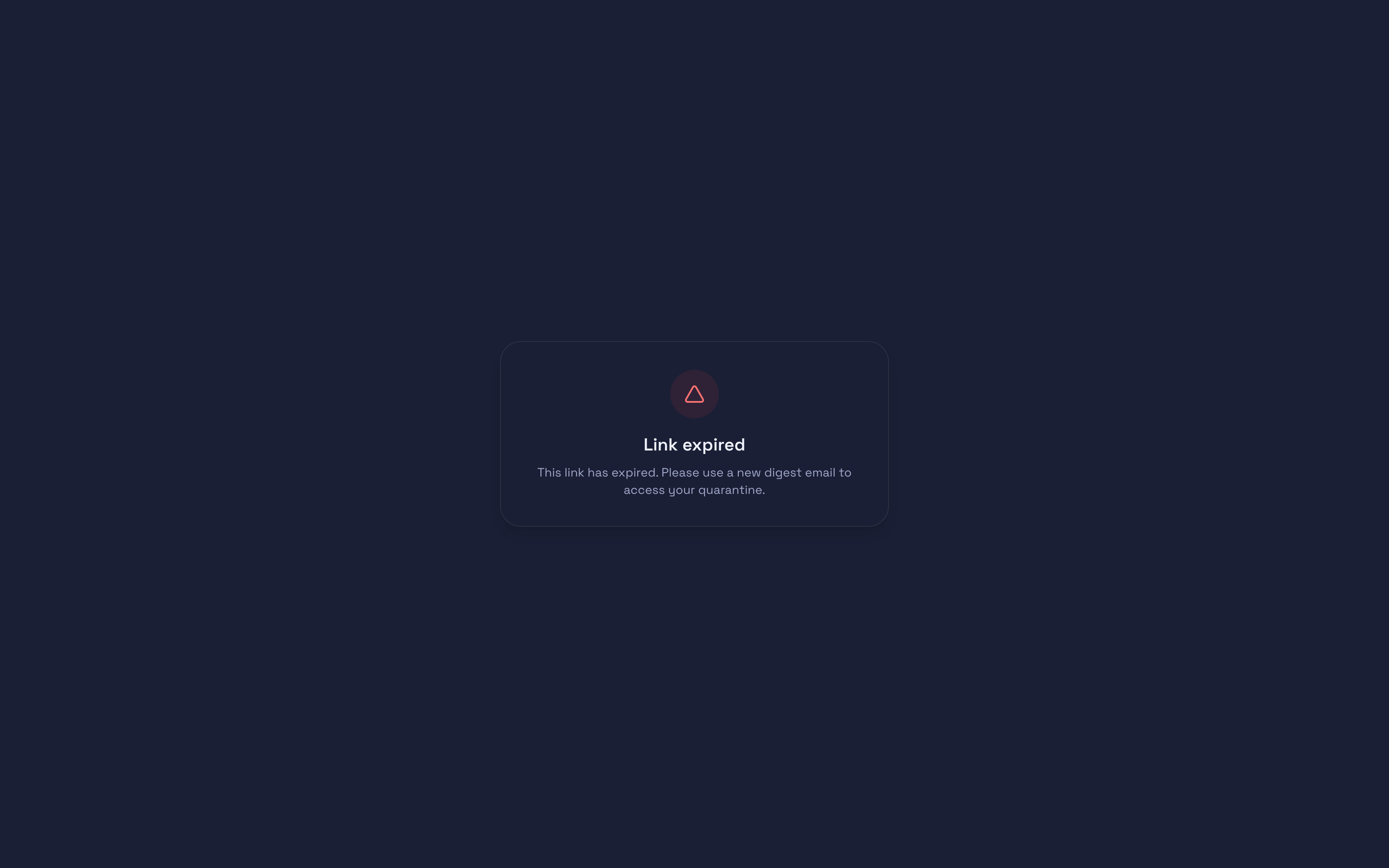
The screen above shows one of these situations: an expired link.
You see the message "Link expired"
This is the most common warning in the portal. The secure link in your email is valid for 24 hours only; once that time is up, it becomes invalid by itself. This is not a fault but a security measure: even if the link falls into the wrong hands, after a while it is of no use.
What to do is simple:
- Wait for the next "Quarantine Summary" email to arrive.
- Click the new link in that email.
Every new summary email brings a fresh, working 24-hour link. Once the link opens, you see your quarantined emails again.
If you do not want to wait, contact your administrator; they can send you a new summary email or a new link.
Most portal problems resolve themselves as soon as a new "Quarantine Summary" email arrives. If the link you have does not open, the first thing to try is the link in the most recent summary email.
The "Invalid or missing link" warning
This warning means the link is incomplete or broken. The most common cause is the link address being cut short while being copied by hand.
What to do:
- Go back to the email.
- Click directly on the link; do not copy and paste the address by hand.
If the link still does not open, contact your administrator.
The email you were expecting is not in the list
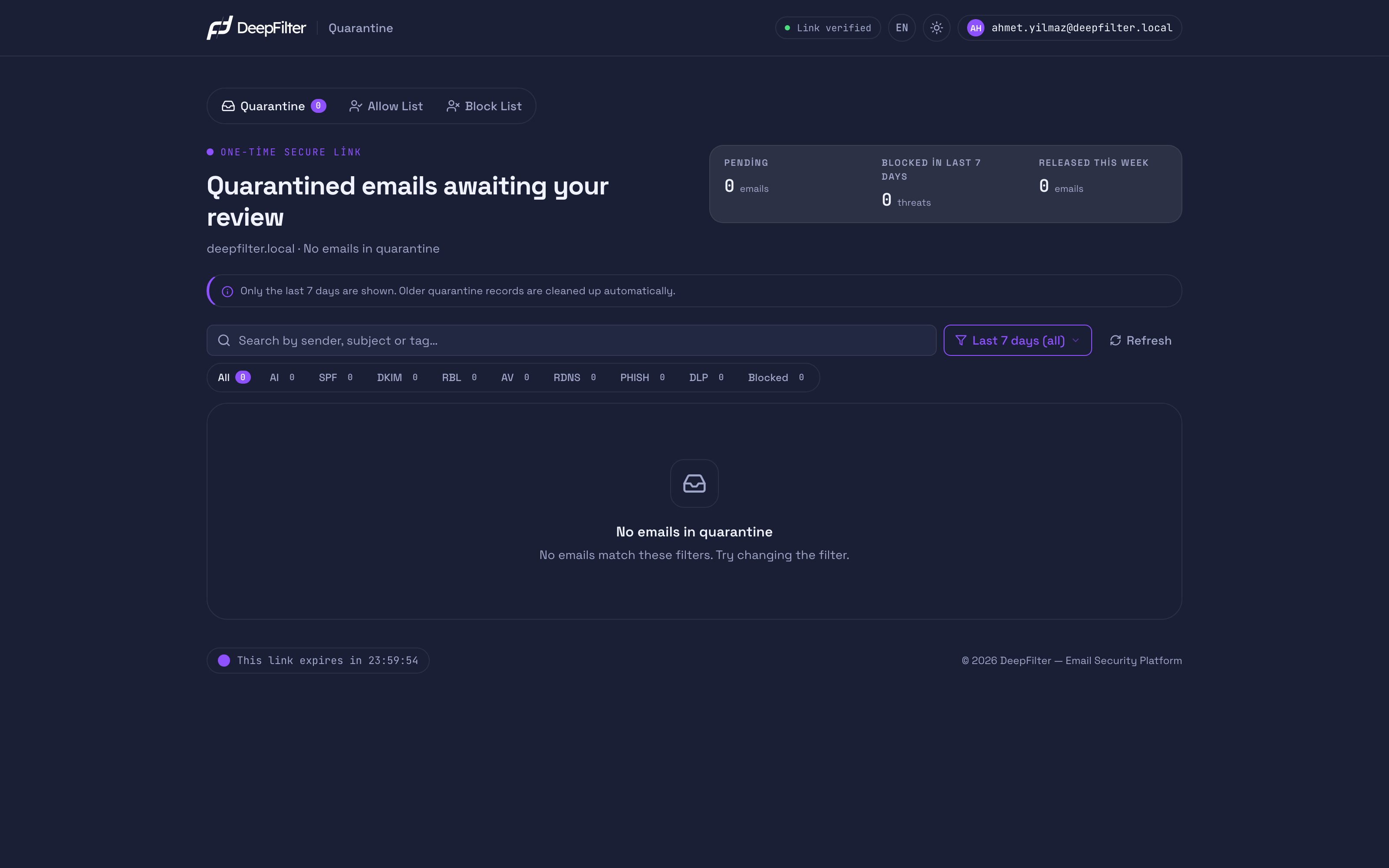
The most common reason an email does not appear in the list is not that it is absent, but that the day filter shows only today when the portal opens. When the portal is first opened, the list shows only the emails held today. An email from a few days ago may be in the list yet stay hidden because of this filter.
Try this first:
- Set the day filter above the list to "Last 7 days (all)" instead of "Today". That way all the emails held over the past few days appear.
- If the email still does not appear, type the sender's name or the email's subject in the search box.
How to know it worked: the email you are looking for appears in the list; you can now click it to review it or release it.
If the email is still missing after you try these, it is most likely older than 7 days. The portal keeps only the emails from the last 7 days. Older records are cleaned up automatically and may not be recoverable. In that case, contact your administrator.
Also, if you released an email earlier, or the email has already been delivered to you, it does not appear in this list. The list shows only the emails that are still waiting in quarantine.
You released an email but it did not arrive
When you release an email, delivery is not instant. The email is first placed in the delivery queue and then passed to your inbox. So it is normal for it to arrive within a few minutes.
What to do:
- Wait a few minutes.
- Check your inbox.
- If you cannot see the email in your inbox, look in your spam / junk folder as well.
If the email still has not arrived after a short wait, contact your administrator; they can look into the email's delivery status.
You cannot see the "Release" button
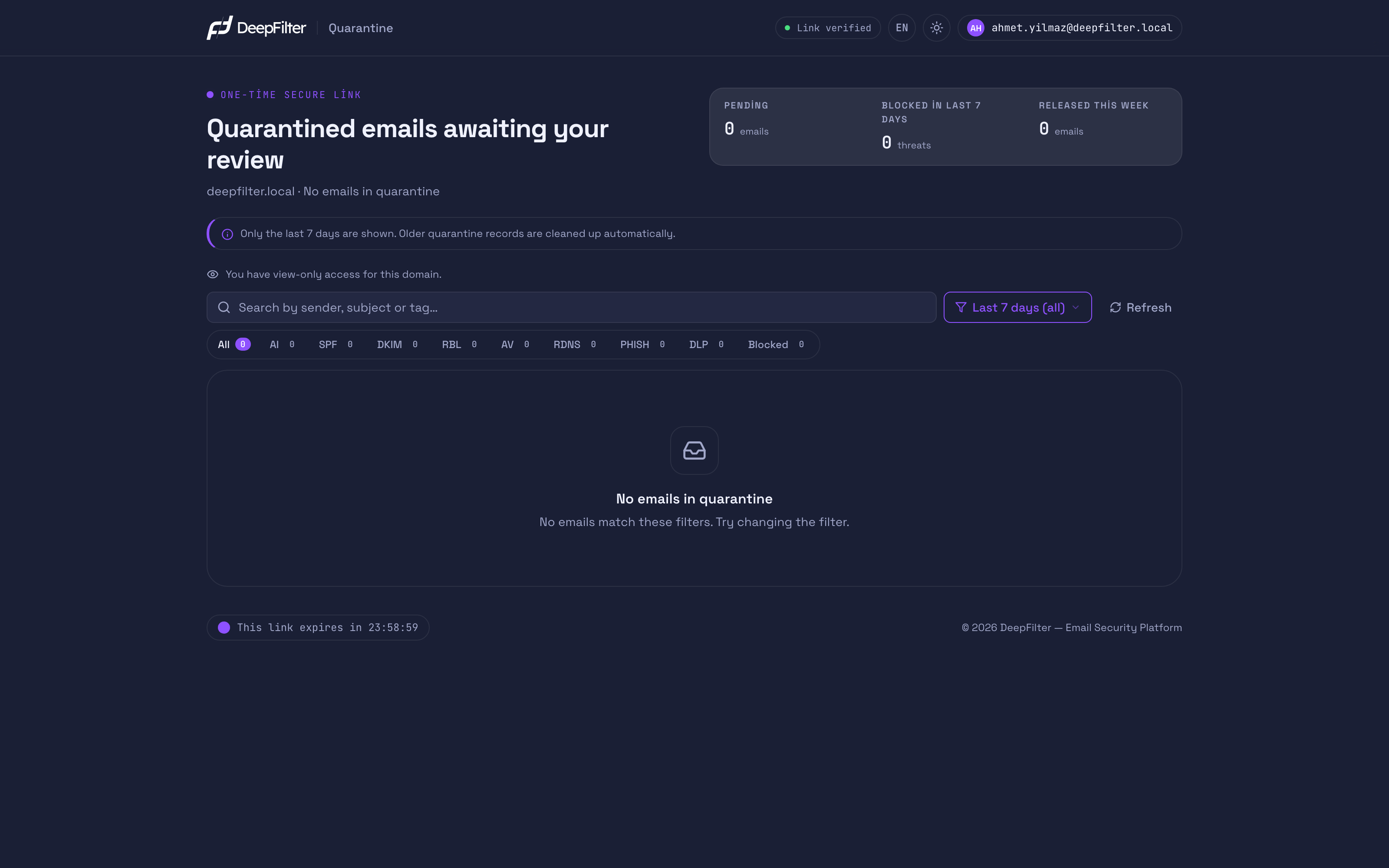
There can be two separate reasons why this button is missing.
1. You have view-only permission. Your administrator may have granted you view-only permission for your domain. In that case you can see and preview the emails in quarantine but cannot release them. In the portal you see the message "You have view-only access for this domain."
2. That email's sender could not be verified. On some emails, a lock icon and an "Administrator approval required" notice appear instead of the release button. This means the email's sender identity could not be verified; someone else may be posing as a sender you know. For your safety, only your administrator can release emails like this. This rule applies even if you have full permission.
In both cases, if you want that email to reach you, contact your administrator. For details on permission levels, see the Permission Levels page.
The "Quarantine portal disabled" warning
When you open the portal you may be met by a "Quarantine portal disabled" warning with a lock icon. This is not a fault: your administrator has chosen to turn the quarantine portal off for your domain. To find out the status of your emails, contact your administrator.
The portal does not open; an error page with the DeepFilter logo appears
Sometimes, instead of the portal, a page with the DeepFilter logo opens saying that the page could not be found or that the service cannot be reached right now. This page is different from the portal warnings described above: those warnings appear after the portal has opened, whereas this page appears when the portal could not be opened at all. The page is shown in Turkish or English depending on your browser's language and follows your device's light or dark theme.
There are two common causes:
- The address is incomplete or wrong. Instead of copying and pasting the link by hand, click directly on the link in the email.
- The service could not respond at that moment (for example, maintenance or a short outage). Wait a few minutes and refresh the page.
If the portal still does not open after you try these, contact your administrator; they can check the status of the system.
If the problem continues
If the problem persists after you have tried the steps above, the safest course is to contact your administrator. Your administrator can send you a new link, adjust your portal permission, or look into the email's delivery status. Contact them as well if you never receive "Quarantine Summary" emails at all.
Passing on these details when you get in touch will speed things up:
- What the screen you saw said (for example, "Link expired").
- Who sent the email you were expecting, and roughly when it arrived.
- Whether you want the email released.
The portal link is unique to you. Do not share it with anyone; if you do, someone else can see your quarantined emails and release them on your behalf.