Viewing Your Emails
If an email you were expecting simply never arrived, DeepFilter may have found it suspicious and set it aside. DeepFilter does not delete emails that look harmful or unwanted; it holds them in a safe area called "quarantine". The reason is simple: the filter sometimes gets it wrong and stops an email you were genuinely waiting for. Quarantine exists so that you can see those emails and rescue them.
You see these emails in the portal, which opens through the link in the quarantine summary email your administrator sends you. This page explains what you will see in that portal and how to review a suspicious email safely and rescue it if needed.
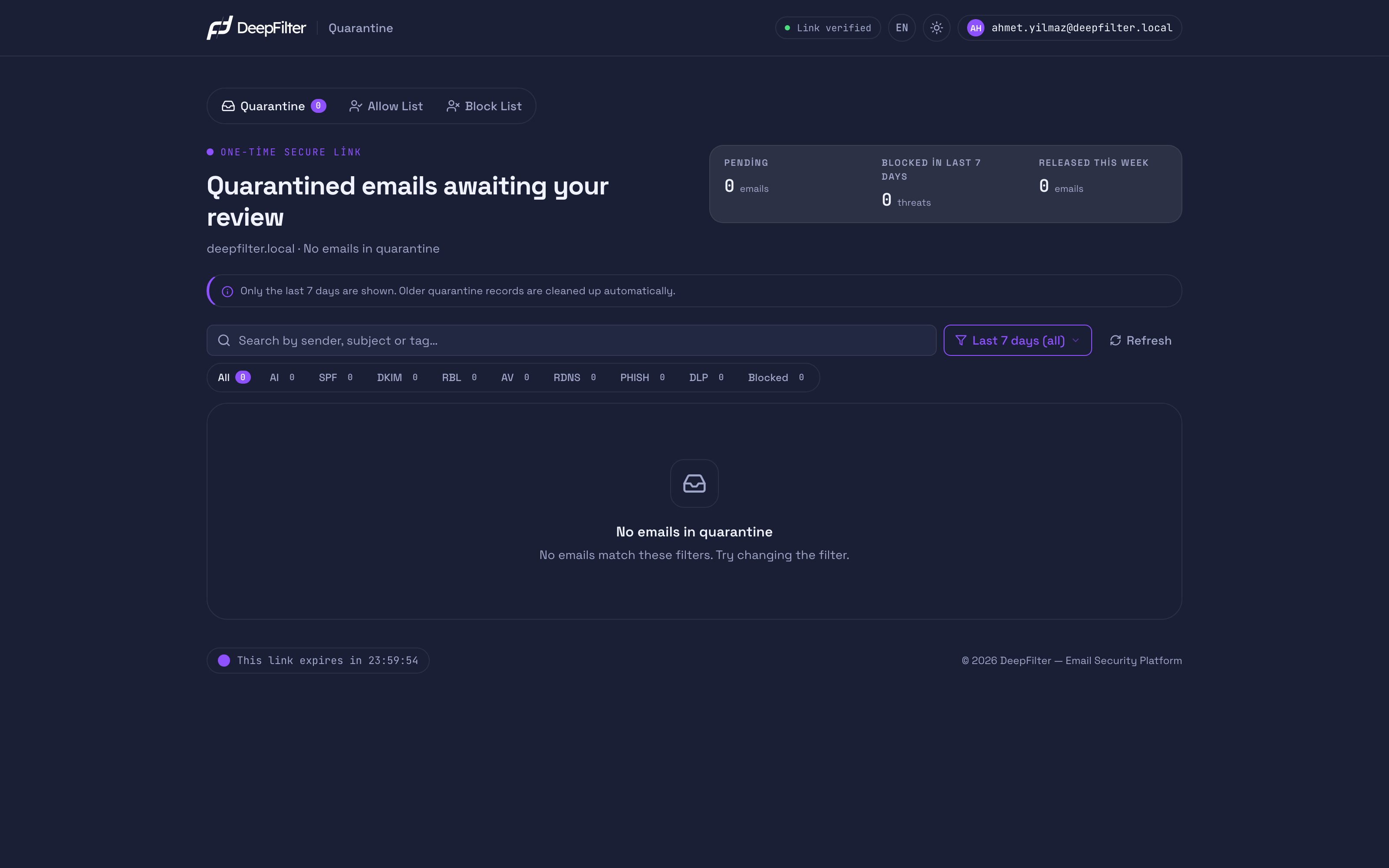
How you get into the portal
You open the portal by clicking the link inside the quarantine summary email your administrator sends. The link is unique to you and opens only your own quarantine; you do not need to enter a username or password.
The link is temporary: it is valid for 24 hours after it is sent. During that time, the portal shows you only the emails addressed to your own address that were set aside within the quarantine retention period. Your administrator sets the retention period; the portal shows it as a number of days (for example "Last 30 days").
The link has to expire in order to stay secure. Once the 24 hours are up, the link no longer works; to open the portal again you need a new quarantine summary email. How often that email is sent depends on your administrator's setting; if it does not arrive, contact your administrator.
If you open the portal and see a locked information screen, your administrator may have turned off access to it. This is not an error; it is an organization's choice. If you want access, contact your administrator.
The three summary figures at the top
The three counters at the very top of the page give you a short summary of your quarantine. They are for information only; you do not need to click them.
- Pending — The number of emails currently waiting for your review. These are emails that have not yet reached your inbox and are being held to one side.
- Blocked in last N days — The number of threats stopped for security reasons within the retention period (for example "Blocked in last 30 days"). This figure covers the emails still pending as well as those you released or deleted, so it can be higher than the "Pending" figure.
- Released this week — The number of emails you let through this week by deciding "this email is safe, let it into my inbox".
Reading an email in the list
The list below the counters shows the pending emails row by row. Before you open an email, the details in its row help you tell whether it is a message you were expecting or genuinely unwanted mail.
In each row you see:
- Date — The day and time the email tried to reach you. If you know when the email you are expecting was sent, this makes the right row easier to find.
- Sender — The address of the person or organization that sent the email; it is the address you see in the "From" field of your email program. The display name is not shown, only the address. In the small box to the left of the address there is a two-letter country code showing the country the email was sent from. An email you were not expecting, coming from an unfamiliar and distant country, may deserve extra suspicion.
- If it could not be verified that the sender is authorized to use this address, an Unverified sender mark appears under the address.
- If the address that technically sent the email (the envelope address) differs from the displayed address, and either the sender could not be verified or that address belongs to another domain, it is shown below on a small line as Envelope: …. Newsletter and bulk email services often use a different envelope address; this line alone is not a sign of danger.
- Subject — The email's subject line. To its left is a small tag (badge) that sums up why the email was found suspicious (the list of badges is below). When you hover over the badge, a short explanation appears; you also see the same explanation in the Classification card when you preview the email. For emails that cannot be released, Administrator approval required appears under the subject with a lock icon.
- Score — A number showing how suspicious the email was found to be. The higher the number, the greater the suspicion. There is no fixed maximum; your administrator's settings determine at which score an email is quarantined. This column appears only on wide screens; on narrow screens and on tablets it is not in the list, but you can always see the score when you preview the email.
- Action — The icons for previewing, releasing and deleting the email. These actions are explained in the sections below.
Badges and what they mean:
| Badge | Meaning |
|---|---|
| Phishing | Phishing / brand impersonation / credential trap signal |
| Spam | AI / Bayes / Neural spam analysis triggered a high score |
| Virus | ClamAV detected a malware signature |
| Spoofed sender | Sender domain's authorized IP list could not be verified |
| Sender not verified | The sending server's authorization could not be verified. |
| Signature not verified | DKIM digital signature could not be verified or is missing |
| Blocklisted | Sender IP or URL is blacklisted |
| Server not verified | Reverse DNS or HELO could not be verified |
| Sensitive content | Sensitive content (credit card, national ID, IBAN) matched |
| Blocked attachment | An attachment of a blocked file type (e.g. .exe) was detected. |
| Blocked by you | This email was quarantined because you added the sender to your block list. |
| Other | Multiple or general classification |
Previewing an email safely
Opening a suspicious email in your own inbox is risky: an image inside it can track you, and a link can take you to a fake site. The portal's preview removes that risk. It shows you the email so you can read it, but it makes it harmless first.
To preview an email, click its row in the list or the eye icon in that row. The preview that opens gives you three safety guarantees:
- Images are not loaded. The pictures inside the email are not displayed. That way, disturbing content does not appear on your screen and tracking images hidden inside emails do not work. As a result, the sender cannot tell that you read the email.
- Links cannot be clicked. The address of a link in the email may appear as text, but you cannot click it. There is no chance of ending up on a harmful site by accident.
- Only text is shown. The email's visual design, and any code that might be hidden inside it, is not run; the email is shown as plain text.
If the email you are previewing is richly formatted, this information band appears above it: "This email is HTML formatted. For your safety only the plain-text view is shown." This is a normal message showing that the protection is active. If the email is very long, the text is shortened; you can open the rest with "Show more".
Next to the preview there are cards that help you assess the email:
- Threat score — The larger version of the score in the list. It shows how suspicious the email was found to be.
- Classification — The badge and its explanation; it tells you in one sentence why the email was found suspicious (for example "Phishing / brand impersonation / credential trap signal").
- Triggered rules — The names of the main rules that stopped the email. At most three rules are shown by name; the rest are grouped into a single tag (for example "2 more rules"). You do not need to understand all of them — together they build a picture of the suspicion.
- Show headers — When you open it, it shows details such as sender, recipient, subject, date and size.
Rather than opening an email from a sender you are unsure about directly in your inbox, preview it here first. Because the preview shows the email in a harmless form, it is the safest way to review it.
Searching, filtering and refreshing
If there are a lot of emails in the list, there are three ways to find what you are looking for.
- Search box — Type the sender's email address (the displayed address or the envelope address), a word from the subject, or a badge name (for example Phishing). The list instantly filters down to the matches. The search ignores upper/lower case and accents (including Turkish characters); for example, typing "PHISHING" also finds emails with the Phishing badge. For example, if you are waiting for an email from a particular company, you can find it quickly by typing the company's name.
- Category bar — Filters emails by badge. If you want to see only Phishing or only Virus emails, click the relevant tag. Next to each tag is the number of emails it covers; tags that have no emails at the moment do not appear in the bar.
- Date menu — When the portal opens, All is selected; all your pending emails within the retention period are shown. To see a single day, choose Today, Yesterday or one of the weekday names of the past week (for example Monday) from the menu. If there are no emails on that day, the option is dimmed and cannot be selected. Emails older than a week are listed only under All.
If you want to see the most up-to-date version of the list, click Refresh; the emails are loaded again.
The list shows at most the newest 500 emails. If you have more pending emails than that, the note "Showing the newest 500 emails." appears above the list; in that case older emails are not included in the list.
Using the portal on a phone
When you open the portal on a narrow screen such as a phone, the list appears as cards instead of a table; all the information and buttons fit on the screen, with no need to scroll sideways.
- Card — Each email is a card showing the sender's country and address, the time, the suspicion tag and up to two lines of the subject. On the right of the card are the release (check mark icon) and delete (bin icon) buttons. Tapping the card opens the preview inside it. The Unverified sender mark, the Envelope: … line and Administrator approval required on locked emails appear on the card as well.
- Day headings — Cards are grouped by day; as you scroll the list, the heading of the current day stays fixed at the top of the screen.
- Select all — The box above the list selects all the visible emails. You can also select them one by one with the box on the left of each card.
- Short summary — The three counters at the top appear on a single line with short names (Pending, Blocked in N d, Released this week); the retention period note is shortened as well ("Last N days shown.").
When you select emails, a fixed action bar opens at the bottom of the screen (see Releasing and Deleting).
Rescuing a safe email
If you are sure that an email in quarantine is in fact safe and really should reach you, you can release it and move it to your inbox.
Prerequisites
- Make sure the email comes from a trusted sender you were expecting. If you are not sure, preview it first.
Steps
- Preview the email and check its sender and content.
- Click the check icon in its row in the list, or the release button on the preview screen.
Verification — how to know it worked
- The email is delivered to your inbox and the "Released this week" counter at the top goes up by one.
Do not release an email you are unsure about. A released email goes straight to your inbox; if it really is harmful, it is no longer behind the protection. If you have any doubt, leave the email where it is.
If you see a lock icon instead of the release icon and Administrator approval required under the subject, only your administrator can release that email for security reasons. The reason is given in one sentence when you hover over the icon and in the preview: the email contains malware, it contains a blocked file type, or its sender could not be verified. If you really need such an email, contact your administrator (details: Releasing and Deleting).
If you are sure an email is unwanted, you can remove it from your list with the bin icon. Deleting is usually unnecessary: if you do nothing, an email drops off the list by itself when the retention period ends.
Troubleshooting
- The link does not work or says "expired". The link is valid for 24 hours only. Wait for a new quarantine summary email and open the portal again with the link in it. If the email does not arrive, contact your administrator.
- The portal does not open; I see a locked screen. Your administrator may have turned off portal access. Contact your administrator for access.
- It says "Could not load preview". The email's content may no longer be readable (usually the email has been processed and moved). Even then, the score and classification details remain visible.
- The sender country shows as "??". The country the email was sent from could not be determined. This is not a problem; you can still review the email.
- I cannot release an email; there is a lock icon. Only your administrator can release that email for security reasons; the reason is shown in the preview. Contact your administrator.
- An older email I was expecting is not in the list. First make sure All is selected in the date menu. The portal shows the emails within the retention period; quarantine records older than that are deleted automatically and cannot be brought back (not even by your administrator). So when you spot an email you were expecting, do not put off acting on it.