Allow List and Block List
An email you were expecting may simply never arrive. Or the opposite: the same unwanted sender may keep writing to you. DeepFilter scans the emails sent to you for unwanted and harmful content; anything it finds suspicious is held in quarantine (the area where emails wait for review) instead of going to your inbox. This works correctly most of the time, but sometimes an email from a sender you trust is held back by mistake as well.
The Allow List and the Block List let you handle both situations yourself, without waiting for your administrator:
- Allow List — You add senders you trust here. Their emails come straight to your inbox without being stopped by content scanning.
- Block List — You add senders you do not want here. Their emails do not enter your inbox; they go to quarantine.
Both lists affect only the emails sent to you. When the same sender writes to another employee, these rules do not apply. The lists your administrator defines for the whole organization are separate; you cannot reach them from this screen.
The Allow List and Block List tabs appear only if your administrator has granted you full permission. If you see only the Quarantine tab in your portal, your permission is limited to viewing. To use these lists, contact your administrator.
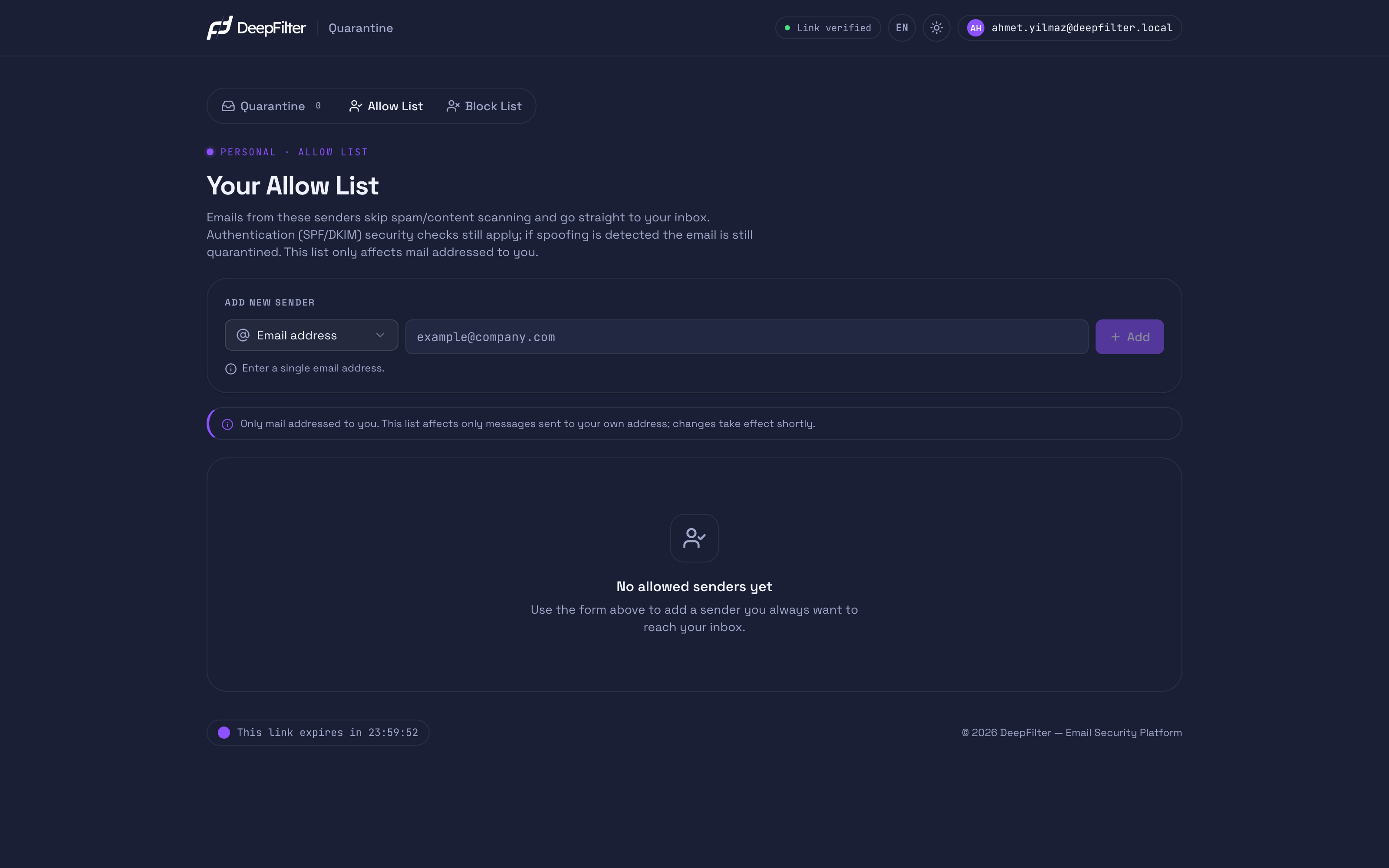
You reach the Allow List and the Block List from the tabs at the top of the portal.
Allow List
What it does: Emails from senders you add to the Allow List skip spam and content scanning and are delivered straight to your inbox. (default: the list is empty)
Why it exists: A trusted person or company you email constantly can occasionally be caught in quarantine by mistake because of the content of their messages. The Allow List lets you define those senders once and put an end to that false alarm.
What happens when you add a sender: That sender's emails are no longer stopped by content scanning and reach your inbox without delay. When you take the sender off the list, they go through normal scanning again.
What it does not skip: The Allow List bypasses content scanning, but it does not bypass the authentication checks (SPF/DKIM) that confirm the sender really is who they claim to be, or the virus check. If someone sends email by impersonating an address you trust, or a virus is found in an email from an allowed sender, that email is still quarantined even though it is on your Allow List. This is deliberate: it protects you from attackers posing as someone you trust and from malware arriving from a familiar address. The security checks your administrator defines for the whole organization also remain in force.
Which address it matches: An Allow List entry applies when it matches the address that technically sent the email (the envelope address). The sender address you see in the email can be different; if only this displayed address matches your list, the allow applies under these conditions:
- For a Domain name entry, the allow applies if the sender's domain has verified the email (with SPF or DKIM); without verification it does not apply.
- For an Email address entry, the allow does not apply; a single-address entry matches only the envelope address.
That way, an attacker who merely writes an address you trust as the displayed sender cannot benefit from your Allow List.
Block List
What it does: Emails from senders you add to the Block List do not enter your inbox; they go straight to quarantine. (default: the list is empty)
Why it exists: If a sender who bothers you, or who has nothing to do with your work, keeps emailing you, you can add them to the Block List to keep those emails out of your inbox.
What happens when you add a sender: That sender's later emails do not appear in your inbox; they collect in quarantine. When you take the sender off the list, their emails start arriving in your inbox again.
Blocking a sender is not the same as deleting their emails. Emails from a sender you block are kept in quarantine. You can see them in the Quarantine tab and release one if you need to. That way you do not miss an important message by accident.
Adding a sender to the Allow List
Prerequisites
- The Allow List tab must be visible in your portal. If you cannot see it, your permission is limited; contact your administrator.
Steps
- Open the Allow List tab at the top of the portal.
- In the Add new sender form, choose what you want to add:
- Email address — adds a single person (for example
alice@company.com). - Domain name — covers all addresses at a company. For example, if you enter
company.com, every address at that company —alice@company.com,bob@company.comand so on — is included.
- Email address — adds a single person (for example
- Type the sender's address in the address box.
- Click the Add button.
Verification — how to know it worked
- The sender appears in your list and the change takes effect within a few seconds. That is the real sign that it worked. An informational email is also sent after you add a sender; however, that email may be delayed or may never arrive, so do not treat it as the measure of success.
If you notice that an email you were expecting has been quarantined, first release it from the Quarantine tab, then add the sender to your Allow List. That way emails from the same sender are not held back again.
Adding a sender to the Block List
Prerequisites
- The Block List tab must be visible in your portal. If you cannot see it, contact your administrator.
Steps
- Open the Block List tab at the top of the portal.
- In the Add new sender form, choose Email address or Domain name.
- Type the address of the sender you want to block in the address box.
- Click the Add button.
Verification — how to know it worked
- The sender appears in your list and the change takes effect within a few seconds. That sender's later emails show up in the Quarantine tab instead of your inbox.
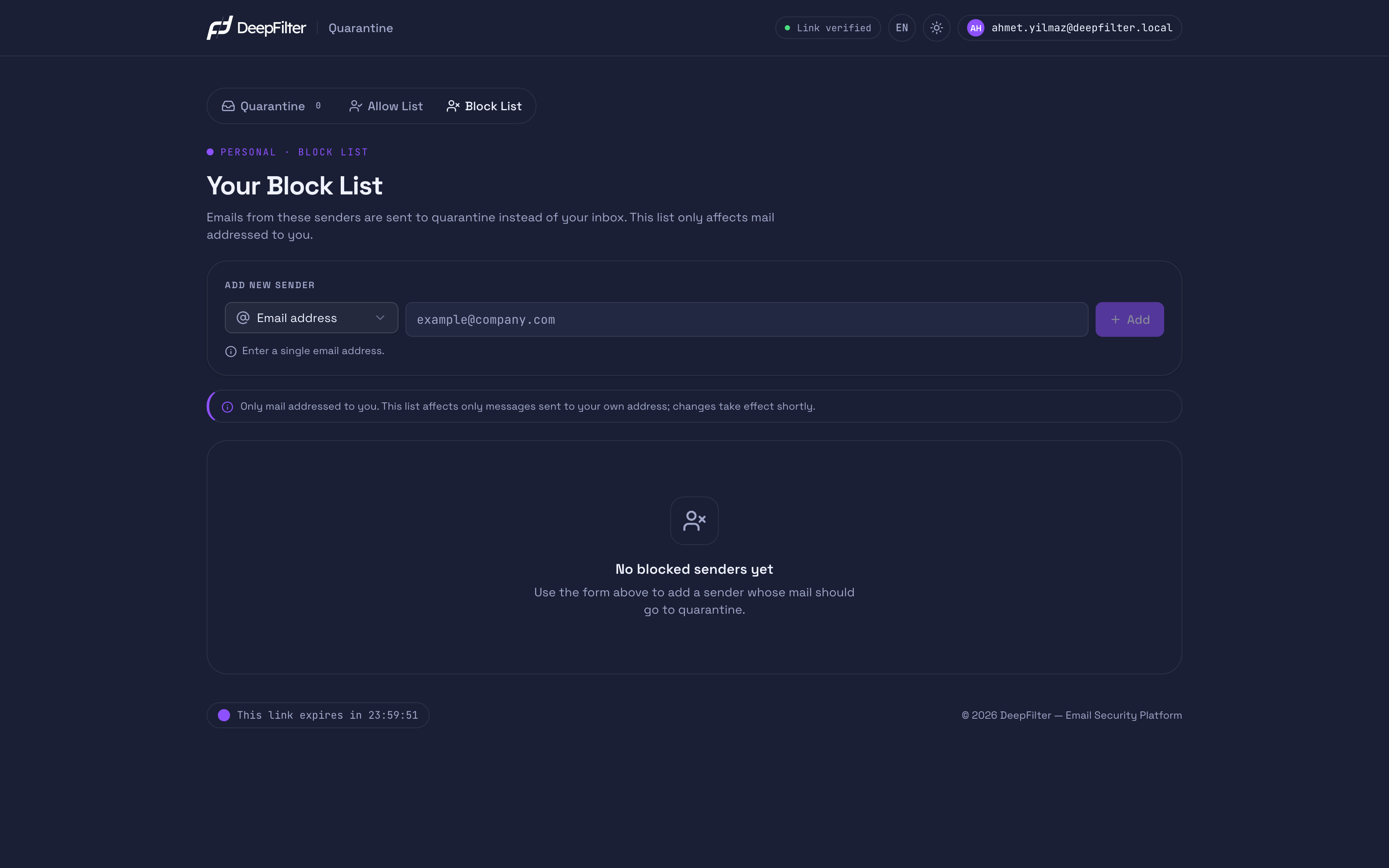
When you add an address to the Block List, it is automatically taken off your Allow List if it was there. The same sender cannot be allowed and blocked at the same time; if there is a conflict, blocking wins.
Removing a sender from a list
If you change your mind, you can take a sender you added off the list.
Steps
- Open the tab that holds the sender you want to remove (Allow List or Block List).
- Find that sender's address in the list.
- Click the Remove button next to the address and confirm the action.
Verification — how to know it worked
- The address disappears from the list. If you removed it from the Allow List, that sender's emails go through normal scanning again. If you removed it from the Block List, that sender's emails start arriving in your inbox again.
Things to keep in mind
Each list holds at most 200 senders. When a list is full you cannot add anything new and you get a "List full" warning. To make room, take addresses you no longer use off the list with Remove.
Add only addresses you genuinely know and trust to the Allow List. If you add an address you do not know, unwanted emails from that sender can also skip content scanning and reach your inbox. Do not add an address you are unsure about to the Allow List.
Troubleshooting
I cannot see the Allow List and Block List tabs. These tabs appear only for users with full permission. If your portal has only the Quarantine tab, your permission is limited to viewing. Contact your administrator to have it changed.
I blocked a sender — have their emails disappeared? Blocking does not delete emails. Emails from a blocked sender go to quarantine instead of your inbox and are kept there. You see them in the Quarantine tab with the Blocked by you badge; none of them are lost.
I added a sender to the Allow List, but their email was quarantined anyway. The Allow List bypasses content scanning, but it does not bypass the security checks that verify the sender's identity, or the virus check. If an email has an authentication problem (for example, the sender address has been faked) or contains a virus, it is quarantined even though it is on your Allow List. Only your administrator can release such an email that contains a virus or whose sender could not be verified. If you are unsure about the situation, ask your administrator.
I cannot add a new sender; I get a "List full" warning. Each list holds at most 200 senders. To make room, take addresses you no longer use off the list with Remove.
Emails from a mailing list or a forwarded address do not match. Mailing lists and forwarding setups often deliver the email under a technical address (the envelope address) that differs from the original sender. In that case the allow may not apply even if the displayed sender is on your Allow List. If the email's card in the Quarantine tab shows an Envelope: … line, add the address on that line to your Allow List, or add the sender's domain as a Domain name (the allow applies when that domain verifies the email). If the problem continues, contact your administrator.