Releasing and Deleting
If an email you were expecting never reached your inbox, DeepFilter may have put it in quarantine for safety. Quarantine is a safe waiting area where DeepFilter holds emails it finds suspicious before they get to you. If you see that an email here is in fact safe, you can have it delivered to your inbox; this is called releasing. An email you genuinely do not want, you can delete.
This page explains what the two actions do, which one to choose when, and what to do when you cannot make up your mind.
Release and delete appear only if your administrator has granted you that permission. If you cannot see these buttons in your portal at all, your account may have been set up for viewing only. In that case, contact your administrator to have an email released or deleted; see the "When to contact your administrator" section below for details.
Preview first
Before you do anything, see what the email actually is. When you click a row in the list, that email's preview opens: the sender, the subject and part of the content are shown. Did it come from a sender you know and were expecting, or from someone you have never heard of? Base your decision on that.
For your safety the preview is always shown as plain text; links and images inside the email do not work on this screen. The panel also shows why DeepFilter held this email back (a Threat score and Triggered rules), which helps you decide.
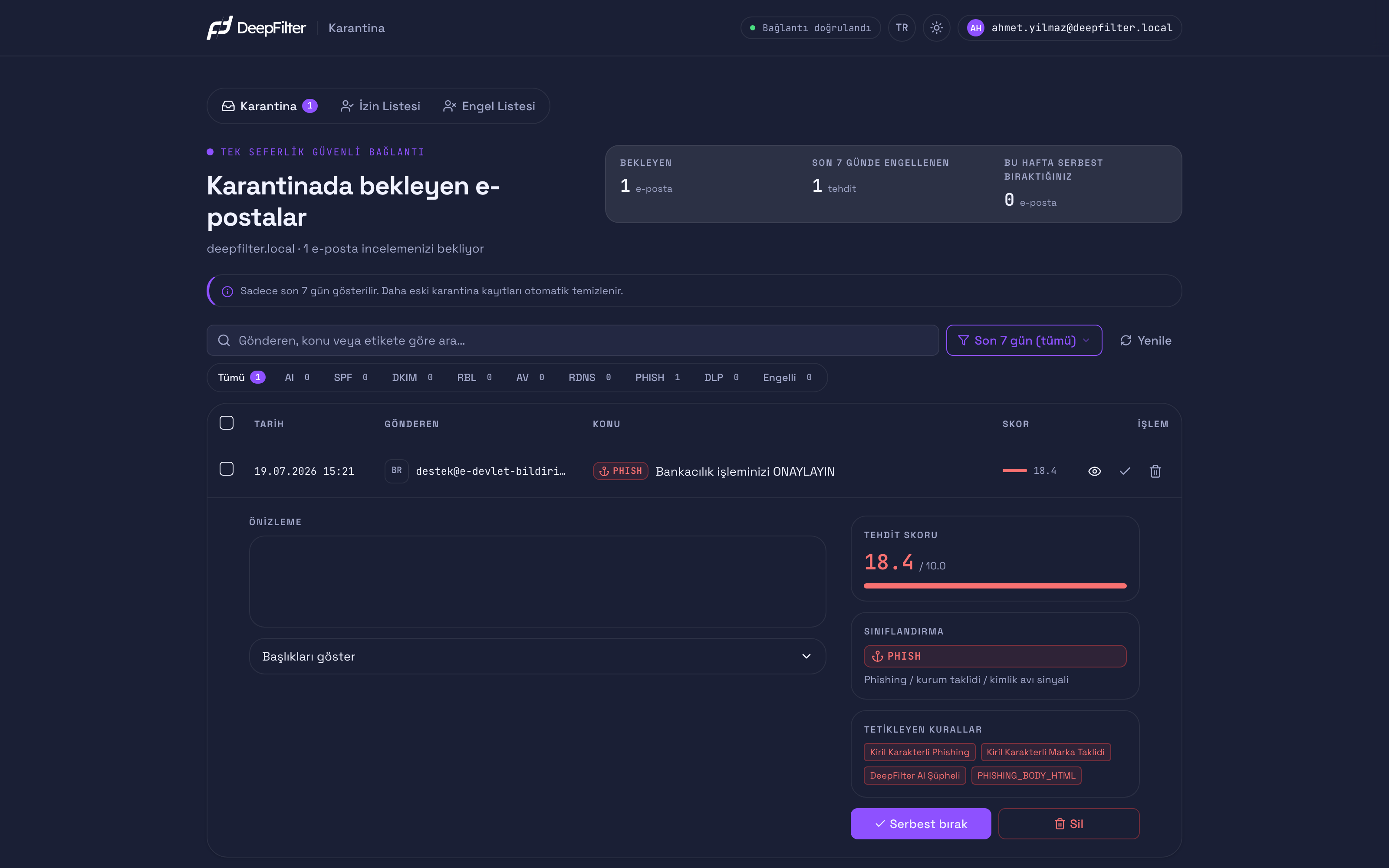
Actions
There are two actions you can take on an email: Release, which has it delivered to your inbox, and Delete, which removes it from quarantine.
Release
Release takes the email you selected out of quarantine and delivers it to your inbox.
DeepFilter sometimes treats a safe email as suspicious by mistake and puts it in quarantine. Releasing is the way to rescue that email and get it to you.
An email you release usually reaches your normal inbox within a few minutes and disappears from the quarantine list. However, if the email really is harmful, it is now in your inbox and cannot be taken back — so release only emails you are sure are safe.
Delete
Delete removes the email you selected from quarantine.
Advertising or fraud emails you genuinely do not want can build up in quarantine. Deleting lets you keep your list down to the emails you actually need to deal with.
Deleting does not move the email to your inbox. The email is removed from quarantine completely and cannot be recovered — neither you nor your administrator can bring it back. You do not have to delete anything, either: emails you do not touch drop off the list by themselves when the retention period ends, because the portal shows only the emails within the retention period.
Releasing an email
Prerequisites
- Before releasing, open the email's preview and make sure the sender, the subject and the content are what you expected. If you have any hesitation, do not release it.
Steps
- In the quarantine portal, click the email in the list; the preview opens.
- Read the preview and decide that the email is safe.
- Click the Release button.
- In the confirmation window that opens, confirm the action with Release.
Verification — how to know it worked
- The email disappears from the quarantine list and usually appears in your normal inbox within a few minutes.
- If the list does not update straight away, click Refresh; the email you released drops off the list.
Suspicious emails can be harmful: the links inside them can take you to a fake site, their attachments can damage your device, or the email may be trying to trick you into giving away your details. DeepFilter held this email back for a reason, so do not release it if you have even the slightest doubt. If you know the person it claims to be from, reach them another way — by phone, for example — and confirm whether they really sent it. When you cannot decide, ask your administrator about the email.
Deleting an email
Prerequisites
- Make sure the email really is unwanted advertising or a fraud attempt. Deleting cannot be undone.
Steps
- In the quarantine portal, click the email in the list; the preview opens.
- Read the preview and decide that the email is unwanted.
- Click the Delete button; a confirmation window opens.
Deleting is permanent. The email you confirm is removed from quarantine completely and cannot be brought back — neither you nor your administrator can recover it. Make sure the email in the confirmation window really is the one you want to delete.
Complete the action by clicking Permanently delete in the confirmation window.
Verification — how to know it worked
- The email disappears from the quarantine list. Nothing arrives in your inbox; the email is now gone for good.
Acting on several emails together
To release or delete several emails at once, tick the boxes at the start of the rows in the list (cards on a phone). To select all the visible emails, use the box above the list.
When you make a selection, an action bar opens. The bar shows how many emails are selected ("N / M selected") and has the Release selected, Delete and Clear selection buttons. On a phone this bar stays fixed at the bottom of the screen and remains reachable while you scroll the list.
The rules for single actions apply to bulk actions as well: the action is completed through a confirmation window, and deletion cannot be undone. If your account has view-only permission, the selection boxes do not appear.
If your selection also includes emails that only your administrator can release (locked emails):
- Release selected skips the locked emails and releases the others. The confirmation window states how many emails will be skipped (for example "2 emails require admin approval and will be skipped."); when the action finishes, a notification also shows how many emails were skipped.
- If all the emails you selected are locked, the Release selected button is disabled and the bar shows "Only your administrator can release the selected emails."
- Delete covers locked emails as well.
When to contact your administrator
In some situations you cannot release an email yourself, or cannot act on it at all. These are not errors; they are limits put in place for security.
Lock icon and "Administrator approval required". For security reasons, only your administrator can release some emails. On these emails you see a lock icon instead of the Release button, and the words "Administrator approval required" under the subject in the list. The reason is given in one sentence in the preview, in place of the release button:
- "This email contains malware, so only your administrator can release it."
- "This email contains a blocked file type, so only your administrator can release it." (The file may be a direct attachment or inside a compressed file.)
- "The sender could not be verified, so only your administrator can release this email." (The sender details may have been faked.)
If you are sure you really need such an email, contact your administrator. (You are free to delete these emails, however.)
View-only permission. If you cannot see the Release and Delete buttons in your portal at all, your account has been set up for viewing only; you can review emails but not act on them. To have an email released or deleted, contact your administrator.
If the portal is disabled. The quarantine portal may have been turned off for your domain; in that case the portal does not open at all. Contact your administrator for access.
When you cannot decide. If you cannot tell whether an email is safe or harmful, ask your administrator before releasing it. Asking is always safer than releasing the wrong email.
Troubleshooting
I released an email but it is still showing in the list. The list does not always update instantly. Click Refresh; the email you released will drop off the list.
I released an email but it did not reach my inbox. Delivery can take a few minutes; wait a short while and check your inbox (and your junk/spam folder) again. If it still has not arrived after a while, contact your administrator.
I see a lock icon instead of Release. This is an email that, for security reasons, only your administrator can release; the reason is shown in the preview. If you really need it, contact your administrator.
Some emails were skipped in a bulk release. The skipped emails are ones that only your administrator can release. The others have been released; the skipped ones stay in the list.
I cannot see the Release and Delete buttons at all. Your account may have been set up for viewing only. To act on emails, contact your administrator.
Release an email you are sure is safe (it comes to your inbox). Delete an email you do not want (this is permanent). If you are not sure, do nothing or ask your administrator.