Audit Logs
Audit Logs keep a record of every administrator operation performed on DeepFilter — who did what, when, and from where. They let you answer questions retrospectively: who changed a setting, which account signed in to the system, or when quarantine notifications were sent.
Why is such a record needed? An email security system holds personal data and makes critical filtering decisions. After an unauthorised access, a mistaken configuration change or a security incident, the question "who touched what, and when" must be answerable with certainty. Audit Logs establish that chain of accountability and provide the auditability required by data protection obligations such as KVKK.
How is the record safeguarded? Every administrator operation is written to two independent places at the same time. The first is the record database this screen reads. The second is a separate log file kept on the server, to which only new lines are appended. The screen shows only the database; the file is kept in the background as a second, comparable trail.
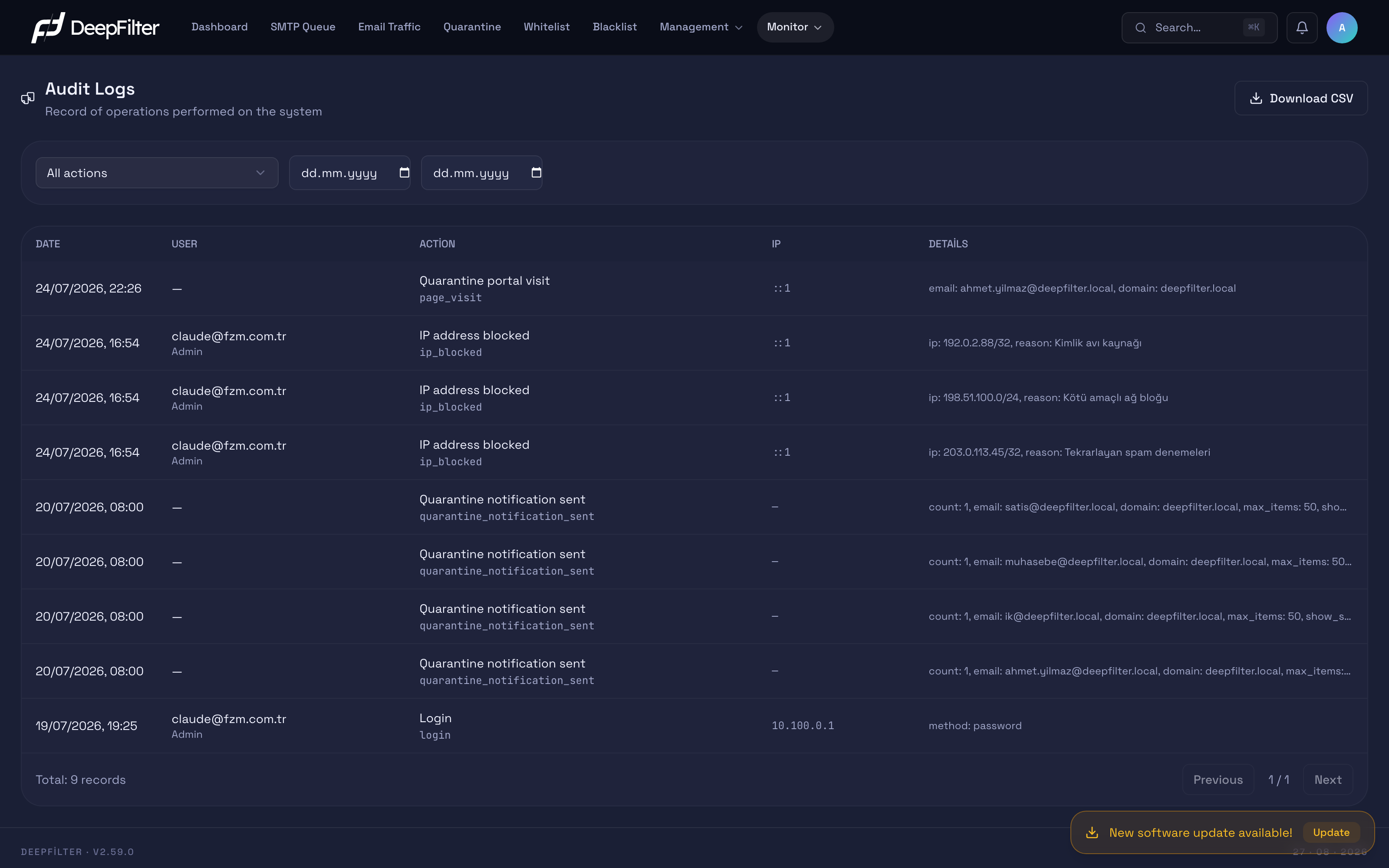
The audit record table, sorted chronologically with the newest operation at the top.
Operations
This screen is view-only: you read, filter and export records. Audit records cannot be edited or deleted from this screen; every operation remains as a read-only trail.
Reading records
The table places each operation on one row, sorted with the newest operation at the top. The columns carry the information needed to interpret a record:
- Date — The date and time the operation took place. The list is always sorted newest to oldest; use the date filter to see a specific period.
- User — The account that performed the operation is shown on two lines: the account's email address on top, and that account's display name below. The value on the lower line is the user's name, not their role. If the field is —, the operation was produced automatically by the system rather than by a user (for example scheduled quarantine notifications).
- Action — A readable description of what the operation was (for example "Login", "Released from quarantine", "Whitelist entry added"). The technical name of the operation (
login,quarantine_release,whitelist_add) sits below the description in small type: you read the description while scanning the screen, and refer to the technical name when opening a support request or matching the record against another record. - IP — The source IP address the operation came from. In automatic/system records there is no originating request, so this field shows —.
- Details — Additional information about the operation (for example
method: passwordfor a sign-in, or the recipient email address and item count for a notification). Long values are truncated to fit the table and end with …; hover over the cell to see the full text.
Audit Logs are visible only to global administrator accounts. On accounts with the domain administrator (domain admin) role, this screen is not listed under the Monitor menu.
Filtering by action
The action filter is a dropdown that narrows records down to a single operation type. The list presents every operation type in the system grouped by subject: Session and Security, Quarantine, Quarantine Portal, Notifications, Lists, Domain and Server, Settings, Inbound Scanning, Outbound Mail, System, Reports and Recall. That way you find the operation you are looking for under the relevant heading without knowing its name; the default selection is All actions.
This structure is more than a convenience: the filter matches the technical name of the operation exactly, and a half-typed string returns no results at all. Because the selection is made from a list, the possibility of getting the name wrong disappears.
When you are looking for the trail of an irreversible operation, go straight to the relevant group: operations that take email out of user mailboxes are under the Recall heading (creating the request, approving it, cancelling it and exporting the report are each recorded separately), while changes made to the Zimbra connection are listed under the Settings heading.
Filtering by date range
Two date fields, a start and an end, narrow records down to a specific period. The filter returns records from the start date up to the end of the end day; that is, the end day is included in the range. To see the records of a single day, enter the same date in both fields.
Exporting as CSV
Download CSV downloads the records matching the currently applied filters as a CSV file (audit-logs.csv). It differs from the on-screen table in two respects:
- While the on-screen table is split into pages (25 records per page), the CSV contains every matching record in a single file, with no pagination. To export a wide period in one go, set the filter and use this button.
- The CSV carries one field that is not shown on screen: the client identifier the operation was performed from (browser/client information). This gives you a more detailed record in the file than the five columns on screen.
If a long Details value is truncated in the table and cannot be read, export it with Download CSV; the file contains the values in full, without truncation.
Investigating a Security Incident
Prerequisites
- Knowing the approximate date of the incident you are investigating speeds up the search. If the exact date is unknown, start with a wide range and narrow it down.
Steps
- Open the Monitor → Audit Logs screen.
- Set the start and end date fields to the day the incident occurred (or to a narrow range).
- If you are tracing a specific operation type (for example sign-in records), open the action filter and select the operation under the relevant heading (for example Session and Security → Login).
- On the remaining rows, evaluate the User and IP columns together: look at whether an unexpected account or an unfamiliar IP address performed operations.
- When you find a suspicious row, hover over the Details column to examine the specifics of the operation in full (for example the sign-in method).
Verification — how to confirm your finding
- Sign-ins to different accounts from the same IP address, operations performed at unusual hours, or an unexpected configuration change record are signs worth investigating. To keep a finding as lasting evidence, preserve the filter and export it with Download CSV.
Points to Watch
Integrity of the records. Audit records cannot be edited or deleted from this interface; every operation leaves a trail that only grows by addition. This prevents records from being altered accidentally or maliciously at the interface level.
This immutability is at the interface level. The records are also kept in an independent log file on the server (/var/log/deepfilter/audit.log), and only new lines are appended to that file. Two independent trails give you the ability to compare the consistency of one against the other.
Long-term retention. The audit records displayed on this screen are not deleted automatically; they are kept permanently. That is an advantage for retrospective auditing. Even so, exporting the records regularly and archiving them in a secure location outside the system protects you against possible data loss or a system migration scenario.
Audit records carry evidentiary value. Exporting them at regular intervals with Download CSV and keeping them in a secure location is recommended for long-term auditability and protection against a possible system change.
Troubleshooting
I filtered but no results come up. The operation type you selected may never have occurred in the date range you gave; widen the range, or set the action filter to All actions to see whether the record exists at all. If you are unsure which heading the operation you are looking for sits under, check the description of a similar record in the Action column and select the same name from the list.
The User column appears empty (—). This is not an error. The operation in question was produced automatically by the system rather than by a person (for example scheduled quarantine notifications). For the same reason, the IP field is empty in these records too.
The Details value appears truncated (for example max_item…). Long values are truncated to fit the table. To see the full text, hover over the value or export the record with Download CSV; values are not truncated in the file.
Audit Logs does not appear in the Monitor menu. This screen is open only to global administrator accounts. If you signed in with the domain administrator (domain admin) role, the screen is not listed in the menu; sign in with an account that has global administrator rights.