Log Management
DeepFilter writes every stage of email flow — an email being accepted, rejected, quarantined or delivered, and the background service events — line by line into log files. These records are the primary source of evidence that lets you see what actually happened instead of guessing, for questions such as "why did that email never arrive?", "why was this sender blocked?" or "when did the service restart?".
The Log Management screen consists of two tabs that answer two complementary questions. The Monitor tab deals with the log files themselves: without connecting to the server, you filter records by type and date, search for text inside them, tail an active file live, and download it with a single click. The Analysis tab looks not at files but at email volume: it produces the daily incoming and outgoing email counts for the email address, domain or source IP you choose, in the month you choose. When the screen opens, the Monitor tab is shown.
Because the system automatically rotates each day's active file and compresses it into a dated archive, the Monitor tab gives you access to both today's live log and the archives of past days from one place. When handling a fault report, the first step is often to examine the relevant log from this screen with the right type and date.
The page opens from Monitor → Log Management.
This page is visible only to the global administrator, and that restriction applies to both tabs. A domain administrator does not see the Monitor menu group at all.
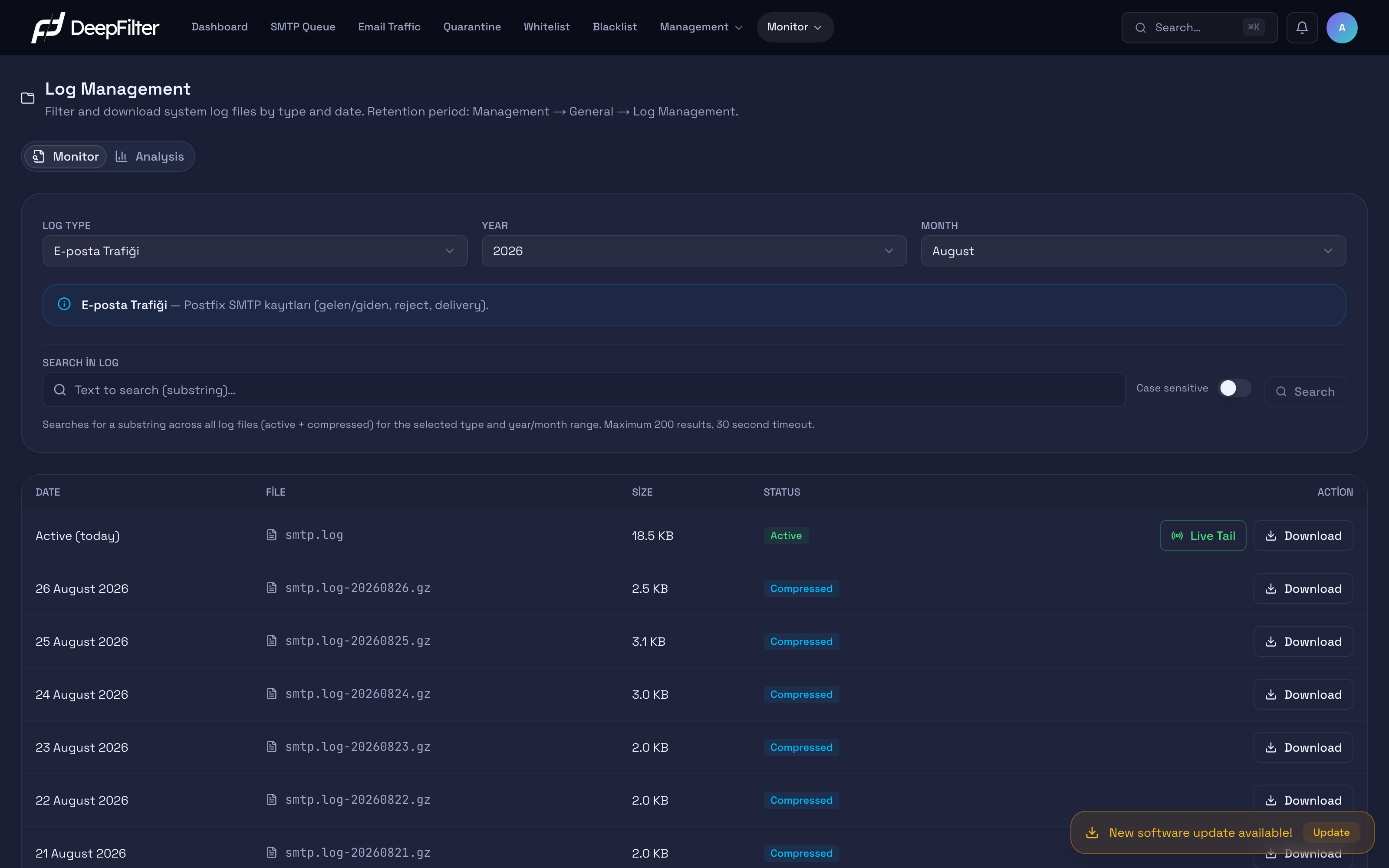
Monitor
The Monitor tab is where you work with the log files the system writes: you select a log type and a period, list the files for that period, search for text inside them, tail the file currently being written live, and download it for examination. The Log Types, File List and Statuses, Searching Inside Logs, Live Tail and Downloading Logs sections below all operate under this tab.
Log Types
DeepFilter does not keep its records as a single pile but in separate types, each following a different part of the system. The Log Type selection determines which part's records you are looking at; an information box summarising what that type contains appears directly beneath your selection. Choosing the right type is half of the diagnosis: you look for a delivery problem in Email Traffic, an operation that errors in the interface in Application Errors, and the decision the AI made about an email in the ML Classification records.
| Type | What it contains |
|---|---|
| Email Traffic | Incoming and outgoing email flow: acceptance, rejection and delivery records |
| Administrator Activity | Administrator sign-ins, quarantine operations and settings changes |
| System Events | Service start/stop, configuration reload, certificate renewal, alarm thresholds |
| Central Communication | License signal, learning and signature synchronisation, central server calls |
| Update Operations | Package installation and upgrade operations, manual update steps |
| Application Service | The general log of the management interface's backend service |
| Application Errors | Only the error-level records of the backend service |
| Background Jobs | The output of the background worker (quarantine synchronisation, delivery tracking) |
| Background Errors | The error records of the background worker |
| Scheduled Tasks | The records of the scheduled task planner |
| ML Service | The log of the AI classification service |
| ML Classification | The output of the AI classification module inside the filtering engine |
| Frontend Service | The log of the web interface service |
| RBL Monitoring | Reputation/blacklist (RBL) check results |
When you select a type, the system switches automatically to the nearest year/month that has data for that type; you are never left stuck on an empty period. That is why you may see the Year and Month fields update on their own when you change the type.
File List and Statuses
When you select a type and a period, the files of that type are listed in the table. Each row is a file, and each file usually carries one day's records; today's active file is at the top, with the archives of past days sorted newest to oldest below it. The Year and Month fields narrow the list down to a specific period; the current month is always in the list, because the active file being written at that moment belongs to it.
Each file's Status column shows where the file sits in the rotation cycle, and that determines what you can do with it:
- Active (green) — Today's file, not yet rotated, currently being written to. Only this file can be tailed live.
- Compressed (blue) — A file rotated and archived at the end of the day. It downloads in compressed form.
- Rarely, a third transitional status (amber) appears for a file that has been rotated but not yet compressed.
Archive files are named <type>.log-YYYYMMDD, and the date there is the day the records belong to (usually the previous day), not the day the rotation ran. On most days a type produces one archive; however, on a very busy day, if the file exceeds 100 MB it is rotated before the day ends, so there is no guarantee of "exactly one file per day" — on such days you may see more than one archive for the same day.
Searching Inside Logs
Instead of scanning large log files one by one, you can search for a text line by line across all files of the selected type and period (both active and compressed). This is the way to find a sender address, a domain or a queue ID quickly, past archives included.
The search finds the lines where the text you entered appears exactly (it performs a substring search; regular expressions / wildcards are not supported). The Case sensitive switch controls letter case sensitivity (default: off, meaning upper and lower case are not distinguished); turn this switch on only if you are looking for an exact case match. Each search returns at most 200 results and is limited to 30 seconds; if you hit that limit on large monthly archives, a "(limit or timeout — more results may exist)" warning appears below the results.
Searching for Text Inside a Log
Prerequisites
- The type and period of the log you want to examine must be selected correctly; the search scans only the files in the selected type and year/month range.
Steps
- On the Monitor tab of the Monitor → Log Management screen, set the Log Type and, if needed, the Year / Month fields.
- Enter the text you are looking for in the Search in Log box (sender address, domain, queue ID and so on).
- If letter case matters, turn on the Case sensitive switch.
- Click the Search button.
Verification — how to know it worked
- Matching lines are listed with the file name, the line number and the searched text highlighted. Above the list, a summary appears in the form "N matches · X files scanned · Y ms".
If the search returns no results or is cut off with the "(limit or timeout — more results may exist)" warning, narrow the Month selection and repeat the search; a smaller period both reduces the risk of hitting the limit and speeds up the search.
Live Tail
Live Tail lets you follow the file currently being written in a real-time stream. It is the most practical way to see the system's reaction instantly while sending a test email: new lines are added to the screen as they are produced.
Live tailing works only on the active (today's) file; past and compressed files cannot be tailed live — use search or download for those. When tailing starts, the last lines of the file are loaded, after which newly arriving lines are appended to the stream. The stream closes automatically in two cases:
- When the time limit is reached — The connection closes at the end of 2 hours and a "Timed out" notice appears. You can continue the stream with Reconnect.
- When the file rotates — If the day changes or the file is rotated while tailing continues, the stream closes with a "Rotated" warning. Reconnect starts tailing the new active file.
While tailing you can pause the stream temporarily with Pause/Resume (lines arriving while paused wait in a counter), empty the screen with Clear, turn scrolling to the bottom on and off with the Auto scroll switch, and return to the list with ESC.
Tailing a Log Live
Prerequisites
- The active (today's) file of the type you want to tail must be present in the list; live tailing can be started only on a row in the Active status.
Steps
- On the Monitor tab of the Monitor → Log Management screen, select the relevant Log Type.
- Click the Live Tail button on the active row.
- If you wish, send a test email and watch the lines flow in real time.
Verification — how to know it worked
- As new lines are written to the file they are appended to the bottom of the list; the stream continues until you close it or the time limit is reached.
Downloading Logs
You can download a whole file to examine it locally, keep it or share it. Active files and files not yet compressed download as plain text; archived files download in compressed (.gz) form.
When you download a compressed archive, you need to open it with an archive tool first to see its contents; the browser does not display a .gz file as plain text.
Analysis
The Analysis tab looks not at log files but at email volume: it produces how many emails your chosen target received and how many it sent, for every day of the month you choose. For questions such as "is this user really sending this much email?", "what did traffic look like on the day being complained about?" or "has this account been compromised and is sending in bulk?", you see the whole month at a glance instead of reading log lines one by one.
The target can be one of three types, and the type determines the scope of the question: a single email address gives you one person's volume, a domain gives the total of all users on that domain, and a source IP (or CIDR block) gives the traffic passing through a specific server or network. So alongside "how much is this user sending?", the questions "what is this domain's monthly volume?" and "is this wave coming from a single server?" are answered from the same screen.
This tab's data comes not from log files but from the analytics database where email traffic is kept. That has an important consequence: the log retention setting does not affect this tab. Shortening the retention period of log files does not change Analysis results; likewise, being able to see a period in Analysis does not mean the log files for that period are still there. The two mechanisms work independently of each other.
Query Fields
Type — Determines what the query targets: Email, Domain or Source IP. The selection changes both the format the field below it accepts and how the result is counted. When you change the type, the input field and the previous result on screen are cleared. Why it works this way: an address is not meaningful as a domain, nor a domain as an IP; querying a half-finished value under a new type would produce a wrong result.
Target field — The value whose traffic is to be examined; the field's label carries the name of the selected type. This field never offers a selection from a list for any type — you type the value in by hand. Why it works this way: the query is not tied to the user and domain lists defined in the system — you can query any value that has passed through the system, even if it is not registered. The Query button stays disabled until the format is valid. The expected format by type:
- Email (example:
user@example.com) — A complete address: a single@, a non-empty local part and a dotted domain. Letter case is not distinguished. There is no domain restriction; any address can be queried, whatever domain it belongs to. - Domain (example:
example.com) — The domain only; if you copied and pasted the value from an address, the leading@sign is dropped automatically. The match is exact: wildcards (*) are not accepted and subdomains are not covered — a query forexample.comdoes not returnmail.example.comtraffic. - Source IP (example:
203.0.113.10or10.0.0.0/24) — A single address (IPv4 or IPv6) or a CIDR block. When you enter a block, the host bits are rounded down to the network address (a query for10.0.0.5/24runs as10.0.0.0/24)./0is not accepted; a "source" query covering every source carries no meaning.
Year and Month — The period to query. The year list goes back from the current year to 2024, and the month list carries twelve months; on opening, the current year and month are selected. A query always covers a single month.
Query — Runs the query; the Enter key does the same thing while you are in the target field. The moment you change the type, the target, the year or the month, the previous result on screen is cleared. This is deliberate: it prevents you from reading an old result sitting next to a new selection and misinterpreting it.
The year list going back to 2024 does not mean data from those periods exists on your system. Only the periods where data has accumulated on your system come back populated; a month that predates your installation comes back empty.
Reading the Results
When the query completes, the queried target, the period the result belongs to (month and year) and two counters appear at the top:
- Total Incoming — The number of emails the target received across the whole of the selected month.
- Total Outgoing — The number of emails the target sent in the same month.
The bar chart distributes the same data across the days: an Incoming bar and an Outgoing bar are drawn for each day of the month. Every day of the month appears on the axis; a day with no traffic shows as zero, so there are no gaps in the axis. When you hover over a day, that day's full date and its incoming/outgoing values appear as a tooltip (days with zero are shown too). That way, "which day went quiet" and "which day exploded" can be read straight off the chart.
The direction split is not server-centric but target-centric; each type applies that split within its own scope:
- Email — Incoming means the emails where the address is among the recipients. Outgoing means the emails where the address is the sender and the email actually left the system. Incoming spam that impersonates your own domain so as to look like it comes from this user's address does not inflate the Outgoing counter. Internal sending — email leaving a registered transport server whose recipient is also on your own domain — counts as Outgoing.
- Domain — The same split is applied to the whole domain instead of a single address: Incoming means the emails where at least one recipient is on that domain; Outgoing means the emails whose sender address is on that domain and which actually left the system. The result is the total of all users on that domain — it gives you a domain's monthly volume without querying addresses one by one. Impersonation protection applies here too.
- Source IP — The query looks at which source the email connected from when it entered the system; all the traffic passing through the address or block you entered is covered. Direction cannot be derived from the source itself this time, because the same address can open both incoming and outgoing connections. That is why each email is written to a single direction: emails coming from a registered transport server, or whose recipient is outside your own domains, count as Outgoing, and the rest count as Incoming. Because the two sides do not overlap, no email appears in both counters.
In email and domain queries, the two directions are counted independently of each other: if both the sender and the recipient fall on the same target (a user writing to themselves, or correspondence within the domain), the email appears in both Incoming and Outgoing. This situation does not arise in a source IP query.
The three counting rules are the same for all three types, and they matter for interpreting the result correctly:
- Counting is per email (message), not per recipient: a single email going to ten people counts as one. The same applies to a domain query; a single email reaching ten separate recipients on that domain is written to Incoming as one.
- Lines given a Temporary Rejection are not counted. A sender given a Temporary Rejection retries the same email over and over; if those retries were counted, the total would look many times higher than the real traffic. They are therefore deliberately left out.
- The day boundary is the calendar day in Turkey time; a day's bar covers the whole of that day.
Apart from the date range, the query applies no upper limit; the 200 result / 30 second limits applied to the search on the Monitor tab do not apply here.
If there is no record at all for that target in that month, the chart is drawn showing every day as zero and the note "No records found for this query in this month." appears below it. That means "no records", and it is different from the warning that reports the database being unreachable (see Troubleshooting).
Examining a Target's Monthly Traffic
Prerequisites
- You must be signed in with global administrator rights; this tab is not visible to a domain administrator.
- You need to know the value to be examined (address, domain or IP) in its full form; it is never selected from a list for any type, it is typed in by hand.
Steps
- Open the Monitor → Log Management screen and switch to the Analysis tab.
- Select Email, Domain or Source IP from the Type list.
- Type the target in full into the field below it: the address complete, the domain without wildcards, the IP as a single address or a CIDR block.
- Select the period you want to examine from the Year and Month fields.
- Click Query (Enter is enough while you are in the target field).
Verification — how to know it worked
- Above the chart, the target you queried and the month and year the result belongs to are shown, the Total Incoming and Total Outgoing counters fill in, and incoming/outgoing bars are drawn for the days of the month. When you hover over a bar, that day's date and figures appear as a tooltip.
If you suspect an account has been compromised, look at the Outgoing bars first: a single day that rises far above the user's usual daily rhythm is the first place to examine. Once you have identified that day, you can drill down to individual emails by searching for the address in the Email Traffic log for the same date on the Monitor tab. If you do not know which account is the problem, first look at the whole domain with the Domain type to find the unusual day, then query the same month again with the suspected address; to work out whether a sending wave came from a single server, use the Source IP type.
Log Rotation and Retention Period
This section and the Remote Syslog Forwarding section that follows describe the behaviour of the logging infrastructure independently of the tabs; the settings here are not on the Log Management screen but on the Management → General page.
Every day the system automatically closes that day's active file and compresses it into a dated archive (rotation). This keeps the active file from growing without limit and archives each day separately. The service does not need to be restarted during rotation; the application keeps writing without interruption. The Compressed files in the table are the result of this daily rotation.
How long the archives are kept is managed not from this viewer screen but from Management → General → Log Management. (Do not confuse the two places where the same "Log Management" name appears: the screen here displays records, while the section under General sets the retention period.)
Retention Period — A single global period setting that applies to all log files. (options: 1 month, 1 year, 2 years, 5 years, Unlimited; default and recommended: 2 years)
Why it exists: If records accumulate indefinitely, the disk fills up; if they are not kept at all, there is no possibility of retrospective diagnosis and auditing. The 2-year default was set with the legal retention obligation (Turkish Law No. 5651) in mind.
If you change it: If you shorten the period, archives older than that period are deleted automatically at the next daily rotation and disk space is freed. If you extend it (especially to Unlimited), archives keep accumulating and the disk may fill up over time. In both cases active files are left untouched. The change is not applied immediately; it takes effect at the next daily rotation.
The retention period manages only the log files; the traffic data on the Analysis tab comes from a separate source and is not affected by this setting. Shortening the period does not narrow Analysis results.
Shortening the retention period permanently deletes the archives that fall below the threshold, and deleted records cannot be recovered. If you have a legal retention obligation (for example Turkish Law No. 5651), do not lower the period below that obligation.
Because a long retention period can fill the disk, the system checks the monitored partitions — including the disk area where the logs live — once an hour: when usage exceeds 85% it sends a warning email, and when it exceeds 95% a critical warning email (once a day for the same partition and the same warning level). The warning recommends shortening the retention period or clearing out old archives as the remedy. In addition, to prevent a single file from growing excessively, a file that exceeds 100 MB is rotated before the day ends.
Remote Syslog Forwarding (SIEM)
If you want to forward records to a central security monitoring system (SIEM) in real time, you configure it not on this viewer screen but in the Remote Syslog Forwarding section of the Management → General page. This forwarding is defined by the destination server's address, its port (default: 514) and the transport protocol (UDP/TCP).
Forwarding is independent of local retention; while records are being sent to the remote server, they continue to be kept locally as well, so the retention period and rotation do not affect this transmission.
Most SIEMs expect UDP on port 514; UDP is fast but can lose packets under heavy traffic. If it is critical that no record is lost, choose the TCP protocol.
Troubleshooting
- The month you expect is not in the list. — There is no archive of that type for that month: either no records were produced in that period, or the retention period has already deleted the old archives. The current month is always listed, because it may hold the active file.
- The search returns no results. — The text you searched for may not appear in that period's files; or the search may have hit the 200 result / 30 second limit. Narrow the Month selection and search again.
- "Could not connect." in live tail. — Your session may have timed out, or the file may no longer exist. Refresh the page and sign in again, then select the type and press Live Tail once more.
- "No lines yet." in live tail. — Nothing is being written to that log at that moment; this is normal. Trigger the relevant operation (for example send a test email) and wait for the lines to flow.
- You changed the retention period but the old files are still there. — The change is not applied immediately; it takes effect at the next daily rotation. Wait until the following day.
- The active file has grown very large and has not rotated. — The automatic daily rotation may not be running. Check with your system administrator that the rotation schedule is enabled.
- You received a disk usage warning email. — The disk area where the logs live has exceeded the 85% or 95% threshold. Shorten the retention period, or free up space by clearing out old archives.
- The "Query" button on the Analysis tab does not respond. — The value entered does not match the format of the selected type: the Email type requires a single
@, a non-empty local part and a dotted domain; the Domain type a complete domain without wildcards; the Source IP type a valid IPv4/IPv6 address or a CIDR block. The button becomes active once you complete the value. - The "Invalid query value." warning appears on the Analysis tab. — Even though the button was active, the server did not accept the value; the most common causes are a domain containing a wildcard (
*) and an IP block written as/0. Check the type and the value, then query again. - The "The analytics database is currently unreachable." warning appears on the Analysis tab. — The analytics database where the traffic data is kept cannot be reached at that moment. This does not mean "no records"; the warning appears instead of a result so that a chart full of zeros does not mislead you. Try again after a while; if the problem persists, confirm from the Monitor → System page that the database services are up.
- The Analysis chart is entirely zero or says "no records found". — The target may be mistyped, there may have been no traffic at all for that target in that month, or the period you selected may predate the system's installation. Remember too that subdomains are not covered in domain queries (a query for
example.comdoes not returnmail.example.comtraffic). Verify the target first, then select a month you know has traffic and check that the result comes back populated. - The outgoing count is lower or higher than you expected. — Counting is per message: a single email with many recipients counts as one. Lines given a Temporary Rejection and retried are not counted. In addition, incoming spam impersonating the user's address is not written to Outgoing; that is why emails that look "sent in the user's name" may not appear in this counter. In the Source IP type, each email is written to a single direction: all traffic coming from your registered transport servers falls under Outgoing.