System Monitoring
DeepFilter passes every incoming and outgoing email through a chain of interlocking services: the transport layer that accepts email over SMTP, the filtering engine that scans and scores the content, the databases that hold records and settings, the fast cache, and the management interface. If a single link in that chain stops, email either stops flowing altogether or passes through unfiltered. The System page gathers the health of that entire chain and the hardware load of the server onto a single screen.
You open this screen as your first diagnostic stop the moment you sense a problem: "why was this email delayed", "is the system slow", "is the disk filling up", "did a service go down", "why did traffic suddenly drop" or "who signed in to this account, and when" — the answer to every one of those questions starts here. The data is live and each section refreshes at its own rhythm; you do not need to reload the page by hand to see a value update.
The page opens from Monitor → System.
The System page is visible only to the global administrator; a domain administrator does not see this screen.
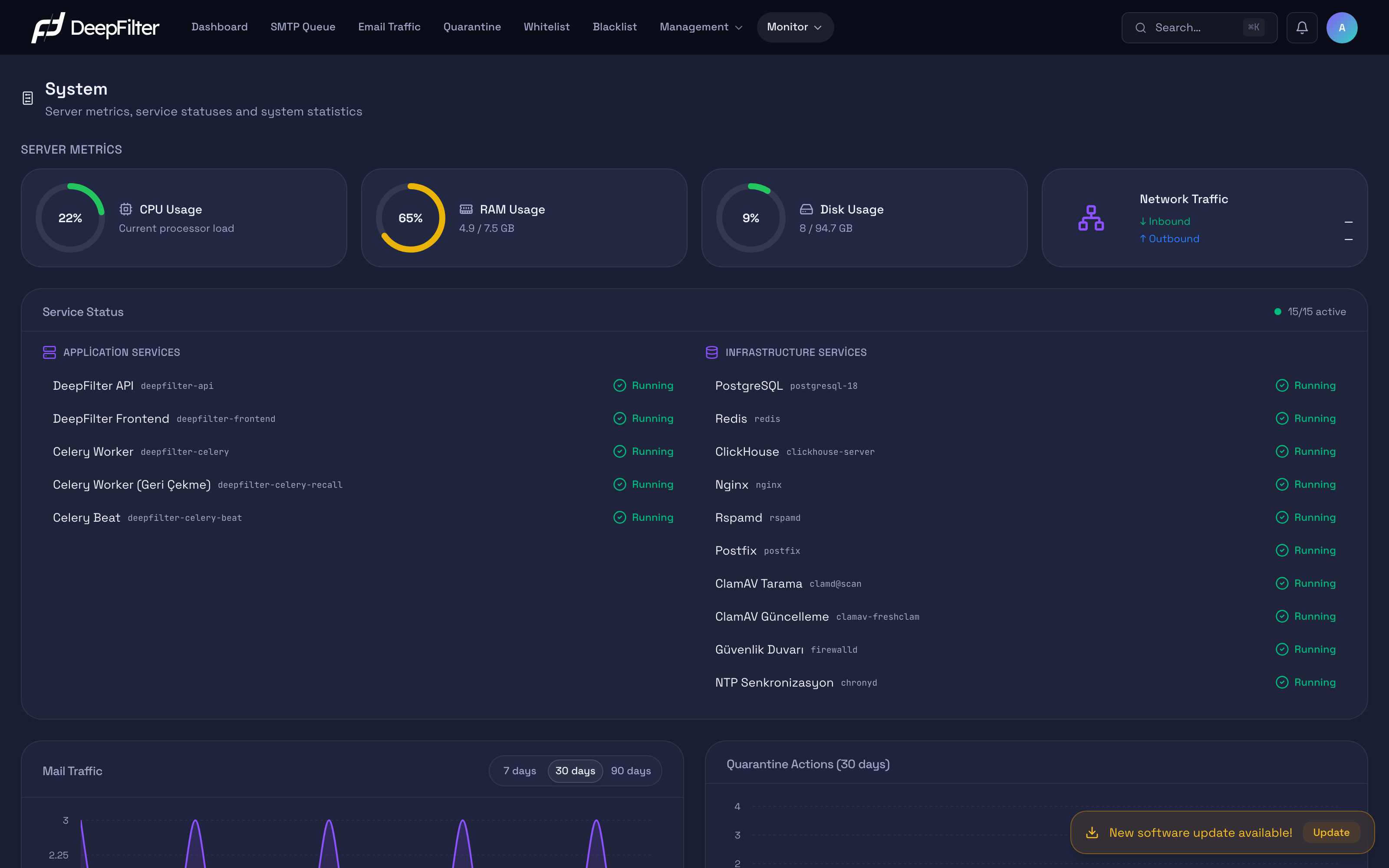
On opening, server metrics and service statuses appear in the top row; scrolling down brings the traffic charts and the user and learning tables.
Server Metrics
This section summarises the hardware load of the server in four cards and refreshes itself every five seconds. When an email security gateway approaches its hardware limits, processing slows down and the queue builds up; these cards show you that you are nearing the limit before the problem turns into an outage.
The four cards share one visual language: the colour of each card's ring, which changes with how full the resource is.
| Colour | Range | Meaning |
|---|---|---|
| Green | Below 60% | Normal |
| Yellow | 60–75% | Keep an eye on it |
| Orange | 75–90% | Load is high |
| Red | 90% and above | Critical |
CPU Usage — Measures, as a percentage, how much of the processor is in use at that moment. Short spikes during heavy scanning are normal. Sitting permanently in the red band (≥90%) means the server does not have enough processing power and email handling may slow down. First check: Look at Service Status to narrow down which function is producing the load.
RAM Usage — Expresses memory in use as a share of total memory (percentage plus used / total GB). Because the database and cache services reserve memory up front, a high but stable RAM figure is not a problem on its own. The warning sign is a value that climbs continuously and settles into the red band; that can indicate a service is not releasing memory back. First check: If the value climbs without ever dropping, watch which service is consuming the memory.
Disk Usage — Measures how full the root disk partition of the server is (percentage plus used / total GB). Gradual growth is normal. Entering the orange-red band (≥75%) is a priority warning. First check: The most common cause is system logs growing out of hand; review the log size and retention period on the Monitor → Log Management page.
When the root disk partition fills up, email reception and record writing stop. As soon as you see the ring turn orange, free up space without waiting; waiting for red carries the risk of a service outage.
Network Traffic — Shows the inbound (↓) and outbound (↑) network flow per second. Because this is an instantaneous rate rather than a fill level, it is not subject to the colour bands; there is no fixed alarm threshold, and it is mostly used to confirm "is traffic flowing".
When the page first opens, the ↓/↑ values may briefly show —. The rate is calculated from the difference between two measurements, so at the first measurement there is no previous sample to compare against; after a few seconds the value fills in on its own. This is not a fault.
Service Status
This section checks every thirty seconds whether each of the critical services the system depends on is running. DeepFilter is not a single program but a chain of services that work together, and email passes through that chain; if one goes down, the function tied to that link stops. The panel shows you immediately which link has broken.
The badge in the top right summarises how many services are up at that moment in running / total form (for example 14/14 active). If all of them are running the badge is green; if even one is down it turns amber. Each row shows its status as Running (green) or Stopped (red). Services are split into two functional groups:
- Application Services — The services that run DeepFilter's management interface, its API and its background job queue (including the scheduler that runs scheduled tasks and reports).
- Infrastructure Services — These form the foundation of email flow and filtering: the transport layer that receives email over SMTP, the filtering engine that scans and scores content, the record and report databases, the fast cache, the web server, the virus scanning engine and its signature updater, the firewall, and time synchronisation.
When a service shows Stopped, the impact depends on which function it belongs to:
| Function | Impact if it stops |
|---|---|
| Email transport / filtering | Email reception or spam/malware filtering stops; incoming email is delayed or may pass through unscanned |
| Databases and cache | The interface, reports or records become incomplete or unreachable |
| Virus scanning and signature updates | Malware scanning cannot run; signatures are not updated and go stale |
| Background job queue | Scheduled tasks and reports are not produced |
First check: Refresh the screen. A brief Stopped during an update or a restart is normal; if the state persists, see the Troubleshooting section below.
Email Traffic
This chart shows the number of emails processed per day over the selected period (7 days / 30 days / 90 days; default 30 days) as an area chart. Its purpose is to make the volume trend visible: a sudden drop relative to its own rhythm can mean email flow has been cut off, while an unexpected spike can point to a campaign or an attack. Warning sign: the bar closest to today falling abruptly to zero. First check: Confirm from Service Status that the email transport and filtering functions and the record database are up.
The chart does not count connections given a "Temporary Rejection" to be retried (where the sender tried again later); it shows only processed emails. That way, retries of the same email do not inflate the counter.
Quarantine Actions
This panel shows the operations performed on quarantine over the last 30 days as daily stacked bars, broken down by type, and refreshes every minute:
- Released (green) — emails taken out of quarantine and delivered to the recipient.
- Deleted (red) — emails permanently deleted from quarantine.
- Learn Ham (blue) — emails marked as legitimate and fed to the filter as examples.
- Learn Spam (purple) — emails marked as spam and fed to the filter as examples.
The panel is there to track the operational load of quarantine and the level of training activity. A consistently high released column suggests that legitimate emails are frequently getting caught in quarantine (scanning thresholds may be more aggressive than they need to be); no training at all indicates that the filter is not being fed with feedback. First check: If released stays consistently high, review the scanning thresholds.
All Users
This section lists, for every user defined in the management panel, when they last signed in and how many times in total. Its purpose is access visibility: it lets you observe whether accounts are actually being used and whether any unexpected access has occurred.
The table carries three columns: User / Email (name and email address), Last Login (date and time) and Login Count (total sign-ins). By default the five most recent users to sign in are listed; you can sort by clicking the column headers and filter by name or email with the search box above (the five-row limit is lifted while you search).
Warning sign: An account showing — in the Last Login column has never signed in (it is dormant); an unused administrator account is an extra security surface. A sign-in at an unusual hour or from an unexpected account should also be examined. First check: Review dormant accounts under User Management; for a suspicious sign-in, look at the detailed record on the Monitor → Audit Logs page.
Learning Balance
This section shows the distribution of the ham (legitimate) and spam training each active user has performed over the last 30 days. The filter takes its accurate learning from user feedback; this table makes visible who that contribution came from, how much of it there was, and in which direction.
The columns are: User, Ham, Spam, Total, and Balance, which shows the ratio of the two directions as a visual bar. By default the five users contributing the most by total are listed; the table can be searched and sorted. Healthy learning requires contribution in both directions (both spam and legitimate examples); a user who only trains in one direction means the filter is being fed only in that direction through that user.
Verifying That the System Is Healthy
Steps
- Open the Monitor → System screen.
- Confirm that the two numbers on the service badge in the top right are equal (for example 14/14 active); equality means all monitored services are up.
- Review the service list and check that every row shows a green Running.
- Check that none of the rings on the Server Metrics cards has entered the orange or red band.
Verification — how to know it is healthy
If the two numbers on the badge are equal, every service row is a green Running, and all four metric rings are in the green-yellow band, the system is running healthily.
Troubleshooting
A service row shows "Stopped" briefly. The service may be restarting at that moment (an update or maintenance). Refresh the screen; if the state returns to Running on the next check, there is no lasting problem. If the state persists and affects email flow, send a screenshot to the support team.
The Email Traffic chart drops abruptly to zero near today. Email flow may have been cut off. Confirm from Service Status that the email transport and filtering functions and the record database are up.
The disk ring is orange or red. System logs have usually grown out of hand. Review the log size and retention period on the Monitor → Log Management page and free up space.
The RAM or CPU ring stays permanently red. A service may be consuming more resources than expected. Use Service Status to narrow down the function producing the load; short spikes (heavy scanning) are normal, while a permanent red should be investigated.