Dashboard
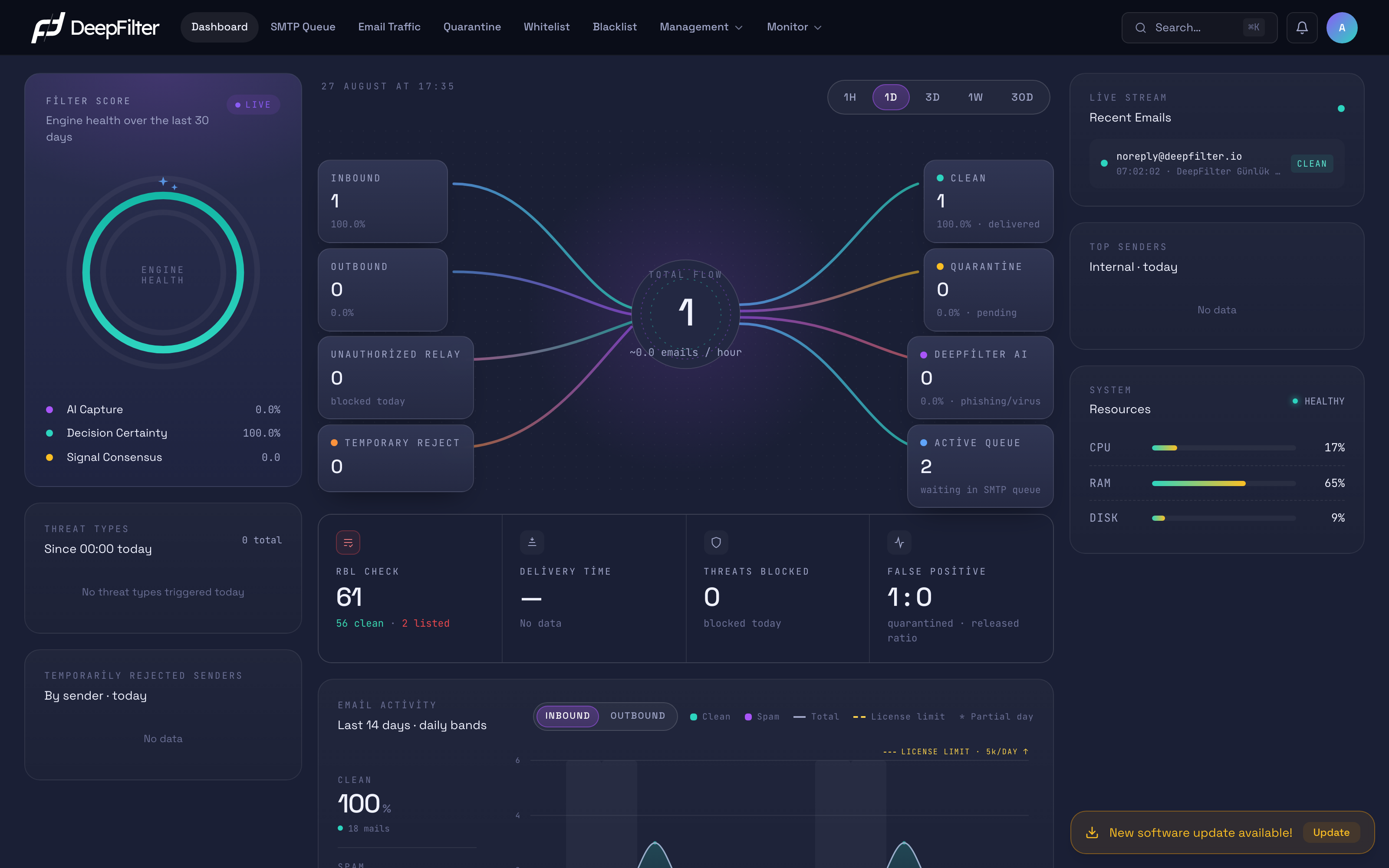
Whoever runs an email security gateway starts the day with the same question: "Did everything go well overnight, or is there something I need to act on?" The Dashboard exists to answer that question on a single screen. It puts the direction and outcome of your email flow, the decision quality of the filtering engine, the server's resource state and your external reputation side by side, so that you notice a sudden spike in quarantine, a clogged delivery queue or your server landing on a blacklist without walking through separate screens one by one.
The Dashboard is purely an observation screen: you change no setting and touch no email here. Every indicator you see is an early warning that points you to the right action screen (Quarantine, RBL Monitoring, System).
How It Works
Every indicator on the panel is fed by an independent data source. If the data for one indicator does not arrive (its card shows "—"), the others are unaffected; the panel keeps working with partial data. This design prevents a single query from blacking out the whole dashboard.
There are two ground rules you need to know about the panel's counters:
- The unit of counting is the message. Every figure on the Dashboard shows the number of emails processed: 1 email sent to 3 recipients counts as 1 here. (The Email Traffic page counts recipients instead; we explain the difference below.)
- A day is an Istanbul calendar day. Every indicator that says "today" is calculated against the local calendar day (from 00:00 onwards), not the server clock.
One critical detail: the indicators do not all use the same time window. Some respond to the time range selector at the top, while most work in their own fixed window. The next section makes that distinction clear.
Time Range Selector
What it does: The 1H / 1D / 3D / 1W / 30D buttons at the top of the panel determine which time range the flow diagram aggregates. (default: 1D — today — when the page opens)
| Button | Range covered |
|---|---|
| 1H | Last 1 hour (rolling window) |
| 1D | Today (a single calendar day) |
| 3D | The last 3 days including today |
| 1W | The last 7 days including today (one week) |
| 30D | The last 30 days including today |
Why it exists: "What is happening right now?" and "what does this week look like overall?" are different questions. The selector lets you scale the same flow diagram from a narrow snapshot to a broad trend view.
What happens if you change the range: A narrower range (1H, 1D) sharpens the current state and suits spotting a sudden event. A wider range (1W, 30D) smooths out individual fluctuations and brings the lasting trend forward — but it can bury a single attack window inside the larger total.
The time range selector affects only the flow diagram in the middle (along with the "Total Flow" figure tied to it and the "Threats Blocked" card below it). Filter Score (last 30 days), Delivery Time (last 1 hour), False Positive (today), RBL Check, Threat Types (today), Email Activity (last 14 days) and the cards in the right-hand column work in their own fixed windows; changing the selector does not change those indicators. If a card does not update when you change the range, that is not a fault — that card was never tied to the selector.
Filter Score
What it shows: The ring chart at the top left opens up how the filtering engine has been deciding, based on the processing records of the last 30 days, across three independent measures. The "ENGINE HEALTH" label at the center of the ring is fixed; this card presents three separate health indicators, not one combined score.
Why it exists: Beyond "how much spam did the filter catch?", you need to see how confidently the engine reaches its decisions. An engine that hesitates or relies on a single signal carries false-positive risk despite a high catch rate.
The three measures and how to read them:
- AI Capture (purple ring) — The share of emails the artificial intelligence layer flagged as suspicious over the last 30 days (15.2% on screen). This is a volume indicator, not a quality one: it tells you how often the AI stepped in.
- Decision Certainty (turquoise ring) — The share of decisions the engine made in the confident zone, either clearly clean or clearly suspicious (94.3% on screen). The remaining share is the emails in the uncertain band, where the decision sat very close to the threshold. A high value means the engine reaches a clear verdict on most emails; a low value means more and more emails are falling into the grey zone — in which case it may be time to review your threshold settings.
- Signal Consensus (amber ring) — The median number of independent scan signals that fired in the same direction per quarantined email (4.0 on screen). This measure is not a percentage but a raw number: 4.0 means a typical quarantine decision rests on four separate pieces of evidence. A value close to 1 means decisions are fragile (dependent on a single signal); 5 and above means they rest on a solid consensus.
The LIVE badge in the corner of the ring is a decorative label and is always visible; the data on this card does not stream in real time and may come from the cache for up to 5 minutes. Figures showing "—" are not on their own a sign of a fault: if no email was processed within 30 days, the rings stay empty.
Email Flow Diagram
What it shows: The flow diagram in the center of the screen combines the path an email takes from entering the system to its outcome in a single visual. The left side represents the sources, the middle ring the total flow and the right side the results. Together with the "Threats Blocked" card below it, the flow diagram is one of the parts of the panel that responds to the time range selector; all figures are message-based.
Why it exists: The fastest way to understand filtering is to see where email comes from and where it goes. The diagram answers "how many emails came in, how many were delivered, how many were held" at a glance, and lets you check by eye whether the figures are consistent with each other (input = the sum of the results).
Left side — sources
- INBOUND — Emails arriving from outside where at least one recipient belongs to the active domains you manage (484 on screen, 100%).
- OUTBOUND — Emails whose sender belongs to your domain or that leave through your defined relay servers, and none of whose recipients belong to your domain (0 on screen).
- UNAUTHORIZED RELAY — The number of attempts to use your server for unauthorized relaying that were rejected before ever entering the queue. These emails never reach the filtering engine (0 on screen).
- TEMPORARY REJECT — The number of emails that were turned away temporarily, with a "try again later" response to the sender (0 on screen). This counter measures retry volume; because retries are not separated out, a sudden swelling on one sender can be an early warning sign of a compromised account.
Middle ring — Total Flow
The center ring shows the INBOUND + OUTBOUND total (484 on screen). Unauthorized Relay and Temporary Reject are deliberately excluded from that total; they are traffic that was screened out before reaching the engine or is waiting for a retry. The hourly rate below it (~2.9 emails / hour) is the total flow divided by the number of hours in the selected range — for example, with 1W selected (7 days = 168 hours), 484 ÷ 168 ≈ 2.9.
Right side — results
- CLEAN — Emails that passed the filter and were delivered to the recipient (389 on screen, 80.4%). The percentage is calculated against the total flow.
- QUARANTINE — Emails that were held rather than delivered, but that carry no clear threat evidence (90 on screen, 18.6%).
- DeepFilter AI — Emails that were held rather than delivered and triggered at least one threat rule (5 on screen, 1.0%).
- ACTIVE QUEUE — The number of emails currently waiting in the SMTP delivery queue (0 on screen). This is an instantaneous measurement; it is independent of the time range selector and shows whether delivery is clogged.
The QUARANTINE and DeepFilter AI boxes both end up in the same place in practice: emails that were held rather than delivered. The only difference between them is evidence — the DeepFilter AI box holds the emails where a clear threat rule sits behind the decision. Despite its name, this box covers not only artificial intelligence decisions but every kind of threat evidence: antivirus, blacklists, central threat intelligence and authentication (SPF/DKIM). Since you genuinely did not deliver either kind, the "blocked" total is the sum of the two boxes.
You can check the internal consistency of the diagram by eye: **Clean + Quarantine
- DeepFilter AI** always equals the Inbound + Outbound total (that is, the Total Flow) — on screen, 389 + 90 + 5 = 484.
Summary Indicators
The four cards below the flow diagram summarize different health axes. Three of them work in their own fixed window; only "Threats Blocked" is tied to the time range selector.
- RBL Check — The main figure is the number of blacklists on which we monitor your server's reputation (not the number of queries made) (61 on screen). The line below tells you how many are clean and how many have listed you (57 clean · 2 listed on screen). The gap between the main figure and the sum of the line below is the lists that were unreachable (offline) at that moment: 61 = 57 clean + 2 listed + 2 unreachable; unreachable lists are not shown on the lower line. If the "listed" value is greater than 0, the card's icon turns a red warning tone. This card does not trigger a live blacklist query; it reads the last result of a background check that runs every 6 hours, so the figure may be somewhat stale.
- Delivery Time — The median delivery time of emails successfully delivered in the last 1 hour (no data on screen — because there was no delivery record in the last hour). The median is used instead of the average, because the long durations of retried emails were inflating the average misleadingly.
- Threats Blocked — The sum of the Quarantine and DeepFilter AI boxes (95 on screen), and it is tied to the time range selector. Even though the card's caption looks like "blocked today", the value covers the selected range.
- False Positive — The ratio of how many of today's quarantined emails were released, shown in the form "1 : x" (1 : 0 on screen). It indicates whether the filter is catching clean email unnecessarily: the larger x gets, the more emails users are rescuing from quarantine, which suggests the thresholds may be too aggressive.
The figure on the "Threats Blocked" card reflects the selected time range, but its caption is fixed text. If the card shows 95 while 1W (7 days) is selected and says "blocked today", that is a 7-day total — do not read it as "today". To see today's threat count, look at the Threat Types card below; that one always covers today.
Email Activity
What it shows: The chart headed "Last 14 days · daily bands" opens up the daily email volume of the last fourteen days in a layered area chart: the turquoise layer draws the emails that passed as clean that day, and the second layer the ones flagged as spam and held on the same day. The rail to the left of the chart summarizes the clean/spam share across the fourteen-day total as a percentage and a count (81% clean on screen). The faint vertical bands in the background mark weekend days.
Why it exists: Following the daily volume trend lets you see a sudden spam wave or a drop in traffic before the individual counters do. A fourteen-day window answers "is this increase normal or did it just start?" with its context; the weekend bands also help you tell a natural dip in the weekday rhythm apart from a genuine outage.
How to read it: The two layers are not stacked on top of each other; they
share the same scale, and each day's clean and spam volume is read from its own
height. The rightmost day is the newest one — today — and its label ends with *,
because the day is not finished yet and its volume looking lower than the other
days is normal. Hovering over a day lists that day's figures in detail.
Inbound and Outbound views
The Inbound / Outbound toggle in the card's header filters the chart by direction (default: Inbound). The two views draw the same chart but answer different questions:
- Inbound — The clean/spam breakdown of the email reaching you from outside. The count in this view is exactly the same set of emails your license quota counts; that is why your daily license limit is drawn onto the chart as a dashed reference and you see directly how close your daily volume is to the quota. Since the limit is a value for the whole server, it is visible only in a general administrator session.
- Outbound — The breakdown of the traffic leaving you. Because the quota is defined on inbound email, no limit is shown in this view. The second layer here is not spam but the sending attempts that received a Temporary Reject: this counter counts attempts, not emails (retries are not separated out), so it is not in the same unit as the clean volume and no percentage share is given. A sudden climb in temporary rejections on the outbound side is often the first sign of a compromised account.
When the card cannot fetch data it says "data unavailable"; the message "No email traffic in this period" means there really was no traffic. These two cases are distinct — do not read a data problem as "no traffic".
Threat Types and Temporarily Rejected Senders
The two cards in the lower-left corner of the panel break down today's threat picture from two different angles. Both cover today (from 00:00 onwards) and are independent of the time range selector.
- Threat Types — Assigns every email quarantined today to a single category and shows the category distribution. The assignment follows a priority order: antivirus → central threat intelligence → reputation/blacklist → technical analysis → artificial intelligence → other. Even if an email triggers several signals, it is counted in the highest-priority category, so the category total stays equal to the quarantine total. Only signals that genuinely contributed to the score count as category evidence; rules that were neutralized do not place an email into a category. (On screen, "0 total" — because there was no quarantine today, which is consistent with the "1 : 0" on the False Positive card.)
- Temporarily Rejected Senders — Ranks the top 5 senders that received the most temporary rejections today, by the number of rejections they received. A high figure on one sender points to a possibly compromised account or a spam source; because retries are not separated out, the number swells with retry volume. Inbound and outbound directions are counted together. (On screen, "No data".)
Live Monitoring and System Status
The three cards in the right-hand column follow the current state rather than long-term statistics.
- Live Stream (Recent Emails) — Lists the emails that most recently entered the system with their sender, time, subject and result tag, and refreshes itself every 5 seconds; it is the liveliest component of the panel. The result tags are colored as Clean (turquoise), Quarantine (yellow) and Threat (red). (The rows visible on screen are the "Quarantine Summary" notification emails the system generates itself; these are delivered.)
- Top Senders — Summarizes the internal sources that sent the most email today. Unlike the rest of the panel, this card's main figure shows the number of recipients (a deliberate exception so that it lines up with the Email Traffic page) and is given in "recipients / messages" form. Repeated sending attempts that received a Temporary Reject are not included in the count; that way the card shows a source's real sending volume and does not swell with piled-up retries. You do not lose the retry signal: you read it from the Temporarily Rejected Senders card. (On screen, "No data".)
- System Resources — Measures the server's CPU, RAM and disk usage live and refreshes every 5 seconds (CPU 20% · RAM 62% · Disk 7% on screen). The badge at the top is determined by the highest of the three metrics: if any of them is 90% or above it reads CRITICAL, 75% or above WARNING, and below that HEALTHY. The disk value measures the root partition.
Unauthorized Relay, Active Queue, Delivery Time and System Resources are data for the whole server and cannot be split per domain. That is why they are visible only in the general administrator role; in a domain administrator session they are hidden or show 0.
Dashboard or Email Traffic: the Unit Difference
The totals on the Dashboard and on the Email Traffic page may not match each other even for the same day; this is not an error but a deliberate difference of unit:
- The Dashboard counts messages. Every counter gives the number of emails processed: 1 email sent to 3 recipients is 1 here. The Dashboard answers "how many emails were processed?".
- Email Traffic counts recipients. That same 3-recipient email counts as 3 there. Email Traffic answers "how many recipients did it reach, or was it going to reach?".
The only exception is the Dashboard's "Top Senders" card; it counts recipients in order to stay aligned with Email Traffic.
Daily Quick Check
This procedure is the way to scan the health of the panel in a minute every morning.
Steps
- Set the time range to 1D. This focuses the flow diagram and the Threats Blocked card on today; the other indicators already work in their own fixed windows.
- Look at the QUARANTINE and DeepFilter AI boxes. If there is an unusual increase, go to the Quarantine screen and read today's dominant category from the Threat Types card.
- Confirm that the "listed" value on the RBL Check card is 0. If it is greater than 0, your server has landed on a blacklist; click the card and review the detail on the RBL Monitoring screen.
- Confirm that the System Resources badge reads HEALTHY and that disk usage remains reasonable.
Verification — what you see when there is no problem
- The system badge reads HEALTHY, "listed" on the RBL card is 0, Active Queue is close to 0 and the False Positive ratio is "1 : 0" or close to it. That picture means no event overnight requires your intervention.
If a figure is very different from what you expected, the first place to look is the time range selector — but only for the flow diagram and Threats Blocked. Since the other cards are independent of the selector, you cannot explain a deviation there as "I picked the wrong range"; that deviation is real.
Interpreting the Values and Troubleshooting
- The Filter Score rings are empty / do not fill → Either no email has been processed within 30 days, or the processing-records query is temporarily not responding. If the other indicators are populated, the problem is specific to this card; if you are sure there is traffic, check the record infrastructure.
- A sudden increase in Quarantine or DeepFilter AI → Go to the Quarantine screen; read today's dominant threat category (antivirus, blacklist, artificial intelligence…) from the Threat Types card. That is how you tell a genuine wave apart from a burst coming from a single sender.
- Temporary Reject or "Temporarily Rejected Senders" is high → A retry burst on a particular sender is often the herald of a compromised account. Because the number swells with retries, it can look larger than the real email count.
- RBL "listed" > 0 → Your server's IP is on a blacklist. Click the card and see which list you are on from the RBL Monitoring screen. Remember that the value comes from the 6-hourly check, so the card may keep showing "listed" for a while after you have been delisted.
- Active Queue is constantly > 0 and rising → Delivery is clogging; email is piling up in the queue. Since this is an instantaneous measurement, check the value several times in a row to confirm whether it is rising.
- x is growing in the False Positive "1 : x" ratio → The filter may be catching clean email unnecessarily and users may be releasing a large number of emails. This indicator covers today only.
- The system badge reads WARNING or CRITICAL → Look at which of CPU, RAM and disk has crossed the threshold (75% / 90%); concentrate your response on that resource.
- A card shows "—" → The data for that indicator is not arriving at the moment. Because the cards are independent, this affects only that one card; the rest of the panel stays reliable.
Points to Watch
- Read every figure in the right window. On the same screen the flow diagram shows the selected range while the neighbouring cards show their own fixed windows. Before interpreting a card, be clear about which time range it belongs to (stated for each card in the sections above); otherwise you may mistake a 7-day total for "today".
- The panel is a monitoring tool, not a real-time monitor. The data on cards such as Filter Score can be up to 5 minutes stale; only the Live Stream and System Resources refresh every 5 seconds. The "LIVE" badge does not mean the whole panel is streaming live.
- The Dashboard points you towards action; it does not act itself. When you see an anomaly, you make the decision on the relevant screen (Quarantine, RBL Monitoring, System); no indicator on the panel deletes an email or changes a setting when you click it.