Panel Tour
DeepFilter filters email traffic continuously in the background, but deciding whether that filter is doing the right thing still takes a human eye. As an administrator you need to see which emails went through and what was stopped, rescue a legitimate email that was held by mistake, flag trusted or dangerous sources by hand, and keep an eye on the health of the system. The management panel brings all of those decisions together in a single web interface: it makes the filtering engine's work visible and lets you step in when necessary.
This page is the map of the panel. It summarizes what each menu is for and where to go when you run into a particular situation, then points you to the relevant section for the details.
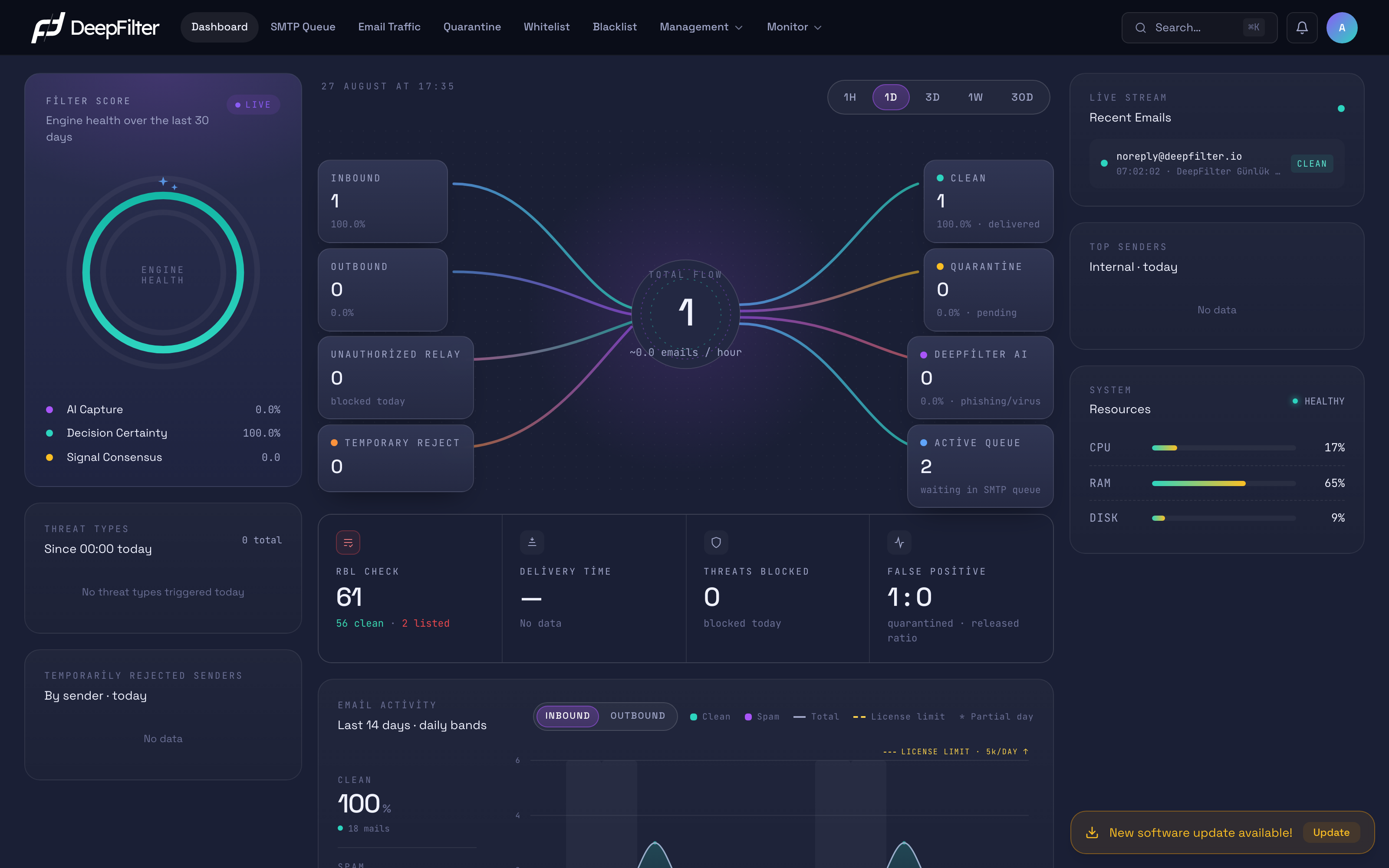
When you sign in, the Dashboard screen opens; the main menu sits in the top bar, with quick access and user tools in the upper-right corner.
Main Menu
The main menu in the top bar opens the six core work areas of the panel. The table below lists them by the question "when would I go there?".
| Menu | When you go to this section |
|---|---|
| Dashboard | For a first look at the current overall state of the system: total volume, inbound/outbound split, filter health and the live stream all appear together here. |
| SMTP Queue | When an outbound email cannot be delivered to the far end right away and is waiting, you follow the state of the queue here. |
| Email Traffic | When you are investigating what happened to a specific email; you search all inbound and outbound records by sender, recipient, result or score. |
| Quarantine | To review an email that was held as suspicious, release one that turns out to be legitimate, or delete it permanently. |
| Whitelist | When a sender or domain you trust keeps getting caught by the filter, to mark it as always trusted. |
| Blacklist | To block a sender, domain or address unconditionally. |
At the right end of the menu you also find the Management and Monitor dropdown groups; because they collect the configuration and monitoring pages, they are covered separately below.
When you sign in with the domain administrator role the menu is narrower: SMTP Queue, Blacklist and the Management and Monitor dropdown groups are not shown. A user in this role manages only the traffic, quarantine and whitelist of their own domain.
Management and Monitor Groups
Management gathers the pages where you configure the system into a single dropdown group: Users, Inbound Mail, Outbound Mail, Firewall, License, Software, Notifications, Backup, Reports, System and General settings. For example, you open your license status through Management → License and user accounts through Management → Users.
Monitor gathers the pages where you follow the health and history of the system: System, Audit Logs, Log Management and Blacklist (RBL). You can see who performed an operation and when through Monitor → Audit Logs.
Finer settings such as inbound and outbound email scanning, domains, DKIM and scan preferences are not direct items of these groups; they live under the tabs of the Inbound Mail and Outbound Mail pages. If you cannot find a setting at the top level of the Management menu, look at the tabs of the relevant Mail page.
Quick Navigation and User Menu
The search box at the right end of the menu opens the command palette for jumping between sections of the panel with the keyboard. Click the box and start typing the name of the section you are looking for. Because the palette is fed from the same source as the main menu, it lists only the pages your permissions grant you. On narrow screens a magnifier icon takes the place of the box; tapping it opens the same palette.
You can open the command palette from any page with ⌘K on a Mac or Ctrl+K on Windows/Linux, then type the name of the section you want and switch to it without touching the mouse. You do not need Turkish special characters in the search; typing "guvenlik" is enough to find the Firewall page.
The initials badge in the upper-right corner (the initials of your name) opens the user menu. From there you view your profile (Profile), get help (Support), change the interface language and theme (Language, Theme) and sign out (Log out).
Language and Theme
The language of the interface and the light/dark theme follow your browser and operating system settings the first time you open the panel (default: Match system). You can change both by hand from the user menu.
Steps
- Click the initials badge in the upper-right corner to open the user menu.
- Use Language to change the language and Theme to change the appearance; for the theme, choose Light, Dark or Match system.
Verification — how to know it worked
The choice is applied immediately; the interface switches to the language or theme you picked and your preference is kept for your next sign-in. Because the language preference is stored with your account, you get the same language when you sign in from somewhere else.
Dashboard
The Dashboard is the summary screen you land on when you sign in, and it is designed so that you can read the current state of the system at a glance. Its main sections are:
-
Total Flow: The flow diagram in the center of the screen visualizes where emails come from and where they end up after filtering. The source buckets on one side (Inbound, Outbound, Unauthorized Relay, Temporary Reject) give the origin of the traffic; the four result buckets on the other side (Clean, Quarantine, DeepFilter AI, Active Queue) give the filtering result. The Total Flow badge at the center of the diagram and the large number beneath it show the total volume processed in the selected range; the DeepFilter AI bucket on the right counts the emails the artificial intelligence engine caught as a threat (phishing/virus) as a separate result. The 1H / 1D / 3D / 1W / 30D buttons at the top change the time range from one hour up to thirty days (default: 1D, the last day).
-
Filter Score: The ring chart summarizes the health of the filtering engine over the last 30 days with three measures: AI Capture, Decision Certainty and Signal Consensus.
-
Key indicators: Shows summary metrics such as RBL Check, Delivery Time, Threats Blocked and False Positive in a single row.
-
Live Stream: Lists the emails reaching the system right now, as they arrive; this is where you look when you want to watch traffic in real time.
-
System / Resources: Shows the CPU, RAM and disk usage of the server. This section is visible only to the full administrator; it is hidden in the domain administrator role.
Alongside these blocks, the Dashboard also carries additional summary cards such as threat types, top sender addresses and the overall email distribution.
This page is only an introductory map. For the details of quarantine management, traffic inspection, list editing and management settings, see the dedicated pages of the relevant sections.