Profile and Security
Your administrator account grants full access to the filtering engine, the quarantine and every setting; if that account is taken over, an attacker gains control of your organization's email flow. The Profile and Security screen is where you manage the authentication layers of your own account: you change your sign-in password here and add a second verification step (two-factor authentication, 2FA) for the cases where a password alone is not enough.
A password on its own is a weak layer: it can be exposed through a leak, phishing or brute force. Two-factor authentication asks, on top of the password, for a proof that only you hold — a one-time code produced by the authenticator app on your phone, or a single-use code sent to your mailbox. That way, even if your password is stolen, sign-in is blocked. Enabling 2FA on an administrator account is strongly recommended.
You reach this screen by clicking your account avatar in the upper-right corner and selecting it from the menu that opens.
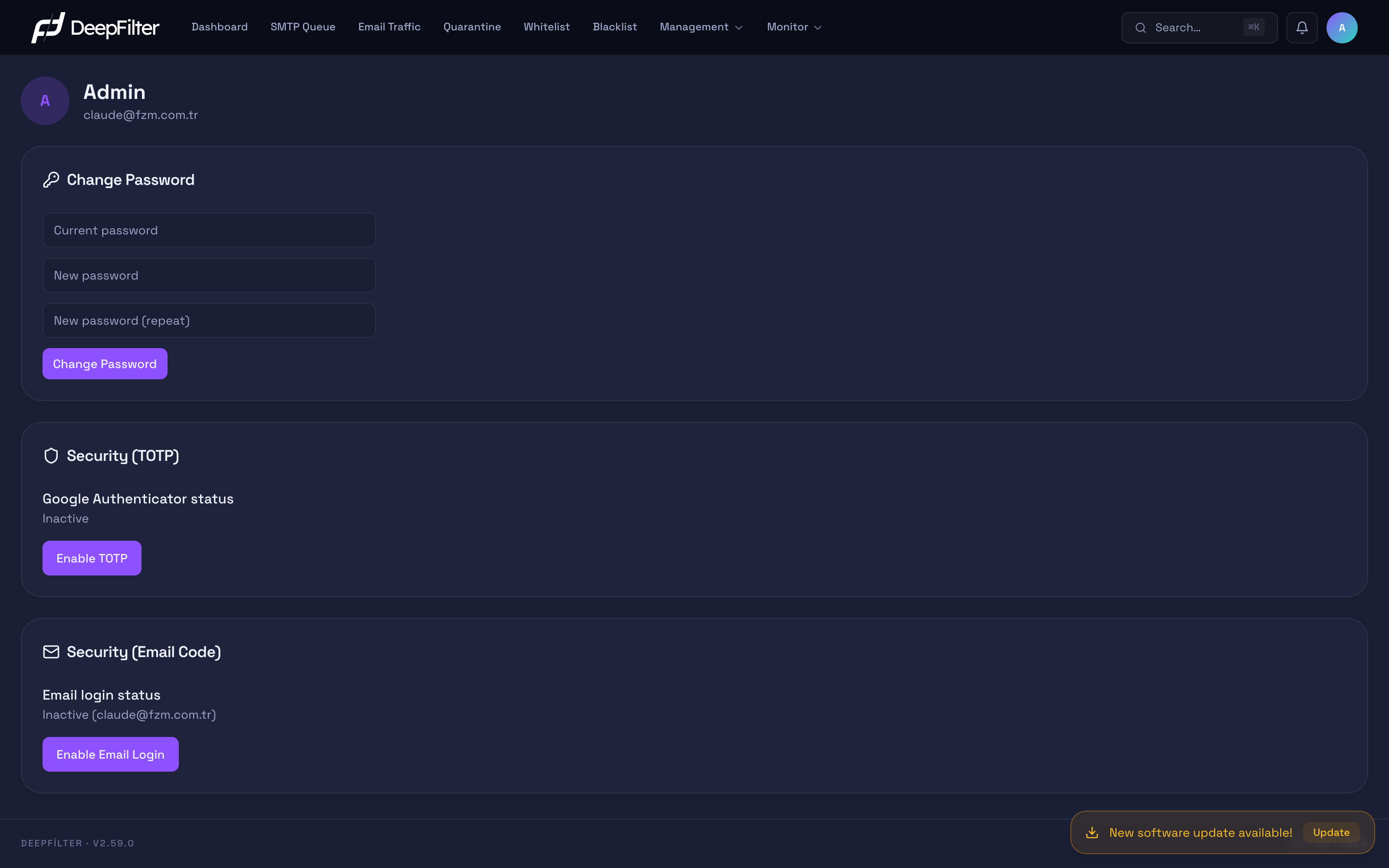
At the top of the screen you see your account name and sign-in email address, and below them three independent security cards: Change Password, the authenticator app (TOTP) and the email code.
The interface language and theme preference are not on this screen; both are changed from the account menu in the upper right. Do not look for a language setting on the profile screen.
Settings
The screen presents three security methods as independent cards. The password is the mandatory base layer on every account; the two two-factor methods (authenticator app and email code) are enabled optionally. The two 2FA methods are independent of each other; you can enable one, the other, or both.
Account password — The primary proof of your identity when you sign in to the panel; when you change it, the system first verifies your current password and then stores the new one permanently. (rule: at least 6 characters; no uppercase, lowercase, digit or symbol requirement)
Why it exists: It is the first and mandatory protection layer of the account. A compromised password gives full access to the panel on its own if 2FA is not enabled, which is why a strong choice and regular changes matter.
If you change it: A long, unpredictable password increases resistance to brute-force and dictionary attacks. A simple 6-character password is accepted by the system; the screen does not block weak passwords, so choosing a strong one is entirely your responsibility.
Caution: Changing your password does not immediately close your open sessions on other devices. If your password was stolen, the attacker's existing session can stay open until it expires on its own (within 6 hours at the latest). If you suspect a compromise, do not stop at changing the password; enable 2FA as well.
Authenticator app (TOTP) — Asks, as a second proof after the password, for the six-digit code that an authenticator app on your phone (Google Authenticator, Microsoft Authenticator and similar) refreshes every 30 seconds. (default: inactive; recommended: active)
Why it exists: Even if the password is compromised, the attacker also needs the current code, which is generated only on your device. The code is not transmitted over the internet but calculated on the device, which makes it stronger protection than the email code.
If you turn it on/off: Once enabled, every sign-in becomes a two-step process (password + code) and account security improves noticeably. If you turn it off, the account is again protected by the password alone; disabling asks for a separate confirmation in the browser. Code verification depends on the device clock; to tolerate clock drift the system also accepts the previous and next 30-second window (±30 seconds).
If you reset the authenticator app, or lose or replace your phone, you cannot sign in on your own: the product does not generate recovery or backup codes. The only way out is for another administrator to disable two-factor authentication on your account, or to sign in with the email code method (if it is enabled). While setting up the authenticator, save the secret key shown on screen somewhere safe; with that key you can recreate the authenticator identically on a new device.
Email code — Asks, as a second proof at sign-in, for a six-digit single-use code sent to your account's email address. Unlike the authenticator app there is no setup or pairing step; it works with a single on/off button. (default: inactive)
Why it exists: It is the alternative second factor for users who do not want to, or cannot, install an authenticator app. The code arrives in the mailbox you signed in with; access to that mailbox is the precondition for signing in.
If you turn it on/off: Once enabled, every sign-in asks for the code sent to your email after the password; if you turn it off, that step disappears. Disabling asks for a separate confirmation in the browser. The code that is sent is valid for 10 minutes.
Caution: This method is weaker than the authenticator app: if your mailbox is compromised, the sign-in code falls into the attacker's hands as well. Prefer the authenticator app where possible, and use the email code only when that is not an option.
Changing Your Password
Prerequisites
- You must know the password you are using right now; the system verifies it before saving the new one.
Steps
- Click your account avatar in the upper-right corner to open this screen and go to the Change Password card.
- Enter the password you use today in the Current password field.
- Type your new password in the New password field (at least 6 characters).
- Enter the same password again in the New password (repeat) field.
- Click the Change Password button.
Verification — how to know it worked
- A green confirmation appears on the screen and the fields are cleared. The new password takes effect immediately; use it at your next sign-in.
Setting Up 2FA with an Authenticator App
Prerequisites
- An authenticator app (Google Authenticator, Microsoft Authenticator and so on) must be installed on your phone.
Steps
- On this screen, click the Enable TOTP button on the Security (TOTP) card.
- Scan the QR code that appears with your authenticator app. If you cannot scan it, enter the secret key shown below the code into the app by hand.
- Enter the six-digit code produced by the authenticator app in the corresponding field and confirm the setup.
Verification — how to know it worked
- The Google Authenticator status row shows Active. From then on, every sign-in asks for the current code from the authenticator app after your password.
Save the secret key from the setup screen somewhere safe before you enter the verification code. If you lose your phone or change devices, that key is the only way to set the authenticator up again; there are no recovery codes.
Turning On Email Code Verification
Prerequisites
- Make sure the email address shown on the card belongs to you and is accessible; sign-in codes go to that mailbox.
Steps
- On this screen, click the Enable Email Login button on the Security (Email Code) card. There is no separate setup or verification step.
Verification — how to know it worked
- The Email login status row shows Active. At your next sign-in, the six-digit code sent to your email is requested after your password.
Points to Watch
To raise your security layers as high as possible: choose a long, unpredictable password, enable the authenticator app (TOTP) method where possible, and keep your authenticator secret key somewhere safe. If a security card shows Inactive, that method is not set up yet and your account is protected only by the password on that front; if it shows Active, the method is requested as a second step at sign-in.
If your organization enforces a mandatory 2FA policy, or your administrator required a password change on your first sign-in, the panel takes you straight to the relevant setup step; you cannot reach the panel until the setup is complete. Under mandatory 2FA only the two-factor authentication cards are shown on the screen — have your authenticator app ready before you start this step. Under a mandatory password change only the Change Password card is shown; in that case no authenticator is needed. This conditional screen differs from the ordinary profile view and appears only while the relevant policy is active.
Troubleshooting
- The Change Password button does not respond → One of the fields is empty, the new password is shorter than 6 characters, or the two new password fields do not match. Check the fields and try again.
- "Current password is incorrect or the operation failed." warning → A wrong value was entered in the current password field; make sure you type the password you are using today.
- The authenticator code returns "Invalid code" → Your phone's clock has drifted (outside the accepted ±30-second window) or you are entering the code of the wrong account. Set the device clock to sync automatically and enter the code of the correct account.
- The sign-in email code does not arrive → The system's email delivery configuration may be faulty (a "code could not be sent" warning at sign-in) or the code landed in another folder. Check your mailbox and your junk/spam folder.
- You lost the authenticator app or the phone → You cannot sign in on your own; there are no recovery codes. Another administrator has to disable 2FA on your account, or you can sign in with the email code method if it is enabled.