SMTP Queue
DeepFilter holds an email that has passed scanning in a temporary delivery queue until it is handed over to the destination server. When the destination server is reachable at that moment, delivery completes within seconds and the email leaves the queue; this is why the queue is empty most of the time on a healthy system. When the queue starts to fill up and stay full, that is almost always the first sign of congestion not in DeepFilter itself but on the destination server the email is being delivered to.
This screen shows the live state of that queue: which emails are waiting for delivery, how long they have been waiting, and what the destination server is responding. As an administrator you come here when someone reports that an outbound email never reached its recipient, or when you sense a delay in delivery.
The screen opens from the SMTP Queue menu and is visible only to the full-access administrator role.
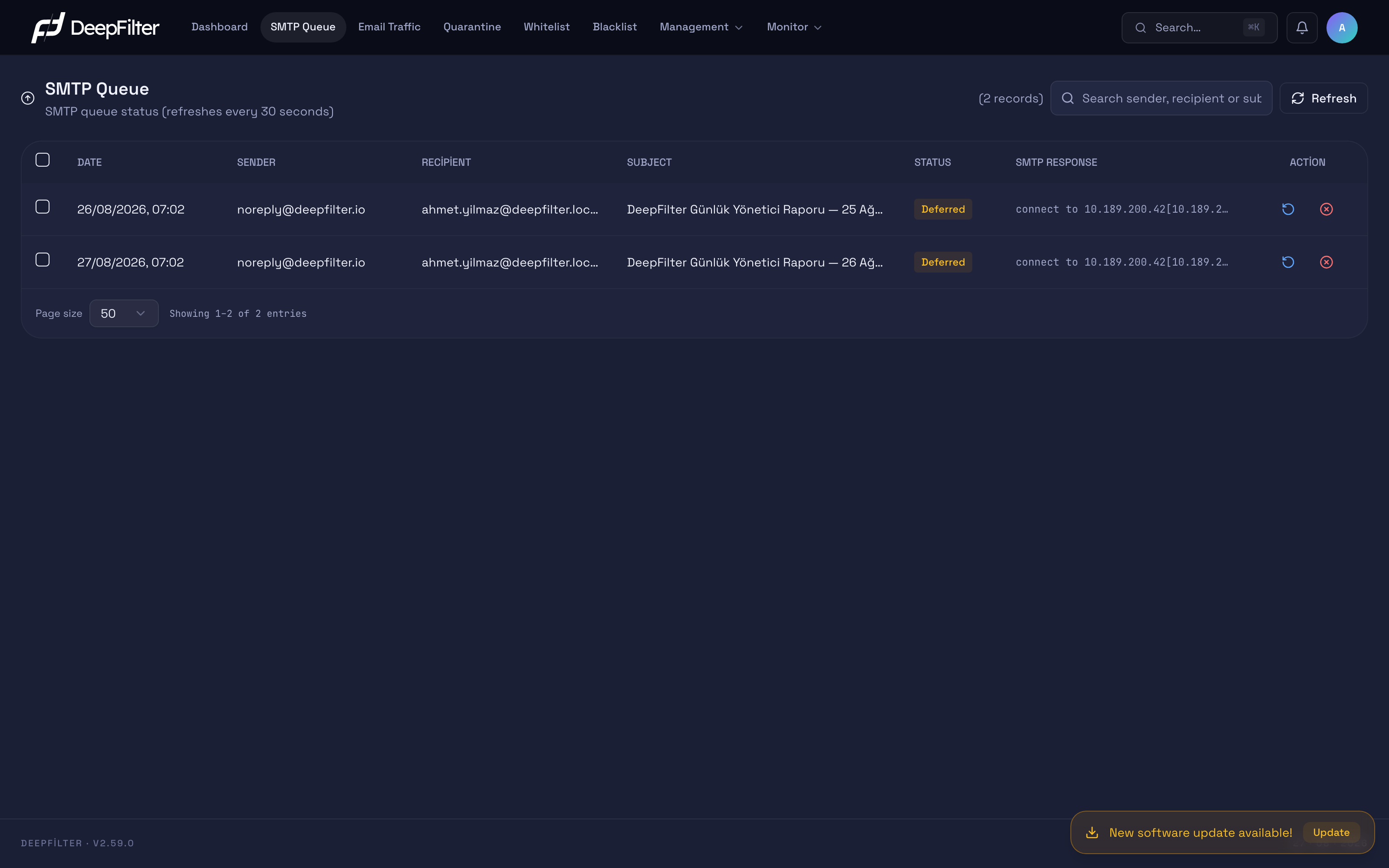
The screen refreshes itself every 30 seconds. At the top there is a counter showing the number of emails in the queue (such as (0 records)), a search box, and a Refresh button for a manual update.
An Empty Queue Is Normal
In the screenshot above the queue is empty and the counter reads (0 records). This is not a problem but the typical picture of a healthy system: emails are delivered to their destinations as soon as they clear the filter, so nothing accumulates in the queue. You should expect to see this screen empty for most of the day. Emails appearing in the queue does not on its own mean something is broken; what matters is the number staying high for a long time without dropping, or growing continuously.
What the Queue Shows
When there are emails waiting in the queue, each row of the list shows one email together with its delivery status. Clicking a row expands a panel with that email's delivery history.
| Column | What it shows |
|---|---|
| Date | When the email entered the queue. |
| Sender / Recipient | The sender and recipient addresses of the email. |
| Subject | The subject of the email; because the subject is not kept in the queue record, — may appear when no record matches. |
| Status | Indicates the current stage of delivery with a coloured badge (see below). |
| SMTP Response | The last response the destination server gave to the delivery attempt; this column explains why the email is waiting. |
| Action | The Retry and Delete buttons for that row. |
The status badge tells you where the email stands on its delivery journey:
- Processing — The email is being delivered right now; this is a transient state.
- Deferred — The destination server has not accepted the email yet (it is unreachable or is rejecting temporarily); DeepFilter retries at set intervals. This is the status you will see most often in the queue.
- Bounced — The email could not be delivered within the allowed time and is treated as permanently failed; a non-delivery report (NDR) goes to the sender.
When you expand a row, the panel that opens carries three sections: general information about the email (queue ID and so on), the Delivery Attempts history that lists every delivery attempt one by one with its time, destination server and response code, and a summary of the last attempt. This panel is the first place to look when you want to understand why a delivery is stuck: it is where you read whether the response code points to a temporary error (4xx) or a permanent rejection (5xx).
Pagination and Large Queues
During queue congestion the number of waiting emails can reach tens of thousands. Preparing such a queue as a single list would slow down the screen, so the list is split into pages: only the records of the page you are viewing are fetched at a time, and you move between pages with the navigation buttons below the list.
You choose the number of records per page from 25, 50, 100 or 200 (default: 50). A small page size gives the fastest load; a large page size shows more rows on one screen but slows down page changes on a backed-up queue. When scanning a long list, narrowing it with the search box usually gives faster results than increasing the page size.
Pagination only changes how the list is fetched; it does not change the queue itself. The counter at the top counts the entire queue, not the visible page, so it is still the counter you watch when tracking a backlog.
On a large queue the screen opens noticeably fast: no matter how many emails the queue holds, only the visible page is prepared. You therefore do not have to wait for the queue to shrink before investigating congestion.
Retry Rhythm
If an email cannot be delivered on the first attempt, DeepFilter does not immediately treat it as failed; it retries at increasing intervals. This behaviour keeps outbound delivery reliable and requires no individual configuration:
- The first retry happens 5 minutes later at the earliest; subsequent attempts continue at gradually widening intervals. A wait of a few minutes in the queue is therefore normal for a temporarily unreachable destination.
- If delivery has not completed for 24 hours, a one-time delay warning is sent to the sender: the email has not been delivered yet and attempts are continuing. This warning does not mean the email is considered failed, and it is sent only once; its purpose is to let the sender learn about the delay before hearing it from the recipient.
- If an email cannot be delivered for 2 days, it is treated as permanently failed, its status turns to Bounced and a non-delivery report (NDR) is sent to the sender.
The body of the delay warning is currently in English; if the sender is one of your own users, they may be surprised by the language of that email. Quarantined emails are entirely outside this rhythm: because delivery is never retried for them, they are subject to neither the queue lifetime nor the delay warning.
An email waiting in the queue with the Deferred status does not mean it is lost. When the destination server becomes reachable again, delivery completes on its own and the email leaves the queue. Before taking manual action, remember that most temporary delays resolve themselves this way.
Monitoring the Queue
Steps
- Open the SMTP Queue screen.
- Look at the counter value. If it reads (0 records), delivery is flowing; no further action is needed.
- The screen already refreshes every 30 seconds. To see the current state immediately, press the Refresh button at the top right.
- If you are looking for an email from a specific sender, recipient or subject, narrow the list by typing the address or the subject text into the search box.
- If the list spans several pages, move through them with the navigation buttons; change the number of records per page if needed. The total size of the queue is given by the counter at the top, not by the page.
Verification — how to know it is healthy
If the counter reads (0 records), or a low number is falling rather than rising across successive refreshes, delivery is running normally.
Diagnosing a Backlog
The counter rising above zero and not falling — or even growing — across successive refreshes points to delivery congestion. How the backlog is distributed shows where the problem comes from:
- If emails going to a single domain or destination server are piling up, the problem is most likely at that destination: the server may be down, temporarily rejecting email (4xx) or out of capacity. Expand the relevant row and read the response code and the SMTP response in the Delivery Attempts panel.
- If emails going to different destinations are piling up together, the problem is most likely on your own side: network egress, DNS resolution or outbound connectivity may be restricted.
Emails receiving a temporary error (4xx) are expected and resolve themselves within the retry rhythm; those receiving a permanent error (5xx) move to Bounced once the time limit expires.
Retrying or Deleting an Email
You can intervene manually on a queued email in two ways. Both are applied with the Action buttons at the end of the row, or in bulk by selecting several rows.
Retry puts the email into the delivery queue immediately, without waiting for the retry interval. It is useful when the destination server has just come back from an outage and you want delivery without the wait. This is not a delivery guarantee: if the destination is still unreachable, the email returns to Deferred — one more attempt has simply been triggered.
Delete removes the email from the queue and it is never delivered. A deleted email does not lose its trail: it now appears on the Email Traffic screen with the Removed from Queue status (previously such emails produced no delivery record and therefore stayed Pending there forever). When you delete from the panel, the Deleted by line in that email's traffic detail records which administrator deleted it; for deletions performed manually on the server no such person record is kept.
The Delete action cannot be undone. A deleted email is permanently removed from the queue, is not delivered, and the sender is not informed about it. Delete an email only when you are truly certain you do not want it delivered; if you only want to speed delivery up, use Retry, not Delete.
Steps
- Find the email on the SMTP Queue screen; narrow the list with the search box if needed.
- For a single email, use the Retry or Delete button at the end of the row.
- To apply the same action to several emails, tick the checkboxes at the start of the rows and press the Retry (N) or Delete (N) button that appears at the top.
Verification — how to know it worked
- After Retry the email briefly moves to the Processing status; if delivery succeeds it leaves the queue, and if the destination is still not responding it returns to Deferred.
- After Delete the email disappears from the list and the counter drops. The same email continues to be tracked on the Email Traffic screen with the Removed from Queue status.
Troubleshooting
There is a backlog in the queue but it is not clearing on its own. Determine whether the backlog is towards a single destination or several destinations; expand the row and read the response code in the Delivery Attempts panel. If it is a single destination, the problem is on that server (down, temporarily rejecting, or out of capacity); if it is several destinations, check your own network or DNS egress. If the backlog persists and does not clear, send the recipient domains in the queue and the approximate number of waiting emails to the DeepFilter support team; this information speeds up the diagnosis.
The counter keeps showing (0 records) when there should be a delivery backlog. The queue information may not be readable. This does not break the screen, but it can hide a real backlog. If such an inconsistency continues, report the situation to the DeepFilter support team.