Outbound Email
Processing the email that leaves your organization serves a different purpose from processing the email that arrives. On the inbound side the goal is to stop a suspicious message; on the outbound side the goal is both to enforce corporate policy (preventing data leaks, limiting sending rate, adding a legal notice) and to make sure your email looks trustworthy to the servers that receive it (a DKIM signature, the right delivery path). The Outbound Email screen brings these needs together in one place.
The way DeepFilter recognizes outbound traffic is the backbone of this screen. DeepFilter is placed in front of your own email server, and the email counted as "outbound" is the email that arrives from the source IPs you have defined as trusted (the Relay tab). Authenticated sessions (SMTP authentication) are not used; direction is determined entirely by source IP. That is why you first define which servers may send outbound email on the Relay tab; every outbound policy — DLP, sending limit, DKIM signing and disclaimer — rests on that definition.
The screen is split into seven tabs: Relay (permission to send outbound), DLP (data loss prevention), Sending Limit (hourly sending ceiling), DKIM Signing (domain verification signature), Disclaimer (automatic legal notice), Sender Restriction (removing the authority to send outside) and Advanced (outbound scanning and routing).
Relay
The Relay tab determines the IP addresses of the servers that may send email outside through DeepFilter. When you place your corporate email server behind DeepFilter, defining that server's IP here makes its email leave through DeepFilter. This list is also the source of the "outbound" direction definition: email arriving from an IP listed here is classified as outbound and becomes subject to the outbound policies (DLP, limit, DKIM, disclaimer). A sending attempt from an IP that is not on the list is rejected.
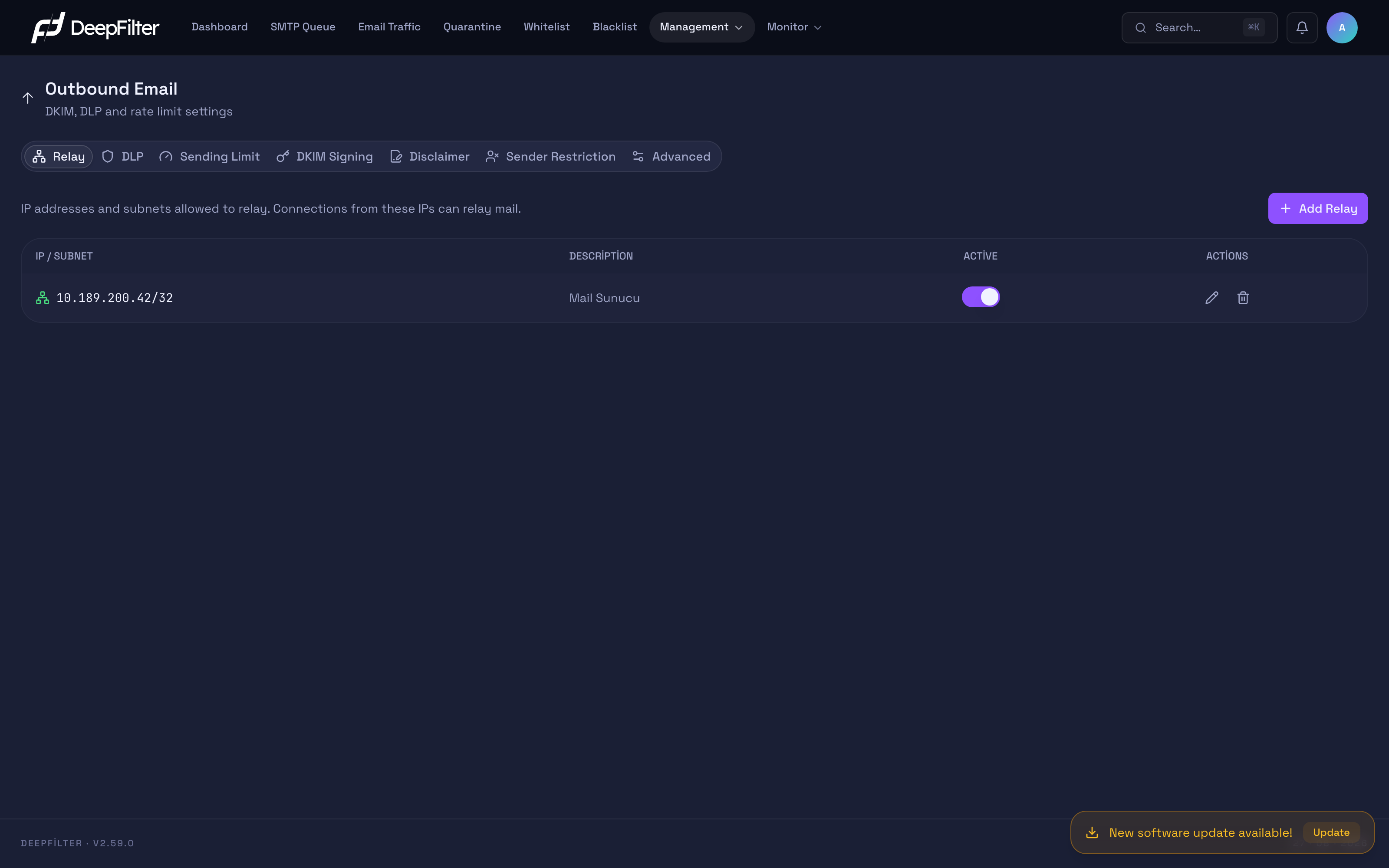
Every active IP defined in the table is treated as a trusted source permitted to send outbound.
Settings
IP / Subnet — The IP address or network block (CIDR) of the server that will be allowed to send outbound. (/32 for a single IP; a block such as 10.189.200.0/24; if you omit the /, the entry is automatically treated as /32.)
- What it does: Allows connections from this IP to send outside through DeepFilter, and processes email from this IP in the outbound direction.
- Why it exists: It ensures that only servers you know can send email on your behalf and blocks sending from undefined sources.
- If you change it: With the correct IP added, your corporate server can send outbound. If you add too broad a block, sources you do not want can send through you; the
/0block that covers the entire internet is not accepted because of the open relay risk. The local address (127.0.0.0/8) is always treated as trusted and cannot be removed from the list.
Description — free text that identifies the entry (e.g. "Mail Server"). It is purely for administrative convenience and has no effect on operation.
Active — determines whether the entry is in force. (default for a new entry: on)
- What it does: While on, the IP is written to the trusted sending list; when turned off, it is removed from the list.
- Why it exists: It lets you disable a server temporarily without deleting it (maintenance, migration).
- If you change it: If you turn it off, sending attempts from that IP are rejected; when you turn it back on, sending returns. Nothing is permanently lost.
A relay IP tied to a server entry cannot be deleted directly; you must update the relevant server entry first.
If your corporate email server's IP is not on the list or is not Active, that server's outbound email is rejected ("Relay access denied"). Before deleting or disabling a relay entry, make sure no active sending is taking place from that IP.
Adding a Relay Server
Prerequisites
- Make sure the IP you want to add really belongs to a sending server under your control; adding an IP you do not trust lets that source send through you.
Steps
- Open the Outbound Email → Relay tab.
- Click Add Relay at the top right.
- Enter the server's address in the IP / Subnet field (
/32for a single IP, CIDR for a block). - Enter a descriptive name in the Description field (e.g. "Mail Server").
- Add the entry.
Verification — how to know it worked
- The new entry appears in the table as Active, and a test email sent from that server appears in the Traffic screen as processed in the outbound direction. After an addition or a change, the trusted sending list is updated automatically; no manual step is needed.
If your relay server uses a public IP, some rules tied to the outbound direction (outbound DLP and disclaimer) may not recognize this IP as trusted-local and may not work as expected. In typical installations the relay server sits on a private network IP and this does not occur; if you are adding a server with a public IP, verify the outbound DLP and disclaimer behaviour with a test email.
DLP
DLP (Data Loss Prevention) stops sensitive data (bank account numbers, credit cards, national ID numbers) or dangerous file attachments from leaving the organization inside outbound email. The goal is to catch data that is risky from a regulatory or corporate standpoint at the moment it is sent, whether it leaves by accident or through a compromised account. The rules apply only to outbound email; they are disabled in the inbound direction so that account or ID numbers in incoming business email do not produce false positives.
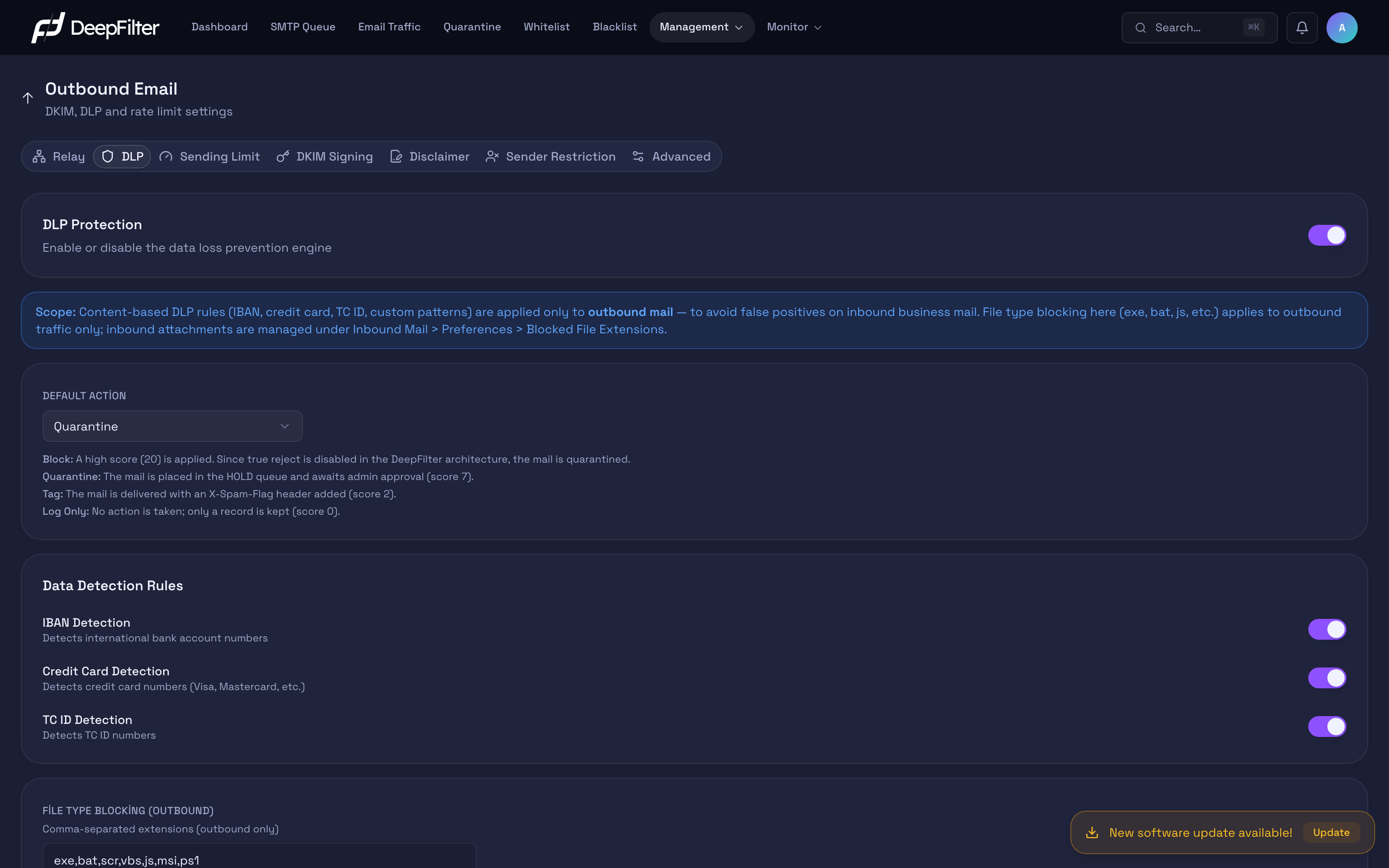
While DLP is on, the defined rules inspect the content and attachments of outbound email.
Settings
DLP Protection — the master switch that turns the DLP engine on and off entirely. (default: on)
- What it does: Puts all the rules below and the file type check into force, or stops them.
- Why it exists: To manage data leak scanning from a single place.
- If you change it: If you turn it off, a double safeguard is applied — all detection patterns are cleared and DLP scores are zeroed, so even an old match has no effect; no outbound email is stopped because of DLP. If you turn it on, the rules come back into force.
This switch is the same setting as the DLP row in the Curated Protections list on the Advanced tab: two entry points, one setting. A change you make in one appears in the other.
Default Action — the action applied when a DLP rule matches. (default: Quarantine)
- Block — Assigns the highest risk. Since real rejection is disabled in DeepFilter, the email is quarantined in practice; this is the strictest option.
- Quarantine — The email is not delivered and is held in quarantine for administrator approval. An administrator can review it and release it.
- Tag — The email is delivered and the match is left in the scan report as a low-scoring mark. On its own this mark stays below the quarantine threshold and does not stop the email; it is there for visibility and reporting.
- Log Only — No action is taken; only a record is kept. Suitable for observing a rule's behaviour in live traffic before putting it into force.
While Quarantine is selected, a single DLP match stops an outbound email on its own. Because reputation, brand impersonation and content rules do not run in the outbound direction (see Advanced → Scan Outbound Emails), there is no other signal to carry a DLP match up to the threshold; for that reason the quarantine threshold is lowered to DLP's own score in the outbound direction only. The reduction is applied only while Quarantine is selected: with Tag and Log Only the email is not stopped, and Block already exceeds the threshold on its own. Inbound email is not affected by this threshold reduction.
Data Detection Rules — three ready-made rules, each with its own switch: IBAN Detection, Credit Card Detection, TC ID Detection. (all three default: on)
- What they do: They search outbound email content for international bank account numbers, credit card numbers and Turkish national ID numbers respectively; on a match they trigger the Default Action.
- Why they exist: These are the most frequently leaked kinds of structured data; the ready-made patterns protect against them without any extra configuration.
- If you change them: If you turn a rule off, that data type is free to leave in outbound email. For example, if the accounting department legitimately sends IBANs often, it is safer to set the Default Action to "Log Only" and measure the volume first than to turn the rule off entirely.
File Type Blocking (Outbound) — a comma-separated list of extensions. (default: exe,bat,scr,vbs,js,msi,ps1)
- What it does: Applies the Default Action to any outbound email carrying an attachment with an extension on the list.
- Why it exists: Sending executable files outside the organization is both a malware distribution risk and a data leak risk.
- If you change it: Adding an extension widens the protection; removing one frees that type. This list looks only at outbound attachments.
The content DLP rules (IBAN, credit card, national ID) and the file type list here apply only to outbound email. Dangerous attachments in inbound email are managed in a separate module: Inbound Email → Preferences → Blocked File Extensions.
While DLP is on, additional controls appear in the lower part of the page: an automatic notification that informs the sender when a match occurs, custom detection patterns you define yourself, and a test area where you can try a piece of text without saving it. Custom patterns pass a validity and safety check before they are saved; an invalid pattern is silently ignored.
Sending Limit
The Sending Limit puts a ceiling on the number of emails a single sender or a single relay server can send per hour. Its real purpose is to prevent a compromised account or server from sending large volumes of spam in a short time, damaging the organization's sending reputation and getting your IP onto blacklists.
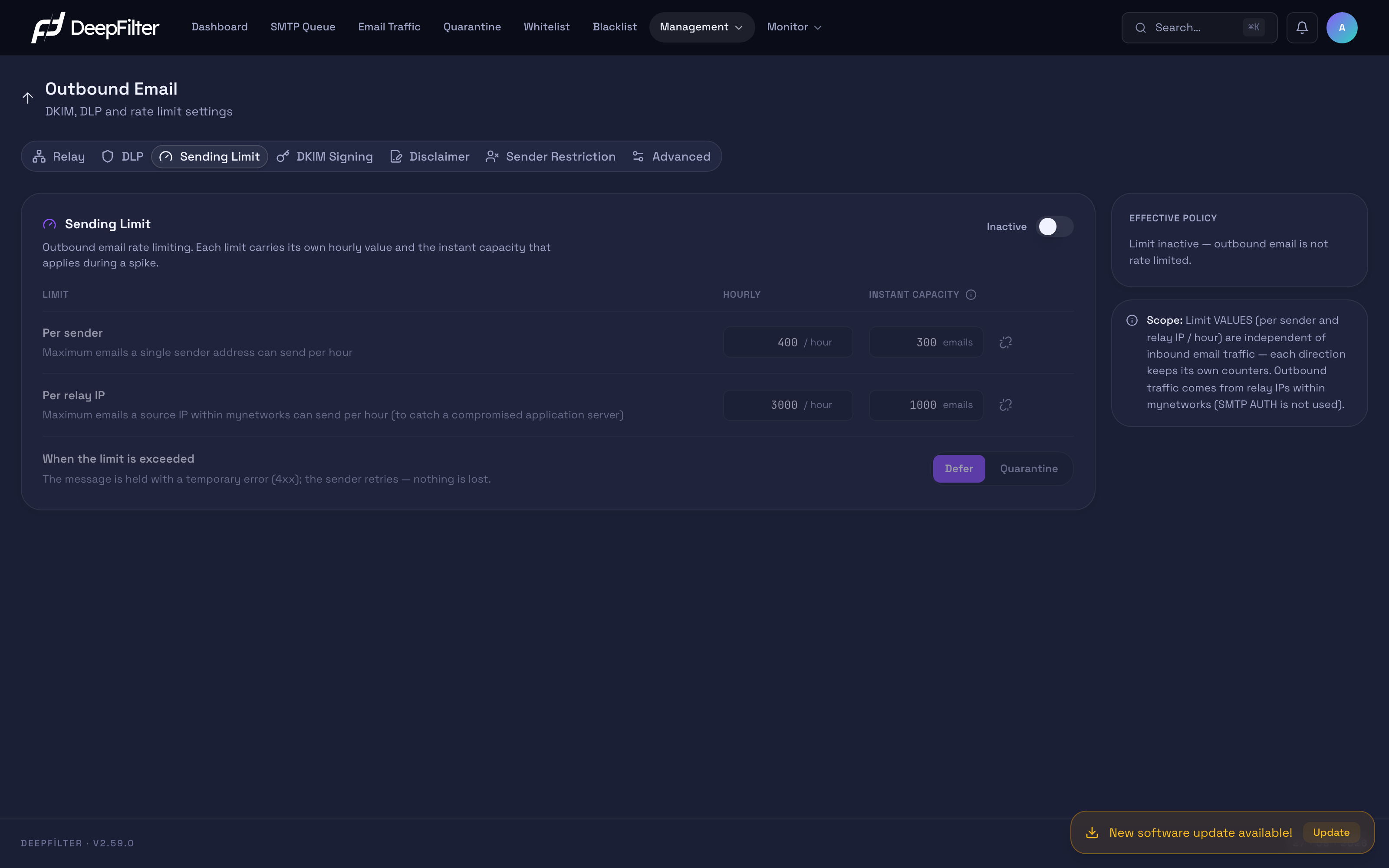
When the switch is turned on, the hourly sending ceilings and the ceiling-exceeded action appear.
Settings
Sending Limit — the master switch that turns the hourly sending ceiling on and off. (default: off)
- What it does: Puts the ceilings below and the ceiling-exceeded action into force, or stops them.
- Why it exists: To limit sudden sending bursts (a compromised account, faulty automation).
- If you change it: If you turn it on, sending above the defined ceiling is slowed down; while off (the default) there is no limit on outbound rate.
This switch is the same setting as the Sending Limit row in the Curated Protections list on the Advanced tab: two entry points, one setting. The ceiling values are entered only from this tab.
When the switch is turned on, the ceiling values and the action become visible:
- Per sender / hour (default: 400) — the hourly ceiling for a single sender address.
- Per relay IP / hour (default: 3000) — the hourly ceiling for a single relay server.
- Instant Capacity (Burst) — the number of emails allowed through at once during a short spike, before the hourly ceiling is reached. (default: sender 300, relay IP 1000)
- Action — the action applied when a ceiling is exceeded:
- Temporary Reject (default) — the sender receives a "try again later" (4xx) response; legitimate sending completes later, it is only slowed down.
- Quarantine — email above the ceiling is held in quarantine.
In a sudden pile-up the limit that actually binds is the instant capacity; the hourly ceiling only comes into play when traffic is spread over time. If an account fires off thousands of emails at once, the limit is applied the moment the instant capacity fills, long before the hourly ceiling is reached. That is why a corresponding instant capacity hint is shown beneath each hourly ceiling field; you are expected to consider the two values together.
Lowering the ceiling values tightens the protection but may accidentally slow down legitimate bulk sending (newsletters, invitations); raising them relieves legitimate sending but lets a compromised account send more email. This is a cautious↔permissive calibration axis.
The limit values are independent of inbound email traffic; each direction keeps its own counters (in the outbound direction, per sender and per relay IP). Outbound traffic is the email arriving from the trusted IPs on the Relay tab (SMTP authentication is not used), so the "per sender" counter works on the sender address on the envelope.
Defining an Outbound Sending Limit
Prerequisites
- Know the normal hourly volume of the servers that carry out legitimate bulk sending (newsletters, mass invitations); setting the ceiling below that volume slows down legitimate sending too.
Steps
- Open the Outbound Email → Sending Limit tab.
- Turn on the Sending Limit switch.
- Enter the hourly ceilings per sender and per relay IP; if necessary, adjust the Instant Capacity (Burst) values for your environment.
- Select the action (Temporary Reject is recommended; legitimate sending completes by itself later).
- Save.
Verification — how to know it worked
- Deliberately lower the ceiling to a low test value and send several emails in a row; you will see in the Traffic screen that emails above the ceiling are slowed down with a temporary rejection.
DKIM Signing
DKIM signing adds a cryptographic signature belonging to your domain to every outbound email. Receiving servers verify that signature against the public key in your domain's DNS record and confirm that the email really did come from your domain and was not altered in transit. Because unsigned or unverifiable email is increasingly pushed into spam, DKIM has a direct effect on the deliverability of outbound email.
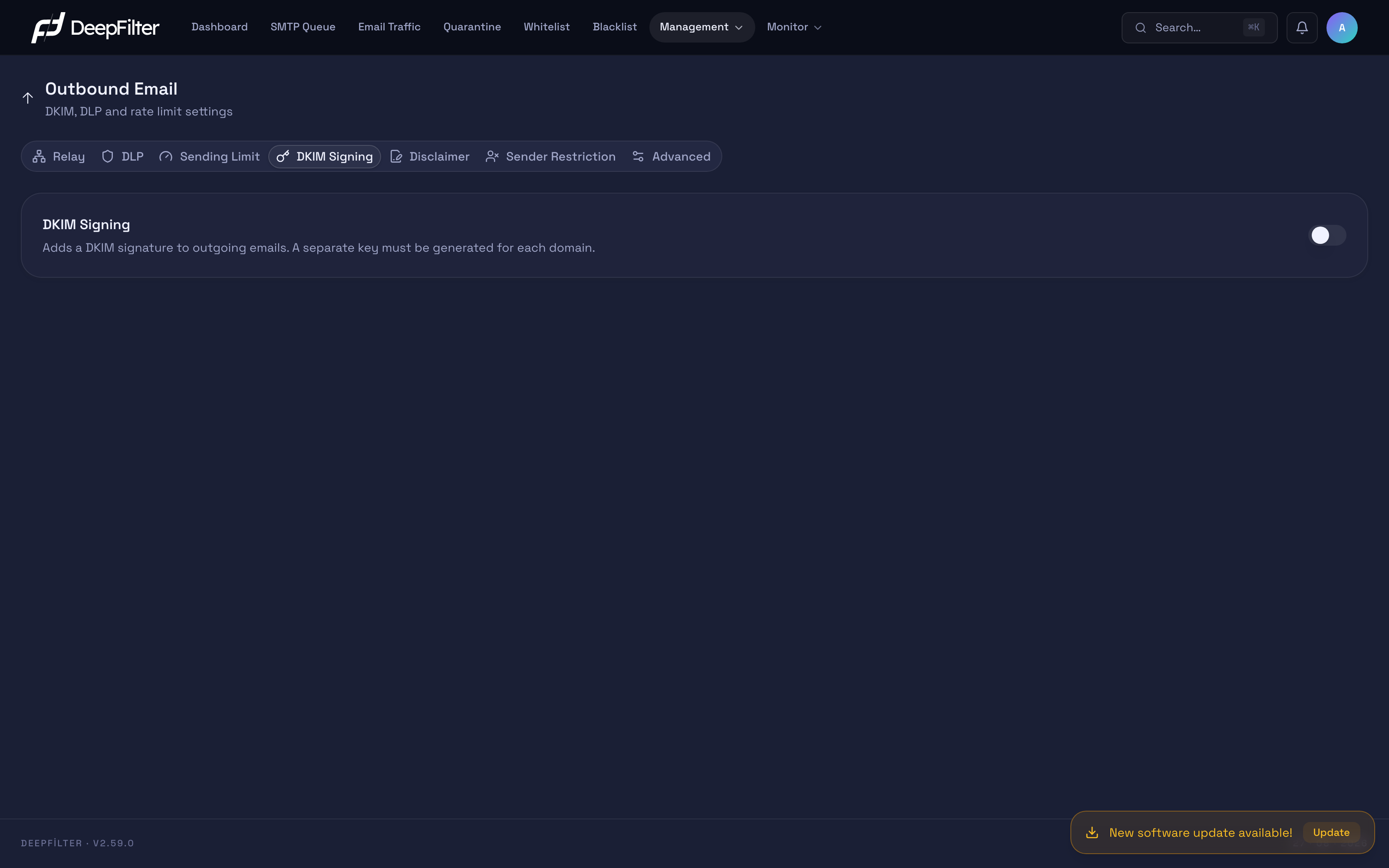
When signing is turned on, key generation and verification tools appear for each domain.
Settings
DKIM Signing — the master switch that turns outbound signing on and off. (default: off)
- What it does: Puts signing into force; when it is turned on, key generation and management tools become visible for each domain.
- Why it exists: To manage signing on a per-domain basis.
- If you change it: If you turn it on and add the public key to DNS, recipients verify your domain. If you turn it on and do not add it to DNS, the signature cannot be verified and deliverability may drop.
Domain — the domain to be signed. (you can pick from the domains defined in DeepFilter or type the domain by hand)
- What it does: A signing key is generated for the domain you enter; outbound email leaving from that domain is signed with that key.
- Why it exists: When you start typing, the domains defined in DeepFilter are listed as suggestions, but the domain does not have to be defined. In installations that use DeepFilter only in the outbound direction (relay / smarthost) and receive their inbound email on another system, the domain is never defined on the inbound side; being able to type it by hand lets those installations generate a DKIM key too.
- If you change it: The signature is selected according to the email's sender (From) domain, so the domain you enter here must match the domain of your sender addresses exactly. If you enter a subdomain or a domain with a spelling difference, that email goes out unsigned. A domain in an invalid format is not accepted.
Selector — the label that names the signing key in DNS. (default: default)
- What it does: Determines the name of the DNS record:
<selector>._domainkey.<domain>. - Why it exists: It distinguishes multiple keys for the same domain (rotation, different systems).
- If you change it: If you leave it empty,
defaultis used. If you enter a different selector, you must create the DNS record under that name; if the selector in DNS and the selector in the signature do not match, verification fails.
Each domain is signed with its own 2048-bit RSA key, and the signature is selected according to the email's sender (From) domain. When a key is generated, DeepFilter shows the TXT record (v=DKIM1; k=rsa; p=<public key>) you need to add to DNS. You can export and import a key to move it to another DeepFilter installation (a minimum of 1024-bit RSA, unencrypted, is accepted).
To generate a key, the domain does not have to be defined in the Inbound Email → SMTP Flow → Domains list. Signing works not because the domain is defined but because the email leaves from a trusted source on the Relay tab; for that reason installations that receive their inbound email on another system and use DeepFilter only in the outbound direction can also create a DKIM record by typing the domain by hand.
Domains that already have a key do not appear in the suggestion list. If you type such a domain by hand and try to generate a key again, DeepFilter warns you that the existing key will be overwritten and asks for your confirmation. If you confirm, the old private key is lost; unless you update the TXT record in DNS with the new key, that domain's signatures cannot be verified.
Generating a DKIM Key
Prerequisites
- The DKIM Signing switch must be on; the key tools are visible only while it is on.
- You must be able to add a TXT record to the DNS zone of the domain you will sign.
Steps
- Open the Outbound Email → DKIM Signing tab and turn on the DKIM Signing switch.
- Enter the domain to be signed: you can pick one of the defined domains from the suggestions or type an undefined domain by hand. If you wish, specify a selector (if left empty,
defaultis used). - Generate the key; DeepFilter produces a 2048-bit RSA key and shows the TXT record you need to publish.
- Add the TXT record shown to your domain's DNS zone.
- Use Check and wait for DeepFilter to find the record you published and match it against the local key.
Verification — how to know it worked
- The verification badge turns to DNS Verified, and a test email sent from that domain arrives at the recipient with a valid DKIM signature.
Generating the key is not enough on its own; the signature cannot be verified until the TXT record shown is added to DNS. A DNS change can take time to propagate, so if the Check badge does not turn green right away, try again a little later.
When managing an existing key, take care with deletion:
Deleting a domain's DKIM key cannot be undone: the private key is lost, signing stops for that domain, and because a regenerated key will be different you must update the DNS record too. Before deleting, consider exporting the key and keeping a backup.
Disclaimer
The Disclaimer automatically adds a legal notice or corporate signature (footer) to the body of outbound email. Organizations use it for a liability disclaimer, a confidentiality notice or a standard signature block. You create definitions and assign them to domains; the notice is added automatically to outbound email leaving from those domains.
The notice is added to the email before the signing stage, so the footer falls within the scope of the DKIM signature and the signature stays valid. The limits of this addition are as follows: it applies only to outbound email and the decision is made by source IP rather than by sender address, so a spoofed sender address cannot trigger the footer; email that is already signed or encrypted (an existing signature, S/MIME, PGP, signed/encrypted multipart content) is skipped and its body is left untouched; and the notice is only appended to the end of the body. If a problem occurs during processing, the email is delivered without the notice; body integrity takes precedence over the footer.
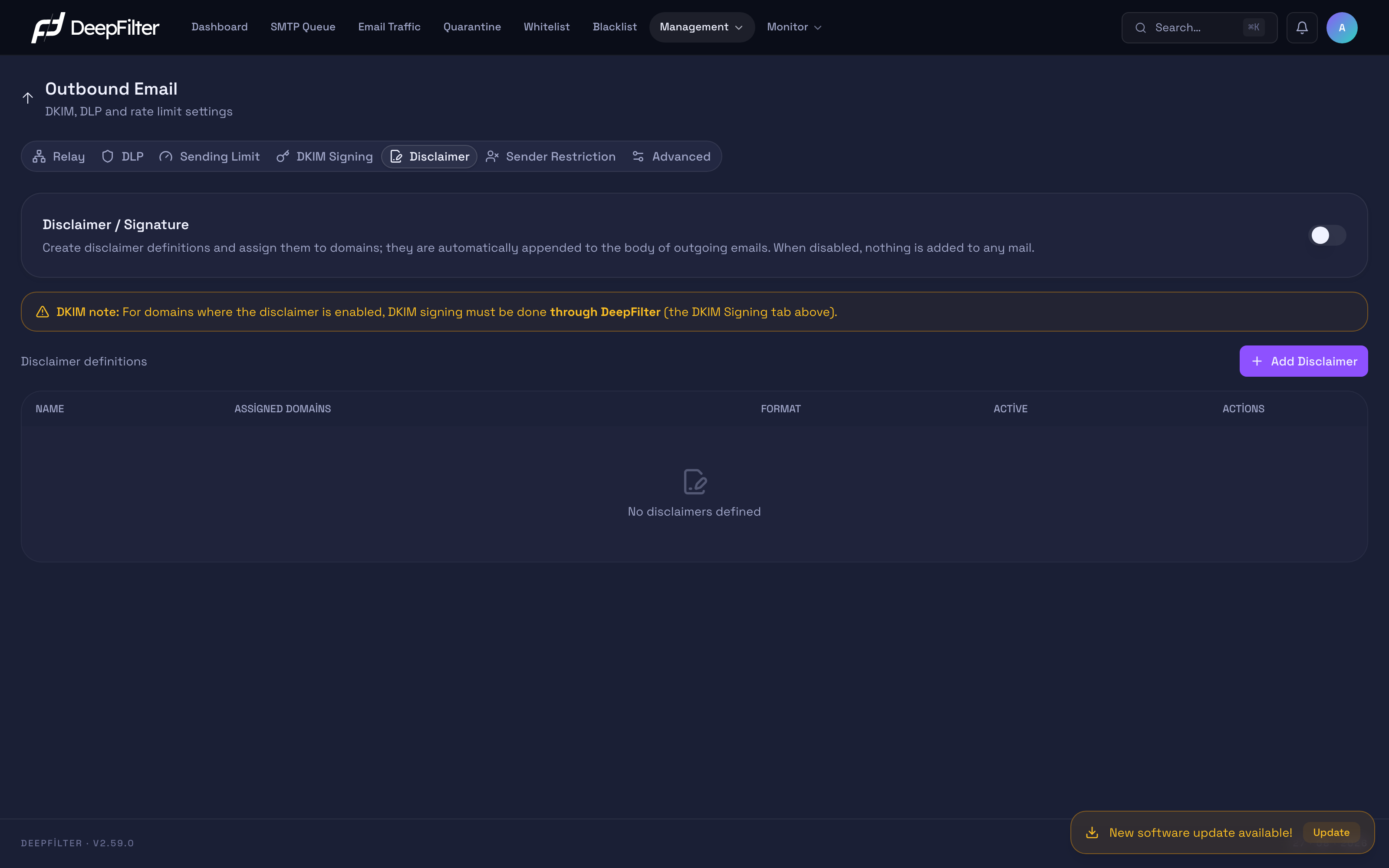
Every defined disclaimer is added automatically to the outbound email of the domain it is assigned to.
Settings
Disclaimer / Signature — the master switch that turns the disclaimer engine on and off. (default: off)
- What it does: Puts the addition of defined disclaimers to outbound email into force, or stops it.
- Why it exists: To manage the notice from a single place.
- If you change it: While off, nothing is added to any email. If you turn it on, create a definition and assign it to a domain, a footer is added to that domain's outbound email.
Creating a Disclaimer Definition
Prerequisites
- The Disclaimer / Signature switch must be on.
- DKIM signing for the domain the notice will be added to must be done through DeepFilter (see the caution below).
Steps
- Open the Outbound Email → Disclaimer tab and turn on the Disclaimer / Signature switch.
- Click Add Disclaimer.
- Enter a name and select the format (HTML or Plain text).
- Write the notice content; if necessary add the macros (
__SENDER__,__RECIPIENT__,__SUBJECT__,__DATE__,__MSGID__) and check the result with the preview. In HTML notices, macro values are escaped for safety. - Select the domains the notice will apply to. A domain can be assigned to only one definition; if it is already assigned to another definition, adding it here moves it away from there.
- Set the definition to Active and save.
Verification — how to know it worked
- Send a test email from the domain you selected; check that the notice has been appended to the end of the body at the recipient. In a test email you send signed or encrypted, confirm that the notice has deliberately not been added.
DKIM signing for the domain you assign a disclaimer to must be done through DeepFilter (the DKIM Signing tab). Otherwise, if the signature was applied outside against the body before the footer was added, the added notice breaks the signature and DKIM verification fails at the recipient.
Sender Restriction
Sender Restriction stops the users or domains you specify from sending email outside the organization. It is an authorization policy that pays no attention to content, score or volume: email leaving in the name of a sender on the list is not delivered, regardless of what it says. Typical uses are cutting off an outgoing employee's external correspondence until their account is closed entirely, limiting service accounts that only need internal communication, or temporarily suspending all outbound traffic of a contractor's domain.
The restriction is not a rejection. The email is accepted at the SMTP level — the sending client receives no error response — but it is not delivered and is placed in quarantine. It appears in quarantine under the Restricted Sender category; a full administrator can review it and release it if necessary. This behaviour makes the policy silent on the user's side: if you want the sender to be aware of the situation, you must turn on the warning email separately.
The rule works when three conditions hold together. First, the sender must be on the list; the match looks at both the sender address in the SMTP envelope and the email's visible From header, at address or domain level — so escaping the list by changing the envelope is not possible. Second, the email must be leaving from a trusted source on the Relay tab. Third, at least one of the recipients must be an external party that is not allowed. Because of this third condition, internal correspondence is exempt: if all recipients belong to your defined domains, the email is not blocked and a restricted user can keep up their internal correspondence. Which addresses count as allowed among external recipients is determined together by the general Allowed Recipient Domains list below and the sender-specific allowance list that can be defined separately on each entry; while both are empty, every external recipient is disallowed. If an email with multiple recipients has even one disallowed external recipient, the entire email is held; there is no per-recipient split.
This list is independent of the Blacklist: the Blacklist is an inbound policy, and the two do not affect each other.
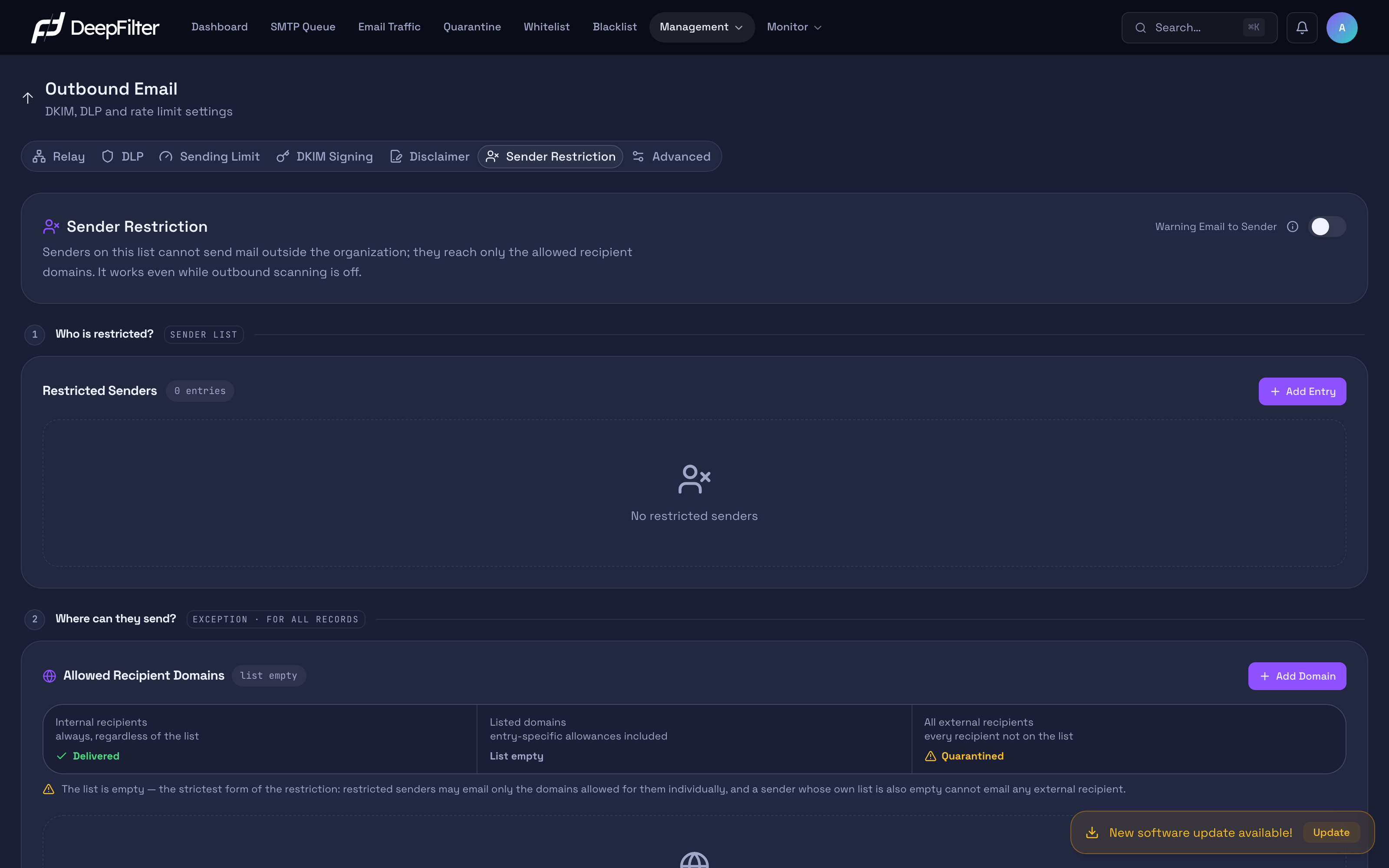
The tab is divided into numbered sections following the policy's two questions. The 1 · Who is restricted? section holds the restricted sender entries. The 2 · Where can they send? section defines the exception to the restriction, that is, the general Allowed Recipient Domains list that applies to all entries. Allowances opened for a single sender only are managed not in the second section but in a separate window opened from that entry's row in the first section.
Settings
Type — determines the scope of the entry: Email address or Domain.
- What it does: With Email address, only that address is restricted; with Domain, every user sending in the name of that domain is restricted.
- Why it exists: Restricting a single person and shutting down an entire domain are different decisions; this lets you choose the scope explicitly.
- If you change it: A domain entry applies to every sender on that domain — if you are targeting a single person, use the email address type; otherwise you may close off the whole organization to the outside without realizing it.
Value — the email address or domain to be restricted. (at most 255 characters; converted to lowercase when saved)
- What it does: Defines the address or domain the match will be sought on.
- Why it exists: It is the target of the restriction.
- If you change it: The entry must be consistent with the type you selected; an invalid value is reported as a warning beneath the field before it is saved ("An email address must contain '@'." or "A domain cannot contain '@'."). Case does not matter; the value is converted to lowercase when saved.
Description — free text that identifies the entry. (optional, at most 500 characters)
It is purely for administrative convenience and has no effect on operation. Filling it in is recommended so that you can remember later why the entry was added (a departing employee, a service account, a contractor whose agreement has ended).
Warning Email to Sender — determines whether a notice is sent to the sender for email held because of the restriction. (default: off)
- What it does: While on, an email is sent to the internal sender telling them their message did not go outside. No notification goes to the external recipient.
- Why it exists: Some organizations want the restriction to stay silent (an offboarding process, an investigation); others prefer the user to be informed so they do not wait in vain. The default being off treats the silent option as the safe side.
- If you change it: If you turn it on, the user learns that their email was not delivered. The notice is not instantaneous: because the quarantine scan runs every few minutes, the warning arrives after about one minute and at most two. At most one warning per hour is sent to the same sender; a restricted user who tries repeatedly does not get a separate warning for each attempt.
The subject and the text of the warning can be edited from the System → Email Templates screen.
Bulk Add
The add forms sit in a panel opened with the Add Entry button; Add One and Bulk Add are two tabs of the same panel. Instead of entering many entries one by one, you can paste a list into the Bulk Add tab with one entry per line. Lines starting with # are treated as comments and ignored; lines containing @ are evaluated as email addresses and the rest as domains. At most 1000 entries can be added at once; longer lists must be entered in parts.
The text you paste is parsed live before you save: the total number of lines, the split between email addresses and domains, the number of duplicates already on the list and the number of invalid lines are shown. Invalid lines can be seen in an expandable list with the numbers indicating which line they are on. When you save, a summary shows how many entries were added, how many were already on the list and how many lines were skipped — so with a large list you see what was processed both before and after saving.
If there is text in the box that has not been added yet when you close the panel, the screen asks for confirmation; a long list you pasted is not lost to an accidental close. When the addition completes successfully, no confirmation is asked and the panel closes by itself.
Removal from the list is done in two ways: a single row is removed with its own inline confirmation, and multiple entries are removed together by selecting the rows and using Remove selected. Removing an entry ends the restriction immediately; that sender can send email outside again.
Searching and Paging the List
The restricted sender list shows 8 entries per page; the counter above the list states which range out of how many entries is being displayed, and you move to the remaining entries with the page buttons. The search box works on the entry's value (the email address or domain) — it does not search the description field. When the list grows to hundreds of entries, this is the shortest way to find a single one. When you add a new entry, the search is cleared and the list returns to the first page, so the entry you added is not missed because of an open search or because you were on another page.
There is one limit to know about in bulk removal: selection starts with the displayed page, and the option that ticks every row on the page covers only that page. You can keep adding entries to the selection by changing pages; in that case, how many of the selected entries are not currently on screen is stated both in the selection bar and in the removal confirmation. Do not remove without reading the number in the confirmation: selected entries on pages you cannot see are also within the scope of the removal.
Adding a Sender Restriction
Prerequisites
- Only a full administrator can manage this list; a domain administrator cannot see it.
- Confirm that the address or domain you are going to restrict really has no need to correspond with the outside. The restriction is silent: the user gets no error and, unless the warning email is on, does not notice that their message was not delivered.
Steps
- Open the Outbound Email → Sender Restriction tab and click Add Entry in the 1 · Who is restricted? section to open the add panel.
- For a single entry, select the type in Add One, enter the value and, if you wish, write a description.
- For many entries, switch to Bulk Add and paste the list; check the invalid and duplicate counts in the preview before saving.
- Add the entry and confirm that it appears in the table; because the list returns to the first page, the new entry is visible right away.
- If you want the sender to be aware of the situation, turn on the Warning Email to Sender switch.
Verification — how to know it worked
- Send a test email from the address you restricted to a recipient outside the organization: no error appears on the sending client, and the email is listed under the Restricted Sender category on the Quarantine screen. Then confirm that an email you send from the same address to an internal recipient is delivered normally.
Sender Restriction works even when the Advanced → Scan Outbound Emails switch is off; it is an authorization policy independent of the curated protections. You cannot disable this list by turning outbound scanning off — the only way to end a restriction is to remove the entry from the list.
Your organization's own domain can also be restricted. When you add such an entry, DeepFilter's own notification sender address (the notification sender email in System Settings) is exempted from the restriction; two-factor authentication codes, password reset emails, quarantine digests and scheduled reports keep going out. If you change that address later, the exemption moves automatically to the new address.
Only a full administrator can release an outbound email that has fallen into quarantine because of a restriction. If a domain administrator tries to release such an entry, they get an authorization error; the policy decision belongs to the full administrator.
Allowed Recipient Domains
On its own, Sender Restriction is an all-or-nothing policy: a sender on the list cannot send any email outside the organization. In practice most situations call for something in between — an employee in an offboarding process who only needs to keep corresponding with the customer they handed over, or a service account that only needs to send notifications to a shipping company. Allowed Recipient Domains defines that middle ground: without lifting the restriction, it lists the external domains restricted senders may write to.
The rule consists of two states:
- While the list is empty (the default) restricted senders cannot send email to any recipient outside the organization; that email is quarantined. This is the strictest form of the restriction.
- While at least one domain is on the list restricted senders can send only to those domains; email to all other external recipients is quarantined.
Internal recipients are independent of the list: email a restricted user sends to recipients within your own organization is delivered under all circumstances.
| Recipient | While the list is empty | While a domain is on the list |
|---|---|---|
| Internal recipient | Delivered | Delivered |
| An external domain on the list | List empty | Delivered |
| Other external recipients | Quarantined | Quarantined |
The list is general: it applies to every restricted entry — including those already on the list and those added later. When you add a domain here, you grant that allowance not to a single user but to everyone you have restricted. If you want to open an allowance for a single sender only, use the Sender-Specific Allowed Recipient Domains section below; that list does not narrow this general list, it only widens it for the entry concerned.
There are two more behaviours you need to know:
- Mixed recipients. If an email has both allowed and disallowed external recipients, the entire email is quarantined. The decision is made per email; there is no "let it go to the allowed one, not to the other" split.
- Subdomains are not covered. The match is exact: an
example.comentry does not open upmail.example.comrecipients. Because subdomains can be handed over to other parties, you are expected to add each subdomain separately so that an allowance broader than what you wrote does not form silently.
Domain — an external domain restricted senders may write to. (only a domain is accepted; email addresses and wildcards are invalid. Case does not matter, and a leading @ is dropped.)
- What it does: Puts the domain you enter on the allowed list; restricted senders become able to send email to recipients on that domain.
- Why it exists: So that you can open up sending to individual counterparties required by a workflow without lifting the restriction entirely.
- If you change it: The moment you add the first domain, the rule turns from "cannot send outside at all" into "can send only to these domains". An invalid entry is not saved and is reported beneath the field; a domain already on the list is not added a second time.
The domain add form sits in a panel opened with the Add Domain button; as with the panel in the restricted sender list, the screen asks for confirmation when you try to close the panel while there is text in the box that has not been added yet. You can enter many domains together with Bulk Add: one domain per line, with commas and semicolons also counted as separators, and lines starting with # skipped as comments. At most 1000 domains can be added at once. The text you paste is parsed before saving; how many domains will be added, how many are already on the list and how many lines are invalid are shown. Invalid lines stay in the field so that you can correct them.
Removal from the list is done in two ways: a single domain is removed from its own row and can be brought back with Undo for a short time; multiple domains are removed together by switching to selection mode, ticking them and using Remove selected. Additions and removals take effect immediately; there is no separate save step.
When the list grows, at most two rows of domains are shown and the rest are opened with +N more and collapsed again with Show fewer — so this section does not stretch the page downwards. If there are more than ten domains on the list, a filter box also appears; the filter covers collapsed domains too, so you do not have to expand the list to find the entry you are looking for.
Removing the last domain on the list returns the rule to its strictest form: the moment the list is empty, restricted senders cannot send any email outside the organization and email to all external recipients is quarantined. The screen asks for confirmation in this one case; before confirming, check whether any workflow depends on the list.
This list concerns only the senders on the Sender Restriction list. Sending by users who are not restricted is unaffected by the list; adding a domain here does not mean whitelisting it or defining an organization-wide exemption.
Adding an Allowed Recipient Domain
Prerequisites
- Only a full administrator can manage this list as well.
- Know the exact spelling of the domain you will allow. If your counterparty receives their email on a subdomain (e.g.
mail.example.com), you must add it as a separate entry. - Bear in mind that the domain you add will be opened for all the senders you have restricted; if you want to limit the allowance to a single sender, define a sender-specific allowance on that entry.
Steps
- Open the Outbound Email → Sender Restriction tab and go to the Allowed Recipient Domains list in the 2 · Where can they send? section.
- Click Add Domain to open the add panel.
- For a single entry, enter the domain in Add One (e.g.
customer.com) and add it. - For many entries, switch to Bulk Add and paste the list; check the invalid and duplicate counts in the preview before saving.
- If necessary, add subdomains as separate entries.
- If there is a domain on the list you did not expect, remove it; if you removed one by mistake, bring it back with Undo within a short time.
Verification — how to know it worked
- Send a test email from one of the addresses you restricted to the domain on the list: the email is delivered normally. When you send from the same address to an external recipient that is not on the list, the email is not delivered and is listed under the Restricted Sender category on the Quarantine screen.
Sender-Specific Allowed Recipient Domains
The general list opens an allowance for everyone: when you add a domain there, all the senders you have restricted become able to write to that domain. In the field the need is often narrower — a single employee in an offboarding process needs to correspond only with the customer they handed over, and you do not want to open that same counterparty to the other restricted accounts. The sender-specific allowance list provides that narrowing: the domains you enter in the separate window opened from a restricted sender entry's row apply to that entry only.
The two lists widen each other, they do not narrow. An external recipient is allowed if its domain is on the general Allowed Recipient Domains list or on the restricted sender's own list; if it is on neither, the email is quarantined. A sender-specific list cannot take back an allowance granted on the general list, and the general list does not cancel an entry-specific allowance. While both lists are empty the rule is at its strictest: restricted senders cannot send any email outside the organization.
| Recipient's domain | Result |
|---|---|
| Internal domain | Delivered |
| On the general list | Delivered for all restricted senders |
| Only on the sender's own list | Delivered for that sender only; email from another restricted sender writing to the same domain is quarantined |
| On neither list | Quarantined |
The type of the entry also determines the scope of the allowance. A domain you add to an entry of type Email address is opened for that address only. A domain you add to an entry of type Domain is opened for every user sending in the name of that domain — the allowance has the same scope as the entry. If a sender is on the list both with their own address and with their domain, the allowances of both entries apply together; sending is opened regardless of which one you added it to.
The two behaviours that apply on the general list work exactly the same here: if an email with mixed recipients has even one disallowed external recipient, the entire email is quarantined, and the match is exact — an example.com allowance does not open up mail.example.com recipients.
Domain (entry-specific) — the external domain that will be opened for that restricted sender only. (only a domain is accepted; email addresses and wildcards are invalid. Case does not matter, and a leading @ is dropped. Entry-specific allowances are added one by one; there is no bulk add in this window.)
- What it does: Puts the domain you enter on that entry's allowance list only; while the restriction remains in place, that sender can send email to recipients on this domain.
- Why it exists: Opening a counterparty to a single sender and opening it to everyone you have restricted are different decisions. The general list does the second; this window makes the first possible, so you do not have to keep the general list broader than necessary for a narrow need.
- If you change it: The allowance arises for that entry only; if another restricted sender needs to write to the same domain, you must add it to their entry separately. Additions and removals take effect immediately, there is no separate save step, and no undo is offered for an allowance you remove — once removed, that sending path is closed.
The Extra Allowance column in the restricted sender list summarizes the state of each entry: rows with no entry-specific allowance show Global, indicating that only the general list applies, while rows with an allowance show the number of allowances added — so as you move through the list you do not miss which entries carry a privileged sending path. When you open the window, the total number of allowances in force for that sender is written at the top, together with the shares coming from the general list and from the entry-specific list; the general list is not edited from this window.
A sender-specific allowance is applied when it is certain on whose behalf the email is sent. If the sender in the SMTP envelope and the visible From header point to different restricted identities, none of the entry-specific allowances is used and the email is quarantined. The reason is to prevent one sender from borrowing another restricted sender's allowance by writing their address into the header. The general Allowed Recipient Domains list is not affected by this situation and keeps working as it is. For a user to be able to use their own allowances, the client they send from must set the envelope sender and the From header to the same address.
Entry-specific allowances are tied to the entry itself. When you remove a restricted sender from the list, the allowances you defined for them are deleted with it; if you add the same sender back later, you must enter their allowances from scratch.
Adding a Sender-Specific Allowance
Prerequisites
- Only a full administrator can manage these allowances as well.
- The sender must already be on the Sender Restriction list; the allowance list is tied to the entry, and where there is no entry there is no allowance to define.
- Know the exact spelling of the domain you will allow; if your counterparty receives their email on a subdomain (e.g.
mail.example.com), you must add it as a separate allowance. - If you want to open the same counterparty to everyone you have restricted, the right place is the general Allowed Recipient Domains list, not here.
Steps
- Open the Outbound Email → Sender Restriction tab.
- Find the relevant entry in the restricted sender list — use the search box if necessary — and open the entry-specific allowance window from the Extra Allowance column in the row.
- Enter the domain and add it (e.g.
customer.com); the added domain appears in the entry's allowance list. - If necessary, add subdomains as separate allowances.
- Remove an allowance granted in excess from the same window; the removal takes effect immediately and cannot be undone.
Verification — how to know it worked
- Send a test email from the sender you defined the allowance for to a recipient on that domain: the email is delivered normally. Then send to the same domain from another sender that is restricted but does not have this allowance: that email is not delivered and is listed under the Restricted Sender category on the Quarantine screen. The two tests giving the right result together prove that the allowance was opened only for the sender you targeted.
Advanced
The Advanced tab brings together the advanced settings of the outbound email flow: which protections are applied to outbound email, and whether outbound email is delivered directly or through an intermediate server (smarthost).
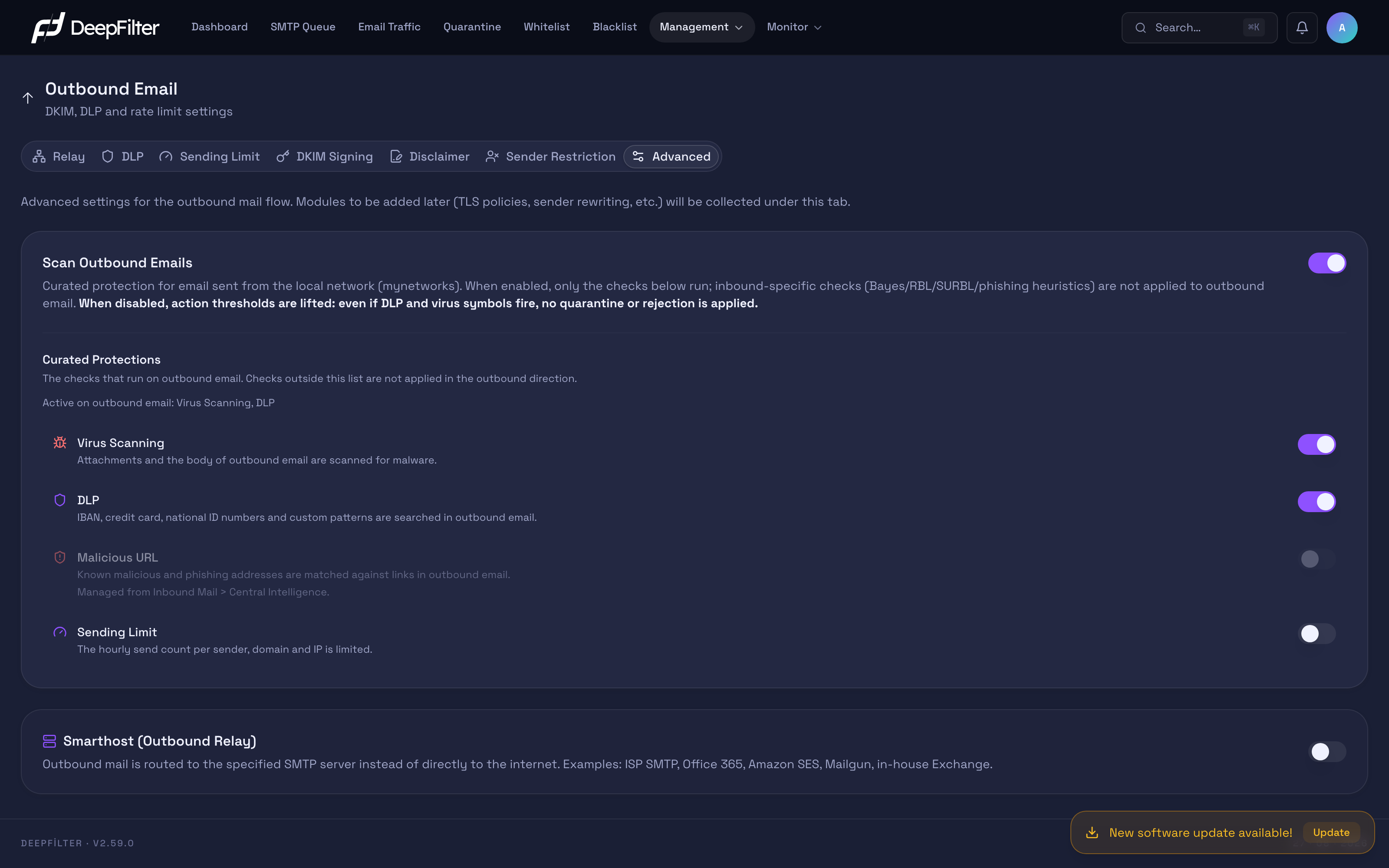
Outbound scanning and smarthost routing are managed from this tab.
Scan Outbound Emails
Outbound email does not pass through the same rule set as inbound email. Most of the rules on the inbound side — sender reputation, brand impersonation, phishing heuristics and content patterns — are designed to evaluate a sender you do not know. Applying the same rules to email written by your own users would put legitimate corporate correspondence into quarantine by mistake. For that reason only a curated (selected) set of protections runs in the outbound direction: virus scanning, data loss prevention (DLP), malicious link intelligence and the sending limit. No rule outside this set is evaluated on outbound email. Sender Restriction is outside this set: it is not a scanning rule but a sending authorization decision, and it is managed independently from its own tab.
Scan Outbound Emails — the master switch that determines whether the curated protections can actually stop outbound email. (default: on)
- What it does: While on, the checks that are enabled in the Curated Protections section can quarantine outbound email; when it is turned off, the action thresholds are lifted.
- Why it exists: To stop a compromised internal account from sending dangerous attachments or sensitive data outside, action must be possible in the outbound direction; on the other hand, some organizations prefer never to stop outbound email under any circumstances.
- If you change it: While on (the default), the curated protections can stop outbound email. If you turn it off, those protections cannot stop any outbound email; findings are still recorded and appear in the Traffic screen, but no quarantine or rejection is applied. The switch being off does not affect the Sender Restriction list: outbound email from a restricted sender is quarantined in that case too.
Protections that do run in the outbound direction: virus scanning · DLP (IBAN, credit card, national ID, patterns you define yourself and the outbound file type list) · malicious link intelligence (if enabled) · the sending limit · the whitelist and exemption chain (the organization whitelist and the end user's own allow list) · DKIM signing · disclaimer addition · traffic logging (outbound email continues to appear in the Traffic screen and in reports).
Rules that do not run in the outbound direction: sender IP and domain reputation lists · link reputation lists · statistical learning and artificial intelligence classification · phishing and brand impersonation heuristics (subject, body, display name) · HELO and reverse DNS consistency checks · SPF/DKIM verification results (outbound signing is not affected by this and keeps working) · suspicious domain extension, free hosting and file sharing link rules · mixed alphabet checks · the blocked file extensions defined for the inbound direction (outbound attachments are managed with the File Type Blocking (Outbound) list on the DLP tab) · the Recipient Surge Shield (it protects against subscription bombing aimed at a recipient and is meaningful only in the inbound direction).
Blacklist rules — blocked sender address and domain, blocked link, blocked word and subject rules — are an inbound policy and are not applied to outbound email. Email sent from your organization to an address on the blacklist therefore does not fall into quarantine. In the same way, an end user's own block list does not work in the outbound direction; their allow list, on the other hand, is valid in the outbound direction too.
While this switch is off, no curated protection can stop outbound email: because the action thresholds are lifted, quarantine or rejection is not applied even when DLP and virus findings occur. The finding is recorded and appears in the Traffic screen, but an outbound email carrying an IBAN or a dangerous attachment is delivered without being stopped — spam, viruses and data leaks go outside the organization unchecked. If you want the outbound protections to actually stop email, keep this switch on.
The one exception is Sender Restriction: because that list is an authorization policy rather than a scan result, it works independently of this switch and quarantines a restricted sender's outbound email here too.
Curated Protections
The four protections that run on outbound email are turned on and off individually in this section. The whole section depends on the master Scan Outbound Emails switch: while the master switch is off, the protections here take no action on outbound email.
The four protections are managed in two different ways. Virus Scanning and Malicious URL are two-tier: the module switch for these protections sits on the inbound side, and the row here determines only the outbound breakdown. While the module is off on the inbound side, the row here has no effect, cannot be changed and states where the protection is managed from; for it to run in the outbound direction, the module must be turned on first. DLP and Sending Limit, on the other hand, are the same setting as the master switch on their own tabs; they are not two separate settings, and a change made in one appears in the other.
Virus Scanning — scans the attachments and body of outbound email for malware. (default: on)
- What it does: When malware is detected in an outbound email, it moves the email to quarantine.
- Why it exists: A compromised account or an infected client can distribute dangerous attachments in your organization's name; this scan prevents both infecting your customers and damaging your sending reputation.
- If you change it: If you turn it off, outbound attachments are not scanned and a malicious file can leave the organization; keeping it on is recommended. This row turns off the outbound direction only and does not touch inbound scanning.
This protection is two-tier: the module itself is the Antivirus module on the Inbound Email → Security tab. While the module is off there, the row here has no effect and no virus scanning is done in the outbound direction.
DLP — makes sensitive data patterns (IBAN, credit card, national ID and patterns you define yourself) be searched for in outbound email. (default: on)
- What it does: Applies the DLP rules to outbound email; on a match, the Default Action you selected on the DLP tab is carried out.
- Why it exists: So that the data leak check can be seen in the same place as the other protections that run in the outbound direction.
- If you change it: If you turn it off, no sensitive data search is done on outbound email and no email is stopped because of DLP.
This row is the same setting as the DLP Protection switch on the Outbound Email → DLP tab; the rules themselves, the custom patterns and the Default Action are managed from that tab.
Malicious URL — matches known malicious and phishing addresses against the links in outbound email. (default: off)
- What it does: If a domain or link on the malicious address list pulled from the centre appears in an outbound email, it quarantines the email.
- Why it exists: A compromised account can use your organization's reputation to distribute phishing links outside; this check applies the same list used on the inbound side in the outbound direction as well.
- If you change it: If you turn it on, the links in outbound email are compared against the list too; while off (the default), the list works in the inbound direction only.
This protection is two-tier: the module itself is the SGB Threat Intelligence switch on the Inbound Email → Central Intelligence tab, and that too is off by default. For it to run in the outbound direction, both switches must be on.
Sending Limit — puts the hourly sending ceiling per sender and per relay IP into force. (default: off)
- What it does: When the defined ceiling is exceeded, it applies the action you selected on the Sending Limit tab (temporary rejection or quarantine).
- Why it exists: It limits a compromised account's ability to send high volumes in a short time; it is the only volume-based protection in the outbound direction.
- If you change it: If you turn it on, the ceilings come into force; while off, there is no limit on outbound sending rate.
This row is the same setting as the master switch on the Outbound Email → Sending Limit tab; the ceiling values and the action are entered from that tab.
For the outbound direction there is no screen where scores are managed rule by rule as on the inbound side (Inbound Email → Preferences). On outbound email only these four protections are turned on and off; individual rule scores are not set.
Configuring the Curated Protections
Prerequisites
- The Scan Outbound Emails switch must be on; while it is off, the protections here take no action on outbound email.
- For the two-tier protections, the relevant module must be on on the inbound side: Antivirus on the Inbound Email → Security tab for virus scanning, and SGB Threat Intelligence on the Inbound Email → Central Intelligence tab for malicious URL.
Steps
- Open the Outbound Email → Advanced tab.
- Confirm that the Scan Outbound Emails switch is on.
- In the Curated Protections section, turn on the protections you want to run in the outbound direction.
- If a row appears to have no effect, first turn on that protection's module from its tab on the inbound side and come back here.
- Save the changes.
Verification — how to know it worked
- Send a test email that matches the protection you turned on — for example, an outbound email containing an IBAN while DLP is on and the Default Action is Quarantine. Confirm that the email is not delivered, that it is waiting in quarantine and that it appears in the Traffic screen in the outbound direction with the relevant finding. For the Sending Limit it is enough to lower the ceiling to a low test value temporarily and send several emails in a row.
Smarthost (Outbound Routing)
Smarthost — routes outbound email to a specified SMTP server instead of delivering it directly to the internet. (default: off)
- What it does: While on, all outbound email leaves through the destination SMTP server you define.
- Why it exists: Some organizations are required to send outbound email through their ISP's SMTP server, Office 365, Amazon SES, Mailgun or an in-house Exchange (IP reputation, policy, network restrictions).
- If you change it: If you turn it on and define the destination server, outbound email goes through that server. If you turn it off (the default), the routing is cleared and DeepFilter delivers email directly.
Configuring the Smarthost
Prerequisites
- You must have the address and port of the SMTP server you will route through and, if required, its credentials.
Steps
- Turn on the Smarthost switch on the Outbound Email → Advanced tab.
- Enter the destination server address and port (587 is a common port).
- If the server requires authentication, turn on SASL and enter the username and password.
- Leave TLS on for encrypted transmission.
- Save.
Verification — how to know it worked
- Send a test email; confirm from the recipient headers (the Received chain) or from the smarthost provider's records that the email was delivered through the destination smarthost.
The password field is preserved unless you type into it again after saving; if you do not want to change the password, you can leave the field as it is.
Troubleshooting
- Outbound email is being rejected ("Relay access denied"). Check whether the sending server's IP is defined on the Relay tab and is Active. If the entry was just added, the trusted sending list is updated automatically once it appears as Active in the table.
- A legitimate incoming email (e.g. an invoice) is being caught by DLP. If you added a relay server with a public IP, email from that source may be counted as outbound by mistake and become subject to outbound DLP; see the public IP note on the Relay tab.
- Legitimate bulk sending (invitations, newsletters) is being temporarily rejected. The Sending Limit ceilings may be below your legitimate hourly volume; raise the ceilings or review the action.
- DKIM verification fails. Check that the TXT record you added to DNS matches the selector and the domain and that it has propagated, and that the Check badge reads DNS Verified; the DNS change may not have propagated yet.
- The disclaimer footer is not being added. Check whether the Disclaimer / Signature switch is on; whether the domain is assigned to a definition and the definition is Active; whether the email is signed/encrypted (in which case it is skipped deliberately); and whether the sending server is on the Relay list (outbound).
- Outbound spam is getting out. Outbound email does not pass through the reputation and content rules, so turning on the Scan Outbound Emails switch is not enough on its own. On a compromised account, the protections that actually cut off outbound spam are the curated ones: the Sending Limit, which stops volume; Virus Scanning, which stops sending that carries dangerous attachments; and Malicious URL, which stops the distribution of phishing links. On the Advanced tab, confirm first that the master switch and then that these three protections are on; in an account compromise scenario the most effective measure is to tune the Sending Limit ceilings to your environment.
- A protection row on the Advanced tab cannot be changed. That protection is two-tier and its module is off on the inbound side. Turn on Antivirus on the Inbound Email → Security tab for virus scanning, or SGB Threat Intelligence on the Inbound Email → Central Intelligence tab for malicious URL; the row becomes manageable after that.
- A user's outbound email is not being delivered and falls into quarantine. If the user gets no error but their email does not go out, check the Sender Restriction list first: the user's address or domain may be on it. Entries appearing in quarantine under the Restricted Sender category confirm it. To lift the restriction, remove the entry from the list; to let a single email through, release it from quarantine (only a full administrator can do this). If you want the restriction to remain but the user to be able to correspond with a particular counterparty, add that counterparty's domain to the sender-specific allowance list on the user's entry for this user only, or to the general Allowed Recipient Domains list for everyone you have restricted. If internal correspondence works and only external sending has stopped, this is almost certainly the restriction.
- A restricted user cannot send to a domain I added to the allowed list either. Check three points in order: whether the recipient's domain is written on the list exactly (subdomains are not covered —
mail.example.comis a separate entry); whether the email has another external recipient that is not on the list alongside the allowed recipient (with mixed recipients the entire email is held); and whether the domain may have been added with a typo. - Outbound email is not going to the smarthost. Check that the Smarthost switch is on, that the destination address and port are correct and that the SASL credentials (if required) have been entered.