License
DeepFilter does not keep its license alive with a one-off key check but with continuous verification: the system sends a verification signal to the central license server at regular intervals, and every successful verification refreshes the license. This model keeps the license current and also prevents the same key from being copied and run on more than one server.
This screen shows the current result of that verification: license status, validity period, your daily email tier and the installed protection versions. It is also where you enter a new key or refresh the status manually.
Two behaviours are worth knowing up front:
- The daily email figure is a tier indicator, not a hard ceiling. DeepFilter never blocks, rejects or delays an email because you exceeded that figure; the value only states your billing tier.
- The license does not stop the moment the central server becomes unreachable. A 14 calendar-day countdown starts from the moment the problem begins; during that period no protection is reduced and the system keeps running at full capacity. When the period runs out, email flow stops. The countdown does not run silently: a warning banner appears at the top of the panel and notification emails are sent to the administrator.
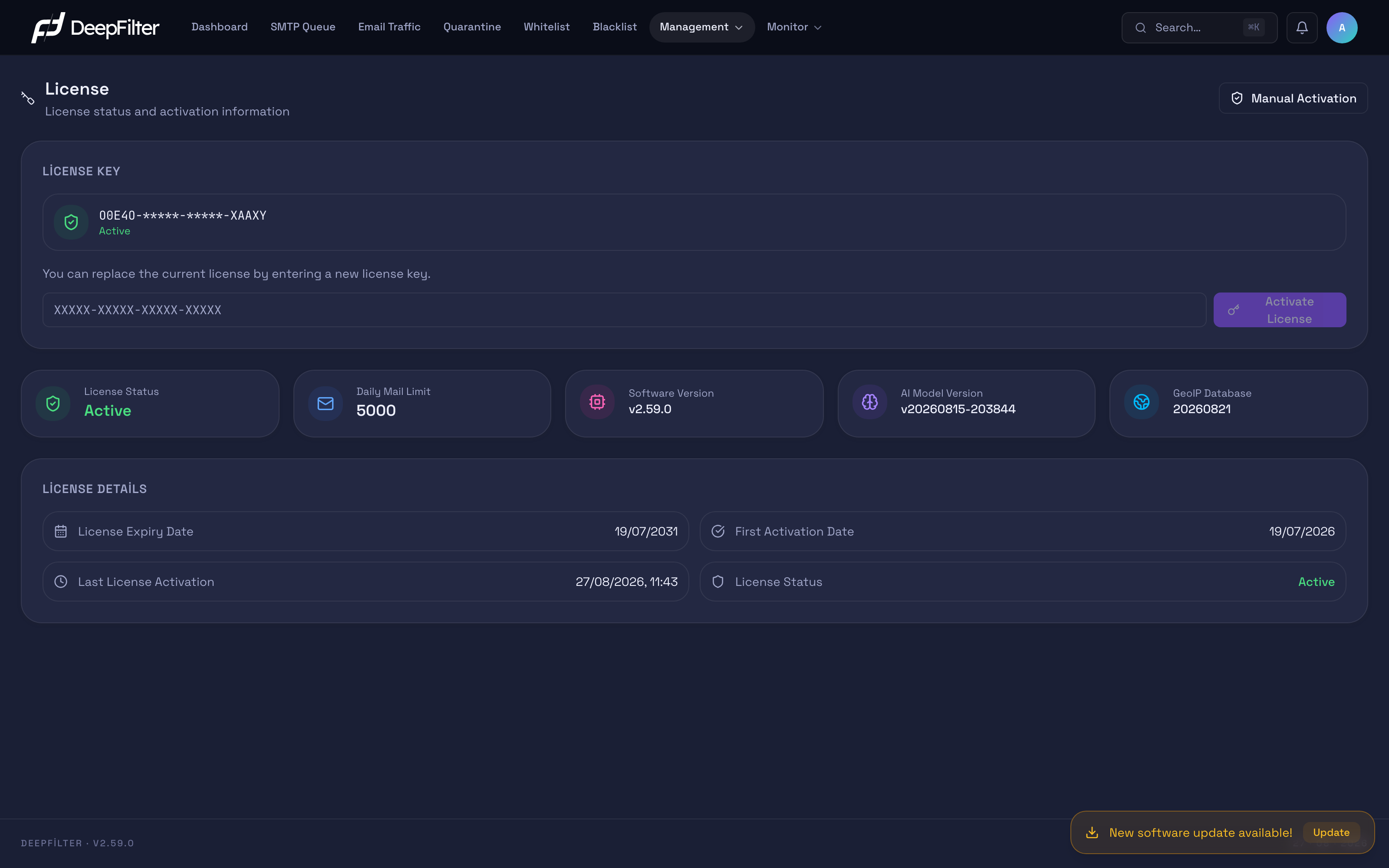
License Status and Scope
The License Key card masks the key in force for security — it shows only the
first and last group (00E40-*****-*****-XAAXY). The status label underneath the
card carries the current health of the license. Entering a new key and activating
it is also done from this card (see "License Activation" below).
License Status is the health signal of the license and takes these values:
- Active — The license is verified and fully in force.
- Pending — Not activated yet; waiting for a key to be entered.
- Warning — The license has an issue that needs resolving and the countdown is running; all services run at full capacity and no protection is reduced.
- Stopped — The countdown has run out or the license was rejected by the center; email flow has been stopped.
When and why these values change is explained in "What Happens When License Verification Is Interrupted".
Daily Mail Limit shows the daily inbound email tier of your subscription (on an unlimited plan it reads Unlimited). This is not a usage counter but the contractual tier granted from the center, and it is not calculated on the server. How the inbound email volume used for billing is measured is explained in "Daily Email Volume and Billing".
The Software Version, AI Model Version and GeoIP Database tiles show how current your protection is: respectively the running DeepFilter version, the version of the installed artificial intelligence spam model and the update date of the geolocation database. Not loaded yet in the last two means the data has not been downloaded and installed from the center yet (seen on new installations or before a download completes); the system keeps trying to download them periodically.
The dates in the License Details section give the timeline of the license:
- License Expiry Date — The last day the license is valid (Never expires on a perpetual license). If the end date is approaching, contact your supplier for a renewal.
- First Activation Date — The date the license was activated. This date is updated when you enter a new key and activate it again.
- Last License Activation — The timestamp of the most recent successful verification against the central server. Verification is renewed automatically several times a day (four times a day, roughly every six hours); if this timestamp is stale, there is a problem with the connection to the center.
License Activation
You activate the license from this card on first installation or when your tier changes. Activation verifies the key you enter live against the central server.
Prerequisites
- The 23-character license key from your supplier (in
XXXXX-XXXXX-XXXXX-XXXXXform, four groups of five). - Online access from the server to the central server. Activation verifies the key live at the center; it cannot complete while offline.
Steps
- Open Management → License.
- Enter the key in the
XXXXX-XXXXX-XXXXX-XXXXXfield on the License Key card. - Click Activate License.
Verification — how to know it worked
- The status label returns to Active, the Daily Mail Limit tile fills with the tier value from the center and the Last License Activation timestamp is updated to that moment.
Entering a new key replaces the license in force; you may move to a different tier or scope. Only a valid key that the center verifies is saved — an incorrect key does not break the existing license, the activation simply fails.
On-Demand Re-Verification
The Manual Activation button at the top right (visible only while the license is already active) sends an immediate verification request to the central server and refreshes the status and timestamp without waiting. Despite the name, its function is not offline activation but a live re-verification — it requires an online connection and fails if the central server cannot be reached.
Steps
- Open Management → License.
- Click the Manual Activation button at the top right; the button switches to Verifying....
Verification — how to know it worked
- The message "License verified successfully" appears and the Last License Activation timestamp is updated to that moment.
If the status looks stale (the Last License Activation timestamp is old or the status is Warning), you can trigger a live verification with this button instead of waiting. If the central server cannot be reached the operation fails and the status is not refreshed.
Daily Email Volume and Billing
DeepFilter measures your daily inbound email volume and reports it to the central server so the billing tier can be calculated. This is the "ethical license" model: there is no hard limit — exceeding your tier does not block, reject or delay any email; the volume is only measured.
Only inbound email is included in the volume: emails sent to at least one of your active domains are counted on a calendar-day basis in Türkiye time (UTC+3). When a message receives a Temporary Rejection, the sender retries repeatedly; those retries are recorded but not counted — even a message deferred many times is counted at most once.
Billing is based not on a single day but on the average of the last 45 days, and the five busiest days are excluded from that average; this way a one-off campaign or a sudden spike does not pull your tier upwards. This volume is sent to the central server automatically (several times a day and hourly).
The volume counters are always on and cannot be turned off from the interface; accurate billing depends on them.
What Happens When License Verification Is Interrupted
The system has to reach the central server regularly to keep the license in force. A single failed attempt has no consequence; the system retries. If the problem lasts for days, a single 14 calendar-day countdown runs. There are no stages: throughout the countdown no protection — including spam filtering and AI-based classification — is reduced; the only outcome is that email flow stops at the end of the period. This protects email flow until you fix the problem.
| Period | Status | System behaviour |
|---|---|---|
| While there is no problem | Active | Fully operational. |
| From the first moment of the problem to day 14 | Warning | All services run at full capacity; a warning banner with a countdown appears at the top of the panel and notification emails are sent to the administrator. Fix the problem within this window. |
| When 14 days are up | Stopped | Email flow stops; no email is delivered until the problem is fixed. |
Three situations start the countdown:
- The central server cannot be reached — The counter runs from the last successful verification.
- The license has expired — The counter runs from the License Expiry Date. If the central server considered the license valid within the last twenty-four hours, this countdown does not start; renewals are reflected automatically from the center.
- No license record was found — There is no license record for you on the central server. This is not a network failure but an explicit answer from the center; you are expected to enter a valid key within the remaining period.
When the problem is fixed — the connection is restored, the license is renewed or a valid key is activated — the countdown resets and stopped email flow is reopened automatically; no manual action is needed. You can trigger this without waiting via On-Demand Re-Verification.
There is one more situation, independent of the countdown: if the central server blocks the license, detects that the same license is running on another server (clone) or sees that the server's hardware identity has changed, no countdown runs and email flow stops immediately, and a critical warning email is sent to the administrator. This decision originates at the center and is permanent — cutting the server off from the center does not buy extra time. When the central server approves the license again, email flow reopens on its own.
If you move DeepFilter to a new server you must activate the license there again. Otherwise the central server sees the license on different hardware, treats it as a copy and switches it to Stopped.
License Warning Banner
A license problem is not information you can only see by opening the License screen: while the countdown is running, a warning banner sits at the top of the panel, just below the menu, on every page. That way you learn about the situation long before the period runs out and email flow is cut.
Only users with global administrator rights see the banner; it is never shown to domain administrators and viewers.
What the banner says depends on the problem:
- Central server unreachable — Tells you how many days are left before email flow is stopped; the action needed is to repair access to the central server.
- Your license has expired — Carries the same countdown; the action needed is to renew the license.
- License record not found — There is no license record for you on the central server; you are asked to activate a valid key within the remaining period.
- License blocked — An immediate rejection decision from the center, with no countdown. The reason is stated explicitly: a blocking decision, clone detection or a change in the server's hardware identity. In all three cases the action needed is to contact the center; if you believe the clone detection is wrong, the route is the same.
- Mail flow stopped — The period has run out. The text differs by reason: repair the connection, renew the license or enter a valid key.
The License Status button on the banner takes you straight to Management → License; if you are already on that screen the button is not shown.
The banner has no close button and cannot be hidden; the only way out is to fix the problem. Once the situation is resolved, the banner disappears on its own within a few minutes.
Prerequisites
- Read which reason the banner is showing; the action depends on the reason.
- A valid license key from your supplier, in the cases where a key must be entered.
Steps
- If the central server cannot be reached, open the server's outbound access (DNS, firewall, port 443).
- If the license has expired, contact your supplier for a renewal.
- If no license record was found, activate a valid key from Management → License (see "License Activation").
- Trigger a live verification with the Manual Activation button.
Verification — how to know it is resolved
- The status label returns to Active, the Last License Activation timestamp is updated to that moment and the banner disappears. If email flow was stopped, it reopens without any action on your part.
Clock Drift Warning
A separate warning banner reports that the server clock has drifted more than twenty-four hours from the central server clock and states the approximate size of the drift. This is not an enforcement: email flow is not affected and no license countdown starts because of it. However, an incorrect system clock also corrupts reports and log records — the license expiry date first among them; check the server's date/time settings and its time synchronization (NTP) configuration.
This warning is independent of the license countdown banner; both can appear at the same time.
If the server clock has drifted, DeepFilter does not start the "license expired" countdown — until the clock is corrected, the expiry decision is considered unreliable and no enforcement is applied.
License Notification Emails
The warning banner reaches the administrator who looks at the panel; to reach the one who does not, the system also sends email. Notifications are scheduled by days remaining: one notification is sent at 10, 5, 3, 2 and 1 days before email flow is stopped, and a stop notification goes out when the period runs out.
- This schedule is common to all three countdown reasons (connection outage, expiry, missing license record) and each threshold is sent only once.
- If a threshold is missed — for example if the server was off that day — the notification is not lost; the nearest threshold is sent once as soon as the system is running.
- When the license is blocked a separate critical notification goes out and is repeated roughly every twenty hours for as long as the situation lasts.
- The clock drift warning is also sent at most about every twenty hours.
Notifications go to the administrator alert recipients defined on the Management → Notifications screen.
The notification texts state explicitly which service is affected: until the period runs out, spam filtering and AI-based classification keep running at full capacity and no protection is reduced.
Troubleshooting
The status shows "Warning" or "Stopped". Access to the central server may have been cut (outbound 443 connection, DNS resolution or firewall), the license may have expired or the license may have been blocked at the center. The warning banner at the top of the panel states which reason applies and how much time is left. Check network access first, then try a live verification with On-Demand Re-Verification (Manual Activation).
The warning banner is not showing but I think there is a license problem. The banner is shown only to global administrators; it is not drawn if you signed in with domain administrator or viewer rights. Also, the banner can take a few minutes to disappear after the problem is fixed.
It says "AI Model Version: Not loaded yet". The artificial intelligence model has not been downloaded and installed yet. This is normal on new installations or before a download completes; the system retries periodically (roughly every fifteen minutes). If the connection to the center is healthy, wait a while.
It says "GeoIP Database: Not loaded yet". The geolocation database has not synchronized yet. The daily synchronization is expected; if the connection to the center is healthy it completes during the day.
"Manual Activation" is failing. This operation requires an online connection; it does not work while offline. Open outbound access to the central server and try again.