Zimbra SOAP
The filtering decision is made while the email is passing through: the email is either stopped or delivered to the recipient. After delivery the email is in the user's mailbox, and DeepFilter has no path that reaches it. Yet the need to intervene often arises precisely after that moment: a phishing email that got through the filter is noticed, an announcement sent to the wrong recipients needs to be taken back. Until now the only remedy was telling users one by one "delete this email"; across hundreds of mailboxes that method does not work.
The Zimbra SOAP integration closes this gap. Using the administrator identity you define, DeepFilter connects to Zimbra's administration interface and pulls a delivered email back out of user mailboxes. This page defines the connections — where to connect and with which identity — and determines which capability is opened over those connections. Where recall jobs are tracked, approved and recorded is a separate screen (see Monitor → Recall).
A connection is not a single definition: each connection is a profile bound to a delivery server. If the organization has separate Zimbra installations, for example one for staff and one for students, each is defined with its own profile, and an email is searched for through the profile of the server its recipient was delivered to.
The scope is deliberately narrow:
- Inbound direction only. Outgoing email sits on the recipient's server; DeepFilter cannot reach it there.
- Delivered emails only. An email that was quarantined, rejected or temporarily rejected never entered a mailbox; there is no copy to recall.
- Zimbra only. The integration talks to the administration interface of Zimbra mail servers. More than one Zimbra installation can run behind a single DeepFilter; each is a separate profile.
- Global administrator only. The Zimbra administrator identity carries the right to access every mailbox; for that reason neither the settings nor recall are opened to domain administrators.
The Zimbra SOAP screen is reached from Management → Integration → Zimbra SOAP.
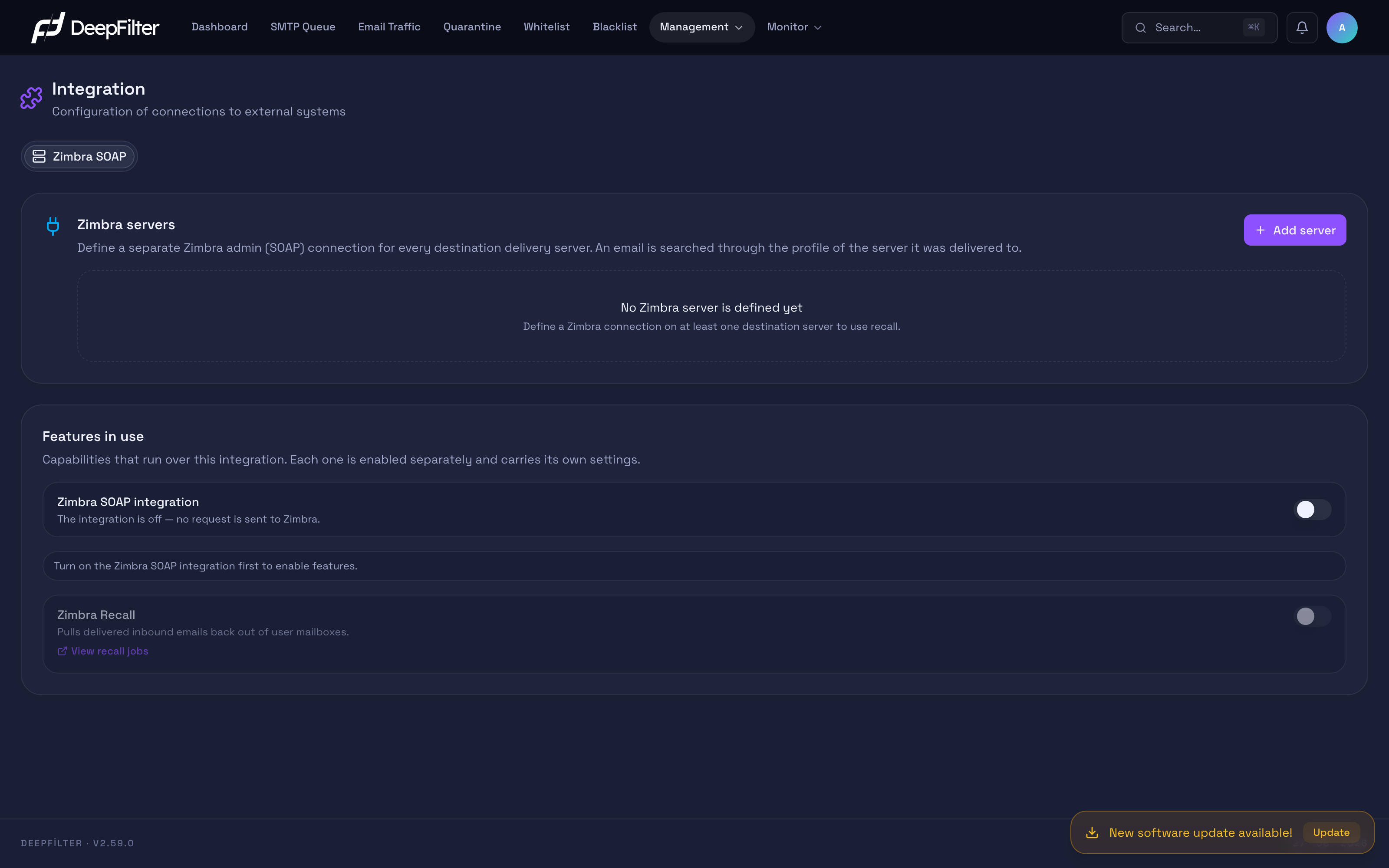
The Integration menu and this screen are visible only to users with the global administrator role; domain administrators do not see this section in the menu.
Server Profiles
A profile combines two things: which delivery server emails are delivered to, and at which address, with which identity that server's Zimbra is connected to. Delivery servers are defined in inbound email routing (see Inbound Mail → SMTP Flow); a profile is set up by picking a server from that list.
The path followed during recall is this: the recipient's domain → the delivery server that domain is bound to → that server's Zimbra profile. This way every recipient is searched for on their own mail server. If a single shared connection were used, a recipient on the student domain would be looked up in the staff Zimbra, the answer would come back "no such account", and the administrator would read a "not found" tally while the message was still sitting in the mailbox.
The rules of the model:
- A delivery server has at most one profile. A server that already has a profile appears in the list in the new profile window marked Zimbra profile exists, and it cannot be selected again.
- Servers without a profile are out of scope. Emails delivered to such a server cannot be selected on the Email Traffic screen; the row's checkbox is drawn as disabled and shows the hint "The recipient's destination server has no Zimbra profile". The campaign preview also counts those pairs separately and states that they fell outside the scope.
- A delivery server that has a profile cannot be deleted. When you try to delete such a server on the SMTP Flow screen, DeepFilter first asks for the profile to be deleted from this page.
- Add server goes inactive when there is no server left to connect to. The reason is written under the button: if every delivery server already has a Zimbra profile, it states that a new server is added under Inbound Mail → SMTP Flow; if no delivery server is defined at all, it states that a server must be defined there first.
The list summarizes each profile on a single row: the destination server (its name, its address and how many domains are bound to it), the SOAP address, the admin user, whether the profile is enabled, and the result of the last test you ran in this session. If the SOAP address differs from the delivery server's address, a Different SOAP address badge appears on the row; this is not a warning but the visible answer to the question "why is it different?".
During an upgrade, on installations that have a single delivery server the existing Zimbra definition turns into that server's profile by itself; there is nothing for you to do. If there is more than one delivery server, the conversion is not automatic — which Zimbra belongs to which server can only be settled with your knowledge; a warning appears on the page reminding you of the legacy definition (see Attaching a Legacy Profile to a Destination Server).
Prerequisites on the Zimbra Side
The steps below cannot be done from DeepFilter; they have to be completed in Zimbra administration, and they apply separately for every Zimbra installation. Without them, recall will not work even if the profile is saved.
- Service account and its rights. The account DeepFilter will use must either
be a global admin or be a delegated admin explicitly granted the right to log
in on behalf of an account (
adminLoginAs) for the target domains. Without the right, recall stops on every item with a Rights error. - Two-step verification. If two-step verification is enabled on the service account, the account's normal password will not work on this connection. Either generate an application-specific password for this account and enter that in DeepFilter, or use a separate service account without two-step verification for the integration.
- Network access. Access from the DeepFilter server to the Zimbra administration port (7071 by default) must be open. Mailbox operations also go to the account's own mail server address (usually 443); that path has to be open as well.
- Throttling exemption. The DeepFilter server's IP address must be added to
the
zimbraHttpThrottleSafeIPslist in Zimbra. Zimbra throttles heavy request volumes on its own, and that throttling affects all users, webmail included; the exemption keeps the organization's email access from slowing down during a recall. - Certificate. By default, DeepFilter verifies Zimbra's TLS certificate. If Zimbra uses a self-signed certificate, either add the certificate to the DeepFilter server's trust store or turn verification off (see Verify TLS certificate).
Profile Settings
The fields in this section are edited in the window opened with Add server or with Edit on a row, and they take effect with the window's own Save button. Each profile carries its own connection details; a change in one profile does not affect the profiles of the other servers.
Destination server — The delivery server the profile covers. The list is made up of the delivery servers on the Inbound Mail → SMTP Flow screen and shows how many domains each server carries.
Why it exists: Which Zimbra recall will search a given recipient in derives from this choice. A profile cannot be saved without a server selected.
If you change the value: The profile starts covering the emails delivered to the new server; the old server is left without a profile, and recipients on that server can no longer be recalled. When the destination changes, the admin password is requested again.
SOAP address — The host name or IP address of the Zimbra administration
interface (for example mail.example.com). The field fills in by itself with
that server's address when you select the destination server; enter the address
only, with no protocol in front and no path at the end.
Why it exists: Zimbra's administration endpoints do not always listen at the address the email is delivered to: mailboxd or the proxy may be running under a different name. That is why the address is a field separate from the delivery server.
If you change the value: If the address filled in automatically does not match your installation, type over it; both the connectivity test and recall will go to the new address. If the address differs from the delivery server's address, a Different SOAP address badge appears on the profile row. If the delivery server's address changes later, this field deliberately stays as it is — update it here if needed. When the address changes, the admin password is requested again.
SOAP port — The port the Zimbra administration interface listens on. (default: 7071)
Why it exists: Zimbra's administration interface runs on a port different from the webmail port users see.
If you change the value: If your installation serves the administration interface on a different port, write that port here. A wrong port shows up in the test as "The connection is refused" or "The connection times out".
Verify TLS certificate — Checks the validity of the certificate Zimbra presents. (default: on)
Why it exists: Verification guarantees that the connection really is going to your Zimbra server.
If you change the value: If you turn it off, self-signed certificates are accepted as well; the traffic is still encrypted, but protection against interception (man in the middle) drops. The preferred route is to add the certificate to the trust store and leave this switch on.
Timeout (s) — The longest time to wait for a response from Zimbra; it takes a value between 3 and 120 seconds. (default: 10)
Why it exists: It keeps operations from waiting indefinitely because of a server that does not respond.
If you change the value: On a slow or distant Zimbra installation, raising the value reduces timeout errors; lowering it too far makes a connection that actually works appear to be failing.
Admin user — The full email address of the account DeepFilter will
authenticate with on this Zimbra (for example admin@example.com).
Why it exists: Access to mailboxes is done with this account's rights; the whole of recall stands behind this identity.
If you change the value: If a short name (just admin) is entered, Zimbra
appends its own default domain and cannot find the account; the field expects a
full address as it is. When the account changes, the password is requested again.
Admin password — The password of the admin account. The password is stored encrypted on the server and is never shown in the interface again; the field only states whether a password is stored.
Why it exists: The connection authenticates anew every time; keeping the password stored lets recall jobs continue without administrator intervention.
If you change the value: On a new profile the password is mandatory. On an existing profile, if you leave the field empty the stored password is kept — changing other fields and saving does not delete the password. If you enter a new value and save, it replaces the old password. Removing the password entirely is a separate action (see Changing or Removing the Admin Password).
Enabled — Determines whether the profile will be used. (default: on)
Why it exists: While maintenance is being done on a Zimbra installation, or until a rights problem is resolved, the way to keep that server out of scope is to turn the profile off rather than delete it; the definition is preserved.
If you change the value: While it is off, emails delivered to that delivery server cannot be recalled; the relevant rows become unselectable on the Email Traffic screen. When you turn it on, the server comes back into scope.
If you leave the password field empty after changing the destination server, the SOAP address or the admin user, saving and the connectivity test stop with "Re-enter the admin password for the new destination, server address or user." This is a deliberate safeguard: the stored password is only ever sent to the saved destination, which prevents the password from being carried to another server by changing the destination.
Features in Use — Zimbra Recall
Profiles determine "where to connect"; this section determines "what will be done over that connection". The settings here apply to the whole installation; they do not vary per profile. Changes take effect with the Save button that appears at the bottom of the screen.
Zimbra SOAP integration — Turns the entire integration on or off. (default: off)
Why it exists: The integration carries an identity that can reach user mailboxes. That is why it ships off and is turned on only if it will genuinely be used.
If you change the value: While it is off, no request is sent to Zimbra and the features that depend on this connection (recall) cannot be turned on; the listing and cancellation of jobs in progress keep working. When you turn it on, the features beneath it become available.
Zimbra Recall — Makes it possible to pull emails delivered in the inbound direction back out of user mailboxes. (default: off)
When it is turned on, row selection in the inbound direction and the Recall button become visible on the Email Traffic screen (see Email Traffic). While it is off, that interface does not appear at all. While the integration itself is off, the feature switches cannot be turned on either — both gates have to be open.
Recall mode — Determines what will be done with the email that is found: Move to Trash or Delete permanently. (default: Move to Trash)
Why it exists: Recall means touching data in a user's mailbox. The trash option makes that intervention reversible; in a real incident, on the other hand, it may be necessary that no copy remains in the mailbox at all.
If you change the value: In Move to Trash mode the email goes to the user's trash and the user can restore it if they want. In Delete permanently mode the email is removed from the mailbox entirely and cannot be recovered; in this mode the confirmation button is two-stage — the first press shows the warning, the second press starts the operation.
Recall read emails as well — Determines whether copies the user has opened will also be processed. (default: off)
Why it exists: An email the user has read disappearing without notice is a different matter from taking back an unread copy; the default behavior is not to touch those copies.
If you change the value: While it is off, read copies are skipped and appear in the job list as Read — skipped; how many users opened the email is still reported. While it is on, read copies are recalled as well.
Recall rate (accounts/minute) — Determines how many mailboxes will be opened
per minute on the Zimbra side; it takes a minimum value of 1 and has no upper
limit. (default: 60)
Why it exists: The bottleneck is not DeepFilter but Zimbra. This setting lets you determine how fast recall will progress without pushing Zimbra into throttling.
If you change the value: Raising the value speeds up large jobs; if the
DeepFilter server is on Zimbra's zimbraHttpThrottleSafeIPs list, the rate can be
raised freely. Without the exemption, a high rate triggers Zimbra's throttling and
all users, webmail included, slow down; in such a case, lower the value. The value
you save is reflected in jobs that are already running; no restart is needed.
Every recall job is recorded with the mode and the "recall read as well" setting as they were at the moment it was opened, and it proceeds with that setting until the job finishes. Changing the mode after a job has been approved does not affect that job; the new setting applies to jobs opened after that. The recall rate is the exception to this: it is applied to jobs in progress the moment it is saved.
Recall deletes email from the user's mailbox. In Delete permanently mode the operation cannot be undone: the messages do not go to the trash, users cannot recover them, and even if the job is cancelled halfway, what was deleted up to that point does not come back. As a matter of organizational policy, stay in the default Move to Trash mode; choose Delete permanently only in a real incident and deliberately.
How Matching Works
Recall has to find the right message in the mailbox. An item is first routed to the correct profile according to its recipient's delivery server, and then the candidates in that mailbox are filtered by four criteria:
- Subject — Exact equality is required, in normalized form.
- Delivery time — A ±10 minute window around the time of the record.
- Email size — The size in the record is compared with the size of the message in the mailbox. The comparison tolerates header additions: during delivery, the gateway and Zimbra add a few KB of headers (Received, DKIM/ARC, scanning headers) to the message. A size difference is considered normal up to a quarter of the email's size, or at least 8 KB; small emails therefore no longer get caught out by a size difference.
- Sender domain — Verification is done with the header (
From:) domain only; the envelope sender does not enter this comparison. The two differ from each other on bulk email service (ESP), mailing list, forwarding and bounce paths, and a filter built on the envelope address would eliminate the right message. If the header domain is unknown, this criterion is not applied; the other three remain in force.
If more than one candidate message is found for an item, the item is not recalled by itself; it appears in the preview with the Confirmation required label and is processed only if you tick it. This is a safeguard put in place so that the wrong message is not deleted: deleting different emails that share a subject in a single stroke creates a bigger problem than the recall itself.
If an item returned Not found, the Error column in the job detail states with counters which criterion eliminated the candidates: how many candidates were caught by the time window, how many by the subject, how many by the size, how many by the sender domain. If all the counters are zero, no candidate was found in the mailbox at all — the message really is not there.
Adding a Profile
Prerequisites
- The server the emails are delivered to must be defined on the Inbound Mail → SMTP Flow screen; the profile is set up by picking it from that list.
- The prerequisites on the Zimbra side (rights, network access, certificate) must be complete for that Zimbra installation.
- You must have the service account's full email address and password to hand.
Steps
- Open Management → Integration → Zimbra SOAP.
- In the Zimbra servers section, click the Add server button.
- From the Destination server list, select the server the emails are delivered to. The SOAP address fills in by itself.
- Correct the SOAP address and SOAP port values if necessary; if Zimbra's administration endpoint runs at a different address, change the address here.
- Enter the service account's full email address in the Admin user field and its password in the Admin password field.
- Test the connection without saving it, from the Connectivity Test section at the bottom of the window (see Testing a Profile).
- Click the Save button.
Verification — how to know it worked
- The profile appears in the list as a new row; the Destination server column shows the server you selected and the number of domains bound to it, and the Status column reads Enabled. If no password was saved, a "No password stored" warning appears on the row.
Testing a Profile
Saving a profile means putting into effect an identity that can reach user mailboxes. The Connectivity Test tests the details without saving them and changes nothing on the Zimbra side; it only reads. A saved profile is tested the same way with the Test button on its row — this way you verify every Zimbra installation separately.
The test reports five steps in a fixed order — Connection, Authentication, Server version, Admin rights and Login as account (login-as) — and each step depends on the one before it. The overall result is one of three values: The connection works, The connection partially works (there is a warning), or The connection cannot be established.
Prerequisites
- The prerequisites on the Zimbra side must be complete (rights, network access, certificate).
- The SOAP address must be filled in and there must be no format errors in the fields; otherwise the test button stays disabled.
- If you have changed the destination server, the SOAP address or the admin user, re-enter the admin password.
Steps
- Open Management → Integration → Zimbra SOAP.
- Use Add server for a new profile, or the Test button on the row for a saved profile.
- In the Test account (email) field, enter a real user address from that Zimbra installation. This field is optional, but the "log in on behalf of an account" step — the only conclusive proof that recall will actually work — runs only while this field is filled in.
- Click the Test connection button.
- Read the step results from top to bottom; the first red step is the source of the problem.
Verification — how to know it worked
- The overall result is The connection works, and the Login as account
(login-as) step says "Login as the account works". The Admin rights step
shows either "Global admin — login-as is allowed on every mailbox" or "The
adminLoginAsright is granted on the test account". The Last test column on the profile row shows the result and its time.
Test results belong to the values in effect at the time. If you change anything in the fields, the note "Results belong to the previous values" appears above the results; run the test again before saving.
Reading the Rights Status
The Admin rights step tells you whether the service account can really reach mailboxes:
| Result | What it means |
|---|---|
| Global admin | The account can log in to every mailbox; no further definition is needed. |
The adminLoginAs right is granted on the test account | A delegated admin, verified against the test account you entered. |
| Enter a test account to verify the right | The account is a delegated admin; whether the right is actually granted can only be seen with a test account. |
The adminLoginAs right is not granted on the test account | Error. Grant this right in Zimbra; otherwise recall returns a rights error item by item. |
| The account carries no admin flag | Warning. Being able to reach the administration port is not proof of rights; verify on the Zimbra side that the account is an admin. |
A warning on the Server version step is not a fault on its own: reading the version information requires global admin rights, and it is an expected result for a delegated admin.
Turning On Recall
Prerequisites
- Every delivery server that recall needs to cover must have a profile defined; recipients on servers without a profile cannot be recalled.
- Every profile's connectivity test must return The connection works, and the login step performed with a test account must pass.
- A decision must have been made in your organization about which mode (trash / permanent deletion) will be used.
Steps
- Open Management → Integration → Zimbra SOAP.
- Add a profile for every delivery server to be covered (see Adding a Profile).
- Turn on the Zimbra SOAP integration switch.
- Turn on the Zimbra Recall switch in the Features in use section.
- Adjust the Recall mode, Recall read emails as well and Recall rate values to suit your organization.
- Click the Save button.
Verification — how to know it worked
- On the Email Traffic screen, when you switch to the Inbound direction, checkboxes appear at the start of the rows delivered to servers that have a profile, and when you make a selection the Recall button appears in the top bar. The first job you start is listed on the Monitor → Recall screen.
Adjusting the Recall Rate
Prerequisites
- Before raising the rate, make sure the DeepFilter server's IP address is on
Zimbra's
zimbraHttpThrottleSafeIPslist.
Steps
- Open Management → Integration → Zimbra SOAP.
- Enter the new value in the Recall rate (accounts/minute) field in the Zimbra Recall section.
- Click the Save button.
Verification — how to know it worked
- If a job is running at that moment on the Monitor → Recall screen, the progress counter speeding up (or slowing down, if you lowered the value) is visible within a few minutes; the setting takes effect without waiting for new jobs.
Changing or Removing the Admin Password
Steps
- Open Management → Integration → Zimbra SOAP.
- Click the Edit button on the relevant profile's row.
- To change the password, type the new password in the Admin password field.
- To remove the password, use the Remove stored password button beneath the field; a note appears stating that the removal becomes final on save. If you have changed your mind, you can undo it with Undo.
- Click the Save button.
Verification — how to know it worked
- When the password has been changed, the profile's connectivity test returns The connection works again. When the password has been removed, a "No password stored" warning appears on the profile row and the test stops at the "No admin user name or password is set" step.
When you remove the stored password, that profile can no longer authenticate: no new recall jobs can be opened for the delivery server it covers, and the items belonging to that server in jobs already running fail with an authentication error. Remove the password only when you are deliberately taking the profile out of service; for a temporary shutdown, using the Enabled switch is safer.
Attaching a Legacy Profile to a Destination Server
When the version is upgraded on an installation that has more than one delivery server, the old single-server Zimbra definition is not converted into a profile by itself: which server the definition belongs to can only be settled with your knowledge. A warning reporting this situation appears on the page, asking you to attach the definition.
Steps
- Open Management → Integration → Zimbra SOAP.
- Click the Attach to a server button in the "An old single-server Zimbra profile was found" warning.
- In the window that opens, the server address and admin user are carried over from the old definition; select the correct delivery server from the Destination server list.
- Enter the password again in the Admin password field — the password is not carried over.
- Test the connection and click the Save button.
Verification — how to know it worked
- The warning disappears and the profile appears in the list. You add new profiles for your other Zimbra installations through the same flow.
Things to Watch Out For
- Zimbra is a separate system under your administration. A change made on the Zimbra side — a right being revoked, the service account's password changing, the throttling exemption being reset, the certificate being renewed — breaks recall without anything changing in DeepFilter. Running the relevant profile's connectivity test again after maintenance on the Zimbra side is the fastest check.
- The scope is limited by the profiles. When you add a new delivery server, recipients on that server cannot be recalled until you define a Zimbra profile for it. When you move domains from one server to another, the scope moves with them too.
- The service account carries broad rights. This identity can reach every mailbox; restrict the account to only the rights recall needs, and do not share its password.
- Turning the feature off does not stop a job in progress. When you turn the integration or recall off, no new job can be opened, but the listing, the detail and the cancellation of existing jobs keep working. The way to stop a job that is going wrong is not to turn the feature off but to cancel the job from the Monitor → Recall screen.
Troubleshooting
The Add server button is disabled. There is no delivery server left to connect to. The note under the button tells you why: if every server already has a Zimbra profile, add a new delivery server from the Inbound Mail → SMTP Flow screen; if no delivery server is defined at all, define a server there first. If you want to change an existing profile, use the Edit button on its row.
The warning "This destination server already has a Zimbra profile" appears. A delivery server has at most one profile. To change that server's settings, edit the existing profile instead of adding a new one.
A delivery server cannot be deleted. There is a Zimbra profile bound to the server. Delete the profile from this page, then repeat the deletion of the server on the Inbound Mail → SMTP Flow screen.
The connectivity test says "The user name or password is wrong".
Make sure the admin user field is a full email address (admin@example.com); when
a short name is entered, Zimbra appends its own default domain and cannot find the
account. If the password was changed on the Zimbra side, enter the new password
and save.
The test says "The account requires two-step verification". Two-step verification is enabled on the service account and the normal password cannot be used on this connection. Either generate an application-specific password for this account and enter that in DeepFilter, or define a separate service account without two-step verification.
The test says "The TLS certificate cannot be verified". Zimbra is presenting a self-signed or untrusted certificate. Add the certificate to the DeepFilter server's trust store; as a temporary solution you can turn the Verify TLS certificate switch off, but that lowers the protection against interception.
The test says "The connection is refused" or "The connection times out". The SOAP address or port may be wrong, or access from the DeepFilter server to the Zimbra administration port is closed. Verify the address and the port — Zimbra's administration endpoint may differ from the delivery server's address — open the network path, and on a slow installation raise the Timeout value.
The test says "The server address cannot be resolved". The server name you entered cannot be resolved in DNS. Verify the name, review the server's name resolution settings (Management → System → DNS), or enter an IP address temporarily.
A row's checkbox on Email Traffic is disabled and says "The recipient's destination server has no Zimbra profile". That recipient's domain is bound to a delivery server that has no Zimbra profile. Add a profile for that server from this page (or, if it has one, turn its Enabled switch on); then refresh the list.
The campaign preview states that some of the pairs fell outside the scope. The recipients of those pairs are on delivery servers without a Zimbra profile and are not taken into the job. Define the missing profiles and recalculate the campaign.
The connection works, but every item in the recall gets a "Rights error". The service account is a delegated admin and the right to log in on behalf of an account is not granted on the target mailboxes. Run the test again with a test account entered; if the Admin rights step confirms the error, grant the right in Zimbra or use a service account that is a global admin.
Zimbra slowed down during a recall and users could not reach webmail. The request rate has exceeded Zimbra's throttling threshold. Lower the Recall rate value (to 30, for example) — the setting is applied to jobs in progress the moment it is saved — and add the DeepFilter server's IP address to the exemption list in Zimbra.
A settings could not be loaded warning appears and the fields are read-only. When the screen cannot read the saved values, it deliberately locks the fields; this is how empty values are kept from being saved by accident. Try again with Retry; if the problem persists, verify from the Monitor → System screen that the management service is running.