Recall
Recalling a delivered email from user mailboxes is not an operation that ends with a single click: DeepFilter first scans every mailbox and works out which message is where and who opened it; deletion begins only after the administrator's approval. This two-phase structure is deliberate — recall touches user data and there is no going back.
That scanning and deletion proceed in the background; a job covering hundreds of mailboxes can take minutes. The Recall screen is the single address for these jobs: you approve or cancel pending jobs here, follow running jobs live, and read the record of completed jobs here — who recalled how many messages, and in which mode. Closing the window on the Email Traffic screen does not make the job disappear; a job awaiting approval waits for you here.
The Recall screen is reached from Monitor → Recall. Recall jobs are started either from the Email Traffic screen or through the campaign flow on this page; the connection and mode settings are defined on the Management → Integration → Zimbra SOAP page.
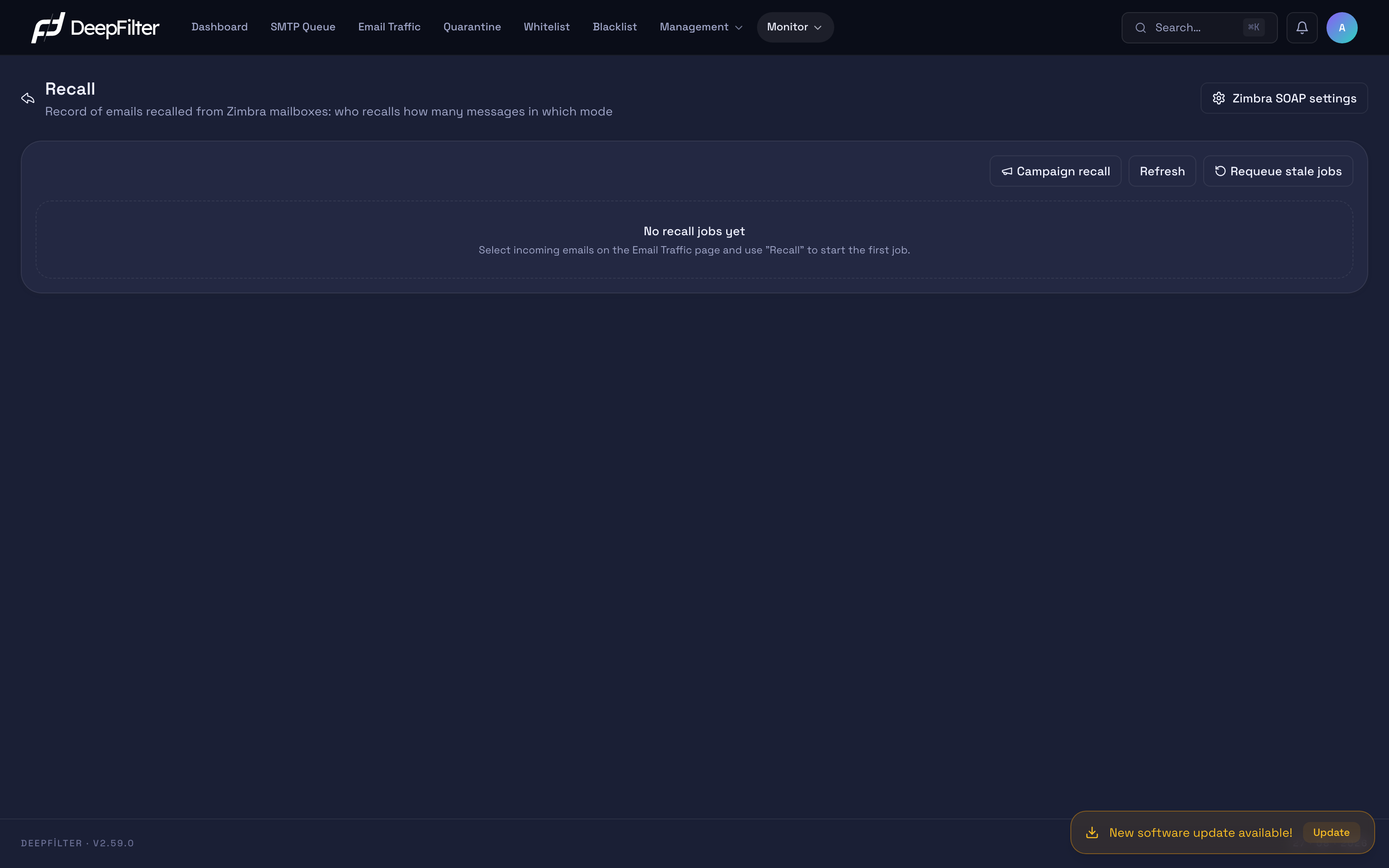
This screen is visible only to users with the global administrator role. The screen remains accessible even if the Zimbra integration or the recall feature has been switched off: listing, detail, cancellation and export keep working, and only opening new jobs and approving them are closed. Because the reflex to switch the feature off usually arrives at the "this job went wrong, stop it" moment, control of a running job is not taken away from you.
The Life Cycle of a Job
Every recall job follows the same sequence; the Status column on screen shows where the job stands in that sequence:
| Status | What it means |
|---|---|
| Previewing | Mailboxes are being scanned: which message is where, and who opened it. Nothing is deleted at this stage. |
| Awaiting approval | The scan is finished, the results are ready and the job is waiting for your decision. Still, no message has been touched. |
| Running | Approval has been given; messages are being taken out of the mailboxes. |
| Completed | All items were processed and no errors remained. |
| Completed with errors | The job finished, but some items hit a rights error or failed. |
| Cancelled | The job was stopped by an administrator. |
| Failed | The job could not run the moment it was opened; usually the connection details are missing or the feature is switched off. |
A job in the Awaiting approval status that is not approved within 24 hours cancels itself, and its items close with the note "Not approved within 24 hours". This prevents a forgotten job from performing an unexpected deletion days later; if the same intervention is still needed, open a new job.
Job List
The table sorts jobs with the newest at the top. The columns carry the information needed to assess a job in a single row:
- Date — The moment the job was opened.
- Administrator — The administrator who approved the job; if it has not been approved yet, the administrator who opened it.
- Source — How the job came about: Traffic selection (by selecting rows on the Email Traffic screen) or Campaign (by giving a subject, a sender and a time range).
- Mode — The recall mode at the moment the job was opened: Move to trash or Delete permanently. This value is the job's own record; changing the settings afterwards does not change past jobs.
- Status — Its place in the life cycle above.
- Counters — The total number of items, and the recalled and failed counts.
- Actions — Approve on jobs awaiting approval, Cancel on jobs awaiting approval and running, and on all jobs the export button that downloads the item list. The Approve button does not start deletion on its own; it opens the job's preview, and the approval sits below the item list.
The number of jobs running at that moment is shown at the top of the page; while there is an active job the list refreshes itself, so you do not need to press Refresh to see that a job has finished.
Clicking a row opens the job's detail. The detail shows one of two faces depending on the job's status: on a job that can still be steered (previewing, awaiting approval, running), approval, progress and cancellation are managed from the same window; on a closed job, the screen turns into a read-only audit view.
The window of a job whose preview is in progress follows the scan live. At first the recipients are resolved: which email landed in which mailbox is determined, and distribution lists are expanded into their members. Once the scan starts, a progress bar and an "N / M items processed" counter appear in the window. The counter counts every item whose outcome is known (found, not found, hit a permission error, or out of scope); the scan is read-only and nothing is deleted at this step.
As a distribution list is expanded into its members, the total item count (M) grows; that is why the progress percentage may drop back during the scan. This is not a fault; it shows that the number of mailboxes to be scanned has increased. The speed of the preview depends on the Preview rate setting on the Management → Integration → Zimbra SOAP page.
Item Statuses
A job consists of items, each of which is a single message and recipient pair. The table in the job detail tells you what happened to each item individually:
| Item status | What it means |
|---|---|
| Matched | The message was found in the mailbox; it will be processed once approval is given. |
| Not found | The search did not hit. The user may already have deleted the message, the information needed for matching (subject, time) may be missing, or the candidates may have been eliminated by one of the matching criteria; the Error column states which criterion eliminated how many candidates. |
| Rights error | Zimbra did not allow a session to be opened on that mailbox; the item is not touched at all. |
| Excluded | The item did not enter processing: it was unticked on the approval screen, or it was not confirmed because more than one candidate was found. |
| Recalling | The deletion operation is in progress for that item. |
| Recalled | The message was taken out of the mailbox. |
| Read — skipped | The user had opened the email and "Recall read emails as well" was off in the settings; the message was not touched. |
| Failed | The item could not be processed because of an error; the Error column states the reason. |
| Cancelled | When the job is stopped, the items still in the queue close with this status. |
The Read column in the item table shows how many users opened the email. This information can be read before approval too, and it is the fastest way to work out the real scope of an incident (how many people opened the phishing email).
Approving a Pending Job
Prerequisites
- The job must be in the Awaiting approval status; a job whose preview is still running cannot be approved yet.
- Confirm the job's mode (trash / permanent deletion) from the summary line in the detail window; the mode was fixed at the moment the job was opened.
Steps
- Open the Monitor → Recall screen.
- Click the Approve button on the row of the job in the Awaiting approval status (or click the row to open the detail window).
- Review the item table: untick the Recall box of any items you do not want recalled.
- Assess the items labelled Confirmation required — N candidates. More than
one candidate message was found for these in the same mailbox, and they are
not recalled unless you include them. You have two options:
- Tick, one by one, the boxes of the items you are certain are the right message.
- Tick the Include all N rows awaiting confirmation box above the table. This selection covers the rows requiring confirmation on all pages of the table, and all candidates found in the mailboxes of these rows are recalled. You can untick the rows you want to exclude one by one; the note "N row(s) unticked; these rows are not recalled." below the box shows the number of rows you have excluded.
- Click the Approve recall button. If bulk inclusion is off and unticked rows requiring confirmation remain, the Some rows are not ticked window opens and tells you that these rows will not be recalled. You have three options: Go back (you return to the table and review the rows), Include all and approve (all candidates in these rows are recalled too) or Approve without these rows (these rows stay in the Excluded status; the Error column reads "Multiple candidates — not confirmed").
- If the mode is Delete permanently, the approve button is two-stage: the first press shows the warning, the second press starts the operation. In this mode the buttons of the window above appear as Include all and continue / Continue without these rows and only save your choice; to start the job you press the Approve permanent deletion button a second time.
Verification — how to know it worked
- The job moves to the Running status, the progress bar shows "N / M items processed", and when the job finishes it returns to the Completed status (or Completed with errors if there were errors). Recalled emails appear in the Email Traffic list with a Recalled badge.
Approval starts the deletion of email from user mailboxes. In the Move to trash mode the user can restore the message from the trash; in the Delete permanently mode the message cannot be recovered. Even if you cancel the job after approving it, the messages deleted up to that moment do not come back. If you are unsure of the scope, export the item list first and examine it — export works without approval.
Monitoring a Running Job
Steps
- Open the Monitor → Recall screen.
- Click the row of the job in the Running status.
- In the window that opens, follow the progress bar, the number of items processed and the counters.
Verification — how to know it worked
- The number of items processed keeps rising, and the job eventually moves on its own to the Completed or Completed with errors status. The counters show the total, recalled and failed item counts.
Cancelling a Job
Prerequisites
- Cancellation is available in the Awaiting approval, Previewing and Running statuses; a closed job cannot be cancelled.
Steps
- Open the Monitor → Recall screen.
- On jobs awaiting approval and running jobs, use the Cancel button on the row; to stop a job whose preview is still running, click the row and press Cancel in the window that opens.
- Confirm the confirmation window that appears; the window reminds you that a cancelled job does not resume from where it left off.
Verification — how to know it worked
- The job's status becomes Cancelled and the unprocessed items close as cancelled.
Cancellation stops only what comes next. When a job awaiting approval is cancelled, no message has been touched; but when a running job is cancelled, the messages recalled up to that moment do not come back. In the Delete permanently mode that loss is final.
Campaign Recall
When the same email lands in thousands of mailboxes, selecting row by row does not work. The campaign flow proceeds the other way round in that situation: you give the criteria, and DeepFilter works out the scope. A campaign window can span at most 30 days — recall is an incident response, not archive housekeeping.
Prerequisites
- The Zimbra connection and the recall feature must be switched on (see Management → Integration → Zimbra SOAP). A campaign covers only recipients on delivery servers that have a Zimbra profile defined; pairs on servers without a profile do not enter the job.
- You need to know the subject of the email to be recalled; the subject is a mandatory criterion. A criteria set without a subject would mean "every email delivered in this range" and is not accepted.
Steps
-
Open the Monitor → Recall screen and click the Campaign recall button. (The same flow can also be started from the selection bar on the Email Traffic screen.)
-
Type the email's subject into the Subject field and choose Exactly equal or Contains as the Subject match. In "contains" mode the subject fragment must be at least three characters; a shorter fragment also collects emails outside the campaign.
-
If you wish, enter a full address (
user@domain.com) or a domain (@domain.com) in the Sender field. If left empty, no sender restriction is applied. -
Click the button in the Time range field. In the calendar that opens, click first the start day and then the end day; in the Start and End fields you can adjust the date and time down to the minute. Confirm the selection with Apply. If the range exceeds 30 days, Apply stays disabled and the warning "The time window can span at most 30 days." appears in the panel. Instead of opening the calendar, you can also choose one of the Quick range buttons (last 1 hour, 6 hours, 24 hours, 7 days).
-
Click the Calculate matches button. This step opens no job; it only shows the scope: the number of matching message-recipient pairs, the number of unique recipients and emails, the number of pairs already recalled, the number of pairs left out because the recipient's destination server has no Zimbra definition, and sample records.
-
Confirm from the sample records that you are targeting the right email; if necessary, narrow the criteria and press Recalculate.
-
Click the Create recall job button.
Verification — how to know it worked
- A new job with Campaign as its source appears in the list and starts in the Previewing status. When the preview finishes, the job moves to the Awaiting approval status; deletion does not begin until you approve.
If the number of matching pairs exceeds the upper limit the job can take, the screen gives the warning "the first M of N pairs enter this job". In that case, narrow the time range and recall the campaign in parts; otherwise part of the scope is left unprocessed.
Exporting the Item List
Every job's item list can be downloaded as CSV: which message was found in which account, who had opened it, and what the outcome was. The file can be taken before approval is given as well — it is the most practical way to report the scope of an incident and to put the decision on record.
Steps
- Open the Monitor → Recall screen.
- Click the export button on the relevant job's row (or open the job detail and use the Export (CSV) button).
Verification — how to know it worked
- The file downloads and contains all of the job's items together with their recipients and result statuses.
In a phishing incident, the answer to "how many people opened this email" is in this file. You can export it without waiting for the approval step and add it to your information security record.
Restarting Stalled Jobs
Rarely, a job can remain in the Previewing or Running status without progressing because the background task was lost. The Requeue stale jobs button restarts jobs that have made no progress for longer than 15 minutes.
The operation is safe: only items not yet processed are touched, completed items are not reprocessed, and the same message is not deleted twice.
Steps
- Open the Monitor → Recall screen.
- Click the Requeue stale jobs button at the top of the page.
Verification — how to know it worked
- The notice "N job(s) requeued" appears and the job's counters start advancing within a few minutes.
A job standing in the Awaiting approval status is not a fault; that job is waiting for your decision and is not requeued. Nor is a large, long-running job considered stale: the criterion is not the job's start time but the moment of its last progress.
Troubleshooting
The job has been "Previewing" for a long time and the counters are not advancing. First check whether the job has really stopped: if the counters increase within minutes, the job is large and you need to wait. If the counters are not advancing at all, use the Requeue stale jobs button. If the problem persists, confirm from the Monitor → System screen that the background services are up.
The job "Failed" as soon as it was opened. The Zimbra connection or the recall feature is switched off, or the connection details are missing. Confirm on the Management → Integration → Zimbra SOAP page that both switches are on, run the connection test, and open the job again.
All items got a "Rights error". The service account on the Zimbra side does not have the right to open a session on the mailboxes, or that right has been withdrawn. Run the connection test on the Zimbra SOAP page by entering a test account; if the rights step confirms the error, define the right in Zimbra. Items that received a rights error are not retried automatically; open a new job once the rights are fixed.
All items returned "Not found". There are three possibilities: the message really is not in the mailbox (the user may have deleted it), the information needed for matching is missing, or the candidates found were eliminated by one of the matching criteria. The Error column makes the distinction: if it says "Not enough information to search", the record's subject or time is missing — in that case supply the subject yourself and try the campaign flow. If elimination counters appear in the column, you can read which criterion did the eliminating (time window, subject, size, sender domain); if all the counters are zero, no candidate was found in the mailbox at all. For the details of the matching criteria, see Management → Integration → Zimbra SOAP.
Some items failed with the error "No Zimbra profile on the recipient's delivery server". The domains of those recipients are bound to a delivery server that has no Zimbra profile defined (or whose profile is switched off); there is no mailbox to go to. Add a profile for that delivery server on the Management → Integration → Zimbra SOAP page, then open a new job.
A distribution list recipient became Not found with "Distribution list has no members". The list exists in Zimbra but has no members (for example an empty list or one with dynamic membership); since there is no mailbox to open, the item is not touched. The address is correct; you do not need to look for a typo. If the Error column says Zimbra account not found, on the other hand, the address exists in Zimbra neither as an account nor as a distribution list.
Some items were passed over with "Read — skipped". This is deliberate behaviour: "Recall read emails as well" is off in the settings. If read copies need to be taken too, turn the setting on and open a new job — the existing job continues with the setting that was in effect when it was opened.
Some items were not recalled, carrying the "Confirmation required" label. More than one candidate message was found for those items, and they are excluded by default so that the wrong message is not deleted. If these rows were left unticked during approval, the system warns you with the Some rows are not ticked window; if Approve without these rows was chosen in the window, the rows are not recalled. If you are certain they are the right message, open a new job and tick the items one by one, or use the Include all N rows awaiting confirmation box; alternatively, narrow the subject and use the campaign flow.
The campaign preview says "No delivered email matches these criteria." The subject may not match exactly, the sender criterion may be too narrow, or the time range may be off. Set the subject mode to Contains, remove the sender criterion and widen the range (at most 30 days).
No row can be selected on the Email Traffic screen. The selection interface appears only when three conditions are met together: being signed in as a global administrator, being in the Incoming direction, and having the integration and the recall feature switched on. In addition, only delivered emails can be selected; emails that were quarantined or rejected never entered the mailbox and therefore cannot be recalled.