Blacklist (RBL) Monitor
The IP addresses of servers that send spam are recorded in blacklist (RBL/DNSBL) services worldwide. Before accepting an incoming email, receiving mail servers query the sending IP against these lists; if the IP appears on a list, the email is rejected or dropped into the spam folder. This reputation mechanism is the invisible front door of email delivery.
The trouble is that your own server's outbound IP can end up on those lists one day too: when a compromised account sends bulk spam, when the server is misconfigured, or when your IP was allocated from a pool that had previously been abused. Once you are listed, your outgoing emails start being rejected silently, and most of the time you only notice when the other side complains.
This screen removes that delay by continuously monitoring whether your server's public outbound IP — the one the outside world sees — appears on these blacklists. What is monitored is not the health of the blacklist sources, but directly whether your IP is on any list. That way you see the situation before a delivery complaint arrives and, if necessary, start the delisting process early.
How It Works
DeepFilter first determines the public IP address of your server as seen from
outside. It makes that determination through its own IP detection service; it
does not depend on a third-party service with changing IPs, but works over a
single fixed address. A local address behind NAT (for example 192.168.x.x)
cannot be used for this purpose, because blacklists recognise only public IPs.
That single detected IP is queried against all 50 blacklist sources at the same
time.
If the address reported by the detection service is not a valid public internet address (for example, a private address returned because your gateway routes this query back into the internal network), no blacklist query is made. In that case the Server IP Address field reads Public IP could not be verified, and the result of the previous check is not shown as "clean" because its currency cannot be confirmed.
Queries are always made over the IPv4 outbound address, because the blacklist query protocol is IPv4-only. This constraint provides an important safeguard: on a server that goes out over both IPv4 and IPv6, if the query were made accidentally over the IPv6 address, the results could look "all clean" even when you really were listed.
Blacklist queries are run through DeepFilter's built-in local DNS resolver rather than the system's general DNS settings. The reason is that when shared or public internet DNS resolvers are used, some large blacklist sources return an "open resolver" warning code and the results come back wrong. The built-in resolver prevents this by taking queries all the way to the source's authoritative server.
The check runs automatically every 4 hours (six times a day). The current result is stored on each run; when you open the screen you see the most recently stored result, and opening the page does not start a new query. When you need an immediate scan, you can use the Manual Check button.
Reading the Results
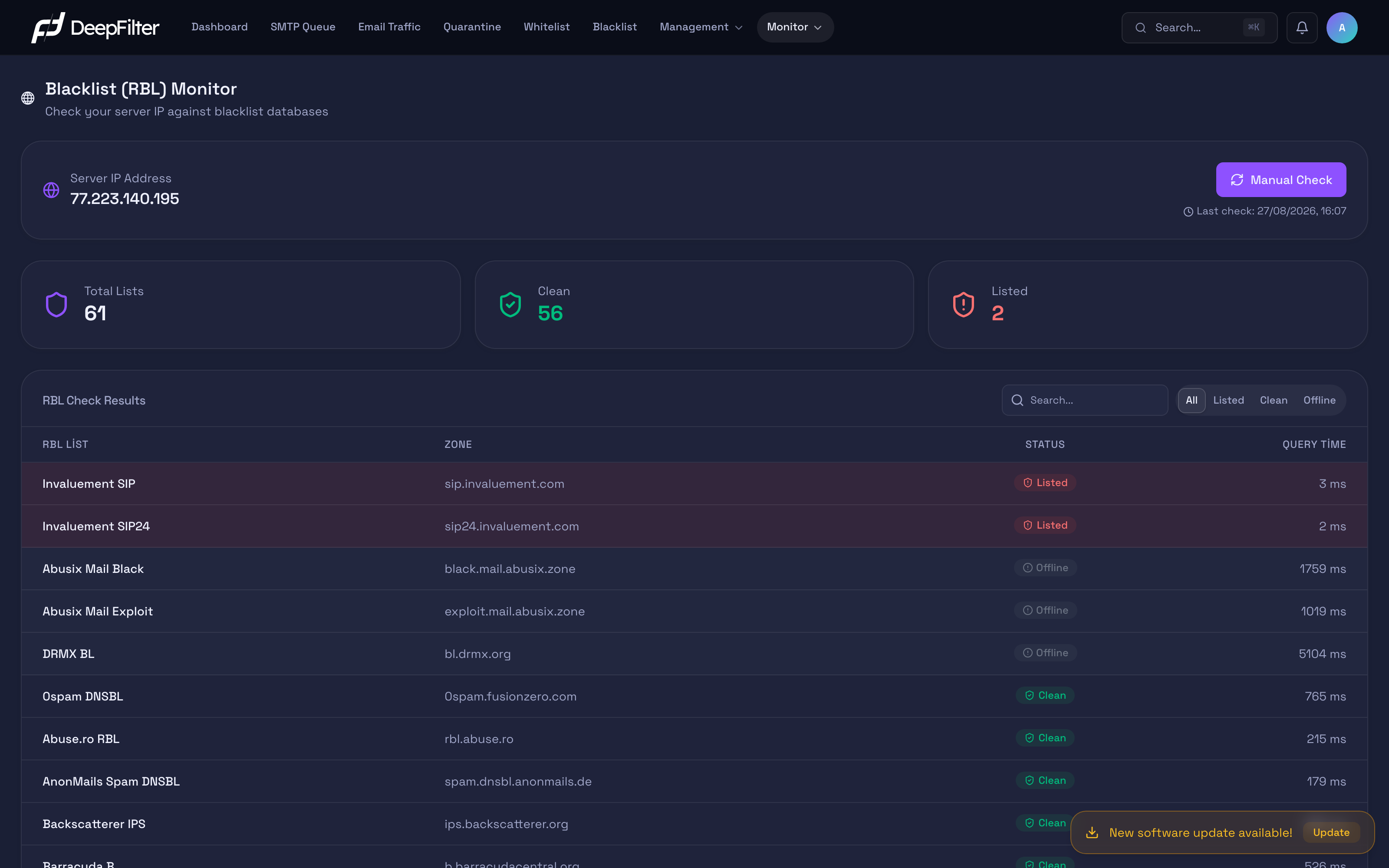
The summary indicators at the top let you read the current state at a glance:
- Total Lists — the number of blacklist sources queried (50).
- Clean — the number of sources where your IP does not appear on the list. Sources that do not respond (offline) are not included in this figure.
- Listed — the number of sources where your IP appears as registered. If it is greater than zero, this indicator turns red and requires attention.
In the table, each source's result is one of three states:
- Clean — the IP is not on the list at this source. The normal, desired state.
- Listed — the IP is registered at this source. Receiving servers that use this source may reject your email; it carries a direct delivery risk. Some sources (e.g. HostKarma JunkEmailFilter, Mailspike Rep, SPFBL DNSBL) also report good reputation or purely informational states with separate codes in their responses; these codes do not count as Listed, and only responses that mean "on the list" in the source's own code table are shown as Listed.
- Offline — no valid result could be obtained from the source at that moment. This can happen for two reasons: (1) the source timed out, did not respond or refused the query — for example, commercial lists that require a subscription or an access key are closed to public queries; (2) the source returned an error or warning code. Offline is not a listing; it only means that no measurement could be taken from that source in this round.
In the table each source is listed with its readable name (RBL List), the technical DNS address queried (Zone), its status, its response time (Query Time, in milliseconds) and the Action column. The Action column is filled only on Listed rows: the Delist link opens the delisting or lookup page of that list in a new tab; with providers that support it, the page opens with your server's IP address already filled in. For lists where DeepFilter cannot offer a link (lists whose provider has no delisting page, or whose page opens only over an insecure connection), the column reads No link. On Clean and Offline rows the column is empty. Results are sorted to bring the problematic ones forward: listed first, then offline, and clean sources last.
The search box and the All / Listed / Clean / Offline filters narrow the results. These filters affect only the display; they do not start a new query. When investigating a delivery problem, switching straight to the Listed filter is the fastest route.
The screen always shows the result of the most recently stored check. After a software update, until the next automatic check (at most 4 hours), the screen may show the result and the source count of the check made before the update; you can refresh the result immediately with Manual Check. At the first check after the update, sources that previously appeared as Listed by mistake because of a good-reputation or informational code return to Clean; for these sources a "karalisteden çıktı" (removed from blacklist) line may appear once in the RBL Monitoring log on the Log Management screen. Your IP address was not actually listed at these sources; no action is required.
Checking RBL Status
Steps
- Open the Monitor → Blacklist (RBL) screen.
- Look at the Listed indicator. If the value is
0, your server is not listed at any source; no action is required. - To be sure the result is current, press the Manual Check button.
Verification — how to know it worked
- The Last check timestamp refreshes and the summary indicators update to the newest result.
There is a 15-minute waiting period that limits running the Manual Check button repeatedly. If 15 minutes have not passed since the last check, the button appears disabled and states how long you need to wait. This is not an error but a deliberate limit that protects the blacklist sources from excessive querying. Because the automatic check also resets this counter, the manual button may stay locked for a short while if an automatic scan has just finished.
What to Do If You Are Listed
Prerequisites
- The Listed indicator must be greater than zero. This procedure applies when your server is listed at at least one source.
Steps
- Switch to the Listed filter above the table; only the problematic sources remain.
- Note the name and the Zone information of every source that lists you; you will need these for the delisting application.
- Fix the root cause first: a compromised account, an open relay, an infected client or unauthorised bulk sending are the most common sources of a listing.
- Once the root cause is fixed, click the Delist link in the Action column of each listing source's row. The source's delisting or lookup page opens in a new tab; with providers that support it, your server's IP address is already filled in on the page.
- On the page that opens, complete the delisting request by following the provider's instructions. If the row reads No link, go to the provider's website yourself; the Zone information helps you find the right provider. Every source has its own application page and rules.
You submit the delisting request on the provider's site yourself; DeepFilter does not send a request to the provider, it only opens the relevant page.
Verification — how to know it worked
- At the next automatic check (or, if the root cause has been fixed, at the next manual check) the status of the source in question returns to Clean and the Listed indicator drops.
If you apply for delisting without fixing the root cause, the source will list you again shortly. Delisting is not a permanent solution but a request made on behalf of a cleaned-up server; cut off the source of the spam first.
Troubleshooting
- The whole list appears Offline at once → The built-in local DNS resolver may not be running; in that case all queries go unanswered and monitoring goes blind. Check with your system administrator whether the local DNS resolution service is up.
- The server IP is empty or says "Not checked yet" → The public IP could not
be detected. The most common cause is a firewall or SSL inspection blocking
access to the IP detection service (
ip.deepfilter.io); allow the connection to that address. - The Server IP Address field reads "Public IP could not be verified", or
Manual Check shows "The server's public IP address could not be detected; the
RBL check was not performed." → The IP detection service did not report a
valid public address. This is usually seen in NAT setups where the gateway
routes the
ip.deepfilter.ioquery to an address in the internal network. Check on your gateway that requests to this address are not routed back into the internal network but go out to the internet; once the problem is fixed, Manual Check refreshes the result immediately. - Manual Check shows "The RBL check could not be completed; try again." → The check could not be completed because of an unexpected error. Try again after a while.
- A Listed row reads "No link" → DeepFilter has no secure delisting page it can open for this list; find the provider's website from the Zone information and submit the delisting request there. Links that open with the server's IP address also appear as No link when the public IP could not be verified (when the Server IP Address field reads Public IP could not be verified); in that case fix the public IP problem first.
- The Manual Check button is disabled → The 15-minute waiting period is in effect; this is not an error, and the button becomes active again once the period expires.
- A specific source is constantly Offline → Commercial blacklists that require a subscription refuse public queries; this is expected and harmless.
- There is a delivery problem but the IP is not on any list → The problem may stem not from a blacklist but from the PTR record, outbound port 25 or the domain's SPF/DKIM records. The Server and Domain tabs of the Health Tools screen check these settings on a single screen; the Blocklist (RBL) card on the Server tab shows the latest result of this screen.
- Unexpectedly, all sources are Clean → If the server goes out over both IPv4 and IPv6 and the query is made over the wrong address family, the results may not reflect reality; confirm that the outbound connection is made over IPv4.