Whitelist
DeepFilter puts every incoming email through a long series of security checks and gathers the threat signals it collects into a single score; when the score passes the threshold, the email is quarantined or rejected. From time to time these checks find a legitimate sender suspicious by mistake — emails from a business partner you correspond with regularly may keep landing in quarantine. This is called a false positive.
The Whitelist lets you define sender addresses or domains you trust and exempt their emails from the checks you choose. That keeps emails from your known business partners, suppliers and corporate services from being blocked by mistake. You can grant the exemption per check (skip only the check that causes trouble) or give a sender Full Pass, which turns off every check at once.
You use this screen when a trusted sender's emails are repeatedly flagged as spam, or when you want to establish trust for a particular domain in advance.
The screen opens from the Whitelist item in the top menu; in a narrow window this item is under Lists → Whitelist (see Panel Tour).
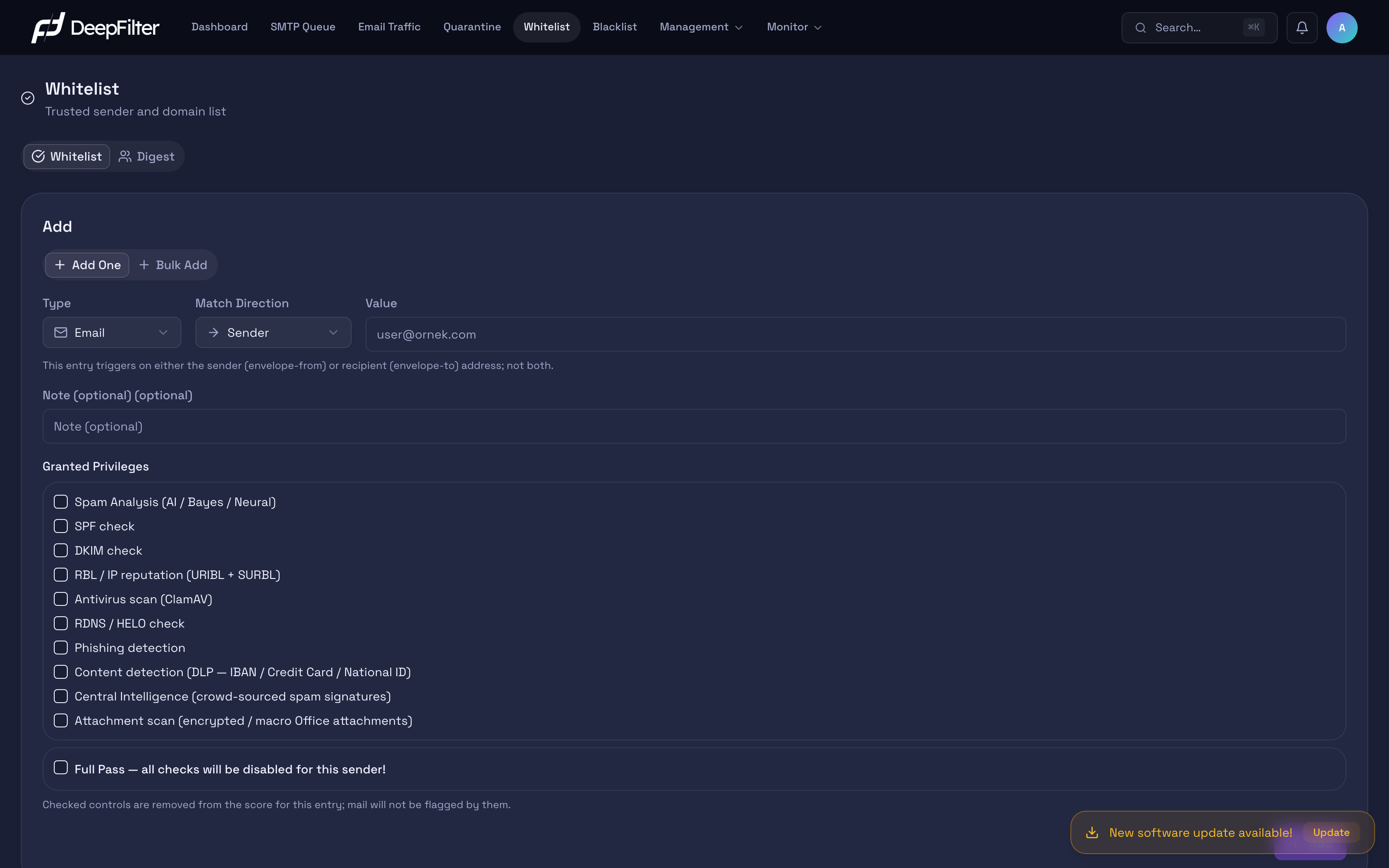
The Whitelist and Digest tabs at the top of the screen split the page in two: the first manages the trust entries, the second presents a summary of the users' own allow lists.
Settings
A new entry is created in the Add to Whitelist section, which opens with the Add button above the list. The section offers two tabs: Add One (a single entry) and Bulk Add (a multi-line list); the Bulk Add button above the list opens the section directly on that tab. The fields below belong to the Add One tab.
Value — the email address or domain to exempt. The entry type is detected
automatically from what you enter: a value containing @ becomes an Email entry
(e.g. user@ornek.com), a value without one becomes a Domain entry (e.g. ornek.com);
the detected type is shown as a small label on the right of the field. Leading and
trailing whitespace is stripped from what you enter, the text is lowercased and its format
is validated; an invalid address or domain is not saved. The value can be at most 255
characters long.
- Email — only the exact address you enter is exempt.
- Domain — every address belonging to that domain is exempt (e.g.
ornek.com→ everyone on that domain).
Sometimes you need to trust a single correspondent, sometimes a whole organization; the type separates the two scopes. Entering a domain spreads the exemption across an entire organization: convenient, but it also widens your attack surface, because anyone impersonating that domain becomes exempt too. The narrowest and safest scope is a single email address. IP addresses cannot be added to the whitelist; IP-based exceptions are managed in the Blacklist and Firewall modules.
Match Direction — decides whether the entry triggers on the sender address or the recipient address. (default: Sender)
- Sender — the exemption applies when the email's envelope sender address (envelope-from) matches this entry. Domain administrator entries can also match the visible sender (From) address; the rules for that match are described in Sender Spoofing Protection.
- Recipient — the exemption applies when the email's envelope recipient address (envelope-to) matches this entry.
Sometimes you want to trust a particular sender, sometimes a particular recipient (for example everything arriving at a critical corporate mailbox). A single entry never looks at both the sender and the recipient; you pick one of the two. If you want the same value exempt in both directions, you create two separate entries.
Scope — shows which domains' incoming email the entry applies to; it is not selected but determined by your role. For a general administrator it reads All domains (server-wide), for a domain administrator Domain-specific followed by the domains they manage (see Domain Administrator Entries).
Note (optional) — free text explaining why the entry was added (at most 500 characters). A whitelist grows over time; noting which entry was added for whom, when and why makes auditing and cleanup much easier later on.
Granted Privileges
Granted Privileges — ten exemption checkboxes where you pick, one by one, which security checks are skipped when this entry matches. (default: none checked) Select all at the top of the section ticks all ten boxes at once, Clear removes the whole selection.
Every check you tick is removed from the score calculation for this sender's emails; that check can no longer catch the email. The checks you leave unticked keep working normally. Usually you only have trouble with a single check for a given sender (for example its server is on a blocklist, so it trips IP reputation). Skipping just that check and leaving all other protection standing is far safer than a blanket exemption.
The exemption applies regardless of the email's total score: however high a score the email has collected from other checks, the points of the check you exempted are removed from it. The checks you did not exempt still run in full on this email and quarantine it when they find a real threat.
The more boxes you tick, the less the sender is inspected: false positives drop, but so does the effort required by an attacker impersonating that address. Start with as few boxes as possible.
| Control (label on screen) | What is skipped if you check it |
|---|---|
| Spam Analysis (AI / Bayes / Neural) | Artificial intelligence and statistical spam classification |
| SPF check | SPF verification of the sender domain |
| DKIM check | DKIM signature verification |
| RBL / IP reputation (URIBL + SURBL) | Sender IP and connection reputation checks |
| Antivirus scan (ClamAV) | Malware / virus scanning |
| Attachment scan (encrypted / macro Office attachments) | Structural attachment analysis (encrypted or macro-bearing Office attachments, links hidden inside attachments) |
| RDNS / HELO check | Reverse DNS and HELO consistency check |
| Phishing detection | Phishing signals |
| Content detection (DLP — IBAN / Credit Card / National ID) | Sensitive data (IBAN, credit card, national ID) content rules |
| Central Intelligence | Known threat fingerprints collected across the DeepFilter network |
An entry can be saved only with at least one check (or Full Pass): while no box is selected, the save button stays disabled and the reminder "Select at least one category." appears. An entry showing None in the Privileges column of the table exempts the email from no check at all; for the exemption to take effect, edit the entry and select at least one check.
Exempting the SPF and DKIM checks calls for particular care: these are exactly the verifications that catch sender spoofing attempts. If you exempt a sender from these two checks, an authentication failure from an attacker impersonating that address is no longer caught either. Tick these boxes only when you genuinely have to.
Some definite-threat signals are not skipped by a granular exemption even if you tick the relevant box: confirmed phishing patterns, dangerous extensions inside archives (compressed files) and the sensitive-data extension defense always stay active. This protection is deliberate; the only way to bypass these signals as well is Full Pass, and that carries every risk described below.
Full Pass
Full Pass — the master exemption switch that, when turned on, turns off every security check at once for this sender (or recipient). (default: off)
While the switch is on, the ten granular boxes are disabled and the entry is marked so that the email's score is driven far below the threshold in every scenario. When you turn the switch off, the granular boxes you selected earlier come back. In practice no email from a Full Pass sender trips any check. For fully trusted sources such as your own internal systems, granting blanket trust can be more practical than picking checks one at a time.
Full Pass is the most powerful and the most dangerous option: turning it on ends false positives entirely, but it effectively switches the filter off for that address or domain. Leaving it off and selecting only the granular boxes you need is safer in almost every situation.
When you turn on Full Pass, a red warning appears on the screen. Granting this switch to a domain is the riskiest combination; keep the scope narrow by using it for individual email addresses wherever possible. The security risk created by a broadly scoped Full Pass is covered in detail in the Points to Watch section.
Domain Administrator Entries
Entries added by a user in the domain administrator (domain admin) role apply only to email arriving at the domains they manage; they do not affect the email of other domains on the server. This way, the administrator of one domain cannot lower another organization's level of protection with an exemption defined for their own users. Entries added by a general administrator, on the other hand, apply to all domains on the server.
In this role the Full Pass switch does not appear on the form; the domain administrator can select only the granular exemption categories. When Recipient is selected as the Match Direction, the value must belong to one of the domains the administrator is authorized for.
In the list, a domain administrator also sees the general administrator's entries that concern the domains they manage, but cannot edit, delete or merge them. The same rule applies to domain-specific entries that also cover a domain they do not manage. The rows of these entries carry a lock icon; hovering over it shows the explanation "You do not have permission for this rule (global/multi-domain)".
When an email is sent to recipients belonging to several domains together, the domain administrator's entry applies to the whole email if one of the recipients is in their domain.
Adding an Entry to the Whitelist
Prerequisites
- Confirm that the emails from the sender you are adding really are legitimate; granting trust to a spoofed address lets spam or malicious email bypass the filter.
- If you hold the domain admin role, your entry applies only to email arriving at the domains you are authorized for, and you cannot grant Full Pass (see Domain Administrator Entries).
Steps
- Open the Whitelist screen and click the Add button above the list. The Add to Whitelist section opens on the Add One tab.
- Enter the address or domain you trust in the Value field
(e.g.
accounting@ornek.comorornek.com). Check from the label next to the field that the detected type (Email or Domain) is correct. - Choose Sender or Recipient in the Match Direction field.
- Optionally write the reason for the entry in the Note field.
- Under Granted Privileges, tick only the checks that cause trouble. If you are unsure, start with the narrowest selection; you can widen the exemption later by editing the entry.
- Click the Add button in the bar that appears at the bottom of the screen. To back out, Revert in the same bar empties the form, and Close in the section header closes the section.
Verification — how to know it worked
- The entry appears in the list and the list scrolls to the new entry's row. When a test email arrives from this sender, the processing log shows that the check you exempted was not added to the score and that the email was delivered instead of quarantined.
If the Address Is Already Listed
If the value you entered is already listed with the same match direction and scope, the form shows the warning "This address is already in the list", displays the existing entry with its categories and note, and the Add button stays disabled. Instead of opening a second entry for the same sender, switch to the existing one with the Edit Existing Entry button: the categories you selected on the form are marked to be added to the existing entry ("Your selected categories are added to the existing entry.") and become permanent with Save. If there are already several entries for the same address, the warning also offers a Merge Entries button (see Merging Duplicate Entries).
If the value is listed with a different match direction or scope, it does not count as a duplicate; the form only informs you ("This address is also listed as …") and lets you add the entry.
Bulk Adding
To add several entries at once, switch to the Bulk Add tab. On this tab every line is
detected automatically: a line containing @ counts as an email address, a line without
one as a domain. Lines starting with # and blank lines are skipped (you can use them as
comments or separators inside the list). At most 1000 lines can be added at once. The
Match Direction and Granted Privileges you select apply to every line in the list.
Before the list is saved, the Preview shows the outcome for each line:
- New — the line is added as a new entry.
- Added to existing entry — the address is already listed; the categories you selected are added to the existing entry.
- No change — the existing entry already carries all the categories you selected.
- Skipped — the line is not processed: Do not change existing entries is selected, or there is a reason written next to the line (Full Pass requested for a category-based entry, an entry you have no permission for, or more than one existing entry for the same address).
- Invalid — the line's format is wrong.
If some addresses are already listed, two options appear below the preview: Add selected categories to existing entries (default) and Do not change existing entries. The save button shows the number of entries to be processed (for example "Apply 12 entries"); when the operation finishes, the numbers of added, updated and skipped entries are reported.
Whitelist Table
Entries are listed in the main table of the screen. The columns are:
- Address — The exempted address or domain; the icon on its left shows the entry type (email or domain). The entry's note appears under the address. If there is more than one entry for the same address, a duplicate label appears next to it.
- Match — Whether the entry looks at the sender or the recipient address.
- Scope — The domains whose incoming email the entry applies to. Entries of a general administrator read All domains. Entries of a domain administrator show the first domain and, if there are more, the number of remaining domains (+N); hovering over it opens the full list of domains the rule applies to.
- Privileges — The exemption categories granted to the entry, or Full Pass.
- Added by — The user who added the entry, with the date it was added underneath.
- Action — The buttons for editing and deleting the entry. For entries you cannot change, this column stays empty.
The Scope column is how you tell entries added by domain administrators apart from general entries: this is where you see why a sender is exempted only on some domains. On narrow screens, a list view showing each entry as a card opens instead of the table.
The search box above the table searches the value, the note and the name of the user who added the entry. The Privileges, Match and Scope buttons next to it narrow the list by exemption category, match direction and scope (All domains or Domain-specific); Clear removes all filters. Below the table you choose how many entries to show per page (10, 25 or 50).
To delete entries in bulk, tick the boxes at the start of the rows; the Delete selected button in the bar that appears above the table deletes the selected entries after your confirmation.
Editing an Entry
You can change an entry's exemption categories and note without deleting and re-adding it. The entry's identity — its address, type, match direction and scope — cannot be edited; for a different value, you delete the entry and add a new one.
Steps
- In the table, click the row of the entry you want to edit, or the edit (pencil) button in the Action column. The Edit Entry form opens right below the row.
- The locked card at the top of the form shows the entry's address, type, match direction and scope. Hovering over the lock icon shows the explanation "Address, type, direction and scope cannot be changed. To use a different value, delete the entry and add a new one."
- Change the Note field and the Granted Privileges selection as needed. A general administrator can turn the entry into Full Pass or switch it from Full Pass to granular categories.
- Click Save in the bar at the bottom of the screen. To undo your changes, use Revert in the same bar.
Verification — how to know it worked
- The form closes, a "Saved: …" notification appears, and the row's Privileges and note show the new state. The change reaches filtering within a few seconds.
To close the form without saving, use the Collapse button in its header or the Esc key; if there are unsaved changes, the warning "Unsaved changes will be lost." appears with the Back to Editing and Close Without Saving options. While a form is open with unsaved changes, you cannot switch to editing another entry.
A domain administrator can edit only the domain-specific entries of their own domains. In this role Full Pass cannot be granted to an entry; if the entry already has Full Pass, the switch is shown with the explanation "The existing Full Pass can be removed but not re-enabled." and can only be turned off.
Merging Duplicate Entries
There can be more than one entry for the same address with the same match direction and scope (for example when separate entries were opened for the same sender over time, each for different categories). When such entries exist, an information banner appears above the list (for example "Mergeable duplicate entries exist for 3 addresses") and the related rows in the table carry the duplicate label.
Merging collects the entries of the same address into a single entry: the entries' exemption categories are combined, their notes are joined with " | " into one note (the part beyond 500 characters is trimmed) and the oldest entry is kept. Emails are filtered exactly as they were before the merge; only the list becomes simpler.
Steps
- Click the Merge Entries button in the information banner. The Merge Entries preview opens at the top of the page.
- Under the To merge heading you see, for each address, the entries to be merged (on the left) and the merge result (Result). Clear the box of any address you do not want to merge.
- Addresses under the Cannot merge heading are not merged automatically; the reason is written next to the address. You can edit these entries one by one with the edit button next to them, or delete the unnecessary one.
- Click the button at the bottom of the preview (for example "Merge 3 addresses").
Verification — how to know it worked
- The notification "… addresses merged · … rows removed" appears, the information banner disappears and each address remains as a single row in the table. The action is written to the audit log as Whitelist entries merged.
A group cannot be merged in these cases:
- Full Pass mixed with category exemptions — one of the entries has Full Pass, the other is category-based. Decide which one stays: edit or delete one of the entries.
- Domain-specific with different domain sets — the domain administrator entries apply to different sets of domains; these are separate rules.
- You do not have permission for these entries — you have no permission to change at least one entry in the group (general administrator entries, for a domain administrator).
If only duplicates that cannot be merged exist, the banner's button reads Review Entries.
Deleting an Entry
Steps
- Find the entry you want to remove in the Whitelist table.
- Click the delete button in the row's Action column and confirm the "Delete?" question that appears in the row with Delete. If the edit form is open, you can also use the Delete Entry button on the form.
Verification — how to know it worked
- The entry disappears from the list. From that moment on the exemption defined for that sender ends; the next email goes through every check normally. You can add the same address again whenever you need to.
The Digest Tab
The Digest tab at the top of the screen presents an administrator summary of the addresses end users have added to their own personal allow lists (per-recipient allow). From here you see, in one place, which user allowed which sender.
Per-recipient allow is deliberately narrower than the whitelist on this page. The Whitelist is defined by an administrator, can reach domain scope and offers ten granular controls plus Full Pass. A per-recipient allow is defined by the end user themselves and can only skip content- and reputation-type checks (spam analysis, IP reputation, phishing, sensitive data content); it does not cover authentication checks such as SPF, DKIM and RDNS/HELO, the antivirus scan, or Full Pass. So even if an address a user allowed is spoofed, the authentication failure is still caught and the email stays in quarantine; an infected email from an allowed address is quarantined as well. An exemption from virus detection can be defined only with a whitelist entry on this page. When matching on the visible sender (From) address, per-recipient allow follows the same identity proof rule as domain administrator entries (see Sender Spoofing Protection).
The Digest tab is visible only to the full administrator; it is hidden for the domain admin role.
Sender Spoofing Protection
An email carries two separate sender addresses: the envelope sender (envelope-from) reported by the server that technically delivers the email, and the visible sender (From header) the recipient sees in their email program. The visible sender can be filled in freely by whoever writes the email; an attacker can send an email from their own server and write the address of a business partner you trust as its visible sender. To prevent whitelist exemptions from being hijacked this way, DeepFilter matches entries with the following rules:
- General administrator entries (All domains) match the sender by the envelope sender address; the identity proof rule below does not additionally apply to them.
- Domain administrator entries (Domain-specific) and end users' personal allow entries
grant the exemption when they match the envelope sender address. If the match comes only
from the visible sender address, identity proof is required for the exemption:
- For a Domain entry, the visible sender's domain must arrive either with an envelope sender that passes SPF and is aligned with that domain, or with a valid DKIM signature aligned with that domain. Aligned means the same domain or one of its subdomains.
- An Email (exact address) entry matches only the envelope sender address; the visible sender address alone never triggers this entry.
- If the visible sender field contains more than one address, no exemption is granted.
An email without identity proof goes through every check as if the entry did not exist. A spoofed email therefore cannot gain an exemption, while a legitimate sender's email stays exempt when its envelope address matches or its signature is verified.
Forwarded emails and messages from mailing lists often arrive with an envelope sender address that differs from the original sender. These messages can lose the exemption even if the visible sender is listed. For such a source, define the entry with the email's envelope sender address, or with the domain that signs the message (a Domain entry whose DKIM signature is aligned with the visible sender).
Points to Watch
The whitelist works by looking at the email's sender or recipient address. Although the visible sender address grants no exemption without identity proof, the envelope sender address can technically be forged too: an attacker can write an address you consider "trusted" as the envelope sender of their own email. The broader the exemption you define (a domain rather than a single address; Full Pass rather than a single granular control), the wider the door that forgery opens for you.
The safest approach is always to start with the narrowest definition: a single email address and only the single check that causes trouble. If the problem persists, widen the scope step by step. Domain scope and Full Pass are a last resort, for when nothing else is left and you trust the source absolutely.
Granting Full Pass to a domain is the riskiest combination: everyone impersonating that domain becomes exempt from every security check, and malicious email reaches the user directly. Use Full Pass only for individual email addresses whose source you trust absolutely; avoid granting it to an entire domain.
Troubleshooting
I added it to the whitelist but the email is still in quarantine
- If the entry's Privileges column reads None, the entry applies no exemption. Edit the entry and select at least one check or Full Pass.
- Compare the entry's Match Direction with the direction of the email. Use Sender to trust an external sender, and Recipient for everything arriving at a mailbox you want to protect.
- The email may have tripped a definite-threat signal that a granular exemption cannot skip (confirmed phishing, a dangerous extension inside an archive, a sensitive-data extension). Only Full Pass skips these signals.
- A check you did not exempt may have found a real threat in the email; the exemption only removes the points of the checks you selected.
- The email may have been forwarded or may come from a mailing list: if the envelope sender address differs from the address in the entry and there is no identity proof for the visible sender, no exemption is applied (see Sender Spoofing Protection).
I ticked a check but the score did not change
- Verify the direction match described above first.
- The new entry may not have reached the filtering engine yet; the change syncs shortly.
- If you saw the warning "Saved, but the filter rules could not be updated" after saving, the entry was written to the database but could not be passed on to filtering. Try saving the entry again; if the warning persists, contact your support team.
The Add button is disabled and "This address is already in the list" appears
- The same address is already listed with the same match direction and scope. Switch to the existing entry with Edit Existing Entry and add the categories there (see If the Address Is Already Listed).
I cannot edit or delete an entry (lock icon)
- You hold the domain administrator role and the entry belongs to the general administrator or also covers a domain you do not manage. Changes to these entries are made by the general administrator.
The entry cannot be added, or an "Add a domain first" warning appears
- The whitelist requires at least one domain defined on the server. If you hold the domain admin role, you can only add entries for the domains you are authorized for; if you are not authorized for any domain, a domain must first be assigned to you.
The value is not accepted
- The format of the text you entered may be invalid. An email address must look like
user@ornek.comand a domain likeornek.com. While the Match Direction is Recipient, the address a domain administrator enters must belong to one of the domains they manage.