Email Traffic
Email Traffic is the investigation screen that gathers the entire inbound and outbound email flow passing through DeepFilter into a single chronological list. The Quarantine screen shows only the emails that were stopped; Email Traffic records the whole flow, delivered messages included. This is therefore where you find the answer to questions such as "did an email from this sender arrive", "was the email with this subject delivered to the recipient or moved to quarantine", and "what reached a particular recipient over the last few days".
Each row in the list represents the journey of one email to a single recipient: when it was processed, who sent it and to whom, the threat score it received, and what finally happened to it. If an email was sent to several recipients, or delivery was attempted more than once, the same email may appear as several rows in the list (see Things to Watch Out For).
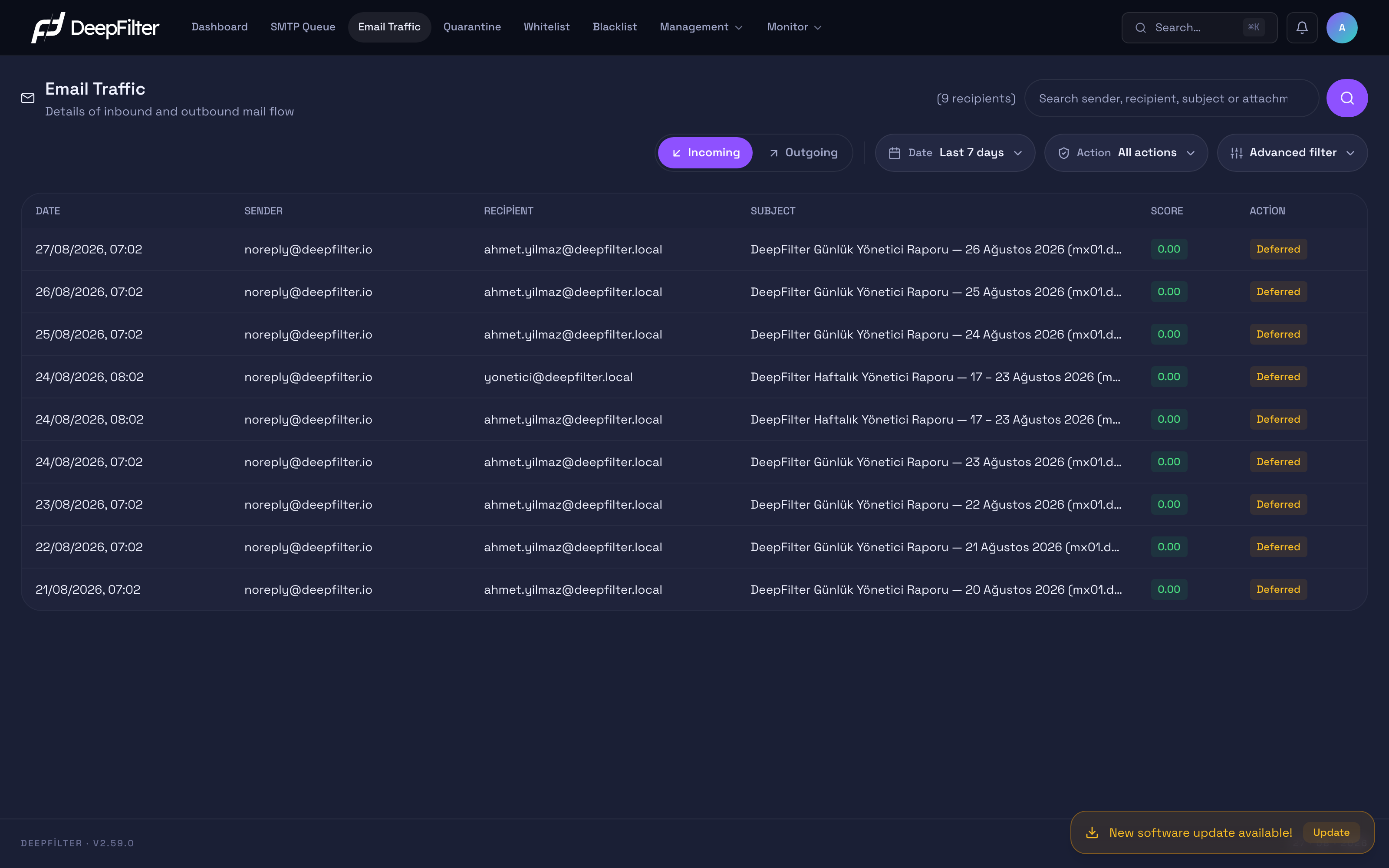
Filters that narrow the flow sit at the top, and below them is the chronological traffic list where each row is one recipient. If your server is paired with other DeepFilter servers through Multi-Server, a server selector also appears in the header and the traffic of paired servers can be followed from this screen (see Several Servers' Traffic).
Action Results
The Action column summarises with a single badge what happened to each email at the end of the flow. It is the most consulted piece of information on the screen: it is where you see whether an email was delivered, whether it was stopped, or whether it is stuck along the way. When an email matches more than one condition, the highest-priority result is shown; the order is as follows.
The badge colour summarises what the result means in three classes; the badge text states the result itself:
- Green — reached the recipient: Clean; emails released from quarantine or learned as trusted. DMARC report rows that DeepFilter received and processed also belong to this class.
- Orange — on hold: The result is not final yet; Quarantine, Deferred, Soft Rejected, Pending and a recall in progress (Recalling).
- Red — did not reach: Rejected, Unverified Recipient, Bounced, Removed from Queue, Recalled; emails deleted from quarantine or learned as spam.
You tell two results of the same colour apart by the badge text. The coloured dots next to the options in the Action filter follow the same three classes.
- Quarantine (orange) — The email was found risky, stopped and not delivered to the recipient. It can be examined and released from the Quarantine screen. In the example, fraud emails such as "URGENT: You won 1000000 USD" landed here with a score of 13.40.
- Unverified Recipient (red) — Because the recipient has no account on the delivery server, the email was rejected at the SMTP stage without ever entering content scanning; the sender receives a response saying the recipient could not be found. This result occurs only in inbound traffic and only while Recipient Verification is enabled for the delivery server with the SMTP Call-out method (see Inbound Email → SMTP Flow); with the LDAP / Directory method, rejected recipients are listed as Rejected. It belongs to the same red class as Rejected; the distinction is in the badge text. On these rows the Subject column shows a plain explanation — that the recipient could not be found on the delivery server — and you see the raw rejection text returned by the server by opening the row and looking at the detail panel.
- Rejected (red) — The email was permanently rejected at the connection stage; it was turned away without even entering content scanning. The sender receives a "not accepted" response.
- Soft Rejected (orange) — The email was temporarily rejected without being accepted (greylisting, which holds new senders back for a short while, or a rate limit). The sending system is expected to try again after a while: legitimate servers retry and the email goes through, while much of the spam infrastructure does not retry and is eliminated.
- Deferred (orange) — DeepFilter accepted the email but could not deliver it to the destination mail server at that moment and placed it in its own retry queue. Delivery is pending on the DeepFilter side and is retried automatically a short while later.
- Bounced (red) — Delivery failed permanently; the email could not reach its destination and was returned to the sender.
- Clean (green) — The email passed through the clean flow and was delivered to the recipient. It was not stopped because its score stayed below the threshold. In the example, the "Ödenmemiş fatura" (unpaid invoice) email with a score of 5.40 was delivered this way.
- Recalled (red) — The email was delivered to the recipient but was later recalled from the user's mailbox (see Recalling a Delivered Email). Although delivery succeeded, the copy is no longer in the mailbox, so this badge is shown instead of the green Clean badge; hovering over it reveals the recall mode, the administrator who performed the recall and the date. If the recall is still in progress, an orange Recalling badge appears: deletion has started and the row is already within the scope of the Recalled filter. If the attempt produced no result, the delivery badge stays in place and a Recall failed or Read, skipped note appears beneath it.
- Removed from Queue (red) — The email could not be delivered and, while it was waiting in DeepFilter's delivery queue, it was removed from the queue and will never be delivered. The deletion may have been performed by an administrator from the panel or manually on the server. This separate, definitive result shows that the email is not waiting for delivery but was deleted. Which administrator performed the deletion is visible by opening the row and looking at the Deleted by information in the detail panel (see Row Detail). If the deletion was performed from a server paired through Multi-Server, it shows the name of the person who performed it and that server's IP address.
- Pending (orange) — The email was processed, but its final delivery status has not yet been matched with the records. Once matching completes, the badge turns into the actual result (Clean, Deferred, Bounced or Removed from Queue).
- DMARC report (green) — The email is a report arriving at a domain's DMARC
report address (
dmarc-rapor@<domain>); it is delivered not to a user but to DeepFilter, and processed on the DMARC Management screen. The delivery status in the row detail also shows this badge instead of Clean. These rows do not appear in the default list; they are listed only when DMARC report is selected in the Action filter.
Both say "the email has not been delivered yet", but the retry sits on a different side. With Deferred, the email has already been accepted by DeepFilter; DeepFilter performs the retry — the work is progressing on your side. With Soft Rejected, the email was never accepted; the sending system performs the retry — the ball is in the other party's court. Look at this difference to tell whether an email is really lost or merely waiting.
Score
The Score column is the total threat score the scanning engine gives each email. The higher the score, the more likely the email is unwanted or malicious: a low score indicates the clean flow, a high score indicates risk. In the example, low scores such as 0.15, 3.65 and 5.40 indicate the clean flow, while 13.40 indicates an email above the quarantine threshold (default 12).
The score is shown as a plain number without colour; colour appears only on the Action badge. Whether an email was actually stopped is told by the Action column. Read the score together with the action: a high score usually leads to Quarantine, while a score below the threshold leads to Clean; a high-scoring email from a whitelisted sender may still appear as Clean. You see in the greatest detail why an email received that score by opening the row and looking at the Symbols section (see Row Detail).
Filters and Search
By default the list shows the inbound flow of the last 7 days. The bar at the top lets you narrow that flow down to the slice you want to examine.
Incoming / Outgoing — Splits the flow by direction. Incoming covers emails reaching recipients in your organisation from outside; Outgoing covers those sent to the outside from your organisation. The direction is calculated automatically from your defined domains. The two directions serve different purposes: on the incoming side you examine the threats aimed at you, and on the outgoing side you monitor the sending behaviour and reputation of your own users.
Date — Narrows the list to a time range. Clicking the button opens a picker with a calendar. The ready-made periods are on the left: Today, Last 7 days (default), Last 14 days, Last 30 days, This month and All. For an investigation the ready-made periods do not cover (such as a particular week of last month or the two days on which an incident occurred), you click first the start day and then the end day in the calendar; both days are included in the range. You can also make the selection by typing the dates into the Start and End fields below the calendar. The range is calculated by the Istanbul calendar day. If the email you are looking for is not in the list, the first thing to try is widening the date range.
The list refreshes only with Apply; no query runs while you are selecting in the calendar. Cancel closes the picker without making changes. Once applied, the name of the ready-made period you selected or the dates of the custom range are readable on the Date button. The start cannot be later than the end and a future day cannot be selected; with such a selection Apply stays disabled. To remove an applied range, select All and apply it.
Action — Filters the list by result, and its options change with the direction.
In the incoming direction there are eleven options: All actions (default), Clean, Deferred, Bounced, Removed from Queue, Quarantine, Soft Rejected, Unverified Recipient, Rejected, Recalled and DMARC report. For example, you select Quarantine to see only the emails that were stopped, Unverified Recipient to see recipients with no counterpart on the delivery server, Rejected to see emails permanently turned away at the connection stage, and Recalled to see emails taken back from mailboxes. Unverified Recipient, Rejected, Recalled and DMARC report are specific to incoming traffic only.
Unverified Recipient and Rejected list records that were rejected before the email was queued, and they appear only in the global administrator's menu. Because these records are created at the connection stage, they cannot be reliably tied to a domain. DMARC report is also visible only to the global administrator, because DMARC Management is a global administrator feature. For this reason, eight options appear in the Incoming direction in domain admin and read-only (viewer) sessions. While one of these two options is selected, the column headers cannot be sorted and advanced search conditions cannot be applied: if a condition has been added, the list appears empty and the note above the list points this out. To search for an address in these records, clear the conditions and use the search box.
In the outgoing direction the menu offers these options: All actions (default), Clean, Deferred, Bounced, Removed from Queue, Quarantine and Soft Rejected. In the outgoing direction, Clean is the delivery result showing that the email was accepted by the far server.
Deferred, Bounced and Removed from Queue are delivery statuses and can be selected in both directions; the result they select is exactly the same as the badge in the list. In the incoming direction they filter delivery to your organisation's mail server, and in the outgoing direction delivery to the far server: they let you list, with a single selection, whether an incoming email reached your own mail server, and whether an email your users sent reached its destination, is waiting in the queue, or came back.
When you change direction, a selection that is not valid in that direction is not kept; the filter returns to All actions.
Recalled emails are not split across the result filters: an email recalled (or still being recalled) within the last 30 days is listed under the Recalled filter and does not show up under other result filters such as Clean and Quarantine. An older recall falls outside the scope of the Recalled filter; that row does not disappear, it continues to appear under Clean with the Recalled badge.
In the incoming direction, Clean means scanning found the email clean and let it through the flow. In the outgoing direction the same option filters the result of delivery: the email was accepted by the far server. For an email leaving the organisation, "clean" means the other side accepted it, not that scanning found it clean.
Pending does not appear in the Action filter in either direction; it shows up as a badge in the list but cannot be filtered on. This is because rows whose delivery record has not been matched yet do not form a single set: the filter result would not agree with the badges in the list. When looking for a pending email, narrow the list by date and direction and scan the badges.
Search — Searches text in the sender, recipient, subject and attachment name fields; if the text you type occurs in any one of these fields, the row is listed. The search is not instant: after typing the text you must press Enter or click the Search button. This is to avoid creating unnecessary load on large traffic records. The counter at the top right (for example 484 recipients) shows the number of rows currently listed.
Recipient matching works at the row level. If the text you are looking for occurs only in the recipient address, the rows belonging to the other recipients of a multi-recipient email do not enter the list; only the matching recipient appears, and the counter counts those rows. This way, when you search for a person's address the list really shows the emails that reached that person. If the text also occurs in the sender, the subject or the attachment name, the match is on the email itself and all recipient rows of that email are listed. This behaviour applies in both the Incoming and the Outgoing direction.
When the filter, the search, the direction or the date changes, or when an advanced condition is applied, the list returns to the first page and any row detail open at that moment closes.
Sorting by Column
By default the list is sorted by the Date column from newest to oldest: the newest email is at the top. When you want to examine by another criterion, you click the column header. The sortable headers are Date, Sender, Recipient, Score and Action; a faint double arrow next to the header shows that the column can be sorted, and a coloured single arrow shows the sort active at that moment and its direction.
- Your first click on a header sorts the list by that column in ascending order (for example, for Score the lowest score is at the top); clicking the same header again reverses the direction.
- The Subject header cannot be sorted.
- In the Outgoing direction the Action header cannot be sorted: in this direction the badge shows the delivery status, and the column cannot be ordered by that status. If you sorted by Action in the Incoming direction, the sort returns to the default when you switch to Outgoing.
- While Unverified Recipient or Rejected is selected in the Action filter, no header can be sorted.
- Apart from the rejected records described below, sorting does not change the rows listed; it only changes their order. When you change the sort, the list returns to the first page.
In the Incoming direction, if you choose a sort other than the default while no filter or advanced condition is applied, records rejected at the connection stage (with the Rejected badge) do not join the sorted list. These records come from a separate source and cannot be ordered together with the other rows by the selected column; the information strip above the list points this out. To see the rejected records again, return the sort to Date (newest first).
Advanced Search
The search box searches a single piece of text across several fields at once, but it does not let you choose which field to match on and it applies only one criterion at a time. Advanced search removes that limit: you choose the field, the comparison and the value, and you apply several conditions together. The Advanced filter button on the filter bar opens the condition panel; the number on the button shows how many conditions are currently applied. Advanced search can be used in both the Incoming and the Outgoing direction.
Advanced search does not replace the existing filters, it is added on top of them: the direction, the date, the Action filter, the text in the search box and the conditions you have built must all be satisfied at the same time. When you cannot find an email, review all of these layers first.
Fields you can build conditions on
Each condition consists of a field, an operator and a value. The type of the field determines which operators can be selected:
- Text fields — Sender, Recipient, Subject, IP address and Attachment name. Operators: contains, does not contain, equals, starts with, ends with. The comparison is case-insensitive and matches Turkish characters correctly; a subject written "ÖDEME" is found by a search for "ödeme".
- Score — A numeric field. Operators: ≥, ≤, = and between (a range using the Min and Max boxes). If you fill in only one end of the range, the condition works with that single end.
- Category — The threat type that flagged the email: Antivirus scan (ClamAV), Phishing detection, RBL / IP reputation, SPF check, DKIM check, RDNS / HELO check, Spam Analysis (AI / Bayes / Neural), Content detection (DLP), Blocked Sender and Restricted Sender. Operators: equals, not equals. Content detection (DLP) also covers blocked file type attachments (a direct attachment or one inside a compressed file). Antivirus scan (ClamAV) returns virus signature matches; the EICAR test file is also in this category. Cases where the virus scan could not be performed do not fall into this category.
- AI — The artificial intelligence verdict: AI Trusted (HAM), AI Spam or AI Not Evaluated. Operators: equals, not equals.
An email enters a category when a rule in that category actually raised its score. Rules that fired but contributed nothing to the score (working in the clean direction or neutral) do not count towards the category. That is why the condition "Category = Spam Analysis (AI / Bayes / Neural)" does not return the emails the artificial intelligence found clean; to find those, use the condition AI = AI Trusted (HAM).
Combining conditions
- Add condition opens a new row; each row is an independent condition. You can use the same field in more than one condition (for example Subject contains "invoice" and Subject does not contain "cancelled").
- The Match selection determines how the conditions are combined: All conditions (AND) — the default — requires all of them to be satisfied, while Any of them (OR) requires at least one to be satisfied.
- Conditions are not applied instantly: you edit them freely in the panel and run them by clicking the Apply button or pressing Enter. A row whose value is left empty is not applied, so a half-finished condition does not narrow the list.
- Applied conditions remain above the list as chips. When you remove a chip the list refreshes immediately; Clear all removes every condition. The chips stay visible even when the panel is closed, so you never lose sight of why the list has narrowed.
- The Recipient condition works at the row level: on a multi-recipient email only the row of the recipient matching the condition is listed, and the counter counts those rows.
Attachment name search
The attachment name comes from the names of the files attached to the email during scanning and is populated in historical records too — the condition works retrospectively, on the traffic of previous days as well. This field is how you determine which recipients a campaign reached, or who in the organisation was sent a particular file name.
The most frequently used form is a search by extension: the condition
Attachment name — ends with — .iso lists every attachment carrying that
extension. Use equals when you need the exact name, and contains when you
are looking for part of a name.
The name searched is the name of the file attached directly to the email. File
names inside a compressed archive (a .zip, for example) are not searched by
this condition; the archive's own name is what is searched.
Rejected and Unverified Recipient records never entered content scanning, so they carry no score, rule or attachment information. For this reason, the moment a condition is applied to the incoming list these rows leave it and a warning stating this appears on the screen. For the same reason, if you apply a condition while the Action filter is set to Unverified Recipient or Rejected, the list stays empty. To see these records, clear the conditions and use the search box and the Action filter.
Row Detail
When you click any row in the list, the full record of that email opens. This panel gives the detail behind the one-line summary and is used to examine why an email received the score it did or where its delivery got stuck.
The panel consists of three sections:
- General Info — Sender, recipient, the date to the second, the sender's IP address, the score, the action, the size of the email and the subject.
- Delivery Info — Whether the email reached its destination: the delivery
status (Delivered / Deferred / Bounced / Removed from Queue — successful
delivery reads "Delivered" here, expressing the same positive result as "Clean"
in the main list), the server it was delivered to, the response code and the
message returned by the far server. If the email was deleted from the delivery
queue, the delivery status becomes Removed from Queue; if an administrator
performed the deletion from the panel, the Deleted by line shows that
administrator's name or email address, and if the account that performed it has
since been removed, it reads Deleted user. If the deletion was performed
from a server paired through Multi-Server, the Deleted by line shows the
name of the person who performed it and that server's IP address (for example
Alex Smith (192.0.2.10)). If the deletion was performed manually on the server, no record of the person is kept and the Deleted by line does not appear. This section also holds the Delay information: how long it took for the email to be processed and delivered (in seconds below 60 seconds, in minutes above it). Delay exists only in this panel; there is no Delay column in the main table. - Symbols — The breakdown of how the score was formed: every rule the scanning engine detected in the email and that rule's contribution to the score. The artificial intelligence verdict (clean/suspicious), whitelist matches and rate limit information appear here. If a sender hit a rate limit, this section also shows how many emails they attempted in the last hour. This is where you see most precisely why an email received a high or a low score.
If the email was recalled from the mailbox, the panel also contains a Recall block: the status of the item, the mode, the administrator who performed the recall and the date. The View job link there takes you to the job record showing all items of the recall (see Monitor → Recall); the Recall this subject as a campaign link opens the campaign flow prefilled with this email's details, so you can gather the remaining copies of the same wave into a single job.
Finding What Happened to a Specific Email
Prerequisites
- Make sure the date the email was sent falls within the selected date range; if not, widen the Date filter first.
Steps
- Open the Email Traffic screen.
- Select the relevant direction with the Incoming / Outgoing button, according to whether the email you are looking for is incoming or outgoing.
- Type the sender address, the recipient or a word from the subject into the search box (for example "invoice").
- Press Enter or click the Search button.
- Look at the Score and Action columns on the resulting row; for detail, click the row to open the detail panel.
Verification — how to know it worked
- The list shows only the matching records and the counter at the top right updates to the number of results. When you click a row, the Delivery Info and Symbols sections come up populated.
Filtering by Result
For example, to list all emails quarantined in the last month:
Steps
- Open the Email Traffic screen.
- Open the Date picker and select the period (for example Last 30 days). If the ready-made periods do not cover the time range you are examining, click the start and end days in the calendar; then press Apply.
- Select the result you want to see from the Action filter (for example Quarantine).
- If needed, change the direction with Incoming / Outgoing and repeat the same examination for the other flow; the Action filter offers delivery statuses in both directions.
Verification — how to know it worked
- The list shows only the emails matching the result you selected and the counter updates accordingly.
The same path is also used for delivery tracking: switching to Outgoing and selecting Deferred in the Action filter shows the messages waiting in DeepFilter's queue, selecting Bounced shows the emails the far side permanently turned away, and selecting Removed from Queue shows those taken out of the queue without being delivered — each in a single list. To examine one user's sending, combine this with the search box: type their address, press Enter, and only that person's emails in the relevant state remain.
In the incoming direction the same selections track delivery to your organisation's mail server: selecting Deferred under Incoming shows the emails DeepFilter scanned but could not yet deliver to your mail server. If this list grows unexpectedly, it may point to a problem reaching the internal mail server.
Downloading a Search as a Report (PDF / CSV)
When you need to pass the result you reached in the list on to a manager, an auditor or your customer, you take a report instead of a screenshot. The Download Report menu in the filter bar produces a report with all the criteria currently applied to the list (direction, date range, Action filter, search text, advanced conditions and sorting) and downloads it to your browser. The menu offers two formats:
- PDF — A formatted report meant to be read, shared and archived.
- CSV (Excel) — A table file of the same records; used to open them in Excel or another spreadsheet program to filter, sort or combine them with other data. Turkish characters display correctly in Excel.
The PDF report contains the following:
- Header block — The direction (Incoming or Outgoing Email), the time the report was generated, the user who generated it, and the Server that generated it.
- Applied Filters — Date range, domains, search, Action filter, advanced conditions and sorting; this way, whoever reads the report sees from the document itself which criteria the list was taken with.
- Summary — Total matches, the number of reported records and the result breakdown (Delivered, Quarantined, Rejected, Soft Reject, Other). Emails released from quarantine are counted in the Delivered breakdown because they reached their recipient.
- Record table — The same columns as on the screen: Date, Sender, Recipient, Subject, Score, Action. Records are separated day by day; each day starts with a divider row carrying that day's date. If an action has been taken on a quarantined email, the Action column states the same result as the badge on the screen (Released, Deleted, Learned Ham, Learned Spam); items with no action taken appear as Quarantine.
The CSV file contains no header block or summary; it carries only the records. Its columns are Date, Sender, Recipient, Subject, Score, Action and Delivery Status. In the PDF, long subjects and addresses may be shortened to fit the page; in the CSV the fields appear in full, without shortening.
Unlike the list on the screen, the report is not taken page by page; in both formats a single file contains at most the first 1000 records. If there are more matches, the PDF report states this and writes the total number of matches separately; the summary breakdown is calculated over the reported records. Domain admins and read-only users can only report records for the domains they are authorised for.
Steps
- On the Email Traffic screen, set the direction, the date range and the necessary filters; make sure you see the result you want to report in the list.
- Open the Download Report menu and click PDF or CSV (Excel). While the report is being prepared, the button reads Preparing….
- Open the downloaded file.
Verification — how to know it worked
- The Applied Filters section of the PDF report shows your selections on the screen, and the record table shows the rows you see in the list in the same order.
- When the CSV file is opened in Excel, each record appears on a separate row and Turkish characters display without corruption.
To report all records for a search matching more than 1000 records, narrow the range and take the report separately for several periods. If the report cannot be generated, the warning The report could not be generated. Please try again. appears on the screen.
Finding Emails Carrying a Specific Attachment
This is the path to follow when a malicious attachment is reported, or when you need to work out how many people in the organisation received the same file.
Prerequisites
- Make sure the date the email was processed falls within the selected date range; if you are not sure, set the Date filter to All.
- Know the name of the file you are looking for (or a distinctive part of the name, or its extension).
Steps
- Open the Email Traffic screen and select the relevant direction with the Incoming / Outgoing button.
- Click the Advanced filter button on the filter bar to open the condition panel.
- Select Attachment name from the field list, choose equals as the
operator if you know the exact name, contains if you are looking for part
of the name, or ends with if you are searching by extension, and type the
value (for example
fatura_2026.xlsmor.iso). - If you want to narrow the search, enter a second condition with Add condition (for example Score — ≥ — 10) and leave Match on All conditions (AND).
- Click the Apply button or press Enter.
- Click the listed rows to examine the sender, the recipient and the Symbols breakdown.
Verification — how to know it worked
- The conditions you built appear as chips above the list, the Advanced filter button shows the number of conditions, and the counter at the top right updates to the number of matching rows.
- If the result is empty, loosen the condition: try contains instead of equals, widen the date range and check the other direction too.
Other investigations are set up the same way: for high-scoring emails from a
sender domain, Sender — ends with — @ornek.com and Score — ≥ — 10; for
phishing attempts from a single IP address, IP address — equals and
Category — equals — Phishing detection.
Recalling a Delivered Email
The filter makes its decision as the email passes through; a phishing email that got past the filter is usually identified after delivery. Recall is the way to take that email out of users' mailboxes, and it is started from this screen: you select the rows you are interested in, examine the preview, and deletion begins only after your approval.
The scope is narrow: only incoming emails that were actually delivered can be recalled. An email that was quarantined, rejected or soft rejected never entered a mailbox; there is no copy to recall. In addition, the server the recipient was delivered on must have a Zimbra profile; the row of a recipient on a server without a profile cannot be selected.
The message in the mailbox is matched on four criteria: subject, delivery time, size and, when known, the header sender domain. The size comparison is tolerant so that messages enlarged by headers added during delivery are not eliminated; sender verification is done with the header domain only, and the envelope sender does not enter the comparison (the two differ for messages arriving through bulk email services). If more than one candidate is found for an item, that item is not recalled unless you explicitly tick it in the preview or include it in bulk; if no candidate remains, the Error column in the preview states which criterion eliminated it.
Prerequisites
- You must be signed in with the full-access administrator role; domain administrators cannot perform a recall.
- The Zimbra connection and the recall feature must be enabled (see Management → Integration → Zimbra SOAP). If they are disabled, the row selection boxes do not appear at all.
- The servers the recipients were delivered on must have a defined and active Zimbra profile; rows on servers without a profile cannot be selected.
- The emails to be recalled must be listed on this screen; widen the Date filter first if necessary.
Steps
- Open the Email Traffic screen and select the Incoming direction with the Incoming / Outgoing button.
- Tick the checkboxes at the start of the rows you want to recall. Rows that cannot be selected are the ones not eligible for recall (emails that were not delivered, were quarantined, or have already been recalled). Rows whose box is struck through and which show the hint "The recipient's destination server has no Zimbra profile" do have a copy, but that delivery server is missing its Zimbra profile; once the profile is defined, the row becomes selectable.
- Click the Recall button that appears on the top bar. If the same email reached a large number of recipients, you can proceed in a single job with Recall as campaign by giving the subject, sender and time window instead of selecting rows one by one.
- Wait for the Preview step in the window that opens. In this step the mailboxes are scanned — which message is where and who opened it — and nothing is deleted. You follow the progress of the scan with the "N / M items processed" counter in the window.
- Review the item table: untick the items you do not want recalled and consider the items labelled Confirmation required one by one, or in bulk with the Include all N rows awaiting confirmation box above the table (details: Monitor → Recall).
- Click the Approve recall button. If unticked rows requiring confirmation remain, in the Some rows are not ticked dialog that opens you choose to include or exclude those rows. If the mode is Delete permanently, the button is two-stage; the first press shows the warning and the second press starts the operation.
Verification — how to know it worked
- The window moves to the Running step and shows the number of items processed; when the job finishes it reads Completed. When you refresh the list, the Action column of the recalled rows turns into the Recalled badge. All items of the job (who had opened it, which item failed) are recorded on the Monitor → Recall screen.
Recall deletes email from users' mailboxes, and the job you start on this screen cannot be undone. In Move to trash mode the user can retrieve the message from the trash; in Delete permanently mode the message cannot be recovered, and even if the job is cancelled midway, what has been deleted up to that point does not come back. Review the item list before approving; if you are unsure about the scope, export the list as CSV and examine it.
Closing the window does not cancel the job. A job whose preview is running or which is awaiting approval stays on the Monitor → Recall screen; its approval, cancellation and progress can be managed from there as well. Jobs that are not approved cancel themselves after 24 hours.
Several Servers' Traffic
If this server is paired with other DeepFilter servers through Multi-Server, a server selector appears in the header of the screen in a global administrator session. The selector lists servers by name with color marks; hovering over this server's name shows the This server tooltip. When a single server is selected, the selector shows that server's name; when more than one is selected, it shows All; your selection is remembered in this browser. Only servers that have granted this server view permission can be selected in the selector; the others appear disabled, and hovering over them shows the reason (for example, permission not granted or Version difference). Without pairing, the selector does not appear and the screen is as described on this page.
Merged list. When a paired server is selected, the traffic of the selected servers appears in one list sorted by date, and a Server column is added to the list; each row shows the server that processed the email as a colored tag carrying its name (this server's tag is always blue). Direction, date range, search, action filter and advanced search are applied to all selected servers in the same way.
- The list is sorted by date only; hovering over the other column headers shows the With multiple servers selected, the list is sorted by date only tooltip.
- Instead of page numbers, the bottom of the list has a Load more button and the number of records shown (N records shown · by time); 50 records are added each time.
- The recipient count in the header is the total of the selected servers; hovering over it shows the count per server.
- The date range can be at most 31 days. For a wider range, the list is replaced by the With multiple servers selected, the date range can be at most 31 days. Choose a shorter range. warning.
- The Download Report button is disabled in this view; hovering over it shows a tooltip that names this server and says the report is downloaded only when this server alone is selected (for example, if this server is named mx1, Reports can be downloaded only when mx1 alone is selected.). To get a report, select only this server in the selector.
Slow or unresponsive server. The response of each server is awaited for at most 8 seconds. A server that does not respond does not hold up the list: the results that arrived are shown, and a banner above the list names the server that did not respond (for example mx2 did not respond within 8 seconds — results may be incomplete). Retry in the banner requests the list again with the same selection.
A remote server's rows are read-only. When a row is expanded, the server that processed the email appears in the Server field of the General Info section. On a paired server's row:
- Instead of the breakdown, the Symbols section shows the note Symbol details are visible only on <server name>.; sender rate limit information is not shown.
- There are no buttons for blocking the sender or the IP address.
- There is no selection box for recall. If the email was recalled on that server, the status badge and the Recall block appear for information only; there is no View job link.
- The Delivery Info section does not include the delivery server's IP address or the Delay value.
Use that server's own panel for these actions. This server's rows work in the merged list as in the single-server view: recall selection, blocking buttons and the symbol breakdown are available.
Things to Watch Out For
Why the same email appears on multiple rows
An email creates more than one row in the list in two situations:
- Multi-recipient email: When an email is sent to several recipients, a separate row is written for each recipient (same sender, subject and score; different recipient). This lets you follow the fate of each recipient individually. When you search for a recipient address, or build a Recipient condition in advanced search, only the row of the matching recipient is listed; the rows of the other recipients do not enter the list.
- Retries: An email that receives a Soft Rejected result is retried again and again by the sender, and each attempt is rescanned and recorded as a separate row. A single email can produce hundreds of rows. These rows are deliberately not deleted; all attempts are kept for investigation (forensic trail) purposes.
Why the counter and the Dashboard numbers differ
The counter at the top right (N recipients) shows the number of rows (recipients) listed, not the number of unique emails. Because of the retries and multi-recipient emails described above, this number can be higher than the message count on the Dashboard. The Dashboard counts each email as one message and does not add retries to that number; Email Traffic, on the other hand, shows the raw record as it is, with a separate row for each recipient and each attempt. The two screens giving different numbers is therefore expected, not an error.
Troubleshooting
- An email stays "Pending" for a long time. Pending means the delivery record of the email has not been matched with the flow record yet. In most cases the matching completes shortly; refresh the list. If it stays Pending permanently, either no delivery record was ever created for the email (for example an email with missing identity information) or there is a delay in processing the delivery records. Click the row and check whether the Delivery Info is empty.
- The email I am looking for does not appear in the list. There are three common reasons: because the search is not instant, you may not have pressed Enter after typing the text; the email is outside the selected date range; or an advanced condition left over from an earlier investigation is still applied. First check whether there is a condition chip above the list and use Clear all if needed; then run the search with Enter; if there is still no result, set the Date filter to All and make sure you are looking in the correct direction (Incoming/Outgoing).
- I searched for a recipient address and the email's other recipients are not in the list. This is intentional: when the search text matches only in the recipient field, the list shows only the row of the matching recipient. To see all recipients of the email, type a word from the subject or the sender address into the search box; all recipient rows of the same email are then listed.
- The same email repeats dozens of times. This is not an error; every retry attempt of an email that received a Soft Rejected result is recorded as a separate row (see Why the same email appears on multiple rows). To see that the repeats come from the same sender and subject, you can click the rows and compare the details.