Blacklist
The Blacklist is the page where you fight unwanted email in two different ways. The first is direct blocking: you define a specific sender address or domain, and email from that source receives a high threat score and lands in quarantine instead of the user's inbox. The second is teaching: you show DeepFilter a sample spam email you have on hand, the filtering engine learns that content, and in future it recognizes and catches emails with similar content no matter who sends them.
This distinction is critical to understanding the page: Sender Blocking targets an identity (an address or a domain), while Upload File and Paste give the engine a piece of content as a sample. Both end with the unwanted email never reaching the user, but one looks at the sender and the other at the email's content.
The page opens from the Blacklist item in the top menu; in a narrow window this item is under Lists → Blacklist (see Panel Tour).
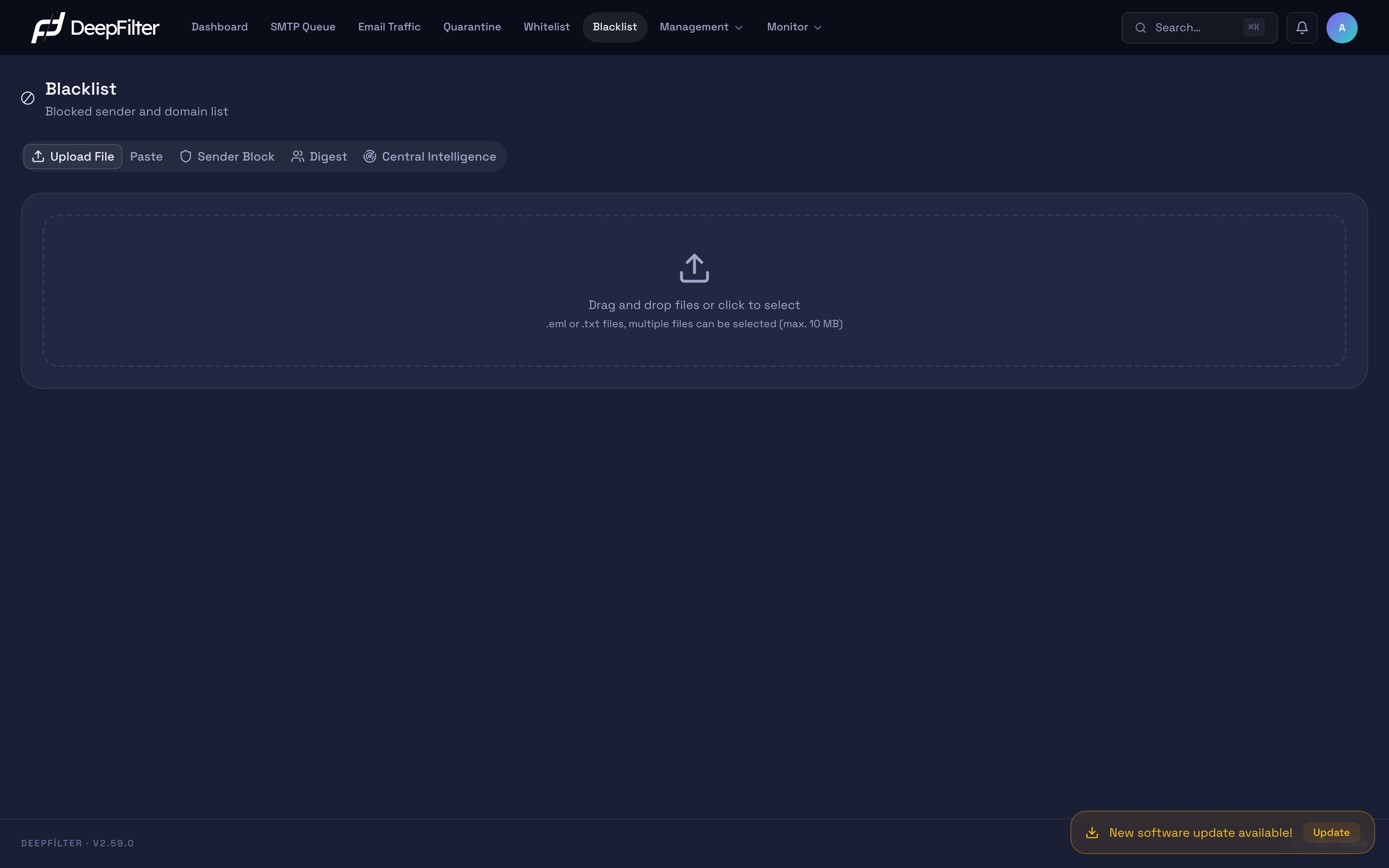
The page is split into five tabs: Upload File, Paste, Sender Blocking, Digest and Central Intelligence. On opening, the Upload File tab — used to upload sample emails — is selected.
How It Works
The five tabs serve two basic jobs: identity blocking and content teaching.
Identity-based blocking (Sender Blocking). When you add a sender address or domain to the block list, DeepFilter looks for that identity in every incoming email, both in the envelope (MAIL FROM) and in the header From field. That way a sender is caught even if it shows the blocked address only in the header and hides it in the envelope — as happens in courier-style attempts that rely on address spoofing. A matching email receives a high threat score (50 points); because that score clearly passes the delivery threshold, the email is quarantined. A blocked email is not bounced back to the sender; it simply receives a high score and lands in quarantine. This is a deliberate choice: a legitimate email blocked by mistake can be reviewed in quarantine and released, whereas outright rejection would remove that chance of recovery.
Content-based teaching (Upload File / Paste). When you give the system a complete sample spam email, the filtering engine parses the content and trains the learning models with that sample. A content fingerprint of the email is also extracted and sent to the central intelligence service. From then on, no matter who the sender is, an email with the same or very similar content matches that fingerprint and is flagged with a high score. The taught signature does not stay on this server alone; it is distributed to every DeepFilter server through central intelligence.
If you want to silence a known sender or domain permanently, use Sender Blocking. If you have a past spam sample and want to catch not just that sender but every email with similar content, teach the sample to the engine with Upload File or Paste.
Sender Blocking
Sender Blocking is the blacklist tool proper, keeping the addresses and domains you want to block in a permanent list. Two kinds of entries can be added, and their scope differs:
- Domain entry — covers all addresses belonging to that domain. If you add
ornekspam.com, for example, email frombilgi@ornekspam.com,satis@ornekspam.comand every other address is blocked. - Email entry — covers only the single address you typed. If you add
bilgi@ornekspam.com, the other addresses on the same domain are unaffected.
Entries are managed from two sub-tabs, Add One and Bulk Add. Every entry you add is reflected in the filtering engine instantly; no service restart is required.
Blocking a Single Sender or Domain
Steps
- On the Blacklist page, switch to the Sender Blocking → Add One tab.
- Enter the full email address (
spam@ornekspam.com) or the whole domain (ornekspam.com) you want to block. - Optionally add a description so you can recognize the entry later.
- Click Block.
Verification — how to know it worked
- The entry appears in the list. When a test email arrives from this sender, the email lands in quarantine; in the threat detail of the quarantine record you see a rule titled Blacklist indicating the block — shown as Blacklist (Envelope - Domain) or Blacklist (Header - Domain) for domain entries, and Blacklist (Envelope - Email) or Blacklist (Header - Email) for email entries.
Blocking with a Bulk List
To add a large number of addresses or domains at once, use the Bulk Add sub-tab.
Steps
- On the Blacklist page, switch to the Sender Blocking → Bulk Add tab.
- Paste the list one entry per line, one address or domain per row. The system distinguishes each line automatically: a line containing
@is added as an email address, a line without one as a domain. At most 1000 lines are processed at a time. - Click Block.
Verification — how to know it worked
- The added entries appear in the list. Lines with an invalid format are skipped; this does not stop the valid lines from being added — only the faulty line stays out of the list.
Removing a Block Entry
When you remove an entry that was added by mistake or is no longer needed, that sender returns to the normal scanning process; the blocking score no longer applies.
Steps
- Find the entry you want to remove in the list on the Sender Blocking tab.
- Apply the Remove Block action next to the entry. To remove several entries together, use bulk delete.
Verification — how to know it worked
- The entry leaves the list. Subsequent emails from the same sender no longer receive an automatic high score; they are judged only on the normal filter result.
Teaching with a Sample Email
The Upload File and Paste tabs do not add an address; they teach the filtering engine the entire content of a sample spam email you have on hand. Every sample you teach both feeds the local learning models and is sent to central intelligence as a content fingerprint, so that future emails with similar content are recognized — even if they come from a different sender.
If you try to teach the same email twice, the system notices ("This email has already been taught") and does not process it again.
Teaching by Uploading a File
Prerequisites
- The sample email(s) must be in
.emlor.txtformat; each file can be at most 10 MB.
Steps
- On the Blacklist page, open the Upload File tab (it is selected on opening).
- Drag and drop the sample email files into the upload box, or click the box and select them. You can select more than one file; the files are processed in order.
- Click Teach as Spam.
Verification — how to know it worked
- You see a success notification for each file. If you upload a sample that has already been taught, an "already taught" warning is returned. You can list the records you taught later on the Central Intelligence tab.
Teaching by Pasting Content
You can also teach without creating a file, by pasting an email's raw content directly.
Steps
- On the Blacklist page, switch to the Paste tab.
- Paste the sample email's content into the text box (the box reads "Paste email content here..."). What goes here is the email itself, not a list of addresses.
- Click Teach as Spam.
Verification — how to know it worked
- You see a success notification and the record is listed on the Central Intelligence tab.
User Block Lists (Digest)
The Digest tab is not the administrator's own blacklist; it opens the personal block lists end users create for email addressed to themselves to administrator oversight. From here you can see the senders users have blocked and remove them if necessary. Every removal is logged.
This tab comes into play when an end user blocks a legitimate sender by mistake ("this person's emails are not reaching me"): you review the user's list and remove the faulty entry.
Central Intelligence
The Central Intelligence tab lists the records taught to central intelligence from this server ("Records Trained From This Server"). The spam samples you teach with Upload File and Paste land here. The tab shows not only spam samples but also records marked safe (whitelist); the Type column on each row states the nature of the record:
- Spam (block) — content taught as spam.
- Safe (allow) — content taught as safe.
- Suspicious — content that has not been classified definitively.
Each row also carries the date it was taught, the subject, the sender and the status (Active / Removed).
The records on this tab are pulled from central intelligence with license verification. If the license is not yet active (the server has not made its first connection to the center), the tab returns a "License is not active yet" warning and cannot show the records.
Retracting a Taught Record
You can retract a sample that was taught by mistake — for example a legitimate newsletter taught because it was mistaken for spam. Retracting removes the signature not just from this server but from all DeepFilter servers the signature was distributed to.
Steps
- Switch to the Blacklist → Central Intelligence tab.
- Find the record you want to retract (records with the status Active can be retracted).
- Apply the Delete action on the row and confirm.
Verification — how to know it worked
- The record's status becomes Removed and the retract action disappears from the row. If you need to teach the same sample again later, you can — because retracting also clears the local duplicate record.
Retracting a record deletes the signature from all servers and cannot be undone. Do not retract a taught record unless you are sure it really was taught in error.
Points to Watch
- Domain blocking is broad. If you block an entire domain, all email from that domain lands in quarantine. Be careful not to add the domain of a corporate supplier, a business partner or a shared email service provider by mistake; if you are targeting a single address, add an email entry instead of a domain.
- Teaching spreads across the fleet. The signature of every sample you teach with Upload File / Paste is distributed to other servers through central intelligence. Teach only samples that really are spam; if you teach a legitimate email by mistake, similar legitimate emails may pick up a score too. You fix such a situation by retracting it from the Central Intelligence tab.
- Blocking targets the identity, not the connection. Sender Blocking inspects the address or domain the email claims. If you want to cut off the connecting machine's IP address entirely at the network level, that is what the Firewall page does; it produces no score, it refuses the connection outright.
Relationship with the Whitelist
The Whitelist exempts senders you trust from the filter; the Blacklist routes the ones you do not trust to quarantine — one is an "always let through" rule, the other an "always block" rule. Adding the same address or domain to both lists creates a contradiction; define a sender as either trusted or blocked, not both.
Troubleshooting
I blocked a sender but their emails still arrive. A blocked email is not bounced back to the sender; it receives a high score and lands in quarantine. It is expected not to reach the inbox, but it is not removed from the system entirely. If you cannot see the email, look for it on the Quarantine page. If it really is reaching the inbox, make sure the address (or domain) on the block entry matches the email's actual sender and header address exactly.
The Central Intelligence tab is empty or says "License is not active yet". This tab pulls records from central intelligence with license verification. If the server has not yet established its connection to the center, the records cannot be shown. Check the license and connection status on the Management → License page.
I pasted an address list into the Paste tab but the sender was not blocked. The Paste and Upload File tabs do not add addresses; they teach email content. To block an address or a domain, use the Sender Blocking tab.