Quarantine
Quarantine is where DeepFilter collects the emails it considers a threat but holds safely instead of rejecting outright. When an email's total threat score passes the quarantine threshold (roughly 12), DeepFilter does not deliver it to the recipient's inbox — but it does not discard it either. The reason is that no filter is perfect: an aggressive rule or a temporary configuration mistake can score a legitimate email as a threat by accident (a false positive). Quarantine is the safety net for that "suspicious band" between definitely clean and definitely malicious — an email caught by mistake can be recovered, while a genuine threat can be deleted for good.
Administrators use this screen in two situations: to find and deliver an email when a user reports that "an email I was expecting never arrived", and to review held threats regularly and teach recurring spam patterns to the system. Every email comes with a detailed threat score breakdown showing why it was held, so you can decide to release or delete based on evidence rather than guesswork.
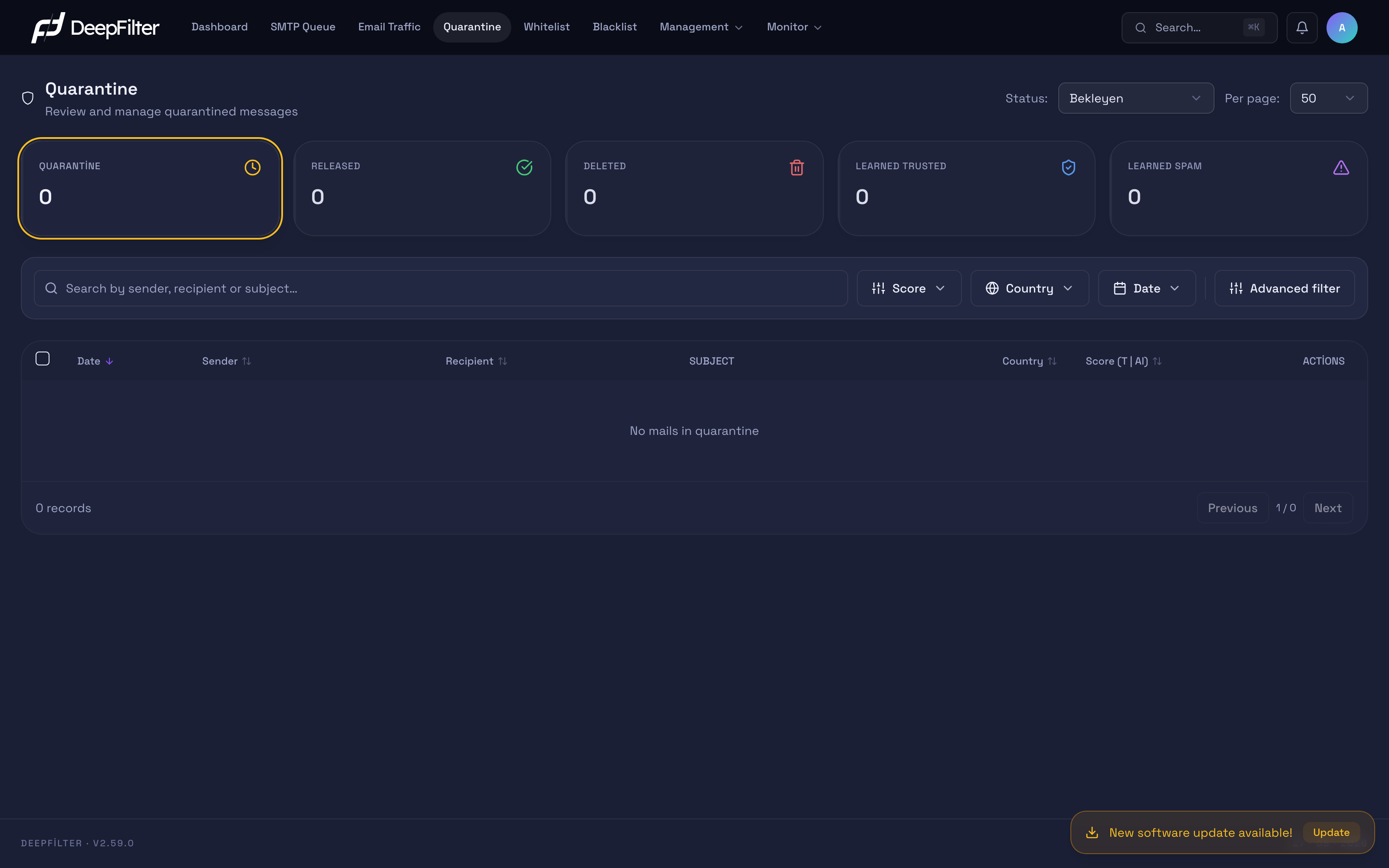
The Pending view lists the emails that have not been acted on yet and are waiting for an administrator's decision.
Filtering the List and Reading the Scores
Status cards
The five cards at the top of the screen summarize the current state of the quarantine and double as clickable filters:
| Card | What it shows |
|---|---|
| Quarantine | Number of emails currently held and not yet acted on |
| Released | Number of emails released for delivery to the recipient |
| Deleted | Number of emails permanently deleted |
| Learned Trusted | Number of emails taught as a "clean" sample |
| Learned Spam | Number of emails taught as a "spam" sample |
Clicking a card narrows the list to emails in that state; clicking the same card again clears the filter and lists every state. The active card is highlighted with a border. This does the same job as the Status dropdown at the top right; the cards are simply a faster shortcut.
Status filter and search
The Status filter at the top right decides which emails are listed and defaults to Pending — that is, only emails awaiting action. The other options are Released, Deleted, Learned Trusted, Learned Spam and All. Per page sets how many records appear on a single page (50, 100, 250 or 500; the default is 50).
Text typed into the search box is matched against the sender, recipient and subject fields. When a user says "my email never arrived", the fastest route is to type their address into this box and search in the Pending view.
Per-row action buttons and bulk selection checkboxes exist only in the Pending view. In history views such as Released or Deleted, emails are read-only; those views add columns showing who performed the action and when instead.
The Score column: T and AI
The Score column on each row shows two separate values separated by "|", and the two say different things:
- T (total) — the combined threat score the email received from all rules; this value determines whether it is quarantined. The color changes with its size: below 8 green, 8 and above yellow, 40 and above orange, 100 and above red. The larger the value, the more likely the email is a threat.
- AI — the score produced by DeepFilter's artificial intelligence model, and its sign carries direction: a positive value means the model leans towards spam, a negative value means it leans towards trusted (ham). Below 0 is green (the model found it trustworthy), between 0 and 3 yellow, 3 and above red (the model called it spam). If the model produced no assessment, "—" is shown.
Reading the two scores together makes the decision easier: a high T with a negative AI points to an email that the rule-based layers saw as a threat but the artificial intelligence found trustworthy — worth opening the detail breakdown before releasing it.
Advanced filter
The Score, Country and Date buttons narrow the list quickly by a single criterion.
The Date button opens the same calendar range picker as on the Email Traffic screen: ready-made periods on the left (Today, Last 7 days, Last 14 days, Last 30 days, This month, All) with a calendar next to them. You can pick a ready-made period or set your own range by clicking the start and end days in the calendar; both days are included in the range, and days are calculated in Istanbul time. The list refreshes only when you click Apply; Cancel closes the picker without making changes. The applied limits appear as chips above the list; closing a chip removes that limit.
Advanced filter applies several conditions together:
- Score range — the lowest and highest T score. Ready-made presets are available too: Near threshold (≤20), Medium (20–60) and High (60+).
- Country — the country of the sending server.
- AI result — "AI Trusted (HAM)" (the model said ham) or "AI Not Evaluated".
- Category — the type of threat that triggered the email (artificial intelligence, blacklist, phishing, virus, authentication and so on). The Content detection (DLP) category returns blocked file type attachments as well as sensitive content matches; the attachment may be attached directly or inside a compressed file. The Antivirus scan (ClamAV) category returns only virus detections that add points to the score; the EICAR test file also appears in this category. Cases where the virus scan could not be performed (for example a scan timeout) do not count as virus detections.
- Match — decides whether all of the criteria you selected must be met, or any one of them.
Inspecting and Releasing an Email
Seeing an email's content and the reason it was held before you release it keeps you from delivering a genuine threat by mistake.
Steps
- Open the Quarantine screen from the top menu and find the email in the Pending view (use the search box or the filters if needed).
- Click the eye button at the end of the row (or the row itself) to open the Mail Details window.
- Alongside the sender, recipient, subject, source IP and country, the window shows the threat score breakdown: how many points each rule contributed to the score, and the sum of the positive and negative contributions. Clicking a rule row tells you what that rule is, why it triggered and which value it matched.
- Once you have reviewed the content and the breakdown and concluded the email is safe, click Release in the window. If you prefer to release straight from the list, you can use the check button on the row instead.
- On both paths a confirmation window titled Release opens inside the panel and asks "Are you sure you want to release this mail?". Click Release in the window to start the operation, or Cancel to back out.
Verification — how to know it worked
- Releasing is not instantaneous; the email is placed in a processing queue. While it is being processed the row shows a Queued or Processing badge; once it completes, the Released card increases by one and the email moves to the Released view.
- If delivery notification to the recipient is enabled, the recipient receives a notice that the email has been released.
Releasing cannot be undone: once an email has been delivered to the recipient's inbox it cannot be pulled back. If you are unsure about the content, preview it in the detail window first. Because the operation completes in the background, the Released counter may update with a delay of about 10 seconds; not seeing it change immediately is not an error.
Reading the bombardment signals
In the score breakdown you may come across three rule names that point to an email bombardment — hundreds of subscription and confirmation emails from different senders raining down on a single recipient in a short time. None of the three is a reason for quarantine on its own; they gain meaning together.
- Recipient Surge — reports that an unusual number of emails landed in this mailbox in a short time. It is a scoreless observation marker: it does not raise the score by itself, it only records the situation.
- Subscription Confirmation Pattern — means the body of the email carries a subscription or sign-up confirmation pattern; the pattern is recognized in more than fifteen languages. It is informational and produces almost no points. It is not a threat signal on its own — a legitimate newsletter confirmation gets this marker too.
- Subscription Bombing — indicates that the two markers above (or a recipient surge together with an unwanted verdict from the artificial intelligence) appear at the same time. This is the actual bombardment marker; even so, its score stays below the quarantine threshold, so it does not quarantine an email by itself.
If emails carrying these markers are piling up on a single recipient, that recipient is most likely under a bombardment shield: while the shield is up, the quarantine threshold is temporarily lowered for that mailbox alone, so the flood pours into quarantine instead of the inbox. You can see which recipient is under a shield and when the protection ends under Management → Inbound Mail → Features. Legitimate emails caught in the flood can be released from here as usual.
Deleting an Email
You delete an email to remove a genuinely harmful or unwanted message from quarantine.
Steps
- Find the row in the Pending view.
- Click the trash button on the row.
- A confirmation window titled Delete opens inside the panel and asks "Are you sure you want to delete this mail?". Click the red Delete button in the window to delete, or Cancel to back out.
Verification — how to know it worked
- The email leaves the list, the Deleted card increases by one and the record appears in the Deleted view.
Deleting is permanent and cannot be undone. No copy of a deleted email is kept; a legitimate email deleted by mistake cannot be recovered. If you are unsure, release the email or leave it in quarantine instead — emails that are never acted on are cleaned up automatically at the end of the retention period anyway.
Bulk Actions and Learning
In the Pending view you can process several emails at once and teach recurring spam patterns to the system. Ticking the checkboxes at the start of the rows (or the select-all checkbox in the header) opens a bulk action bar.
The actions on the bar:
- Release / Delete — applied to all selected emails in one pass; the result is identical to the individual actions. Bulk delete and release are processed in batches in the background, so even a selection of thousands of emails completes quickly. Emails that hit an error in a batch are retried a few times.
- Learn Trusted — teaches the selected emails as "clean" samples and releases them at the same time (delivers them to the recipient).
- Learn Spam — teaches the selected emails as "spam" samples and deletes them at the same time.
- Download — downloads the selected emails as
.emlfiles in a single archive. At most 20 emails can be downloaded at once. This button is available only to the global administrator role.
Learning happens only on this bar, which appears when you select more than one email; there is no learning action for a single row. Every sample you teach goes to two places:
- This server's classifier — Samples taught by the global administrator are taught to the statistical classifier on this server immediately; the classifier uses these samples when it evaluates subsequent emails. Teaching a misclassified email is the most direct way to correct the error on similar emails. You can follow the classifier's state on the Bayes Classifier card in the Inbound Mail → Central Intelligence tab.
- Central learning model — The sample is also sent to the central system and improves the whole system's discrimination over time.
Because the classifier is shared by all domains on the server, teaching by a domain admin does not change this server's classifier; it only goes to the central system as a sample. This way, one domain's administrator teaching does not affect how other domains' emails are classified. Releasing or deleting the email happens the same way for both roles.
Verification — how to know it worked
- When you start a bulk operation, a progress banner opens at the very top of the page. The banner tracks only that job and refreshes every few seconds: while the operation runs it shows a progress bar in the form "M of N e-mails deleted" (or released, taught as spam, taught as clean), with the Pending, Processing and Failed counts below it. If any emails hit an error, "· N failed" is added to the heading.
- When the operation finishes, the banner stays with a summary such as "N e-mails deleted"; it remains open until you press the Close button. Refreshing the page closes the banner; the operation keeps running in the background.
- If the operation makes no progress for a long time, the banner shows the "status cannot be refreshed" warning; the counts are the last known values and do not mean the job has finished. Follow the status from the badges on the rows and from the cards.
- When it completes, the relevant card (Released / Deleted / Learned Trusted / Learned Spam) increases.
Learning does not just submit a sample, it also processes the email: Learn Trusted releases it (delivers it), Learn Spam deletes it. If you only want to classify an email and do not want the delivery or deletion that comes with it, do not use the learning buttons. Learning also sends the email's content to Central Intelligence as a sample; keep that in mind for emails carrying sensitive content.
Processing All Emails Matching the Filter
The select-all checkbox in the header selects only the emails on that page. When thousands of emails from a campaign land in quarantine, instead of going page by page you can delete or release all emails matching your filter in a single operation, with no page limit.
This option is available only to the global administrator role and only in the Pending view. When you select all rows on the page and the number of emails matching the filter is greater than the number on the page, a Select all N emails matching the filter link appears in the bulk action bar next to the text "All N emails on this page are selected." When you click the link, the bar reads "All N emails matching the filter are selected."; Clear selection returns you to the page selection.
In this mode the bar offers only Release and Delete. Learn Trusted, Learn Spam and Download process each email individually, so they are not shown in this mode.
Prerequisites
- Global administrator role.
- The Status filter must be set to Pending.
- You must have narrowed the set you want to process in advance with the date, score, country, artificial intelligence and advanced search conditions: the operation is applied to every pending email matching the list's current filter.
Steps
- Set the filters and check that the list shows only the emails you want to process.
- Tick the select-all checkbox in the header.
- Click the Select all N emails matching the filter link that appears in the bar.
- Click Delete or Release.
- In the confirmation dialog that opens, type the number shown on the screen into the
"Type N to confirm" field exactly, without a thousands separator (for example
60312). - Click the Delete All or Release All button; the button stays disabled until the number is typed correctly.
Verification — how to know it worked
- A progress banner opens at the top of the page and tracks the job as described above.
- The operation is recorded on the Monitor → Audit Logs screen with the filter criteria used and the number of emails, instead of a list of each processed email.
This operation cannot be undone: deleted emails cannot be recovered, and released ones are delivered to their recipients. The records are determined again at the moment of confirmation; because of emails that enter quarantine or are processed by someone else in the meantime, the number processed may differ slightly from the number in the confirmation dialog. Do not use this mode without narrowing the filter.
Automatic Cleanup
Retention period — if an email in quarantine is neither released nor deleted within this period, it is cleaned up automatically and permanently. (default: 30 days; minimum 1 day)
Why it exists: quarantine cleans itself at regular intervals so it does not grow without limit with suspicious emails nobody reviews. That keeps the list manageable and stops old threats from accumulating.
If you change the value: The end-user portal also lists all quarantined emails within this period; the "Last N days" wording in the portal reflects this value. Shortening the period keeps quarantine tidier but narrows the window for recovering an email a user notices late. Extending it gives more time for recovery but crowds the list and stores held emails for longer.
You can change this period under Management → Inbound Mail → Quarantine.
Cleanup is designed to run completely even when millions of emails have accumulated in quarantine. If cleanup fails repeatedly, or the number of emails waiting in quarantine exceeds the warning threshold, a critical alert email goes to the administrator addresses defined on the Management → Notifications screen (see Notifications).
Automatic cleanup permanently deletes the email once the period expires — just like a manual delete, it cannot be undone. Keep the retention period long enough for users to notice and report a missing email.
Troubleshooting
I released an email but it never reached the recipient. Releasing is processed in the background, so it is not instant. Check the status badge on the row first: if it says Queued or Processing, the operation is still running — wait. If there is a Failed badge, hover over it to see the error description; failed operations are retried a few times at short intervals. You can inspect the delivery details (including the destination server's response) in the delivery section of the detail window.
The email I expected is not showing in quarantine. First make sure the Status filter is set to Pending; a different status may be leaving the email out of the filter. Then search by the recipient's address. If it cannot be found at all, the email may never have been quarantined (it was delivered directly or rejected); confirm what happened to it in the email traffic records.
A bounce (non-delivery notice) ended up in quarantine. Genuine bounces arriving with an empty sender address are not quarantined unless they carry a definite threat sign. A virus or an attachment of a blocked file type is one of these definite signs: a bounce carrying such an attachment is quarantined, so harmful content cannot slip through disguised as a bounce. A legitimate bounce that carries the undelivered original email back with its attachment may therefore end up in quarantine too; after reviewing its content, you can release it.
The card numbers are not what I expected. If you signed in with a domain admin account, the cards count only emails for the domains you are authorized for. Learning operations also affect two counters at once: Learn Trusted raises both Learned Trusted and Released, while Learn Spam raises both Learned Spam and Deleted — because learning also delivers or deletes the email.