SMTP Queue
DeepFilter holds an email that has passed scanning in a temporary delivery queue until it is handed over to the destination server. When the destination server is reachable at that moment, delivery completes within seconds and the email leaves the queue; this is why the queue is empty most of the time on a healthy system. When the queue starts to fill up and stay full, that usually signals either congestion on the destination server the email is being delivered to, or a single sender filling the queue on its own (for example, a compromised account).
This screen shows the inbound and outbound emails waiting for delivery in a single list: which emails are waiting, how long they have been waiting, why they are waiting, and which senders are filling the queue the most. Quarantined emails are not listed on this screen; they are managed from the Quarantine screen. As an administrator you come here when someone reports that an email never reached its recipient, or when you sense a delay in delivery.
The screen opens from the SMTP Queue menu and is visible only to the global administrator. If your server is paired with other DeepFilter servers through Multi-Server, a server selector also appears in the header and the queues of the paired servers can be followed from this screen (see Queues of Several Servers). Without pairing, the screen works as described on this page.
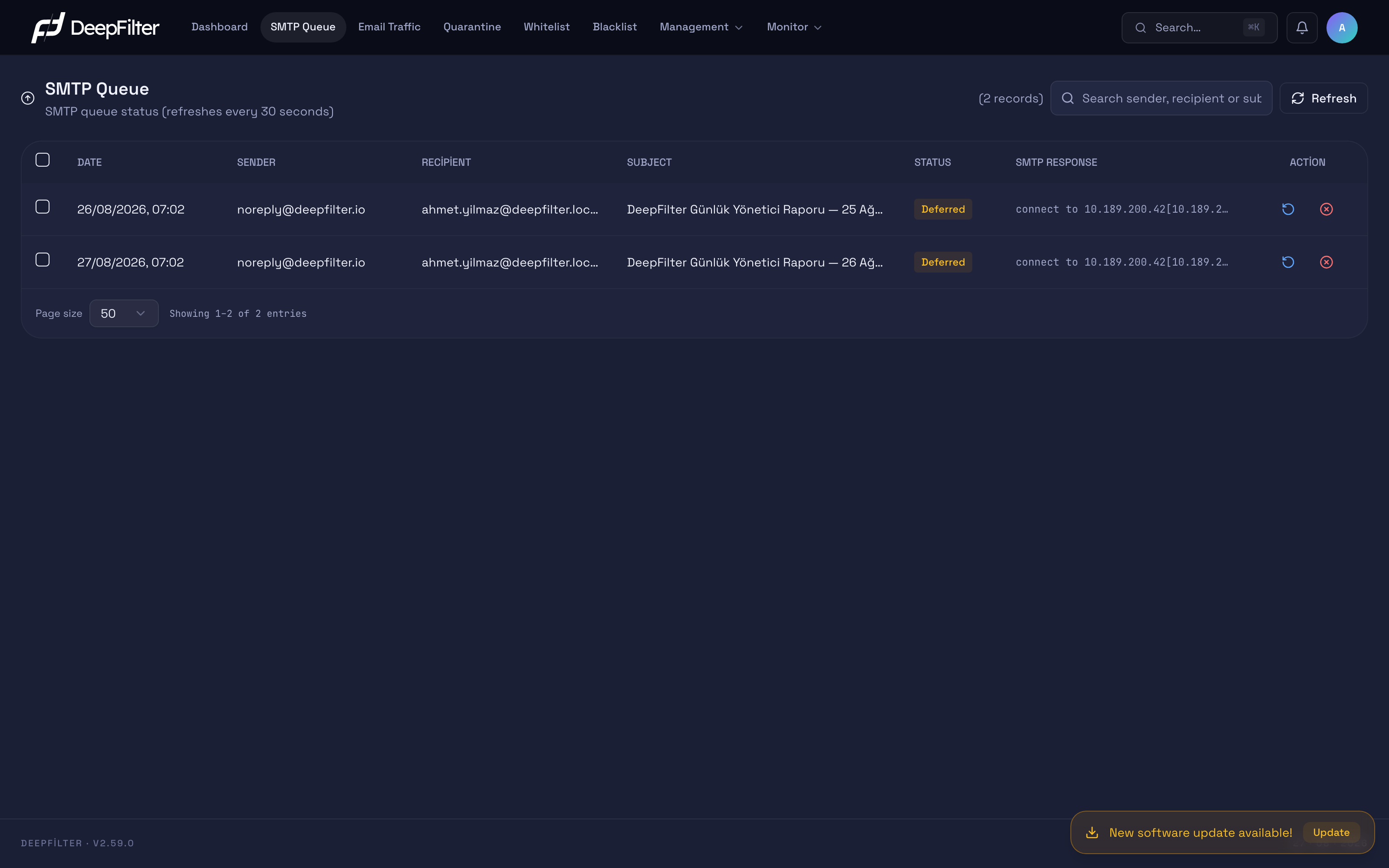
The screen refreshes itself every 30 seconds. The N waiting badge next to the title gives the total number of emails waiting for delivery in the queue; quarantined emails are not included in this count. The Data received N s ago line next to the badge tells you how fresh the information shown is: queue information comes from a background scan and is refreshed every two minutes. At the top there is also a search box and a Refresh button for a manual update.
An Empty Queue Is Normal
On a healthy system the screen shows the message No e-mail is waiting in the queue. This is not a problem but the typical picture: emails are delivered to their destinations as soon as they clear the filter, so nothing accumulates in the queue. Emails appearing in the queue does not on its own mean something is broken; what matters is the waiting count staying high for a long time without dropping, or growing continuously.
Top Queue Fillers
The Top Queue Fillers panel above the list shows the top 5 senders with the most emails waiting in the queue. Each row shows the sender address, the number of that sender's waiting emails, and that number's share of the whole queue (as a percentage and a bar).
When the queue is healthy this panel is usually empty and shows the message No sender is filling the queue. When a single sender fills the queue — for example, when a compromised account sends thousands of emails — the panel immediately shows that sender in the first row with its high share. In a flood with a very large number of different senders, once the distinct sender limit is exceeded, a note appears stating that some emails are not counted individually in this list.
Bounce notifications (non-delivery notices) enter the queue with an empty sender address. These emails are grouped in a single Null sender (bounce notifications) row in the panel; hovering over the row shows MAILER-DAEMON in the tooltip. Addresses that carry a domain, such as MAILER-DAEMON@example.com, are real sender addresses and appear in a separate row.
Clearing a Sender's Emails
Each sender in the panel has a Clean up button next to it. This button permanently deletes all of that sender's emails waiting in the queue with a single confirmation; there is no need to select and delete them one by one. There is no upper limit, even for a very large queue (for example tens of thousands of emails left by a compromised account). Which emails are deleted is described in Which Emails a Bulk Deletion Removes. Every cleanup is recorded on the Audit Logs screen as Queued mails cleaned up by sender, together with the administrator who performed it, with one record when the deletion starts and one when it finishes; the finishing record carries the number actually deleted.
Steps
- Open the SMTP Queue screen and find the sender you want to clear in the Top Queue Fillers panel.
- Press the Clean up button on the sender's row.
- In the Clean up this sender's mails? dialog that opens, wait until the count finishes (Counting… appears meanwhile) and read the number of emails to be deleted.
- Type this server's name in the Type <server name> to confirm field and confirm with Delete, or close the dialog with Cancel.
When you clean up the Null sender (bounce notifications) row, the confirmation dialog shows the warning Queued null-sender mails (bounce notifications) will be deleted. This cannot be undone. The Clean up of this row deletes only emails with an empty sender and emails whose sender is MAILER-DAEMON without a domain; the emails of addresses such as MAILER-DAEMON@example.com are cleaned up from their own rows. In the Details column of the audit record, this cleanup is marked with null_sender: true.
Verification — how to know it worked
- Deletion starts in the background and the Deletion started… notification appears; meanwhile the button shows Cleanup in progress…. While the deletion runs, the notification updates as N mails deleted so far….
- When the job finishes, a message reports the number actually deleted (for example, 1,250 mails deleted.). The No mails were left to delete. message means the emails were delivered before you confirmed; this is not an error.
- If the result message shows busy with the server name, another bulk deletion is running on this server and your request did not run; try again shortly.
- On the next refresh the sender's N waiting count drops. If the sender remains in the panel, new emails arrived after the confirmation dialog opened; run the action again.
The Clean up action cannot be undone. Deleted emails are not delivered, and the sender is not informed about it. Use it only after you are certain that the sender filling the queue is a genuinely unwanted or malicious flow; clearing a legitimate bulk mailing that is waiting for delivery causes those emails to be lost.
What the Queue Shows
Each row of the list shows one email waiting in the queue. Clicking a row opens that email's details and delivery history in an expanding panel.
The direction of the email is not shown in a separate column but on the row itself: the arrow at the start of the Sender cell (↗ outbound, ↙ inbound) and a light colour tint applied to the whole row. Outbound emails appear with a blue tint, Inbound emails with a green tint. The legend at the top right of the table explains these two colours and the arrow. This lets you tell an outbound blockage (for example, emails your users cannot send to external recipients) apart from an inbound delivery problem at a glance.
| Column | What it shows |
|---|---|
| Date | When the email entered the queue. |
| Sender | The sender address of the email; the arrow at its start shows the direction. |
| Recipient | The recipient address of the email. |
| Subject | The subject of the email; because the subject is not kept in the queue record, — may appear when no record matches. |
| Reason for Waiting | Why the email has not been delivered yet: the response the destination server gave to the last delivery attempt (for example, a connection timeout or a temporary rejection). |
| Waiting | How long the email has been waiting in the queue (for example, 35 min, 2 h 10 min, 1 d 4 h). |
When you expand a row, the panel that opens carries three sections: the email's General Info (queue ID, direction, date, waiting time, sender, recipient, subject, reason for waiting), the Delivery Attempts history that lists every delivery attempt one by one with its time, destination server and response code, and the Last Attempt summary. Each entry in Delivery Attempts shows the outcome of the attempt with a badge:
- In Progress — The email is being delivered right now; this is a transient state.
- Deferred — The destination server has not accepted the email yet (it is unreachable or is rejecting temporarily); DeepFilter retries at set intervals.
- Bounced — The email could not be delivered within the allowed time and is treated as permanently failed; a non-delivery report (NDR) goes to the sender.
This panel is the first place to look when you want to understand why a delivery is stuck: it is where you read whether the response code points to a temporary error (4xx) or a permanent rejection (5xx).
Pagination and Large Queues
During queue congestion the number of waiting emails can reach tens of thousands. The list is split into pages, and you move between pages with the navigation buttons below the list. You choose the number of records per page from 25, 50, 100 or 200 (default: 50).
The list shows at most 5,000 records. When more emails than that are waiting in the queue, the List is cut off at the cap banner appears above the list. In that case, keep two things in mind:
- The N waiting count in the header describes the entire queue; the list is only a 5,000-record slice.
- The search also runs only within this slice. If the email you are looking for falls outside the slice, the message No records match your search. may appear; this does not mean the email is not in the queue.
If a single sender is filling the queue, the fastest route is to look at the numbers in the Top Queue Fillers panel rather than searching within the list; the panel is calculated from the entire queue.
If the background scan round stops midway for some reason, the Only part of the queue could be read information banner appears: the counts and the list may be incomplete, and the values update on their own once the next round finishes.
If no scan result is available yet, or the available one is stale, the screen reads the queue directly. On this path, if the queue is very large, one of the following banners may appear:
- Queue scan cannot complete — The scan stopped midway, so the list is incomplete. Narrow it with a search or refresh in a few minutes; a technical detail line appears below the banner.
- List cannot be completed — No records appear on the screen, but this does not mean the queue is empty; the scan cannot return results. Refresh in a few minutes.
While the List cannot be completed banner is shown, do not read the empty table as "the queue is empty". On the contrary, this banner can be a sign that too many emails have piled up in the queue to be read.
Retry Rhythm
If an email cannot be delivered on the first attempt, DeepFilter does not immediately treat it as failed; it retries at increasing intervals. This behaviour keeps delivery reliable and requires no individual configuration:
- The first retry happens 5 minutes later at the earliest; subsequent attempts continue at gradually widening intervals. A wait of a few minutes in the queue is therefore normal for a temporarily unreachable destination.
- If delivery has not completed for 24 hours, a one-time delay warning is sent to the sender: the email has not been delivered yet and attempts are continuing. This warning does not mean the email is considered failed, and it is sent only once; its purpose is to let the sender learn about the delay before hearing it from the recipient.
- If an email cannot be delivered for 2 days, it is treated as permanently failed, leaves the queue, and a non-delivery report (NDR) is sent to the sender; it appears as Bounced on the Email Traffic screen.
The body of the delay warning is in English; if the sender is one of your own users, they may be surprised by the language of that email. Quarantined emails are entirely outside this rhythm: because delivery is never retried for them, they are subject to neither the queue lifetime nor the delay warning.
An email waiting in the queue does not mean it is lost. When the destination server becomes reachable again, delivery completes on its own and the email leaves the queue. Before taking manual action, remember that most temporary delays resolve themselves this way.
Monitoring the Queue
Steps
- Open the SMTP Queue screen.
- Look at the N waiting badge in the header. If the badge shows 0 waiting and the screen reads No e-mail is waiting in the queue., delivery is flowing; no further action is needed.
- The screen refreshes every 30 seconds. To see the current state immediately, press the Refresh button at the top right; read how fresh the data is from the Data received N s ago line.
- Look at the Top Queue Fillers panel. If the panel is empty, the backlog does not come from a single sender.
- If you are looking for an email from a specific sender, recipient or subject, narrow the list by typing the address or the subject text into the search box.
Verification — how to know it is healthy
If the queue is empty, or the waiting count is falling rather than rising across successive refreshes, delivery is running normally.
Diagnosing a Backlog
The waiting count rising and not falling — or even growing — across successive refreshes is a sign of a problem. How the backlog is distributed shows where the problem comes from:
- If a single sender holds a large share of the queue (the first row in the Top Queue Fillers panel), the problem most likely lies with that sender: it may be a compromised account or a bulk mailing that has gone out of control. Review the sender's emails; if it is an unwanted flow, remove it from the panel with Clean up and have the account's password changed.
- If emails going to a single domain or destination server are piling up, the problem is most likely at that destination: the server may be down, temporarily rejecting email (4xx) or out of capacity. Read the Reason for Waiting column; for details, expand the row and examine the response code in the Delivery Attempts panel.
- If emails going to different destinations are piling up together, the problem is most likely on your own side: network egress, DNS resolution or outbound connectivity may be restricted.
Emails receiving a temporary error (4xx) are expected and resolve themselves within the retry rhythm; those receiving a permanent error (5xx) bounce once the time limit expires.
Retrying or Deleting Selected Emails
You can intervene manually on queued emails in two ways. Both are applied from the selection bar that appears above the list when you select rows with the checkboxes at their start; the bar shows how many emails you have selected (N e-mails selected). The checkbox in the header selects all emails on the page being viewed.
Retry puts the selected emails up for delivery immediately, without waiting for the retry interval. It is useful when the destination server has just come back from an outage and you want delivery without the wait. This is not a delivery guarantee: if the destination is still unreachable, the email keeps waiting in the queue — one more attempt has simply been triggered.
Delete Selected removes the selected emails from the queue and they are never delivered. A deleted email does not lose its trail: it appears on the Email Traffic screen with the Removed from Queue status. When you delete from the panel, the Deleted by line in that email's traffic detail records which administrator deleted it; if the email was deleted from a server paired through Multi-Server, this line shows the name of the person who performed the action and that server's IP address. For deletions performed manually on the server no such person record is kept.
The delete action cannot be undone. A deleted email is permanently removed from the queue, is not delivered, and the sender is not informed about it. Delete an email only when you are truly certain you do not want it delivered; if you only want to speed delivery up, use Retry instead of deleting.
Steps
- Find the relevant emails on the SMTP Queue screen; narrow the list with the search box if needed.
- Tick the checkboxes at the start of the rows you want to act on.
- Press the Retry (N) or Delete Selected (N) button in the selection bar.
Verification — how to know it worked
- After Retry the message Delivery is being retried for N email(s). appears; if delivery succeeds the email leaves the list on the next refresh, and if the destination is still not responding it keeps waiting in the queue.
- After deletion a short message reports the result (for example, 3 email(s) removed from the queue.); the email disappears from the list and the waiting count drops. The same email continues to be tracked on the Email Traffic screen with the Removed from Queue status.
- If some of your selection could not be deleted, the message says so explicitly: the Partial delete message gives the number of deleted and not-deleted emails separately. If an email was delivered or released before you acted, a "no longer in the queue" message appears; this is not an error. If no deletion took place at all, the message Removing from the queue failed. appears and the emails stay in the queue.
- Retry likewise shows a success, partial or failure result message.
Deleting All Emails Matching a Search
When you type at least 2 characters in the search box, the Mails matching “<search>” strip and the Delete All Matching button appear above the list. This button permanently deletes all emails that match the search and are waiting in the queue in a single action; you do not need to select them one by one. The search uses the same criterion as the list search: text contained in the sender, recipient or subject (not case-sensitive).
The emails to be deleted are determined not from the list but by scanning the whole queue when the confirmation dialog opens; there is no upper limit, and the List is cut off at the cap banner does not limit the deletion. For details, see Which Emails a Bulk Deletion Removes.
Steps
- On the SMTP Queue screen, type text in the search box that identifies the emails you want to delete (for example a sender address or subject), and check that the list shows only those emails.
- In the strip above the list, press Delete All Matching.
- In the Delete mails matching the search? dialog, read the number of emails to be deleted (Counting… appears while the count is calculated).
- Type this server's name in the Type <server name> to confirm field and confirm with Delete, or close the dialog with Cancel.
Verification — how to know it worked
- Deletion starts in the background and the Deletion started… notification appears; meanwhile the button shows Cleanup in progress…. While the deletion runs, the notification updates as N mails deleted so far….
- When the job finishes, a message reports the number actually deleted (for example 120 mails deleted.) and the list refreshes. The No mails were left to delete. message means the emails were delivered or deleted before you confirmed; this is not an error.
- If the The state on the server changed; confirm the new count. message appears, no email was deleted; the dialog reopens with a new count.
- The action is recorded on the Audit Logs screen as Queued mails matching filter deleted, with one record when the deletion starts and one when it finishes; the finishing record carries the number actually deleted.
The search matches text contained in the sender, recipient and subject; all emails waiting in the queue that match the search at the moment the confirmation dialog opens are deleted. Keep the search narrow enough to cover only the emails you want to delete. Emails that arrive after the dialog opens are not deleted; run the action again for the new arrivals.
Which Emails a Bulk Deletion Removes
Clean up and Delete All Matching follow the same rule on this server and on paired servers:
- The cut-off moment is the moment the confirmation dialog opens and the count starts. All emails waiting to be sent that entered the queue up to that moment and match the sender or the search are deleted; there is no upper limit, and very large queues are also cleared with a single confirmation.
- Clean up on the Null sender (bounce notifications) row covers only emails with an empty sender and emails whose sender is
MAILER-DAEMONwithout a domain; real addresses such asMAILER-DAEMON@example.comare out of scope. - Emails that enter the queue after the dialog opens, emails held in quarantine, and emails whose queue arrival time cannot be read are not deleted. If emails keep arriving from the same sender, run the action again after the job finishes.
- The count shown in the dialog is the number of matching emails in the queue at the cut-off moment. If the count cannot complete (for example, it does not finish within 3 minutes), it is shown as a lower bound, as at least N mails; the deletion still covers all matching emails that arrived up to the cut-off moment.
- Deletion runs in the background; progress is shown by the N mails deleted so far… notification, and the number actually deleted is reported when the job finishes. If some of the counted emails were delivered in the meantime, the number deleted can be smaller than the confirmed count.
- If the confirmation dialog stayed open for more than 1 hour, no deletion is made; the The state on the server changed; confirm the new count. message appears and the dialog reopens with a new count.
- If, while the count is exact, the deletion finds unexpectedly more emails than confirmed (the excess is larger than both 10 emails and 2% of the confirmed count), the operation stops itself. The result message shows the reason confirmed count exceeded, stopped with the server name; emails deleted up to that point stay deleted. Refresh the list and start the action again; if it happens again, contact the DeepFilter support team.
Queues of Several Servers
If this server is paired with other DeepFilter servers through Multi-Server, a server selector appears in the header of the screen. The selector appears only in a global administrator session and when at least one paired server exists.
Server selector. The selector lists servers by name with color marks; hovering over this server's name shows the This server tooltip. You choose one or more of the servers, or All; at least one server always stays selected. When a single server is selected, the selector shows that server's name; when more than one is selected, it shows All. Your selection is remembered in this browser and comes back when you reopen the screen. A server that cannot be selected appears disabled, and hovering over it shows the reason (for example, the server is unreachable, Version difference or permission not granted). A lock icon appears next to a server with remote actions off.
Merged list. When a paired server is selected, the queues appear in one list sorted by time, and a Server column is added to the list; each row shows the server holding the email as a colored tag carrying its name. This server's tag is always blue; the colors of paired servers do not change while the pairing lasts. The N waiting badge in the header gives the total of the selected servers; hovering over it shows the count per server. Instead of page numbers, the bottom of the list has a Load more button and the number of records shown (N records shown · by time); the Page size can be 25, 50 or 100. The screen refreshes every 30 seconds; once you extend the list with Load more, automatic refresh stops so that the rows you are reading are not lost, and you update the list with Refresh.
Slow or unresponsive server. The response of each server is awaited for at most 8 seconds. A server that does not respond does not hold up the list: the results that arrived are shown, and a banner above the list names the server that did not respond (for example mx2 did not respond within 8 seconds — results may be incomplete). Retry in the banner requests the list again with the same selection. Right after a deletion or retry on a server, that server's queue summary is rebuilt within a few seconds; meanwhile the mx2: queue summary not ready — results may be incomplete banner may appear. That server's previous rows stay on screen and the list refreshes itself at short intervals.
Top Queue Fillers. The panel is calculated from the total of the selected servers; next to each sender address, the servers holding its emails are shown as tags (if the sender's emails are on more than one server, the tag also shows the count on that server). The Clean up button is available in this view as well and deletes the sender's emails on all the servers holding them (see Bulk deletion on several servers).
Row details. When a row is expanded, the server holding the email appears in the Server field. The delivery attempts of an email on a remote server do not include the recipient, the IP address of the delivery server or duration details.
Retrying and deleting on a remote server
In the merged list, Retry and Delete Selected are also applied from the selection bar; the bar shows how the selection is distributed across servers with server badges. The action runs on the server where each email is.
- To act on the emails of a remote server, that server must have granted remote actions to this server; this permission is off by default and is turned on by that server's administrator (see Multi-Server). If the permission is off, the rows are visible but cannot be selected.
- There is no per-server limit on the number of emails you can select; large selections are processed in parts in the background and the result is reported in a single message.
- If only this server's rows are selected, the action is applied directly, as in the single-server view. If the selection includes rows from a remote server, a confirmation dialog opens first: the Retry the selected emails? or Delete the selected emails? dialog lists each server's name and the number of emails on it.
- When deleting, if a remote server holds more than one selected email, the dialog asks you to type that server's name (Type <server name> to confirm). If the typed name does not match, no action is taken on any server.
Steps
- Select the relevant servers in the server selector in the header.
- Tick the boxes at the start of the rows you want to act on.
- Press Retry (N) or Delete Selected (N) in the selection bar.
- In the confirmation dialog, check the server names and email counts; type the server name if asked, and confirm with Retry or Delete.
Verification — how to know it worked
- The result message appears as in the single-server view; emails that could not be processed on a server are listed separately with that server's name and the reason.
- Deleted emails disappear from the list as soon as the result arrives.
- An action on a remote server is recorded on the Audit Logs screen of both that server and this server; no email notification is sent.
Deletion on a remote server cannot be undone either: the emails are permanently deleted from the queue of the server they are on, they are not delivered, and the sender is not informed about it.
Bulk deletion on several servers
The merged list offers two ways of bulk deletion: Clean up in the Top Queue Fillers panel (all of a sender's emails waiting in the queue) and Delete All Matching, which appears above the list when at least 2 characters are typed in the search box (all emails matching the search). Both run on each of the selected servers, on the server where the emails are.
- Bulk deletion on a remote server requires that server to have granted the Can perform remote actions permission; view permission is not enough. A server with the permission off is listed in the confirmation dialog with a lock icon and the note Remote actions are disabled on the peer server, and does not take part in the deletion. If none of the relevant remote servers has the permission, the button appears disabled and hovering over it shows the same tooltip.
- The confirmation dialog (Clean up this sender's mails? or Delete mails matching the search?) first shows the number of emails to be deleted on each server. While the count is being calculated, Counting… appears; if the count on a server does not finish within 3 minutes, it reads at least N mails.
- You are then asked to type the name of each server where the deletion will run, including this server (Type <server name> to confirm).
- The Null sender (bounce notifications) row cannot be cleaned up on a paired server running an older release: the dialog shows invalid request on that server's row and no email is deleted on that server. Once that server is updated the action works there too; until then, do the cleanup from that server's own panel.
- Deletion runs in the background on each server and covers all matching emails that arrived on that server up to the cut-off moment; there is no upper limit (see Which Emails a Bulk Deletion Removes).
Steps
- Select the relevant servers in the server selector in the header.
- To delete a sender's emails, press Clean up in the sender's row of the Top Queue Fillers panel; to delete the emails matching a search, type the text in the search box and press Delete All Matching above the list.
- In the confirmation dialog, check each server's name and the number of emails to be deleted.
- Type each requested server name and confirm with Delete, or close the dialog with Cancel.
Verification — how to know it worked
- The Deletion started… notification appears; the button shows Cleanup in progress… until the job finishes. While the deletion runs, the notification updates with the total on all servers as N mails deleted so far….
- When the job finishes, the total number deleted on all servers is reported (for example 120 mails deleted.). If the operation could not finish on a server, the N mails deleted; the operation could not finish on some servers. message additionally names that server and the reason (for example mx2: confirmed count exceeded, stopped).
- If the The state on the server changed; confirm the new count. message appears, no email was deleted on that server; the dialog reopens with a new count for that server only.
- The action is recorded on the Audit Logs screen of the server holding the emails as Queued mails cleaned up by sender or Queued mails matching filter deleted; on a remote server, the User column shows the name of the person who performed the action and this server's IP address. One record is created when the deletion starts and one when it finishes; the finishing record carries the number actually deleted. On this server, a Multi-server: queue action run on a paired server record is created.
On each server, all emails waiting in that server's queue that match the same sender or search at the moment the confirmation dialog opens are deleted. Emails that arrive after the dialog opens are not deleted on any server; run the action again for the new arrivals. If the deletion on one server stops itself because of an unexpected excess, only that server is affected; the deletion continues on the other servers.
Troubleshooting
There is a backlog in the queue but it is not clearing on its own. First look at the Top Queue Fillers panel: does the backlog come from a single sender? If not, determine whether the backlog is towards a single destination or several destinations, and read the Reason for Waiting column. If it is a single destination, the problem is on that server (down, temporarily rejecting, or out of capacity); if it is several destinations, check your own network or DNS egress. If the backlog persists and does not clear, send the recipient domains in the queue and the approximate number of waiting emails to the DeepFilter support team; this information speeds up the diagnosis.
The email I am looking for does not appear in the list. If the List is cut off at the cap banner is shown above the list, the search runs only within the 5,000-record slice shown; the email may not be found even though it is in the queue. Reduce the senders filling the queue with Clean up and then repeat the search, or follow what happened to the email on the Email Traffic screen.
The screen looks empty when there should be a delivery backlog. If the List cannot be completed or Queue scan cannot complete banner is shown above the list, the queue is not empty even though the screen looks empty; refresh in a few minutes. If you see that the Data received N s ago line does not advance for a long time, or the inconsistency continues, report the situation to the DeepFilter support team together with the technical detail line below the banner.
Emails remained in the list after a deletion or cleanup. Read the result message that appears after the action. A Partial delete, Removing from the queue failed. or N mails deleted; the operation could not finish on some servers. message tells you that some or all of the emails remained in the queue; refresh the list and repeat the action. Emails left after Clean up or Delete All Matching may have arrived after the confirmation dialog opened; run the action again for them. If the problem persists, contact the DeepFilter support team with the operation note in the message.
A "results may be incomplete" banner appears above the list. One of the selected servers did not respond within 8 seconds or is unreachable; the list contains only the emails of the servers that responded. Request the list again with Retry in the banner. If the problem persists, check that server's status on the Management → System → Multi-Server screen.
The emails of a remote server cannot be selected, Clean up or Delete All Matching is disabled, or a server is disabled in the server selector. If a lock icon appears on the server tag, the row checkbox's tooltip says with the server's name that remote actions are off (for example, Remote actions are off on mx2 — its administrator can turn them on), or the button's tooltip reads Remote actions are disabled on the peer server, that server has not granted remote actions to this server; perform the action in that server's own panel, or ask that server's administrator to turn the permission on. Hover over the disabled server in the server selector: the hint gives the reason (unreachable, Version difference, permission not granted). If you see Version difference, update the server running the older version.
A bulk deletion shows "invalid request" on a server's row. When you clean up the Null sender (bounce notifications) row, this reason means that the server runs an older release; no email was deleted on that server. Update the server or do the cleanup from that server's own panel.
A bulk deletion shows "The state on the server changed; confirm the new count." The confirmation dialog stayed open for more than 1 hour, or the count on that server is not valid; no email was deleted on that server. Check the new count in the dialog that reopens and confirm.
A bulk deletion result shows "confirmed count exceeded, stopped" or "busy". confirmed count exceeded, stopped tells you that the deletion stopped itself on that server because it found unexpectedly more emails than confirmed; emails deleted up to that point stay deleted. Refresh the list and start the action again; if it happens again, contact the DeepFilter support team. busy tells you that another bulk deletion or count is running on that server; try again in a few minutes.