Notifications
DeepFilter continuously monitors, in the background, many of the components that keep email flowing: the validity of the secure connection (SSL) certificate, license verification, disk usage, the state of critical services and how full the cache memory is. When one of these checks fails, email flow most often breaks silently — a certificate expires, a service stops or a disk fills up, but from the outside everything looks like it is working and nobody notices.
The Notifications screen closes that gap: you define who receives an alert email and for which events. Instead of watching the server constantly, you configure the settings once and only hear about it when a real situation that needs intervention arises.
Settings
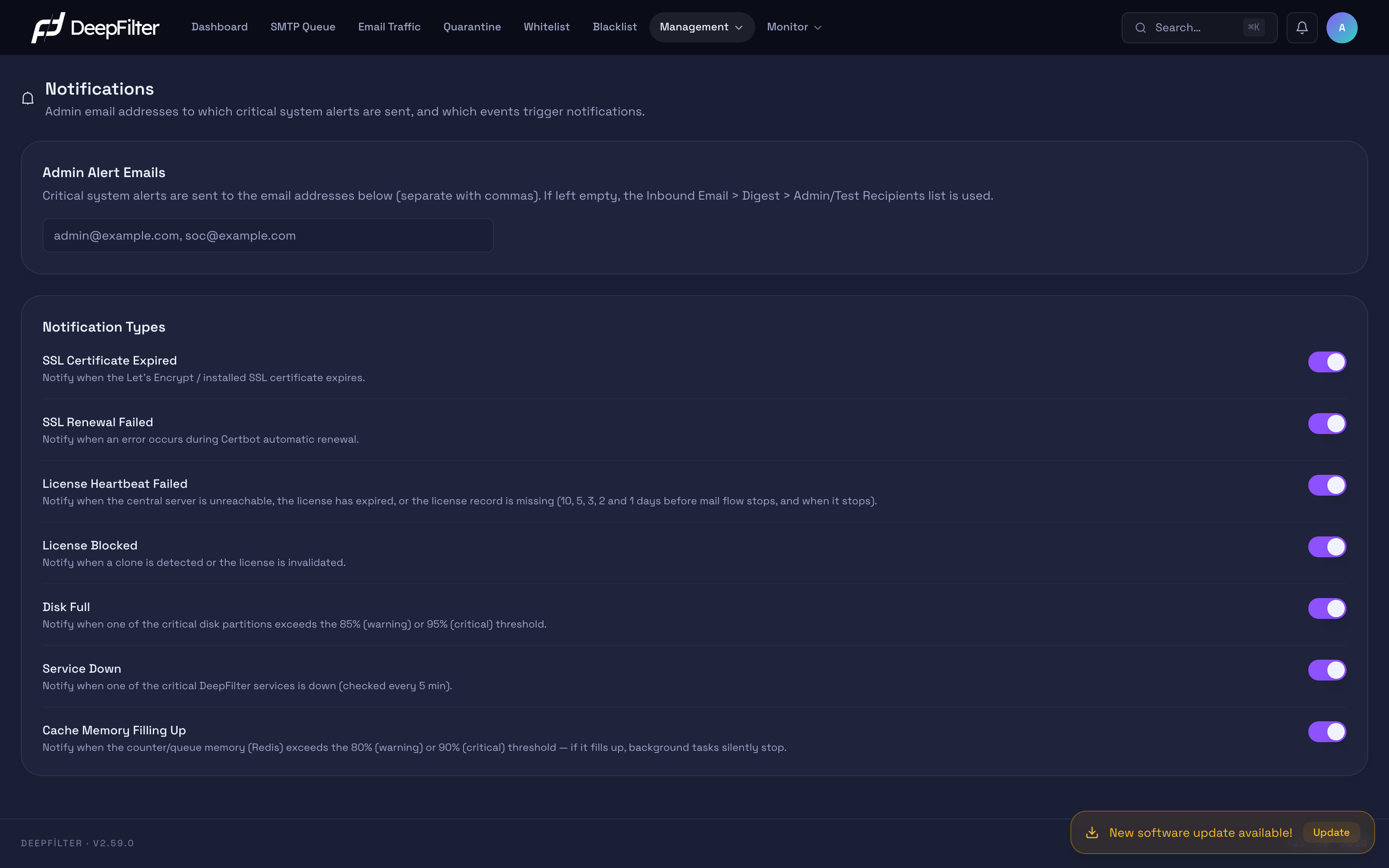
Admin Alert Emails
What it does: Holds the recipient email address(es) that critical system alerts are sent to. You can enter more than one address separated by commas (default: empty).
Why it exists: It defines a separate recipient list so alerts reach the right person or team responsible for the server; it lets you set a target independent of the list the daily reports go to.
If you change the value: If you fill the field in, alerts go only to the addresses here. If you leave it empty, alert recipients are taken from the Inbound Email → Digest → Admin/Test Recipients list; if that list is empty too, no alert is sent at all and the event is only written to the system log.
License notifications are an exception to this rule: they are sent to all active global administrator accounts in addition to these addresses, and they cannot be turned off (see "License notifications" below).
When you save, the addresses go through a basic format check (each part must
contain @, and it must not start or end with @); an invalid address causes the
save to be rejected. This check does not verify that the address actually
exists or can receive mail.
When you fill this field in, alerts go only to the list here and the fallback to the daily report (Digest) recipient list is disabled. Use a team or a distribution (SOC) address rather than a single personal address; otherwise critical alerts can slip by unnoticed while that person is on leave or without access.
Notification Types
What it does: Each row in the list is a monitored event type; while the switch to its right is on, an alert email is sent to the defined addresses when that event occurs, and while it is off no alert is produced for that event (default: all on).
Why it exists: Not every environment cares about every event to the same degree. Being able to turn types on and off individually lets you cut unnecessary alert noise and receive only the events you care about.
If you change the value: If you turn a type off, the event still happens — the event itself is not prevented, you are simply not told about it. Notification types added in new versions arrive on by default.
Every alert email is sent with the same corporate template as the daily Digest
reports; its urgency can be told from the prefix in the subject line:
[DeepFilter] (informational), [DeepFilter Uyarı] (warning) and
[DeepFilter KRİTİK] (critical). You can define prioritization rules in your inbox
based on these prefixes.
The monitored event types:
- SSL Certificate Expired — Sends a critical alert after the server's secure connection (SSL) certificate has expired. The certificate is checked every day, but the alert is triggered only once the date has passed; it does not produce an advance "expiring soon" warning. A single alert is sent for the same expiry date.
- SSL Renewal Failed — Reports with a critical alert that the Let's Encrypt certificate is not being renewed automatically. The certificate is checked every day; the alert is sent if fewer than 25 days remain until expiry and it has still not been renewed. A single alert is sent for the same expiry date. Cases where the system cannot switch the renewal setting to the validation method you selected in the panel are also reported with this type. For details, see the SSL Certificate page.
- Disk Full — Triggered when one of the monitored critical disk partitions reaches 85% (warning) or 95% (critical) usage. Partitions are checked every five minutes; at most one email is sent per day for the same partition at the same severity. If several partitions are full at the same time, the alerts are combined into a single email at the highest severity. For the root disk partition the global administrator also sees a banner in the panel; this banner is not a notification type and cannot be turned off on this screen (see Disk Usage Banner).
- Service Down — Critical DeepFilter services are checked every five minutes. If a service has stopped, the system first tries to restart it automatically (at most two attempts for the same event); if the service still does not come up, it sends a critical "down" alert. The same type also sends an informational message when the service comes back up, and a warning email when the state of a service cannot be read. The virus scanning engine is checked as well but is not restarted automatically; if it stops, only an alert is sent, because the signature update reloads this service itself. A service that is starting up or reloading does not raise an alert.
- Cache Memory Filling Up — Triggered when the cache memory that holds counters, queues and temporary data reaches 80% (warning) or 90% (critical) usage. The memory is checked hourly.
- LDAP Sync Not Applied — Triggered when the sync of a directory profile used in Recipient Verification cannot be applied: when the directory connection is lost, when the result comes back empty or partial, or when the lock threshold is exceeded. In that case the last successful recipient list stays in use. When the sync is applied successfully again, an informational LDAP Senkronu Düzeldi ("LDAP Sync Recovered") message arrives. For details see the LDAP Directory page.
- Node Unreachable — Sends a critical alert when a server paired through Multi-Server does not respond in three consecutive checks, and an informational email when it becomes reachable again; if the paired server is on an incompatible version, the informational email sent for that is also tied to this switch. The Server paired email sent when pairing completes and the identity change alert are not tied to this switch and cannot be turned off. For details see the Multi-Server page.
There are also quarantine alerts that have no switch in the list and are always sent:
- Quarantine queue threshold alert (subject:
Postfix HOLD kuyruğu çok büyük (N mail)— "quarantine queue too large (N emails)") — Sends a critical alert when the number of emails waiting in the quarantine queue exceeds the warning threshold; N in the subject is the number of emails in the queue. The alert also lists the points to check (for example the quarantine retention period). The condition is checked every half hour; while the problem persists, the alert is repeated at intervals. When the queue drops below the threshold, an informational message with the subjectPostfix HOLD kuyruğu normale döndü("quarantine queue returned to normal") arrives. - Quarantine cleanup alert (subject:
Karantina temizliği sürekli başarısız— "quarantine cleanup failing repeatedly") — Sends a critical alert when the automatic cleanup that deletes expired quarantine emails fails several times in a row. When the cleanup succeeds again, an informational message with the subjectKarantina purge turu düzeldi("quarantine cleanup recovered") arrives.
These subjects are sent in Turkish and carry the prefix described above, for
example [DeepFilter KRİTİK] Postfix HOLD kuyruğu çok büyük (12.500 mail).
Together, these two alerts prevent the quarantine from swelling unnoticed and filling up the disk. The recovery notification is sent only if the earlier alert actually reached you.
License notifications
License-related notifications are not in the Notification Types list either and are always sent: the reminders before license expiry (30, 15, 7, 3, 2 and 1 days before expiry), the notification sent on the day the license expires, the notifications of the countdown that runs when the central server cannot be reached or when no license record is found, the stopping of email flow, and the blocking of the license by the center. These notifications go to all active global administrator accounts in addition to the Admin Alert Emails addresses; they cannot be turned off so that a situation that could end with email flow being cut does not pass unnoticed. For the schedule and content, see the License page.
Take the Cache Memory Filling Up alert seriously: when this memory fills up, functions such as background tasks, quarantine, spam learning and Temporary Rejection can stop silently while the services keep looking like they are "running" from the outside. Receiving the alert early gives you the chance to intervene before the problem grows.
Configuring Notification Settings
Prerequisites
- Alert emails use the same delivery infrastructure as the Digest reports, so outbound email delivery must be working. Otherwise an alert can be produced but not delivered.
Steps
- Open Management → Notifications.
- In the Admin Alert Emails field, write the address(es) the alerts should go to; separate multiple addresses with commas.
- In the Notification Types list, keep the switch on for the events you want to receive and off for the ones you are not interested in.
- When you make a change, click the Save button that appears in the bottom corner. This button does not appear until a change is made; settings are not saved on their own.
Verification — how to know it worked
- After you save, the Save button disappears; this shows that no pending change is left and that the settings have been applied. There is no button on this screen that sends a test email; you see that the settings work from the alert you receive when a real event (a service stopping, for example) is triggered.
Things to Watch
If you turn off every notification type, you receive no alert at all in critical situations such as a certificate expiring, a service stopping or a disk filling up. At the very least keep the SSL Certificate Expired, Service Down and Disk Full types on.
Troubleshooting
No alert emails arrive at all. Check the recipient first: if both the Admin Alert Emails field and the fallback Digest recipient list are empty, no alert is sent (the event is only written to the log). Then confirm that outbound email delivery is working and that the relevant notification type is on.
The SSL certificate is nearing expiry but no alert arrived. This is by design: the system alerts only when the date has passed or when automatic renewal fails; it does not produce an "expiring soon" warning. A Let's Encrypt certificate is normally renewed about 30 days before expiry; if fewer than 25 days remain and it has not been renewed, the SSL Renewal Failed alert arrives. Certificates you upload yourself are not renewed automatically, so this alert is not produced for them; you are alerted only when they expire.
The disk filled up but no alert appeared. Only specific disk partitions that are critical to the system's operation are monitored. If the partition that filled up is not one of them, no alert is produced.
The cache memory looks full but no alert arrives. If no upper limit is defined for the cache memory (an unlimited configuration), the usage check is skipped entirely and no alert is produced.
The same problem is ongoing but the alert arrived only once. Most types suppress repeated emails for the same situation within a certain time window, so a single ongoing problem does not fill your inbox. When the problem is resolved and then reappears, the alert is sent again.