Inbound Email
Inbound Email is the central configuration page where you decide which server the email reaching your organization from outside is delivered to, which security checks it passes through, and how anything found suspicious is quarantined. Inbound email is the main entry point for the unsolicited mail, phishing and malware aimed at your organization; this page lets you control that entry point layer by layer.
DeepFilter runs every inbound message through a large number of independent checks; each check adds points to the message's total threat score according to its own finding. The points are added up, and when the total reaches the threshold on the Quarantine tab (default 12) the message is not delivered but quarantined instead. The tabs on this page manage those layers of inspection: you configure delivery routing on SMTP Flow, hourly rate limits on Traffic Limit, quarantine behavior on Quarantine, identity and reputation checks (SPF, DKIM, RBL, Antivirus) on Security, pattern-based scan rules on Preferences, the independent protection modules added to the inbound flow on Features, artificial intelligence verdicts on Artificial Intelligence, user notification on Digest, threat signatures shared between organizations and the server's own classifier on Central Intelligence, and connection-level protections on the Advanced tab.
SMTP Flow
SMTP Flow is the routing layer where you manage which delivery server the email addressed to your protected domains is forwarded to. DeepFilter acts as the first server that receives your domains' email from the outside; once scanning is complete it delivers the message to the organization's real mail server. If a domain has no delivery target defined here, the email arriving for that domain has no server to be forwarded to.
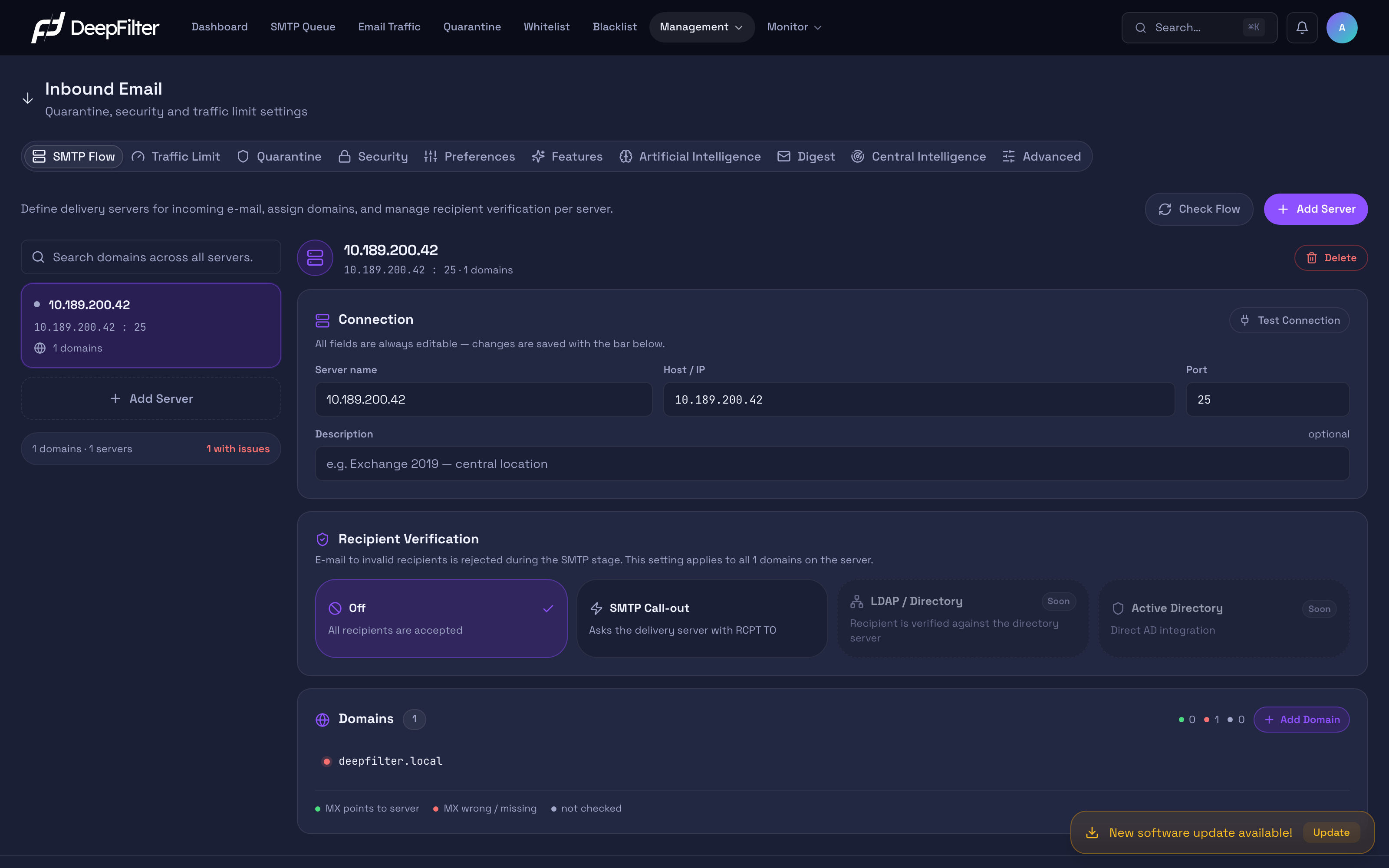
The screen uses a delivery-server-centric layout: the list of your organization's delivery servers is on the left, and all the settings of the currently selected server are on the right. When you select a server, its connection details, recipient verification method and the domains bound to it open in the right-hand panel. This lets you manage every domain served by one mail server from a single place and work at server level instead of moving from domain to domain. The search box above the left-hand list lets you search all servers for a domain when you do not know which server it belongs to.
Your changes stay as a draft until you save them. When you edit a field, a bar appears at the bottom of the panel indicating that there are unsaved changes; from there you either save or discard the change. If you try to switch to another server without saving, DeepFilter warns you and lets you choose whether to save or discard the change, so an unfinished edit is never lost silently.
Settings
The settings of a delivery server are grouped into three sections: the Connection details that determine how the server is reached, Recipient Verification which filters out invalid recipients, and the Domains routed to that server. Every field in the connection details is always editable; changes are applied with the save bar at the bottom of the panel.
Connection details
Server name — The label by which you recognize this delivery target in the list and in the records. (required) It is a name for your own use only and does not affect delivery; still, keep it meaningful so you can pick the right one among several servers.
Host / IP — The address of the real mail server the email is forwarded to: a valid IP address or hostname. (required) This is the server that finally receives the organization's email. The address must not contain leading or trailing spaces, a :// prefix or a :port suffix; the port is managed in a separate field (see below).
Port — The port delivery is made to. (default: 25) Standard SMTP delivery uses port 25 and this value does not change in most installations; however, if your delivery server listens for email on a different port you can change it here. When you change it, the new port applies to all domains bound to this server, and the connection test also uses that port. If you enter the wrong port the server cannot be reached at all and the email for the domains bound to it cannot be delivered; for that reason, only change the port when you are certain the target server really listens on it.
Description — A free-form note about the server (its location or the person responsible, for example). (optional) It is for administrative convenience only and does not affect delivery.
Domains
This section manages the inbound domains routed to the selected delivery server. Email arriving for each domain listed here is delivered to this server after being scanned. Domains are added in bulk: you can enter several domains at once, separated by commas, spaces or line breaks. A domain can be bound to only one server; if you try to add a domain that is already defined on another server, DeepFilter reports this and prevents the duplicate. You can transfer an existing domain to another delivery server with the move option on its row, or remove it from the flow entirely.
Recipient Verification
Recipient Verification is a per-server check that rejects, during the SMTP stage and before DeepFilter even accepts them, messages addressed to recipients who do not actually have an account on the delivery server. (default: Off)
Why it exists: Attackers and misconfigured systems constantly send email to addresses that do not exist in your organization (deleted-user@…, randomly generated addresses). With verification off, DeepFilter accepts these messages, scans them and forwards them to the delivery server, which then bounces them back saying "no such recipient". That means both unnecessary scanning load and the problems caused by bounced messages (backscatter). With verification on, an invalid recipient is filtered out at the door.
How it works: DeepFilter checks the recipient's address before accepting a message; if the address is valid the message continues through its normal flow, and if it is not, the message is permanently rejected during the SMTP stage. Where the check looks depends on the selected method: with SMTP Call-out the address is queried on the delivery server, and with LDAP / Directory it is looked up in the local recipient list pulled regularly from the directory. This setting applies to all domains bound to the selected server; with the LDAP method, exceptions can be defined per domain.
The verification method is chosen from the cards:
- Off — No recipient verification is performed; all recipients are accepted and the validity decision is left entirely to the delivery server.
- SMTP Call-out — The recipient is queried on the delivery server during the SMTP stage and the message is rejected if the recipient is invalid. Query results are cached for a while so that the delivery server is not queried repeatedly for the same recipient.
- LDAP / Directory — The recipient is verified against the local recipient list pulled at regular intervals from the selected directory profiles; a recipient that is not on the list is rejected with
550 5.1.1. The details are in the LDAP / Directory method section below. - Active Directory — Direct AD integration. This card currently carries a Soon badge and cannot be selected.
With the SMTP Call-out method, rejected recipients are distinguished with the Unverified Recipient label on the Email Traffic screen, so you can track from there which invalid addresses were filtered out. With the LDAP / Directory method, rejected recipients are listed as Rejected; the rejection text in the row's details reads "User unknown".
LDAP / Directory method
With the LDAP / Directory method, no live query goes to the directory for each recipient. The selected directory profiles are read at regular intervals and a local recipient list is built from the addresses obtained; the recipient is accepted or rejected against this list. Even if the connection to the directory is lost, the last successful list stays in use. The profiles, the sync interval and the lock threshold are defined on the Management → Integration → LDAP Directory page (see LDAP Directory).
Directory profiles — The directory profiles against which this server's recipients are verified; tick one or more profiles in the list. (at least one profile is required when LDAP / Directory is selected) With several profiles selected, an address is accepted when it is found in any of them. Each profile shows its base DN, its last sync time and its mailbox / alias / list counts. The Manage profiles → link opens the LDAP Directory page. A disabled profile cannot be used for recipient verification.
Why it exists: If the organization has separate directories, for staff and students for example, the recipients of the same delivery server can come from more than one directory.
If you change the value: When you save, the first sync starts for the selected profiles. Until the first sync is complete, verification is not applied and recipients are accepted.
Only active accounts are verified — This note appears when the account filter of the selected profiles covers only active accounts: email to disabled and locked accounts is rejected. If you want to accept email for locked accounts, widen the profile's account filter. Zimbra LDAP profiles have an Include locked accounts button that does this in a single step: the filter is widened to also cover locked (locked, lockout, maintenance) accounts and a sync is started; closed accounts stay excluded. If the filter is not in a recognized form, the dialog shows an example filter to apply manually in the profile's advanced section.
Domain scope — For each domain bound to the server, whether verification is on or off and which directory it uses. The section heading summarizes how many domains are verified with the server profiles; the How does it work? link opens the rules:
- On — The recipient is verified against the list fetched from the directory; a recipient not on the list is rejected. If the domain does not exist in the directory at all, all recipients of that domain are rejected and an alert is sent to the administrators.
- Off — No recipient verification is performed for this domain (the domain is excluded).
- Profile — The directory the domain is verified against. The default is Server profiles; if a domain lives in a different directory, select a different profile here.
The screen first shows the Domains needing attention or custom settings list: domains not found in the directory, excluded domains, domains waiting for the first sync, Zimbra domain aliases and domains assigned a different profile are gathered here with their counts. All domains come collapsed under the All domains heading; to change the default, open this section and search for the domain. The table also shows the number of addresses each domain has in the directory.
Domains newly added to the server are included in verification by default. Domains that are not defined in DeepFilter are rejected in every case. Domain scope can be set once the server has been saved.
In Zimbra, a domain can be a domain alias of another domain; in that case the alias domain's addresses do not appear separately in the directory. When the domain alias fields of the LDAP Directory profile are filled in (they come preset for the Zimbra LDAP type), the alias domain's addresses are derived from the target domain's addresses and these domains are marked as aliases in the scope list.
If a domain does not exist in the directory at all and its verification is on, all email to that domain is rejected. After turning on the LDAP / Directory method, check the domains shown as "missing from the directory" in the Domains needing attention or custom settings list; if these domains live in another directory, select the matching profile, otherwise exclude them from verification.
Before turning Recipient Verification on, make sure your delivery server correctly answers "accept" for valid recipients and "no such recipient" for invalid ones. If the server is built to accept all recipients first and reject them later, or if a temporary problem makes it turn away valid recipients as well, email for legitimate recipients is rejected at the door too. Test a few real addresses with the Instant Verification Test below before turning it on.
Adding a Delivery Server
Prerequisites
- Make sure the delivery server accepts email from DeepFilter on the relevant port (25 by default), that is, that it grants relay permission; otherwise the messages cannot be delivered even though the server is defined.
Steps
- On the Inbound Email → SMTP Flow tab, click the Add Server button above the left-hand list.
- Fill in the Server name, Host / IP and, if needed, Port fields; optionally enter a Description.
- In the Domains section, enter the domains to be routed to this server (separated by commas, spaces or line breaks if there are several).
- Click Create Server on the bar at the bottom of the panel.
Verification — how to know it worked
- The new server appears in the left-hand list and the domains you added are listed in the detail panel. The MX status of the domains and the server connection are checked in the background; you read the results as described in the Verifying Flow Status section.
Adding and Moving a Domain
Steps
- On the Inbound Email → SMTP Flow tab, select the relevant delivery server on the left.
- In the Domains section click Add Domain and enter the domains (separated by commas, spaces or line breaks if there are several).
- To move a domain to another server, use the move option on that domain's row and select the target server; to remove it from the flow entirely, use the remove option.
- Save the changes with the bar at the bottom of the panel.
Verification — how to know it worked
- The added domains appear in the server's list and their MX status starts being checked. The domain you moved disappears from the old server and appears in the new server's list.
A domain can be bound to only one delivery server at a time. If you try to add a domain that is already defined, DeepFilter warns you; moving a domain to a new server automatically removes it from the old one.
Deleting a Delivery Server
When you delete a delivery server, the domains bound to it must not be left without a delivery target; for that reason DeepFilter does not let you delete a server that still has domains on it.
Steps
- On the Inbound Email → SMTP Flow tab, select the server you want to delete.
- Start the delete operation. If the server has domains, DeepFilter asks you to choose a target server the domains will be moved to.
- Select the target server and confirm with Delete and Move; the domains are moved to the target and the server is deleted.
Verification — how to know it worked
- The deleted server disappears from the list; the moved domains appear in the target server's Domains list.
A delivery server cannot be deleted while a Zimbra connection profile is defined for it; first remove that server's profile from the Management → Integration → Zimbra SOAP page.
If there is no other delivery server to move the domains to, the server cannot be deleted — because the email arriving for those domains would have no delivery target. Define a valid target server for the domains before deleting.
Turning On Recipient Verification
Prerequisites
- Know that your delivery server answers "accept" for a valid recipient and "no such recipient" for an invalid one. If you are not sure, test it first with the Instant Verification Test.
Steps
- On the Inbound Email → SMTP Flow tab, select the relevant delivery server.
- In the Recipient Verification section, select the SMTP Call-out method.
- Save the change with the bar at the bottom of the panel.
Verification — how to know it worked
- The Recipient Verification section shows that the method is enabled and that the setting applies to all domains on this server. From then on, email addressed to an invalid recipient is listed with the Unverified Recipient label on Email Traffic.
Turning On Recipient Verification with LDAP
Prerequisites
- At least one directory profile must be defined and enabled on the Management → Integration → LDAP Directory page, and the profile's test must have succeeded (see LDAP Directory).
- The delivery server must have been saved; domain scope can be set only on a saved server.
Steps
- On the Inbound Email → SMTP Flow tab, select the relevant delivery server.
- In the Recipient Verification section, select the LDAP / Directory method.
- In the Directory profiles list, tick the profiles that contain this server's recipients.
- Save the change with the bar at the bottom of the panel. The first sync starts for the selected profiles.
- In the Domain scope section, review the Domains needing attention or custom settings list; for domains not found in the directory, select a different profile or exclude the domain, then save again.
- Test one valid and one invalid address with the Instant Verification Test.
Verification — how to know it worked
- The last sync time of the selected profiles appears in the profile list, and the "Waiting for the first sync" note no longer appears in the Domain scope list.
- The Instant Verification Test returns "Recipient valid — accepted" for an address in the directory and "Recipient invalid — rejected" for an address not in the directory.
Testing a Recipient Address Instantly
Before turning Recipient Verification on, or to understand why a recipient was rejected, you can test in real time whether a single address is valid on the delivery server.
Prerequisites
- The domain you want to test must be defined on this delivery server; otherwise the test reports that the domain is not defined on this server.
- The test does not run on a server you have just created but not yet saved; create the server first.
Steps
- On the Inbound Email → SMTP Flow tab, select the relevant delivery server.
- In the Instant Verification Test field of the Recipient Verification section, enter the full address you want to test (for example
recipient@example.com). - Click Verify and watch the result of the live query made against the delivery server.
Verification — how to know it worked
- The result comes back as one of three states: Recipient valid — accepted, Recipient invalid — rejected, or Result inconclusive (the server did not give a clear answer). A valid address returning "accepted" and a non-existent address returning "rejected" show that the system will behave correctly once you turn verification on.
With the LDAP / Directory method the test does not go to the directory; it looks at the local recipient list. The result shows which type of entry the address is found as in the list (mailbox, alias or distribution list), which profile it comes from, and the time of the list. If the domain is excluded it reads "Domain excluded", if the domain is not in the directory it reads "Domain not found in the directory", and if the first sync has not completed yet it reads "Verification is not active yet — waiting for the first sync; the recipient is accepted". If you changed the method without saving, the test asks you to save the changes first.
Verifying Flow Status
Each domain row carries a colored status dot; this dot shows only the direction of the domain, that is, whether its MX record points to this delivery server. Server connectivity and relay status are handled separately (see below).
The domain dot — MX direction. DeepFilter reads the domain's MX record over public DNS (public name resolution), so that private records on the internal network cannot mislead it.
- Green — The MX record points to this server.
- Red — The MX record points to the wrong target, or the domain has no MX record.
- Grey — MX has not been checked yet.
There is no yellow state for the domain dot; MX is either correct or it is not.
Server connection and relay. For a domain's email to actually be delivered, a correct MX is not enough; the delivery server must also be reachable and must accept (relay) the message. This status is shown by the test in the Connection section of the selected server and, in combined form, in the tooltip of the domain row (for example "MX correct · Server: Connection OK, Relay problem").
Steps
- On the Inbound Email → SMTP Flow tab, select a delivery server.
- Click the Test Connection button in the Connection section. DeepFilter connects to the server on the port you entered and attempts a delivery (relay) using a real domain bound to that server.
- For the MX direction of the domains, look at the status dots on the rows.
Verification — how to know it worked
- In a healthy setup the domain dots are green (MX correct) and the connection test reports both that the connection was established and that the relay attempt passed.
The connection test performs its delivery attempt with a real domain bound to the server. This way a healthy server is not falsely shown as having a "Relay problem" merely because it does not accept its own administrative address; the result reflects whether the server really relays for your domains.
Troubleshooting
- The domain dot is red: The domain's MX record does not point to this server's public IP address — DNS may not have propagated yet, or the MX record may be wrong. Domains used only for testing that have no real MX (for example
deepfilter.local) always appear red. - The server connection cannot be established: The delivery server cannot be reached at all on the port you entered. Check the Host / IP and Port values, the firewall, and that the server is listening on that port.
- There is a connection but relay is rejected: The server is reachable but the delivery (relay) attempt is turned away. Review the delivery server's relay permission and recipient acceptance policy for email coming from DeepFilter.
- Email for legitimate recipients is being rejected (Recipient Verification on): The delivery server may be turning valid recipients away too. Test a few real addresses with the Instant Verification Test; if the result is consistently "rejected" or "inconclusive", set verification back to Off temporarily and fix the server's recipient responses.
- With the LDAP / Directory method, all recipients of a domain are rejected: The domain is not in the directory of the selected profiles. Look for the "Not found in the directory — all recipients are rejected" note in the Domain scope list; select the right profile for the domain or exclude the domain. For Zimbra domain aliases, check that the profile's domain alias fields are filled in.
- With the LDAP / Directory method, an account newly created in the directory is rejected: The local list is updated at the next sync. If you do not want to wait, use the profile's Sync button on the Management → Integration → LDAP Directory page.
- With the LDAP / Directory method, email to locked accounts is rejected: The profile's account filter covers only active accounts. Widen the filter with Include locked accounts.
Traffic Limit
Traffic Limit places hourly rate limits on inbound email traffic and applies an automatic action to traffic that exceeds them. It exists to contain situations such as a compromised account spewing thousands of messages in a short time, or a misconfigured system flooding the same address with email — by looking only at pace, without looking at content.
The limits here are not a fixed ceiling but a sustainable hourly rate: each message fills the relevant counter a little, the counter drains over time, and the limit only kicks in when a short burst exceeds the burst capacity. This way real floods are caught without blocking the normal pace of business.
Settings
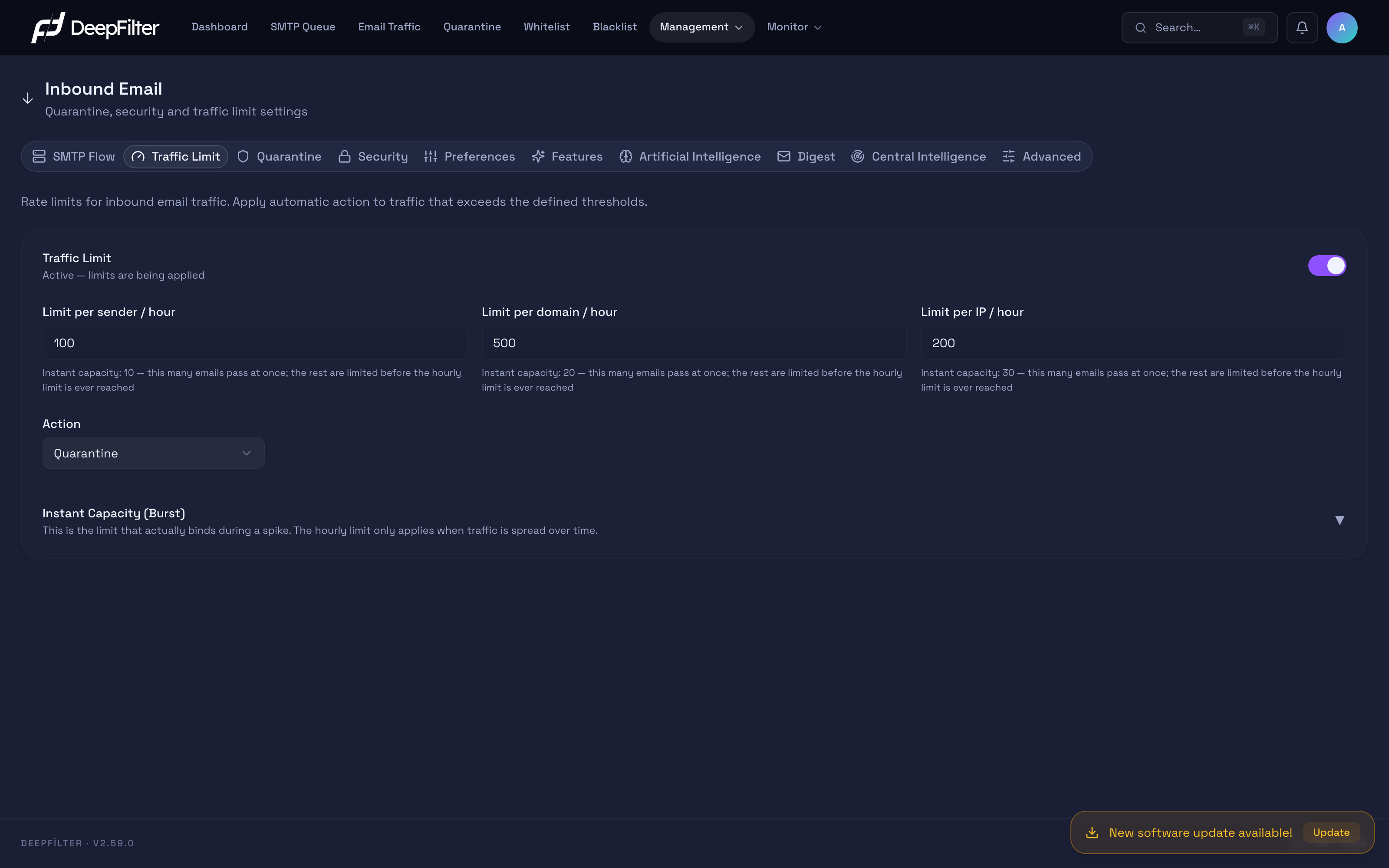
Traffic Limit switch — Turns the whole module on or off. (default: on — "Active — limits are being applied") When it is off, no rate limit is applied at all.
Limit per sender / hour — Limits how many messages a single sender address can send in one hour. (default: 100)
Limit per domain / hour — Limits the hourly total number of messages from a single sender domain. (default: 500)
Limit per IP / hour — Limits the hourly number of messages from a single sender IP address. (default: 200)
These three limits work at the same time. Lowering the values tightens protection but also increases the risk of catching legitimate bulk senders (newsletters, invitations, automated notifications); raising them allows more sudden spikes and makes abuse easier. Set the values according to your organization's normal traffic.
Action — Selects what is applied to a message when a counter exceeds its limit. (default: Quarantine)
- Quarantine — A message that exceeds the limit is not delivered but quarantined, where it can be reviewed and released. This is the safest option; a legitimate message caught by mistake is not lost.
- Defer — The sender receives a "try again later" answer (temporary rejection). Legitimate servers retry within a short time and the message gets through, if with a delay; many unsolicited-mail infrastructures never retry and are filtered out. With this option, messages do not pile up in quarantine — they wait on the sender's side.
Instant Capacity (Burst) — Sets the sudden-spike tolerance of each counter, that is, how many messages are allowed in a short period before the limit engages. There are three fields: Sender Instant Capacity, Domain Instant Capacity and IP Instant Capacity. (defaults: Sender 10, Domain 20, IP 30) These values are left as they are in most environments; raise them only if your legitimate bulk sending pattern requires sudden bursts.
Defining a Traffic Limit
Steps
- On the Inbound Email → Traffic Limit tab, make sure the Traffic Limit switch is on.
- Enter the hourly per sender, per domain and per IP limits according to your organization's normal traffic.
- From the Action list, select what is applied when a limit is exceeded (Quarantine or Defer).
- If needed, open the Instant Capacity (Burst) section and adjust the sudden-spike tolerance.
- Apply with Save.
Verification — how to know it worked
- When a sender exceeds a limit, the
RATELIMITEDmarker appears in the score breakdown of those messages and the action you selected (quarantine or temporary rejection) is applied.
Setting the limits below your organization's real traffic catches legitimate bulk sending systems (newsletters, email marketing, automated notifications) as well. If the action is Quarantine, those messages pile up in quarantine; if it is Defer, they are delayed. Determine the values by measuring your normal traffic.
Quarantine
Quarantine is the compartment where messages that exceed the threat score threshold are held in a safe area instead of being deleted. Rather than rejecting a suspicious message outright, DeepFilter quarantines it, so that a legitimate message caught by mistake (a false positive) can be reviewed and released. This tab manages how long the quarantine is kept, which score triggers quarantining, and how users are notified.
Settings
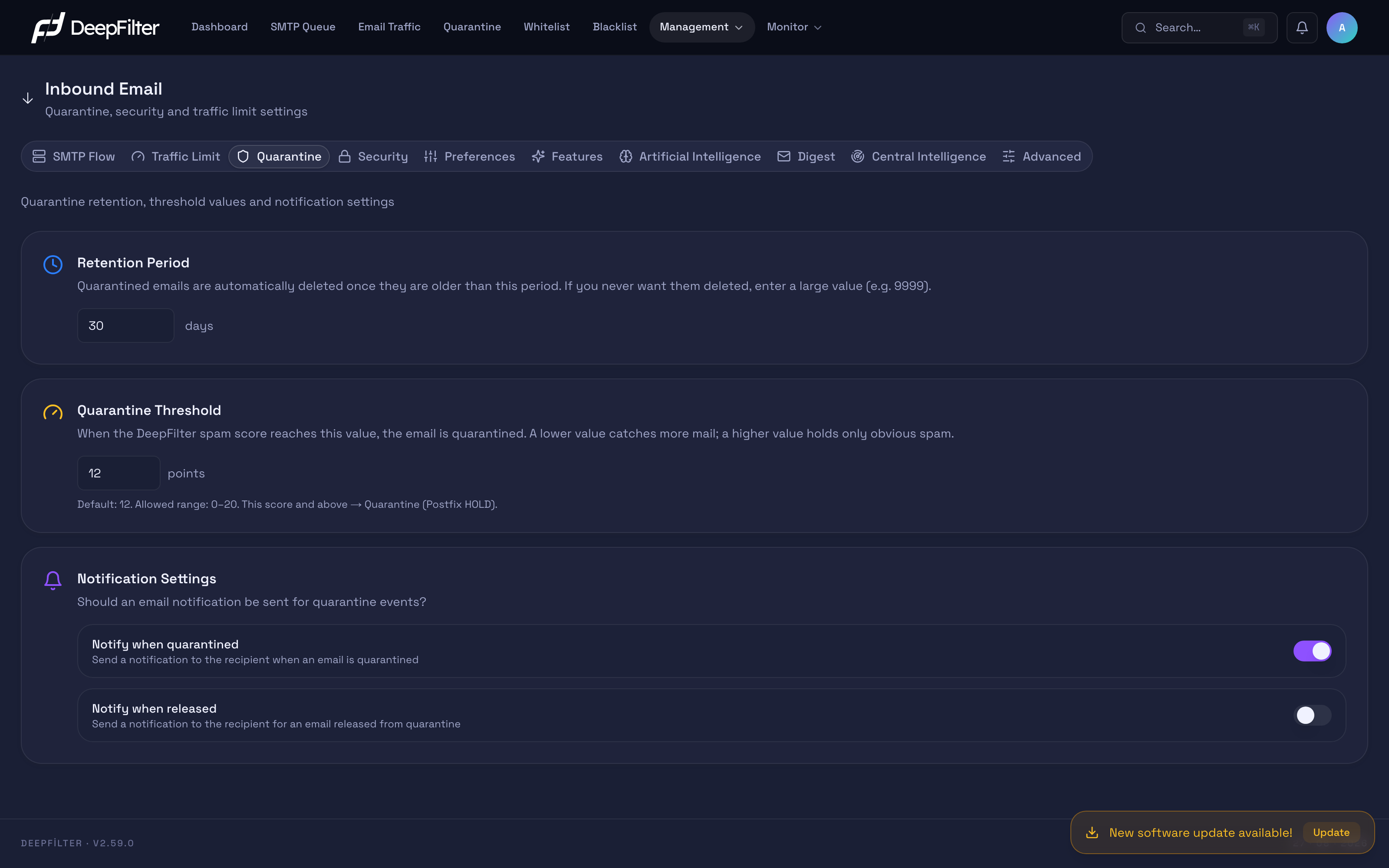
Retention Period (days) — Determines how long a message stays in quarantine. (default: 30; minimum 1, no maximum) Messages older than this period are deleted automatically. The end-user portal also lists all quarantined messages within this period. Deletion is not instantaneous; an automatic cleanup that runs every day removes the records that expired that day. If you never want the quarantine to be cleaned automatically, you can enter a very large value (9999, for example).
When you lower the retention period, quarantined messages older than that period are permanently deleted at the next daily cleanup; these messages are not moved to a recycle bin and cannot be recovered. Before shortening the period, make sure any messages you cannot afford to lose have been released.
Quarantine Threshold (points) — When a message's total threat score reaches this value, the message is not delivered but quarantined. (default: 12; allowed range 0–20) This is the cautious ↔ aggressive calibration axis: lowering it pulls more messages into quarantine — spam leakage drops but the risk of catching legitimate email (a false positive) rises; raising it does the opposite — only obvious unsolicited mail is held and clean email passes easily, but leakage increases. By design, a message that exceeds this threshold in DeepFilter is never truly rejected; the harshest outcome is quarantine.
Notify when quarantined — Sends a notification to the recipient when a message is quarantined. (default: on) The notification (with the subject "Karantinaya yeni bir e-posta düştü", that is, "A new email has been quarantined") contains the sender, the subject and a secure link where the message can be reviewed and released. This way a user notices that an expected message was caught in quarantine. The notification is sent after the message's analysis is complete, so it may arrive a few minutes after the message was quarantined. If the message is released or deleted in the meantime, no notification is sent. The sender details in the notification are written with the same rule as the summary email and the end-user portal (see Digest).
Notify when released — Sends a notification to the recipient when a message is released from quarantine. (default: off) Turn it on in environments where you want the release action confirmed to the user.
Both notifications go only to the recipient and depend on the user portal access of the recipient's domain: they are not sent for domains whose portal access is disabled (No digest). Portal permission is managed with the settings on the Digest tab.
Changing the Quarantine Settings
Steps
- Open the Inbound Email → Quarantine tab.
- Enter the new values in the Retention Period and Quarantine Threshold fields; keep the threshold within the allowed 0–20 range.
- Turn the Notify when quarantined and Notify when released switches on or off as you need.
- Save the changes.
Verification — how to know it worked
- After you change the threshold, a message scoring above the new threshold appears in the Quarantine list; those below it are delivered. If you turned a notification switch on, you will see that the recipient receives a notification email for a message that lands in quarantine.
Security
The Security tab holds four modules that inspect inbound email in terms of sender identity and reputation: SPF, DKIM, RBL and Antivirus. Each module tests whether the sender is who they claim to be, or whether the message comes from a known bad source, and adds its finding as a contribution to the message's threat score.
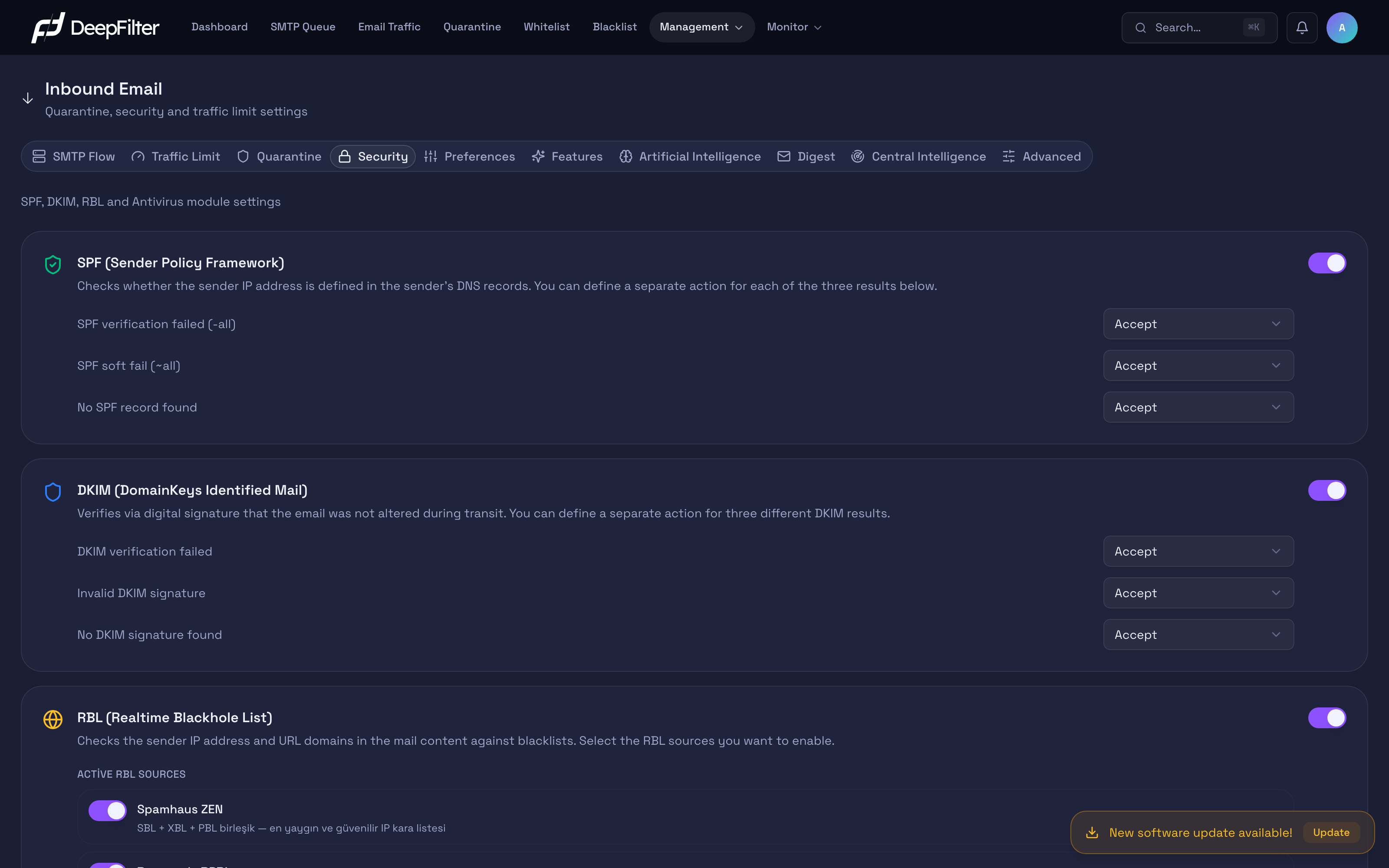
Every module on this tab has a main switch at the top; the switch turns the entire module on or off. While the module is on, the action applied to the check result is selected from a dropdown list. The harshest option in these lists is quarantine; there is no direct "reject" option. "Quarantine" raises the score contribution of the relevant signal and pushes the message toward the quarantine threshold; "Accept" neutralizes the contribution. In other words, setting a module to quarantine does not reject the message on its own; its contribution is added to the other signals, and the message is quarantined only if the threshold is exceeded.
Settings
SPF (Sender Policy Framework)
Checks whether the sender IP address is defined as authorized to send email in the DNS records of the sender domain. (module default: on) The module offers a separate action list for each of three results:
- SPF verification failed (-all) — The domain has published a strict rule saying "only my authorized servers may send" and the sender IP does not comply. (default: Accept)
- SPF soft fail (~all) — The domain has published a similar rule in a looser form. (default: Accept)
- No SPF record found — The domain has no SPF record at all. (default: Accept)
All three scenarios default to "Accept", because soft failures and missing records are very common and turning them into quarantine produces high false positives. If you set a scenario to Quarantine, messages carrying that SPF result move closer to the quarantine threshold (not on their own, but together with the other signals). Turning the module off removes the SPF signal entirely.
DKIM (DomainKeys Identified Mail)
Verifies via digital signature that the message was not altered in transit after it was sent. (module default: on) There is a separate action for each of three results:
- DKIM verification failed (default: Accept)
- Invalid DKIM signature (default: Accept)
- No DKIM signature found (default: Accept)
Unsigned email is very common (many small senders do not sign), so turning "no signature found" into quarantine opens a wide false-positive surface. "Failed" and "invalid signature" are stronger signals, but misconfiguration is frequent too; for that reason all three scenarios ship with the default "Accept".
RBL (Realtime Blackhole List)
Queries the sender IP address and the link domains in the message content against external reputation databases that list known unsolicited-mail sources. (module default: on) Because most unsolicited mail comes from sources whose reputation is already damaged, RBL is a cheap and effective layer that filters the source out before the content is scanned.
Two additional controls appear while the module is on. In the Active RBL Sources list each source is turned on and off individually with its own switch; the On RBL match dropdown determines what is applied to a matching message (default: Quarantine).
| Source | What it checks | Default |
|---|---|---|
| Spamhaus ZEN | Sender IP blacklist (the most widely used combined list) | On |
| Barracuda BRBL | IP addresses that are sources of unsolicited mail | On |
| SpamCop | Unsolicited-mail IP list based on user reports | On |
| Spamhaus DBL | Checks the link domains in the message content | On |
| URIBL | Checks the links in the message | Off |
| SURBL | Additional link-based check | Off |
Turning a source off lets the unsolicited mail it catches through; turning one on increases protection but may also bring a false-positive risk. Setting the On RBL match list to "Accept" reduces an RBL match to an informational score instead of pushing it into quarantine.
URIBL and SURBL are off by default. Because URIBL's free public query service can hit rate limits under heavy traffic and return incorrect matches for legitimate domains, it ships off to prevent systematic false positives. Spamhaus DBL already provides most of the link-based protection; turn these two sources on only if you need them and obtain your own access key.
Antivirus
Scans email attachments for malware and applies the selected action when a virus is detected. (module default: on; action default: Quarantine) There is a single action list: When a virus is detected. This module catches not only classic viruses but also current malware signatures and forbidden file types inside archives; a matching message is moved to quarantine with a high score. Which file types count as forbidden inside archives comes from the Blocked File Extensions list on the Preferences tab; if that module is turned off, the extension check inside archives stops as well, while signature-based virus scanning continues. These current signatures are distributed from the center and updated regularly; each update downloads only the parts that have changed, and an update whose signature cannot be verified is not applied.
Turning the module off stops attachment scanning entirely — a critical loss of security. Setting the action to "Accept" does not move a virus finding into quarantine; it is therefore not recommended.
Blocking dangerous file extensions (exe, bat, js, vbs and the like) in inbound email is managed not on this tab but in the Blocked File Extensions module on the Inbound Email → Preferences tab. The File Type Blocking (Outbound) list on the Outbound Email → DLP page, on the other hand, applies only to the attachments of outbound email (see DLP); the two lists are independent of each other.
Configuring the SPF/DKIM Action
Steps
- On the Inbound Email → Security tab, make sure the main switch of the relevant module (SPF or DKIM) is on.
- From the dropdown next to each of the three result scenarios, select the action to apply (Accept or Quarantine).
- Save the changes.
Verification — how to know it worked
- After setting a scenario to "Quarantine", send a test message carrying that condition; you will see in the message's score breakdown that the relevant SPF/DKIM marker raised the score, and that the message landed in quarantine once enough contribution accumulated.
Turning an RBL Source On or Off
Steps
- On the Inbound Email → Security tab, turn on the main switch of the RBL module.
- In the Active RBL Sources list, turn the switch of the source you want to use on or off.
- If needed, select what is applied to a matching message from the On RBL match list.
- Save the changes.
Verification — how to know it worked
- If you keep a source on and a matching message arrives, the relevant RBL marker appears in the message's score breakdown and the action you selected in On RBL match (quarantine or an informational score) is applied; when you turn a source off, the kind of messages that source used to catch no longer receive that marker.
You cannot switch a module to direct rejection; the harshest option is quarantine. Even so, before switching a scenario to quarantine, bear in mind that misconfigured legitimate senders (those with missing SPF, no signature, or sending from a shared IP) may be caught too. Apply changes gradually and monitor the traffic.
Troubleshooting
- A legitimate sender keeps getting quarantined: Look at the score breakdown of the quarantined message to see which SPF, DKIM or RBL marker raised the score. Set the relevant scenario list to "Accept", or whitelist that sender — making a single source an exception is safer than turning protection off altogether.
Preferences
DeepFilter runs every inbound message through a large number of scan rules that work independently of one another; each rule looks for a specific spam or phishing marker and, if it matches, adds its own points to the message's total threat score. The points are added up, and when the total reaches the threshold on the Quarantine tab (default 12) the message is not delivered but quarantined. A single rule usually does not cross that threshold on its own; the rules complement each other to carry a suspicious message above it.
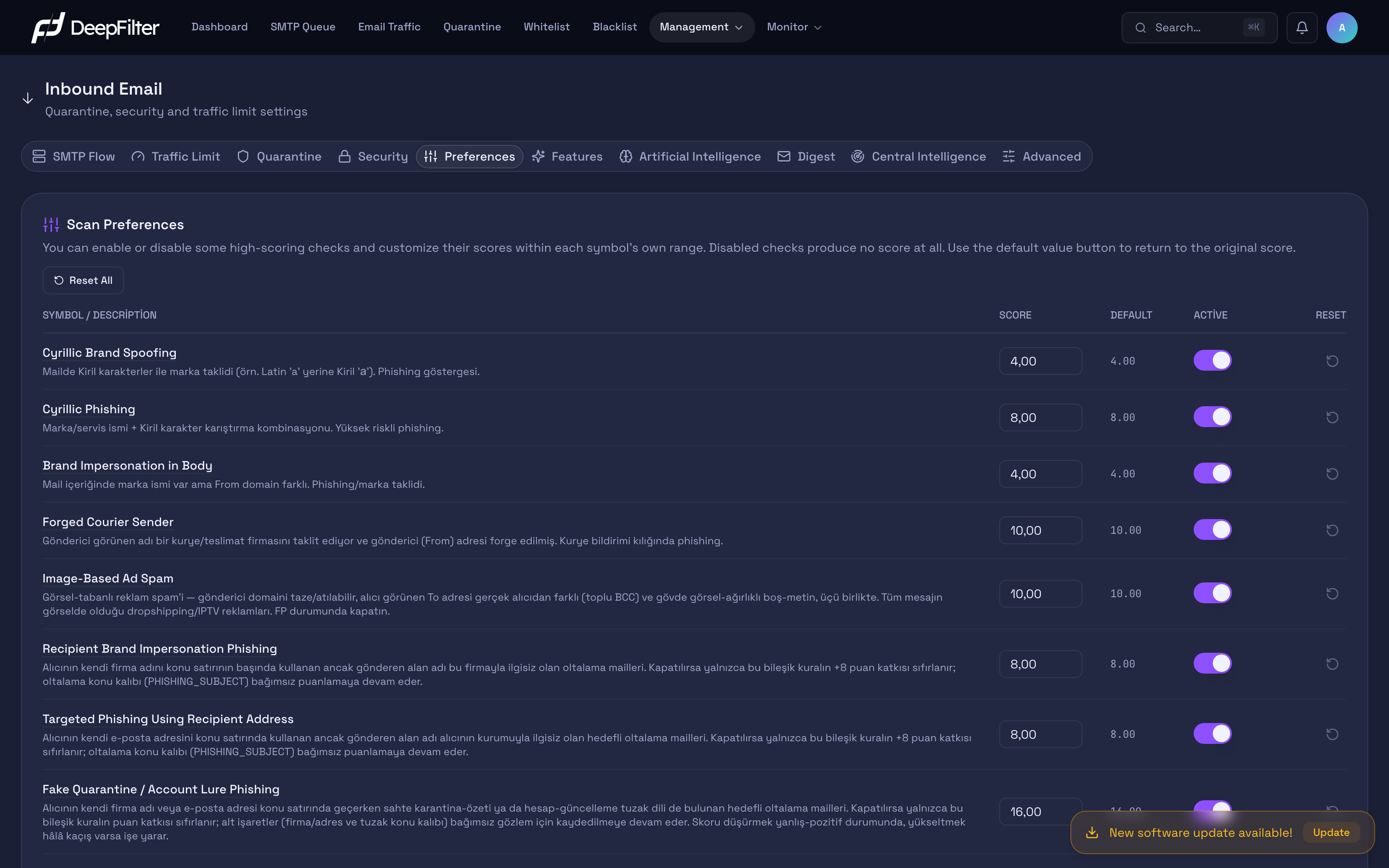
The Preferences tab lets you manage the high-specificity, pattern-based rules among them one by one — identity and brand impersonation, targeted phishing, image spam, content patterns, structural attachment analysis, subject signals and the statistical classifier. You can change the score each rule produces within its own range, or turn the rule off entirely. No rule on this tab rejects a message outright; the worst outcome of raising a rule's score is a legitimate message landing in quarantine, not a permanent loss. (Verdicts based on artificial intelligence probability are managed not here but on the separate Artificial Intelligence tab.)
Settings
Each row represents one scan rule. The SCORE field sets the points the rule produces on every match and is edited within the rule's allowed range; when the ACTIVE switch is turned off the rule no longer produces any points (it does not disappear from the list, only its weight is zeroed); the DEFAULT column shows the rule's factory reference value; and RESET returns a single row to that value. A score change takes effect the moment it is saved and applies to subsequent messages. Below, the rules are grouped by the class of threat they target.
Identity and brand impersonation
The rules in this group catch attempts to mislead the recipient about the sender's identity: messages that carry the name of a familiar brand or courier company but do not come from that organization.
Cyrillic Brand Spoofing detects that more than one alphabet is used together within the same word — for example the Latin "a" alongside the Cyrillic "а" that looks almost identical to it. (default 4.00; range 0–10) Phishing attackers write a brand name with foreign letters that the eye cannot tell apart, deceiving both the filters and the recipient; this rule catches that mixture. Because it is the group's broadest and barest signal and looks at a single condition, it also has the highest false-positive surface: messages that legitimately use the Cyrillic alphabet (Russian, Bulgarian, Ukrainian) or that mix Cyrillic into Turkish may trigger it by mistake. Lowering the score reduces these false positives; if you turn it off, brand impersonation based on letter mixing goes unscored. At four points it does not cross the threshold on its own — it gains its real weight when combined with the other rules.
Cyrillic Phishing flags messages where the sender's display name contains the name of a well-known email service, courier company or brand and which at the same time contain a mixed alphabet. (default 8.00; range 0–10) Where a mixed alphabet on its own can be innocent, the combination of "well-known service name + letter mixing" is almost always malicious; because it looks for two conditions together, it is far more specific than the Cyrillic Brand Spoofing rule and produces few false positives. If you turn it off, brand-plus-letter-mixing phishing escapes more easily; raising the score brings a message close to the threshold on its own.
Brand Impersonation in Body catches the case where a well-known brand name appears in the message body while the domains in the sender headers differ from one another. (default 4.00; range 0–10) Brand-impersonating phishing mentions the brand in the text while being sent from the attacker's own fake domain; the brand in the body combined with the inconsistent domain in the headers gives that mismatch away. If you turn it off, impersonating messages that mention a brand in the body but come from a different domain do not receive this signal. Because third-party newsletters containing brand names (legitimate mail sent from a marketing tool that mentions a brand in its body) can trigger this rule by mistake, you can lower the score if you see false positives.
Forged Courier Sender catches messages where the sender's display name imitates a shipping/courier company while the sender information is forged (the visible sender does not match the real one). (default 10.00; range 0–10) Phishing themed around "your parcel could not be delivered" is one of the most common attack patterns; the combination of a courier name imitation and a forged sender is a strong fraud marker. The default of 10 points is deliberately aggressive and brings a message very close to the threshold on its own, but because it has two conditions the false-positive rate is low. If you see a legitimate courier notification caught by mistake, you can lower the score; if you turn it off, you open the door to courier-themed phishing.
Phishing that targets the recipient
These three rules catch targeted phishing attacks that try to build trust using the recipient's own organization name or email address. All three add only their own extra points; the subject and content markers they trigger alongside continue to produce their own points, so turning one rule off does not affect the other markers.
Recipient Brand Impersonation Phishing catches messages where the recipient's own organization name appears at the beginning of the subject line while the sender domain is unrelated and the subject carries a phishing pattern. (default 8.00; range 0–10) The attacker deceives the recipient with a subject such as "[Your Company] your account…", creating the impression that it comes from their own organization. Over a thirty-day measurement this combination (organization name at the start of the subject plus a phishing subject) never overlapped with legitimate email, so the false-positive risk is very low. If you turn it off, only this rule's own points are removed and the phishing-subject marker keeps scoring; in exchange, targeted phishing escapes more easily.
Targeted Phishing Using Recipient Address catches messages where the recipient's full email address appears inside the subject line while the subject carries a phishing pattern. (default 8.00; range 0–10) Targeted phishing embeds the recipient's address directly in the subject to look personalized; this is rare in automated bulk sending but frequent in phishing. In measurement this combination caught attacks and did not overlap with legitimate email — the only legitimate class that puts an address in the subject is calendar invitations, and because they do not carry the phishing subject marker, this rule does not trigger on them. If you turn it off, this low-noise targeted signal disappears.
Fake Quarantine / Account Lure Phishing catches messages where the recipient's organization name or address appears in the subject while the subject carries a fake "quarantine summary" or "update your account" lure; servers that appear on known trusted-sender lists are exempt. (default 16.00; range 0–20) This attack aims to steer the user to a fake quarantine or account management screen and steal their credentials; the fact that it imitates DeepFilter's own notifications makes it particularly dangerous, and that is why the rule carries the highest default score. It is designed to cross the threshold on its own so that it can outweigh clean markers triggered at the same time (for example the negative score of the AI's "safe" verdict) and still pass the threshold — this is why its range extends all the way to 0–20. If you turn it off, fake-quarantine-themed targeted phishing goes unscored. Lowering the score reduces the chance that legitimate quarantine-summary messages from an upstream server not on the trusted list are caught by mistake; if you still see attacks getting through, you can raise it as far as the range allows.
This rule already exempts servers that appear on known trusted-sender lists. If the source causing your false positive is not on those lists, consider whitelisting that source first rather than turning the rule off entirely; that way protection stays in place for the other senders.
Image-based spam
Image-Based Ad Spam catches messages that embed all of their sales copy inside an image, are sent from a newly registered/disposable domain, and hide their real recipient (bulk blind copy). (default 10.00; range 0–10) This kind of advertising spam escapes text-based scanning by putting its text into an image, and because the sender address changes every time, address blacklisting does not help either; the rule targets this evasion pattern by looking for three markers together (a fresh domain, a hidden recipient, an image-only body). Requiring all three conditions lowers false positives — because an image-only body can also occur in a legitimate newsletter with images, it does not trigger without the other two conditions. If you turn it off, advertising spam that embeds all of its sales copy in an image goes unscored; if you receive image-heavy legitimate marketing email and experience false positives, you can lower the score or turn the rule off.
Image-Ad Spam Fingerprint looks for advertising messages that carry their entire sales message inside a single image, together with the traces left by the tools that send these campaigns: in addition to an almost text-free, image-heavy body, Turkish text declared with the Cyrillic code page (windows-1251), a server name taken from a free dynamic DNS service, or an order link on a .рус domain. (default 11.00; range 0–15; off by default) The rule recognizes this campaign family — which cannot be stopped with address lists because the sender address and domain keep changing — by the sending tool itself. It is the only rule on this tab that ships turned off: while off it still triggers on messages and appears in the score breakdown, but its score contribution is zero. This lets you review on the Email Traffic screen, before turning it on, how many messages in your own traffic it triggers on and whether they really are advertising spam. When you turn it on, the default of 11 points sits just below the threshold (12); the rule usually carries these messages into quarantine not on its own but together with at least one other marker.
Content and link patterns
The rules in this group look at the phishing language in the message body text and at the links inside it.
Phishing Body Text triggers when a known phishing pattern ("your password is expiring", "your account will be closed" and the like) appears in the message's plain-text part; Phishing in HTML Body looks for the same patterns in the message's HTML part. (default 4.00 for both; range 0–10) Phishing uses formulaic phrases that push the user to act out of a sense of urgency; because a message can have both a plain-text and an HTML version, the pattern is looked for in both bodies with two separate rules. In a message where both versions contain the same pattern, both rules trigger and the two four-point contributions together reach eight points. The default of 4 points is deliberately moderate: at a higher value, when a legitimate invoice or account message contained one of these patterns, the sum of the two rules could cross the threshold on its own and drop the message into quarantine. Raising the score increases the catch rate but enlarges this false-positive risk; lowering it does the opposite. If you turn them off, phishing language in the body text goes unscored.
Phishing Link detects that a link in the message carries a deceptive mismatch between the domain shown to the reader and the target domain actually reached when clicked, or that the link matches known phishing address lists. (default 4.00; range 0–10) This is the most fundamental mechanic of phishing: a familiar bank, institution or service address appears in the text while the link goes to the attacker's fake page; the rule looks both for this visible-versus-real mismatch and for addresses previously reported as phishing. The default of 4 points is deliberately moderate: a legitimate redirect between two different extensions of the same brand (for example a link reading company.com.tr going to company.com) produces the same mismatch, and at a higher value such a message could be carried to the threshold on its own. If you see this kind of false positive, lower the score; if obvious phishing messages get through, raise it gradually. If you turn it off, only this rule's own score contribution is removed; the phishing markers where a link mismatch combines with a DKIM verification failure or a reply-address inconsistency keep producing their own points.
File Sharing Link triggers when the message contains a link to a file sharing service (cloud drives, file transfer sites). (default 4.00, per link; range 0–10) Phishing and malware distribution frequently use file sharing links to get attachments past filters; on its own it is low risk, but it gains weight when combined with a forged sender or a phishing subject. This rule adds its points separately for every matching link, so if a message contains several sharing links the score builds up quickly. Because file sharing links are also very common in normal business correspondence, the false-positive surface is wide; in teams that exchange large files heavily and legitimately (design, production) lowering the score softens that build-up. If you turn it off, the contribution of these links is removed entirely.
Because the File Sharing Link score is added separately for each link, a single legitimate message containing several sharing links can receive a higher score than expected. When setting the score, consider not a single link but the number of links in your typical messages.
Structural attachment analysis
The rules in this group open the Office documents attached to an inbound message (Word, Excel, PowerPoint files and RTF) and examine their internal structure: is the file encrypted, does it contain a macro, is another object or link embedded in it. The aim is to catch messages whose body and links look perfectly clean while the malicious payload is hidden inside the attachment; signature-based antivirus scanning treats these attachments as clean when they do not match a known threat. The examination runs only on inbound email and is not applied to messages sent from within the organization.
Encrypted Macro Office Attachment detects together that an Office attachment is protected with "transparent" encryption that opens without prompting the user for a password and that the same attachment contains a macro or an embedded object. (default 25.00; range 0–25) An attacker distributing malware encrypts the document to hide it from content scanning but cannot expect the victim to enter a password; for that reason they use Office's own default password, the file opens without asking anything when it is double-clicked, and the macro runs. Legitimate senders do not use this form of encryption; requiring the two conditions together keeps false positives very low. The default of 25 points is deliberately above the threshold (12), meaning the rule quarantines the message on its own. If you turn it off, only this composite rule's 25 points are removed; the encryption and macro markers on the attachment continue to be recorded but stay far below the threshold on their own, so this attack pattern will most likely be delivered. Lowering the score below the threshold has a similar effect: the rule no longer guarantees quarantine on its own and becomes dependent on the message's other markers.
Obfuscated Link in Attachment triggers when a link that is embedded inside an Office attachment and encoded or broken up to hide it is found — for example addresses that use a numeric IP instead of a domain, write their scheme in mixed case, or are long addresses made to look like a known cloud storage service. (default 7.00; range 0–10) Because the link sits inside the attachment, link scanning that inspects the addresses in the message body cannot see it; the malicious download or fake sign-in page only comes into play when the user opens the document. Looking for an obfuscation pattern makes this marker specific, but 7 points does not cross the threshold on its own: the rule gains its real weight when combined with the other markers on the attachment (encryption, a suspicious macro) and with the message's own signals. If you turn it off, only the score contribution is removed; the attachment is still examined and the marker keeps appearing in the score breakdown. Raising the score lets a single obfuscated link carry the message to the threshold on its own; lower it if you receive legitimate documents that embed their links in unusual ways.
Beyond these two rules, structural attachment analysis also produces observational markers: Transparently Encrypted Office Attachment, Suspicious Macro Pattern, Hidden Link in Attachment, Password-Protected Office Attachment, Office Attachment with Macro and Office Attachment with Embedded Object. These appear in the score breakdown of a quarantined message but cannot be adjusted from the Preferences tab; their weights are fixed, and the last two (an attachment containing only a macro or only an embedded object) produce no points at all, because they are common in legitimate business documents too.
If you regularly receive macro-enabled or encrypted Office documents from a sender you trust, instead of turning the rule off for everyone, tick the Attachment scan box in that record's Granted Privileges section on the Whitelist screen; the exemption applies only to that sender and protection stays in place for everyone else.
Subject and format signals
These two rules are low-weight supporting markers; they are not decisive on their own and make small contributions to the total score.
Subject All Caps triggers when the subject line consists entirely of capital letters. (default 3.00; range 0–10) Constant capitals (shouting) are common in spam and fraud subjects. Because legitimate all-caps subjects also exist (short warning or alarm notifications, for example), its weight is deliberately kept low; raising it increases the false-positive risk on such legitimate subjects. If you turn it off, the all-caps subject marker goes unscored.
Introduction Sentence detects that the message opens with a self-introduction such as "Hello, I am…". (default 2.00; range 0–10) Cold-sales and fraud messages often open with a personal introduction; this is one of the lowest-weight markers. Because genuine first-contact business email (sales, recruitment, outreach) opens with the same pattern, teams that want to receive such cold-outreach messages can lower the score; since its weight is already low, the effect is limited.
Statistical classifier
The first two rows set the scores produced by the statistical classifier (Bayes), which learns from the server's own traffic and from the administrator's teaching; the third row scores the list of taught senders distributed from the center. The classifier compares the word distribution of the message with the learned spam and ham samples; its contribution is scaled by the calculated probability, and the value here is the upper limit of that contribution. The Bayes rows do not trigger at all until the classifier has learned at least 50 samples in each class. The learning status and the automatic learning setting are on the Bayes Classifier card on the Central Intelligence tab.
Statistical Classifier: Spam adds points when the classifier finds the message to be spam with high probability. (default 5.10; range 0–10) Because the classifier learns from your own traffic, it can recognize spam patterns specific to your organization better than general rules; it does not cross the threshold on its own but becomes decisive when combined with other signals. If you see false positives triggered by this row, lower the score or teach the relevant messages from quarantine with Learn Trusted; to silence the classifier entirely, turn it off.
Statistical Classifier: Clean is flagged when the classifier finds the message to be clean with high probability. (default 0.00; range -3–0) At the default value it is informational only: it appears in the message's score breakdown but does not lower the total score. If you wish, you can define a discount of up to -3 points; the discount reduces legitimate messages being quarantined by mistake, but it can also pull a phishing message just above the threshold below it and let it be delivered. For that reason, turn the discount on in small steps and monitor the messages that do not land in quarantine; if you see spam getting through because of this row, set the value back to zero.
Centrally Taught Sender Domain triggers when the sender domain (subdomains included) is on the list of senders taught as spam by administrators at more than one organization within the last 30 days. (default 8.00; range 0–10) The list is distributed from the center in signed form, does not include free email and bulk sending services, and entries drop off the list after 30 days. Because domain reputation is a probabilistic signal, the default score is deliberately below the threshold: the rule does not quarantine on its own but crosses the threshold when combined with other signals. Internal sending and whitelist records granted an AI exemption are not affected by this rule. The list is synced while the Central Seed switch on the Central Intelligence tab is on. If you see a false positive triggered by this rule, lower the score or whitelist the relevant sender.
Supporting signal
Domain in Sender Name detects that a domain appears inside the sender's display name. (default 0.00 — informational only; range 0–10) This marker is designed to produce no points on its own; its job is to feed the more complex rules that catch sender-name forgery. The default of 0 points is deliberate: many legitimate senders put a domain in their display name (for example "Acme Corp acme.com"), so giving this marker points directly would produce high false positives. You are advised not to raise it; the scoring should be left to the specific forgery rules that use this marker as an input.
If Domain in Sender Name is turned off, it is not only its own (zero) score that is lost, but also the signal that feeds the sender-name forgery rules using it as an input. Because its score is already zero, leaving this rule on is safe.
Changing a Rule's Score
Steps
- Open the Inbound Email → Preferences tab.
- Find the rule whose score you want to change by its name and description in the SYMBOL / DESCRIPTION column.
- Enter the new value in the SCORE field, within the rule's allowed range; the DEFAULT column shows the factory value.
Verification — how to know it worked
- After the change, when a message that triggers this rule arrives, you will see from the Quarantine list or the email traffic records that the rule appears with its new score in the message's score breakdown and that the total score changed accordingly.
Disabling a Rule
Steps
- On the Inbound Email → Preferences tab, find the relevant rule.
- Turn off the rule's ACTIVE switch; from then on the rule produces no points at all.
Verification — how to know it worked
- The rule you turned off adds no points to the kind of message it used to match; that message's total score drops by the rule's former score. The rule may keep appearing with 0 points in the score breakdown of the messages it triggers on; this lets you track how many messages it matches while it is off.
To undo the change on a single row, use the RESET icon on that row; to return all customizations on the tab to their factory values, use the Reset All button at the top.
Blocked File Extensions
The Blocked File Extensions card below the rule table on the Preferences tab manages, by extension, the attachment types that are not accepted in inbound email. An inbound message carrying an attachment with an extension on the list is quarantined on its own, without needing any other marker. Executables, scripts, shortcuts and disk images are the forms in which malware is most often carried by email; this list stops them by looking at the file name rather than the content.
What is on the screen
- Enabled — The module's main switch. (default: on) While it is off the list is kept but no extension is blocked; the list appears dimmed and cannot be edited.
- Extension counter — Shows how many extensions are currently blocked (for example "41 extension(s) blocked").
- Extension badges — Each blocked extension is a separate badge; the cross icon on a badge removes the extension from the list. Extensions you add yourself are highlighted and, when you hover over them, show the tooltip "Custom extension — not in the default list."
- Add field and Add button — Type a new extension and press the Add button (or the Enter key) to add it to the list.
- Restore Defaults — Returns the list to the factory default.
- Save / Cancel — Appear at the bottom of the card when you change the list or the switch; Save applies the change and Cancel discards unsaved changes.
Default list (41 extensions): exe, bat, scr, vbs, js, msi, ps1, cmd, com, hta, jar, lnk, iso, img, vhd, vhdx, pif, scf, vbe, jse, vb, wsf, wsh, wsc, sct, chm, cpl, msc, xll, dll, sys, lib, msp, mst, jnlp, apk, appx, msix, cab, one, reg.
How it matches
- It works only in the inbound direction. Email sent from inside the organization or through relay is not affected by this list; the attachments of outbound email are managed separately with the File Type Blocking (Outbound) list on the Outbound Email → DLP page (see DLP).
- The last extension of the file name is what counts. An attachment named
invoice.pdf.exeis evaluated asexeand caught;invoice.exe.pdf, on the other hand, counts aspdf. - Upper and lower case make no difference. The
exeentry also catches aREPORT.EXEattachment. - Files inside archives are checked too. If the name of a file inside an archive such as a zip ends with an extension on the list, the message is quarantined in the same way.
- In the score breakdown of the quarantined message this match appears under the name Dangerous File Extension (Inbound).
Extension writing rules: only lowercase letters, digits and the underscore can be used; an extension can be at most 16 characters long. A leading dot you type (.exe) is removed automatically and capital letters are converted to lowercase. The list can contain at most 200 extensions; the same extension cannot be added twice.
Adding or Removing an Extension
Steps
- On the Inbound Email → Preferences tab, scroll down to the Blocked File Extensions card and make sure the Enabled switch is on.
- To add, type the extension without the dot (for example
ace) and press the Add button; to remove, click the cross icon on the relevant badge. - Press the Save button that appears at the bottom of the card. If you leave the page without saving, the change is not applied; to discard it, use the Cancel button.
Verification — how to know it worked
- After saving, the extension counter shows the new number of extensions; the extension you added appears in the list as a highlighted badge.
- When you send a test message carrying an attachment with this extension from outside the organization, the message lands in quarantine and Dangerous File Extension (Inbound) appears in its score breakdown.
Before removing an extension from the default list, consider whether you really receive files of that type for business reasons. Default extensions you remove are not added back to your list in later version updates; when a new default extension is added to the product, however, it is added to your list automatically.
Restoring the Default List
Steps
- On the Blocked File Extensions card, press the Restore Defaults button.
- Confirm the question "The default list will be restored — are you sure?" with Yes.
This operation does not require a separate Save; it is applied together with the confirmation. The extensions you added are deleted, the default extensions you removed come back, and the module is turned back on if it was off.
Verification — how to know it worked
- The extension counter shows "41 extension(s) blocked", no highlighted (custom) badge remains, and the Enabled switch is in the on position.
TLD Management
The TLD Management card in the lower section of the Preferences tab manages two lists based on the domain extension and the scores of the rules tied to these lists:
- Suspicious TLDs — Domain extensions frequently abused in phishing and spam (for example
.top,.xyz,.icu). If a link in the message goes to one of these extensions, the Suspicious TLD rule (default 2.00) adds points; if the sender address is on one of these extensions, the Sender Suspicious TLD rule (default 3.00) adds points. The default list does not include the.ruextension. - Free Hosting / Site Builders — Free hosting and site builder services, and form builders. If a link in the message goes to one of these, the Free Hosting URL rule (default 4.00) adds points; phishing pages are frequently hosted on these services.
Each list is edited line by line; each line is a regular expression in the form /\.tld$/i, lines starting with # are treated as comments and empty lines are ignored. If a line is invalid, the list is not saved and the invalid lines are shown with their numbers. In the Symbol Scores table at the bottom of the card you can change the scores of the three rules or turn them off.
When you customize a list, the list carries the Customized badge and your list is kept as it is: changes made later to the default list are not reflected in your customized list. For example, if your customized list has a .ru line, that line stays until you delete it. To return to the default list, use the list's Reset button; to return all lists and scores to their factory values at once, use the Reset All button.
Adding a country extension to the suspicious list adds points to all email from your legitimate business partners in that country. Before adding the extensions used by the organizations you correspond with, assess the false-positive risk.
Score Tuning Guide
Before changing a rule's score, determine which symptom you are facing; the direction follows from that.
| Symptom | Direction | How |
|---|---|---|
| A legitimate message is quarantined by mistake (false positive) | Lower the score | Find the rule that carried it to the threshold in the quarantined message's score breakdown and reduce its score gradually; if necessary, turn it off with the ACTIVE switch. |
| Obvious spam or phishing gets through without being quarantined (leakage) | Raise the score | Look at which rules the escaping message triggered; increase the relevant rule's score enough to push the total above the threshold. |
| A rule triggers on both legitimate and malicious messages | Narrow it instead of turning it off | Instead of turning the rule off entirely, lower its score and manage the relevant source precisely with the whitelist or blacklist. |
Follow three principles when tuning:
- Change gradually. Change the score by one or two points at a time rather than in large steps, and watch the result; changing one rule at a time lets you measure the effect.
- Remember the threshold. Rules are added up, and when the total score reaches the Quarantine threshold (default 12) the message is quarantined; a rule that produces fewer than 12 points is only decisive when combined with other rules.
- Monitor the effect. Follow the result of a change through the Quarantine list of subsequent messages and each message's score breakdown; that is where you confirm that the rule you expected produced the score you expected.
No rule on this tab rejects a message outright; when the threshold is exceeded the message is only quarantined and can be released from there. For that reason the worst outcome of raising a score is a message waiting in quarantine — not a permanent loss.
Features
Features is the tab that gathers the independent protection modules added to the inbound email flow. Each module here targets a single form of attack, is turned on and off individually with its own switch, and is applied with its own Save button; a change you make in one module does not affect the other modules or the controls on the page's other tabs. The tab currently contains a single module: Recipient Surge Shield.
This tab answers a different question from the rest of the page. All the layers from SMTP Flow through Artificial Intelligence evaluate a message on its own and give it a score. The modules on the Features tab, by contrast, catch situations where a pile of messages that all look clean when examined individually together constitute an attack.
The Features tab requires full administrator rights. A user who signs in as a domain administrator or with read-only rights cannot see the modules when they open the tab; instead they are told that there is no feature module for them to view.
Recipient Surge Shield
Email bombardment begins with the attacker entering the victim's address into the newsletter and sign-up forms of hundreds of sites in a short time. Subscription and confirmation messages then rain down on that single address from hundreds of unrelated senders. Each of these messages is genuinely legitimate when examined one by one: the sender is real, the domain is real, the signature is valid. That is why no layer that scores messages individually can see the attack — the only thing that can be seen is the pace reaching a single recipient.
The purpose of the attack is often not merely to drown the inbox. The flood is used to make a real alert the victim is expecting at that very moment — a bank transaction notice, an account change warning — invisible among hundreds of messages. While the victim is busy deleting hundreds of confirmation emails, they cannot notice the critical notification.
Recipient Surge Shield catches this pattern by measuring the email pace per recipient, and when the pace reaches attack level it raises a temporary shield for that recipient. While the shield is up, only the suspicious messages arriving in that mailbox are quarantined far more readily; the flood flows into quarantine rather than into the inbox. The module never rejects a message at any stage: the messages in the flood sit in quarantine and any legitimate message among them can be released from there one by one.
The score that bombardment detection itself produces (8.00) is below the default quarantine threshold (12). This means a message is not quarantined merely because it carries the bombardment marker; either the AI model must also find that message unwanted, or the recipient must be under a shield. Because the decision threshold is far lower for a recipient under a shield, this marker becomes decisive on its own.
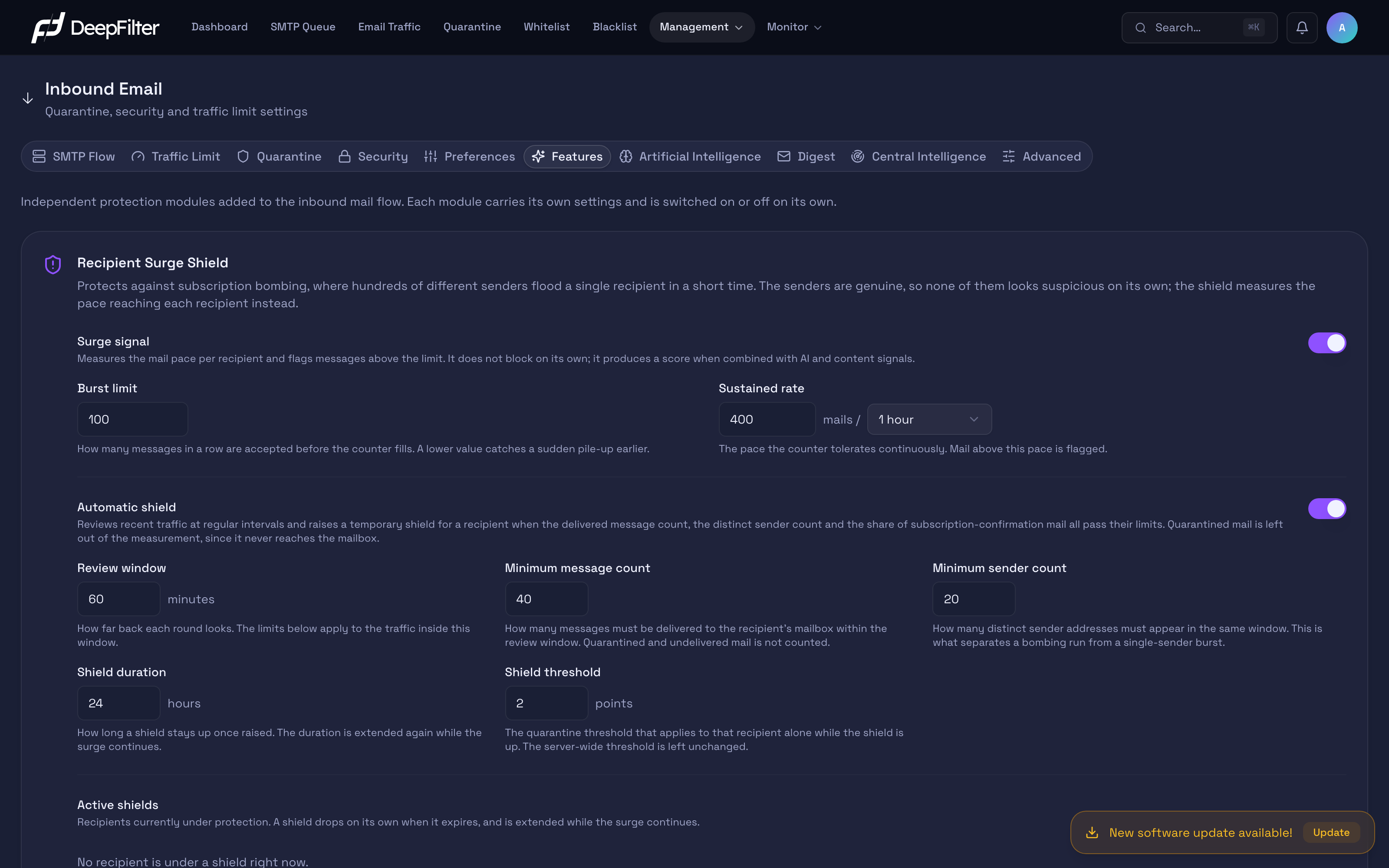
The module consists of two sections that are turned on and off independently: Surge signal measures and flags, while Automatic shield raises the shield based on that measurement. Leaving the surge signal on and turning the automatic shield off keeps the flagging going without any shield being raised.
The shield's scope is deliberately narrow. It is applied only to inbound email; email sent through your server is out of scope. Messages carrying verification code and one-time password (OTP) patterns are also deliberately kept out of scope — otherwise the shield could hide the victim's own two-step verification code. The administrator whitelist, an AI exemption defined for a sender or recipient, and the end user's personal allow list all override the shield; these records remain in effect while a shield is up too.
Surge signal
Surge signal switch — Turns on or off the section that measures the email pace per recipient and flags messages above the limit. (default: on) This section does not block on its own; the marker it produces turns into a score when combined with AI and content signals. When it is off, the marker based on pace measurement is never produced and messages carrying the bombardment pattern do not receive that contribution.
Burst limit — The number of messages accepted in a row before the counter fills. (default: 100; range 1–100,000) It exists to prevent short-lived legitimate spikes (a wave of replies to a meeting invitation, responses to an announcement) from immediately producing a marker. Lowering it catches an attack earlier but also flags the normal load of shared mailboxes; raising it means only genuinely large floods are flagged, at the cost of leaving small-scale bombardments without a signal.
Sustained rate — The pace the counter tolerates continuously. (default: 400 messages / 1 hour; period options 1 hour, 6 hours and 24 hours) The burst limit bounds a short spike, while this value bounds a long-running flow. The measure behind the default is this: up to 400 messages per hour reaching one recipient is considered a normal business pace. Going below this value increases the risk of leaving shared mailboxes (info@, support@, accounting@ and the like) permanently flagged; raising it means noticing a flood later. If the value stored on your server does not match one of the preset period options, the field is edited raw (number / period, for example 60 / 1h).
The default rate and burst limit values were raised in v2.39.5. The change is visible only on new installations; on previously installed systems the value stored in the database is preserved. If you still see an older, lower value in your organization, this is not a fault — if you want to move to the current calibration, enter the values manually on this screen and save.
Automatic shield
Automatic shield switch — Turns on or off the section that raises a temporary per-recipient shield based on the measurement. (default: on) The section reviews recent traffic at regular intervals (roughly every five minutes); when the number of messages landing in a recipient's mailbox and the number of distinct senders exceed the limits below together, it raises a shield for that recipient. When it is off, no new shield is raised; shields already raised remain in effect until they expire.
Only messages that were delivered to the recipient enter the measurement. Quarantined ones are not counted — this prevents the shield from feeding itself with the messages it catches; delivery records that were temporarily rejected or that bounced are not taken into account either.
Review window — How far back each round looks. (default: 60 minutes; range 5–1,440) Because bombardment is an attack that concentrates in a short time, the window is kept narrow. Narrowing it means only very intense floods are caught; widening it makes slowly spreading bombardments visible too, but increases the chance that normal traffic spread over the day fills the limit.
Minimum message count — The lower bound the number of messages delivered to the recipient within the window must reach. (default: 40; minimum 5) It is the volume measure. Lowering it raises shields more easily and leads to unnecessary shields on busy mailboxes; raising it reserves the shield for large floods only, leaving small-scale bombardments unshielded.
Minimum sender count — Sets how many distinct sender addresses must be seen within the same window. (default: 20; minimum 2) This is the measure that separates a bombardment from a normal pile-up coming from a single sender (a newsletter burst, a series of automated notifications); it is therefore more discriminating than volume. Lowering it starts counting single-source spikes as bombardment too and increases the risk of a wrongly raised shield; raising it narrows the criterion so that only genuinely multi-source floods produce a shield.
Unless all three of these criteria — the window, the message count and the sender count — are met together, no shield is raised. Volume alone or diversity alone is not enough.
Shield duration — Sets how long a raised shield stays up. (default: 24 hours; range 1–168) When the duration expires the recipient returns to normal protection on its own. The duration is extended again as long as the pace continues, so a shield does not drop by itself while an attack is in progress. Shortening it limits the effect of a wrongly raised shield but requires protection to be re-established frequently during a long-running attack; lengthening it keeps protection in place but also holds the mailbox at a strict threshold for a while after the attack has ended.
Shield threshold — The quarantine threshold that applies to that recipient alone while the shield is up. (default: 2.0 points; range 0.1–100) It does not change the server-wide quarantine threshold (default 12); it applies only in the protected mailbox. A value this low means that even messages arriving in a shielded mailbox that carry the slightest hint of suspicion are quarantined. Raising it softens the shield — the flood continues to reach the inbox to some extent; lowering it hardens protection and increases the chance that legitimate messages are quarantined too while the shield is up.
A recipient under a shield is protected with an unusually low threshold for the duration of the shield. This stops the flood, but it also raises the likelihood that legitimate messages arriving in that mailbox during the same period are quarantined. When a shield is raised, review that mailbox's quarantine and release the expected messages; if there is a legitimate sender that keeps recurring, whitelist them — the whitelist takes precedence over the shield.
Active Shields
The table in the lower section of the module shows the recipients currently under protection. When you receive a bombardment alert, this is where you read who is protected and when the protection ends. The columns are:
- Recipient — The address the shield was raised for.
- Detection — The measurement that triggered the shield; it gives the message and distinct sender counts tallied in the window (for example 40 messages and 22 senders). If no measurement record was kept, it states instead that no measurement record is available.
- Started — The moment the shield was raised.
- Ends — How long until protection ends; shown either as the remaining time ("12 hours left", "less than 1 hour left") or as the information that it has expired.
- Action — The Remove shield action that ends the shield on that row manually.
If no recipient is under protection, the table states that no recipient is currently under a shield. While the automatic shield is off, the table additionally reminds you that no new shield will be raised and that existing records stay in effect until they expire.
When a new shield is raised, a critical-level alert email with the subject "Bombardment shield active" goes to the administrator; the message contains the protected recipient, the message count and the distinct sender count over the past hour, and a link to the panel. This alert is sent only when the shield is first raised and is not repeated on extensions — so during an attack that lasts all day you receive a single email. This notification type has no on/off switch on the Management → Notifications page; it is always on and you do not need to look for it there.
Configuring the Recipient Surge Shield
Prerequisites
- The Features tab requires full administrator rights; you cannot reach these settings with a domain administrator account.
- Have a rough idea of how many messages reach one recipient per hour under normal conditions in your organization. The busiest mailboxes are usually shared addresses (
info@,support@,accounting@); evaluate the limits against them.
Steps
- Go to Management → Inbound Email → Features and switch to the Recipient Surge Shield module.
- Leave the Surge signal section's switch on; if needed, adjust the Burst limit and Sustained rate values to your organization's normal pace.
- Turn on the Automatic shield section's switch and review the Review window, Minimum message count, Minimum sender count, Shield duration and Shield threshold values.
- Apply the changes with the module's own Save button.
Verification — how to know it worked
- Once the settings are saved, when a bombardment starts two things happen together: a "Bombardment shield active" alert email reaches the administrator, and the protected recipient appears in the Active Shields table together with its remaining time.
- You will see the flood aimed at that recipient piling up in the Quarantine list and the bombardment marker present in the messages' score breakdowns. The number of messages delivered to the inbox drops noticeably.
Removing a Shield Manually
You can end a shield you believe was raised in error, or that you decide is no longer needed, without waiting for it to expire.
Prerequisites
- Make sure the traffic that triggered the shield has really stopped. If the pace continues, the next review round raises the shield again.
Steps
- Go to Management → Inbound Email → Features and find the relevant recipient in the Active Shields table.
- Select the Remove shield action on the row.
- Confirm the operation in the dialog that opens; the dialog reminds you that the shield drops immediately and that the recipient returns to the server-wide quarantine threshold.
Verification — how to know it worked
- The recipient disappears from the Active Shields table. From that moment on, messages arriving in the same mailbox are evaluated against the server-wide quarantine threshold rather than the lowered shield threshold.
Removing a shield does not create a permanent exemption. If the recipient's pace is still above the limits, the shield is raised again in the next review round. If you want the shield never to be raised, turn off the Automatic shield switch; in that case no new shield is raised, but shields already raised stay in effect until they expire.
Troubleshooting
- I know a bombardment happened but no shield was raised: First confirm that the Automatic shield switch is on. If it is, remember that only messages delivered to the recipient enter the measurement: if most of the flood was already quarantined by other rules, the count may not reach the limit. In that case, lower the Minimum message count and Minimum sender count values gradually.
- The shield I removed came back shortly afterwards: It means the pace reaching the recipient is continuing; the automatic shield found the measurement above the limit again in the next round. Leaving the shield in place until the attack ends is the safest course; if you really want to remove it permanently, turn off the Automatic shield switch.
- A user under a shield cannot receive a legitimate message they were expecting: While the shield is up, the decision threshold in that mailbox is very low. Find the message on the Quarantine screen and release it; if regular email from the same sender is expected, whitelist that sender — a whitelist record takes precedence over the shield.
- A shared mailbox (
info@,support@) constantly receives the surge marker: The normal traffic of these mailboxes is high. Raise the Sustained rate and Burst limit values above that mailbox's real pace; calibrate the measurement against your organization's busiest mailbox. - I cannot turn off the bombardment alert email on the Notifications page: This notification type has no on/off switch; it is always on. Because the alert is sent only when a new shield is raised, it does not create a stream of repeated email.
Artificial Intelligence
The Artificial Intelligence tab manages the verdict scores triggered by the spam probability produced by DeepFilter's AI model, and the observation rule that flags cases where the model could not evaluate a message. The model calculates the probability that each inbound message is unwanted; depending on the band that probability falls into, exactly one verdict is triggered and its score is added to the message's total. The verdicts are mutually exclusive — more than one AI verdict never applies to the same message, and there is no stacking.
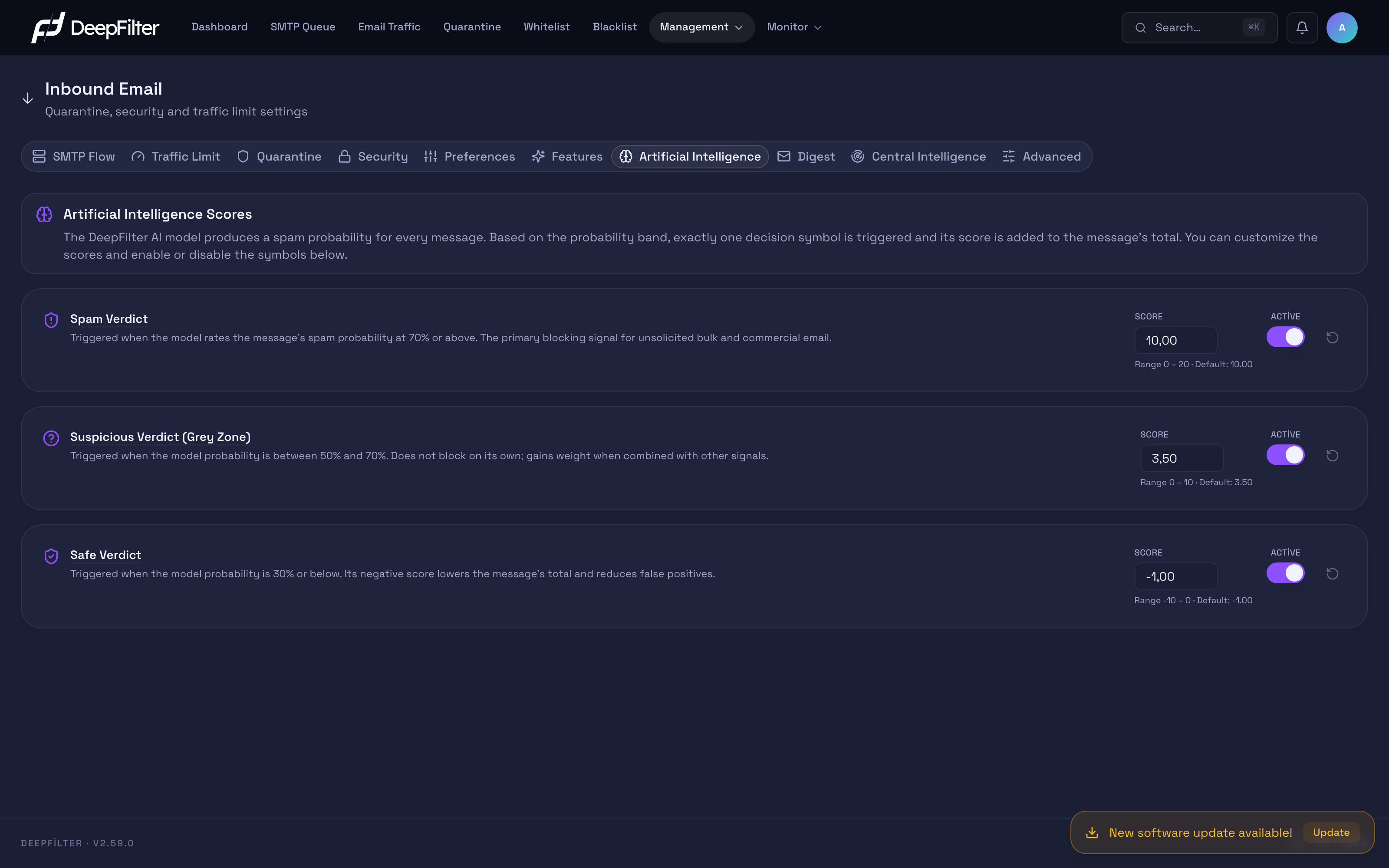
Settings
Each verdict card has a SCORE field that sets the points that verdict produces, an ACTIVE switch that turns the verdict entirely on or off, and a reset icon that returns the score to its factory value.
Spam Verdict — Triggered when the model rates the message's probability of being unwanted at 70% or above. (default: 10.00; range 0–20) It is the primary blocking signal for unsolicited bulk and commercial email. Raising the score catches more AI-based unsolicited mail but increases the false-positive risk on legitimate bulk/commercial email; lowering it increases leakage. Turning off the ACTIVE switch removes the AI's primary blocking contribution entirely.
Suspicious Verdict (Grey Zone) — Triggered when the probability is between 50% and 70%. (default: 3.50; range 0–10) It is a measured contribution that is not enough to block on its own; it gains weight when combined with other signals. Its low default is deliberate: some of the messages in this band are legitimate, and a high score would produce false positives.
Weak Signal (Lower Grey Zone) — Triggered when the probability is between 30% and 50%. (default: 1.00; range 0–10) It gives a small additional score to messages on which the model is undecided, finding them neither clearly clean nor clearly suspicious. It does not block on its own; it becomes decisive for messages whose total score stays just below the threshold. Spam falling into this band often stays just below the threshold with the other signals; the small additional score lets it cross the threshold. Raising the score reduces leakage in this band but increases the false-positive risk for legitimate messages close to the threshold; if you see legitimate messages from this band landing in quarantine in your organization, lower the score or turn off the ACTIVE switch.
Safe Verdict — Triggered when the probability is 30% or below. (default: -1.00; range -10–0) Its negative score lowers the message's total and reduces legitimate messages being quarantined by mistake. Making the score more negative strengthens false-positive protection but also increases the risk of silently missing a real threat by pushing it below the threshold; bringing it closer to zero reverses the balance between protection and leakage.
The four bands cover the entire probability range: every probability the model gives falls into exactly one of these bands, and the AI produces a verdict for every message it is able to evaluate. When you turn off a verdict's ACTIVE switch, messages falling into that band receive no points from the AI; the decision is left to the other checks.
Evaluation Failed — Triggered when the AI module cannot produce a result for a message: when the model is not loaded, an error occurs during prediction, the service does not answer in time, or the answer arrives corrupted. (default: 0.00; range 0–10) In that case none of the four verdicts is added; the message receives no points from the AI and is evaluated by the other checks. The card is not a verdict but an observation marker: with its default score of 0 it does not change the total score, it only makes visible in the score breakdown, through the DeepFilter AI Not Evaluated row, that the AI could not evaluate that message. If you see this row on a large number of messages, there is an ongoing problem in the AI module; first check in the AI Model Version box on the Management → License screen that the model is loaded; if the model is loaded and the problem persists, contact the support team.
Changing a Verdict Score
Steps
- Open the Inbound Email → Artificial Intelligence tab.
- Enter the new value in the SCORE field of the relevant verdict (Spam Verdict, Suspicious Verdict, Weak Signal or Safe Verdict), within that verdict's own range.
- To disable a verdict entirely, turn off the ACTIVE switch; to return the score to its factory value, use the reset icon.
- Save the changes.
Verification — how to know it worked
- After the change, when a message falling into the relevant band arrives, you will see the AI verdict appear with its new score in the message's score breakdown and change the total score accordingly.
Making the Safe Verdict more negative than necessary can silently push real threats below the threshold. A known example is image-based unsolicited mail that embeds all of its sales copy in an image: a strong negative "safe" score can drop such a message just below the quarantine threshold and let it through. Move in small steps when tuning this score toward zero, and monitor the result.
Digest
Digest is the notification feature that sends end users a summary of the messages waiting in their quarantine by email at set intervals. The user learns about the messages caught in quarantine and, if they have the permission, can release them straight from the summary; this removes the need for the administrator to scan quarantine for each user individually.
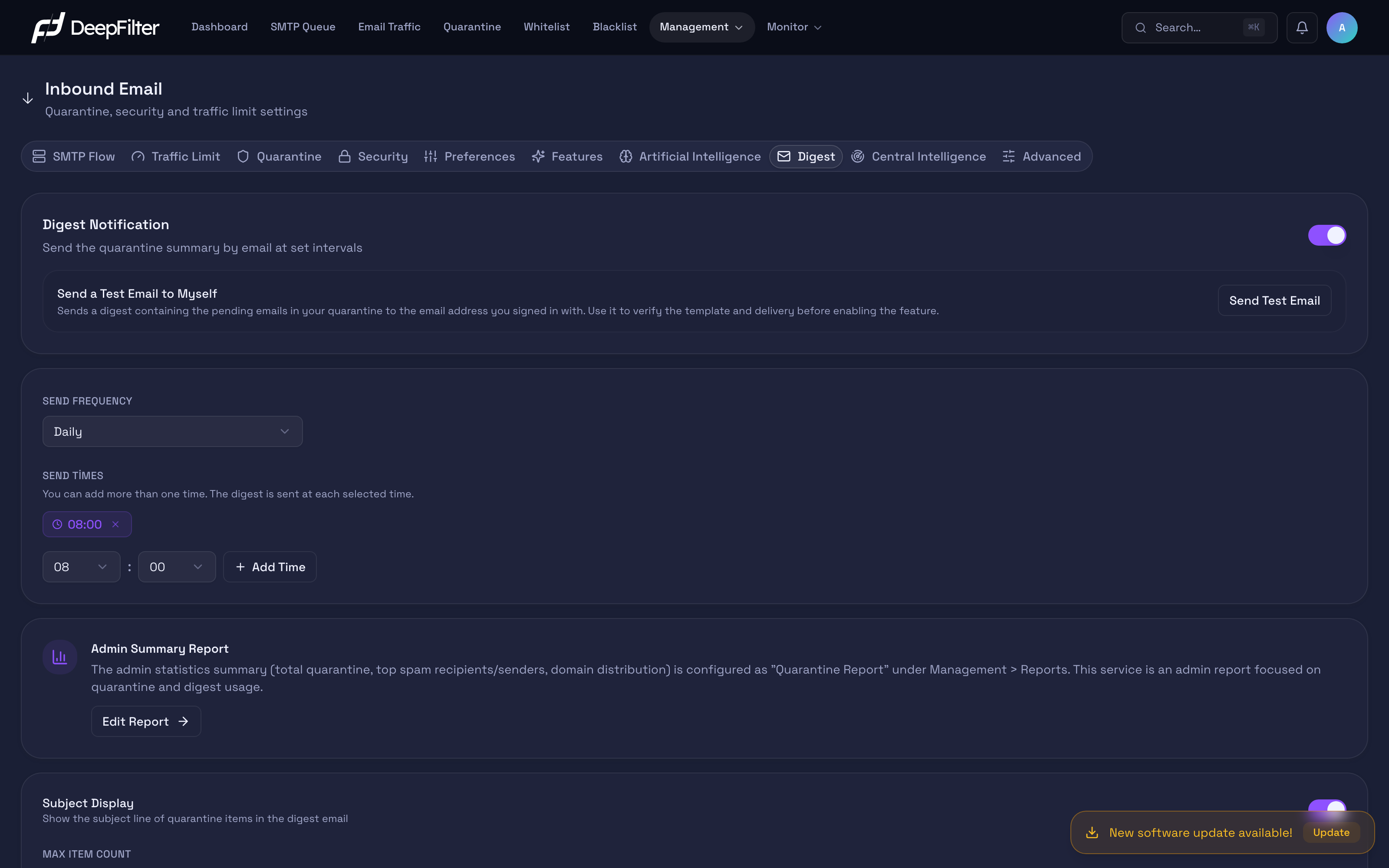
Settings
Digest Notification switch — Turns the feature entirely on or off. (default: off)
SEND FREQUENCY — Sets the interval at which the summary is sent. (default: Daily; options: Daily, 12 Hours, Weekly) The frequency also determines the time window the summary covers: a daily summary contains the messages waiting from the last 24 hours, a 12-hour summary from the last 12 hours, and a weekly summary from the last 7 days. Older waiting messages that fall outside this window do not appear in the summary; the user can see them in the portal they open through the secure link in the summary.
SEND TIMES — Sets the time(s) of day the summary is sent. More than one time can be added; the summary is sent separately at each selected time.
Subject Display switch — Sets whether the subject line of the quarantine items is shown in the summary email. (default: on) Turn it off in environments where you want subject lines to stay hidden.
MAX ITEM COUNT — Sets the maximum number of quarantine items listed in the summary email. (default: 50; range 1–500) The total number waiting in the window is always shown in full in the summary; items beyond that number are counted but not listed — the user sees all of them in the portal. Lowering the value shortens the list (the total count is still complete), and raising it produces a longer list.
Summary email content — In the default template the subject line reads "Karantina özeti: N e-posta bekliyor" ("Quarantine summary: N emails waiting"). The body contains the number of waiting messages, a list with Gönderen, Konu and Tarih (Sender, Subject, Date) columns, a Karantinayı görüntüle (View quarantine) button and the note "Bu bağlantı 24 saat geçerlidir." ("This link is valid for 24 hours."). No information from the quarantined messages (sender, subject) is written into the subject line.
- Sender column — Shows the sender (From) address in the message header; the display name is not shown. If the sender could not be verified for the sender domain with SPF or DKIM, a Doğrulanmamış gönderen (Unverified sender) line appears under the address. If the envelope address (MAIL FROM) differs from the displayed address and either belongs to another domain or the sender could not be verified, the envelope address is shown on a Zarf: … (Envelope: …) line. This rule is the same as the display in the end-user portal.
- Plain-text part — The plain-text part of the summary email is generated from the same template and carries the same list together with the portal link. The link can be used in email programs that do not display HTML as well.
Warning Banner switch — Turns on or off the addition of a red warning line you write at the top of the summary email. (default: off) It is used to deliver the same reminder to all of the organization's users — for example a warning to verify the sender before clicking a link — from the most visible place in the summary. If you turn it off, the banner does not appear in any summary email; the text you wrote is not deleted and comes back when you turn the switch on again.
WARNING TEXT — Sets the warning shown in the banner. (default: empty) The text is a single line and can be at most 300 characters; the counter below the field shows the remaining allowance as you type. The text is delivered as plain text — HTML does not work, and any tags you write appear to the user as they are. If you enter more than one line, it is reduced to a single line when saved. If the field is left empty, the banner is not shown even when the switch is on. The setting is global: no distinction is made by domain or recipient, and the same text goes into every summary email. The card's PREVIEW box shows how the text you enter will look in the email as you type, so you can judge its length and readability without sending a test message.
Text over 300 characters is not silently truncated — the save is rejected entirely. When you exceed the limit the panel returns an error and the other digest settings in the same save are not written either; changes you made to the send frequency, send times or item count are lost. Confirm that the character counter has not passed 300 before saving.
The warning banner is shown only in the digest email. It does not appear in the instant notifications sent to the recipient when a message is quarantined or released; the content of those notifications does not change. If your warning has to reach every user, the summary email is the only way to do it.
The Digest tab also links the administrator summary of the quarantine to this screen with a short information card. The card's heading is Admin Summary Report; the administrator summary is not sent from this tab but is configured with the Quarantine Report under Management → Reports, and reaches the recipients you select by email from there. The Edit Report button on the card takes you straight to the Reports screen.
The digest on this tab is for end users' own quarantine summaries. The administrator's summary of the quarantine — total blocked messages, the addresses receiving the most spam, the domain distribution and portal visit frequency — is managed from the Quarantine Report under Management → Reports. The two are separate flows.
Setting the Digest Schedule
Steps
- On the Inbound Email → Digest tab, turn on the Digest Notification switch.
- Select the interval (Daily, 12 Hours or Weekly) from the SEND FREQUENCY list.
- Under SEND TIMES, select the hour and minute and add it with Add Time; define more than one time if needed.
- If you wish, adjust the Subject Display switch and the MAX ITEM COUNT value.
- Save the changes.
Adding a Warning Banner
You can add a red line carrying your organization's own reminder to the top of the summary email.
Prerequisite
- The banner appears only in the summary email that is sent; for users to see the banner, the Digest Notification switch must be on and at least one send time must be defined.
Steps
- On the Inbound Email → Digest tab, turn on the Warning Banner switch.
- Write your single-line warning in the WARNING TEXT field (for example a sentence reminding users to verify the sender before clicking links). Keep the text under 300 characters.
- Review how the text looks in the email in the PREVIEW box; shorten it if it is too long.
- Save the changes.
Verification — how to know it worked
- Send yourself a summary with the Send Test Email button in the Send a Test Email to Myself section; in the summary you receive, your warning appears as a red strip above the list of waiting messages.
Testing Delivery
Before opening the feature to users, you can verify the template and delivery on your own address.
Steps
- Click the Send Test Email button in the Send a Test Email to Myself section.
- Review the sample summary that arrives at the email address you signed in with.
Verification — how to know it worked
- If there are messages waiting within the window in your own quarantine, a summary built with the real template reaches your address. (The test works even when the Digest Notification switch is off; if you have no messages waiting within the window, no summary is sent because it would be empty.)
- If the warning banner is on and its text is filled in, it appears in the test summary too. You can confirm the final appearance of the text here before opening the banner to users.
End users' access to their quarantine is defined at three levels, and the actions in the summary email work according to that permission: at the No digest level no digest is sent to the user at all and the portal is closed; at the View only level the digest is sent but the user can only review, not release; at the Can release level (the default) the user can release a message from the summary.
At the Can release level, too, some messages can be released only by an administrator from the Quarantine screen; the portal shows them as locked and tells the user the reason: a virus detection that adds points to the score (including the EICAR test file), an attachment of a blocked file type (direct or inside an archive), and a sender authentication failure (SPF or DKIM verification failed, HELO/reverse DNS verification failed). The sender address differing from the envelope address is not a lock reason on its own. In a bulk release, locked messages are skipped and the user is shown how many messages were skipped; the user can still delete locked messages.
Troubleshooting
- The digest never arrives: Check in order — is the feature switch on, has today's send time window arrived (or has it already been sent for that time), is the recipient's domain defined in SMTP Flow, is the domain's portal access set to "No digest", and are there really messages waiting within the window.
- Old messages are missing from the summary: They fall outside the time window determined by the frequency; this is normal and the user can see them in the portal.
- The administrator summary does not arrive: The administrator summary is sent with the Quarantine Report under Management → Reports. Confirm that the report definition there is Active, that it has at least one recipient, and that the scheduled send time has passed.
Central Intelligence
Central Intelligence is the "one teaches, everyone blocks" mechanism that makes signatures taught as unsolicited mail at other organizations blocked on this server too. When one organization teaches an unsolicited-mail sample, its fingerprint is shared with the center and all DeepFilter servers come to recognize the same threat. This tab manages whether this shared intelligence and the malicious address list of the Republic of Türkiye Cyber Security Directorate (SGB) are used on this server; it also shows the status of the statistical classifier (Bayes) that learns from this server's own traffic, and manages its automatic learning.
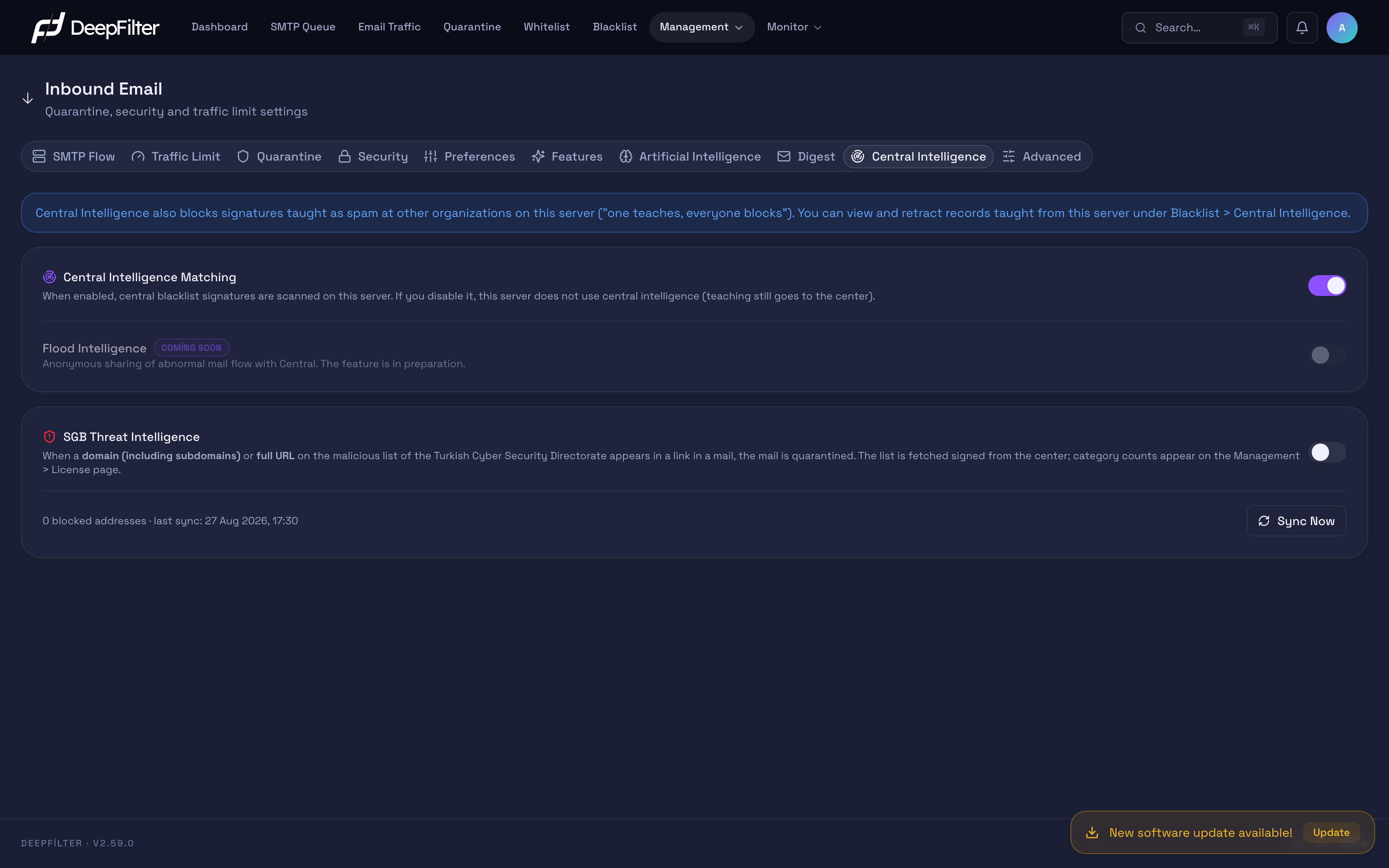
Settings
Central Intelligence Matching — When on, the shared unsolicited-mail signatures coming from the center are matched against the messages on this server. (default: on) Matching is performed against a local copy of the signatures downloaded regularly from the center; the center is not queried for each message, so the mail flow is not interrupted even if the center is unreachable and the server keeps using the last valid copy it holds. If you turn it off, this server does not use the shared intelligence (unsolicited mail taught elsewhere is not blocked here); however, the teaching you do from this server still goes to the center. You can view and retract the records taught from this server on the Blacklist → Central Intelligence tab.
Flood Intelligence (COMING SOON) — A feature still in preparation that aims at anonymous sharing of abnormal mail flow with the center. This switch cannot currently be enabled.
SGB Threat Intelligence — When on, a message is quarantined if a domain (including subdomains) or a full link address on the malicious list of the Republic of Türkiye Cyber Security Directorate appears in a link inside an inbound message. (default: off — optional) The list is fetched from the center in signed (verified) form. A matching message is moved to quarantine automatically with a high score; like the other layers, this one does not reject the message either and is limited to quarantine. Counts by malicious address category appear on the Management → License page.
The status line below the SGB card shows the number of addresses currently blocked and the time of the last sync; while SGB is off this number is zero. The Sync Now button updates the list without waiting.
Bayes Classifier
The Bayes Classifier card at the bottom of the tab shows this server's statistical classifier. The classifier compares the word distribution of an inbound message with the spam and ham samples previously learned on this server and produces a score according to the probability that the message is spam or clean. The model is specific to this server: it learns from your own traffic and from the administrator's teaching, and is not replaced with another server's model.
The card shows the following:
- Status badge — The classifier produces no score until it has learned at least 50 samples in each of the spam and ham classes. If that number has not been reached, the badge shows the missing class and the count (for example Inactive — ham samples 12/50); once both classes reach enough samples the badge becomes Active.
- Learned spam samples and Learned ham samples — The number of samples the classifier has learned so far.
- The Automatic Learning switch and, below it, today's automatic learning counters (ham and spam separately; the day is counted in UTC).
Automatic Learning — When on, the classifier learns by itself from traffic that meets strict criteria. (default: on) Only authenticated messages with a distinctly low score are taken as ham samples, and only externally sourced messages with a score far above the threshold are taken as spam samples; messages carrying suspicious markers and messages that pass through a whitelist exemption are not used for learning. Automatic learning has a daily upper limit, so a single heavy flow cannot pull the model in one direction. If you turn it off, the classifier learns only from the administrator's teaching; the Learn Trusted and Learn Spam actions in quarantine work in every case, independently of this setting.
The scores the classifier produces are set not on this tab but in the Statistical Classifier: Spam and Statistical Classifier: Clean rows on the Preferences tab.
Central Seed
The classifier of a newly installed server produces no score until it reaches 50 samples in the spam class with its own traffic; depending on the traffic, this can take weeks. The Central Seed card shortens this waiting period: the classifier is seeded with spam samples that have passed administrator approval at the center. The card also manages a second, independent list: sender domains taught as spam by administrators at more than one organization within the last 30 days. Email from these domains receives additional points through the Centrally Taught Sender Domain rule on the Preferences tab.
Only spam samples come from the center; ham samples do not come from the center and are learned only from this server's own traffic and the administrator's teaching. This way another organization's legitimate email is never taught to your classifier as "clean". The package and the list are downloaded from the center in signed form; content whose signature cannot be verified is not applied.
Central Seed switch — Turns seeding and the syncing of the taught sender list on or off together. (default: on)
The card consists of two sections:
- Spam seed package — The status of the last sync round (for example Up to date, Completed, Disabled, Waiting for licence, No package at the centre), the version of the applied package and the time it was applied, the time of the last check, and the Samples learned, Already known and Failed counts from the package. If the server's memory is full at that moment, teaching is left to the next round with the Deferred (memory) status; this is to protect the mail flow.
- Taught sender domains — The number of domains on the list, the list version and the time it was last applied.
Syncing runs weekly on its own; the first seeding starts at the server's first successful licensed connection to the center. If you do not want to wait, use the Sync now button at the bottom of the card; the result appears on the card within a few minutes.
Enabling the SGB Threat List
Steps
- On the Inbound Email → Central Intelligence tab, turn on the SGB Threat Intelligence switch.
- To fetch the list immediately, click the Sync Now button.
Verification — how to know it worked
- In the status line below the SGB card the number of blocked addresses rises from zero and the last sync time is updated. You can follow the counts by category on the Management → License page.
Because SGB quarantines a matching message automatically with a high score, a legitimate message that links to an address on the list can be quarantined too. To reduce this risk the list is curated and full link addresses are matched exactly (innocent links are not caught because of a URL shortening service). Even so, if you see an unexpected quarantine, examine the links in that message and the category counts under Management → License.
Syncing the Central Seed Now
Steps
- On the Inbound Email → Central Intelligence tab, find the Central Seed card and confirm that its switch is on.
- Click the Sync now button. The button is disabled while the switch is off.
Verification — how to know it worked
- The notification "Synchronisation is queued; the result appears on this card within a few minutes." appears. A few minutes later the Spam seed package badge becomes Completed or Up to date and the last check time is updated. The Learned spam samples count on the Bayes Classifier card increases by the number of samples learned from the package.
Turning Automatic Learning On or Off
Steps
- Open the Inbound Email → Central Intelligence tab.
- Turn the Automatic Learning switch on the Bayes Classifier card on or off. The change is saved immediately.
Verification — how to know it worked
- While the switch is on, today's automatic learning counters at the bottom of the card increase during the day; while it is off they do not. The teaching the administrator does from quarantine is reflected in the Learned spam samples and Learned ham samples counts in both cases.
Troubleshooting
- The Bayes Classifier card shows "Inactive": The classifier produces no score until the missing class reaches 50 samples; this is normal on new installations. If automatic learning is on, the counts increase by themselves along with the traffic. To speed up the process, teach misclassified messages in quarantine with Learn Trusted or Learn Spam using a global administrator account.
- The card reads "Learning status is unavailable" or "The counter store is unreachable": The scan engine or the counter store cannot be reached at that moment; while the counter store is unreachable, automatic learning stops and the switch cannot be changed. Check the status on the service cards of the Monitor → System screen; if the problem persists, contact DeepFilter support.
- The Central Seed badge shows "Waiting for licence": The server has not yet made a successful licensed connection to the center; seeding starts by itself after that connection. Confirm on the Management → License page that the license is active.
- The Central Seed badge shows "Nothing learned" or "Interrupted": The package was downloaded but the samples could not be taught to the classifier, or the round could not be completed; the version is not recorded and the package is retried at the next sync. Try again a few minutes later with Sync now; if the status does not change, contact DeepFilter support together with the package note shown on the card.
- SGB shows "0 blocked addresses": If the switch is off this is normal. If it is on, trigger a sync with Sync Now and check whether the last sync time is updated; if it is not, check your license status.
- SGB does not match: Make sure the switch is on and that the address count in the status line is greater than zero. Because full link address records are matched exactly (path included), links whose domain merely looks similar but whose address is different do not match.
Advanced
The Advanced tab holds the protections that work at the connection and protocol level, before the message content: greylisting, sender server identity checks, TLS encryption enforcement and size limits. Some of the checks on this tab produce signals that only contribute to the score; others can reject a message outright at the protocol level. The difference between the two is stated separately for each setting.
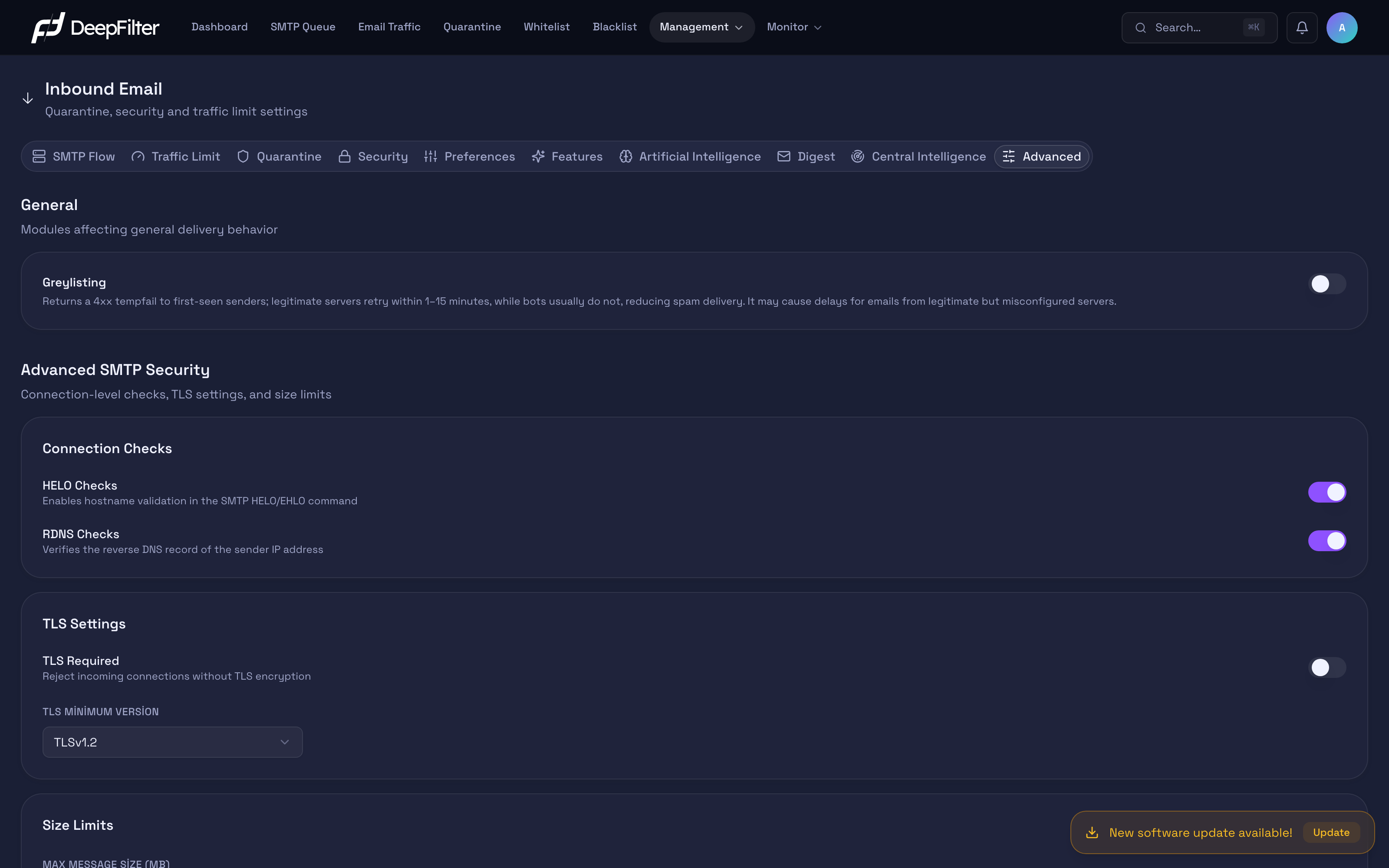
Settings
Greylisting — Returns a temporary "try again later" answer (temporary rejection) to a sender found suspicious on their first attempt. (default: off) Legitimate servers retry within a short time (typically 1–15 minutes) and the message gets through; many unsolicited-mail infrastructures never retry and are filtered out. This protection is applied not to every new sender, but to messages that first cross a suspicion threshold (that have picked up a score); clean, low-scoring messages are not delayed. Local senders and authenticated senders are also exempt from this check. Once a sender passes successfully for the first time, they are remembered for a while (about a month) and are not delayed again. Turning it on reduces bot and unsolicited-mail delivery; turning it off eliminates the delivery delay but removes this layer.
HELO Checks — Checks the consistency of the hostname (HELO/EHLO) the sending server declares in the SMTP session. (default: on) This check does not reject a message; it only adds a signal to the score. Poorly configured unsolicited-mail sources pick up points from this signal, but it does not push a message into quarantine on its own. Turning it off removes this weak but useful signal.
RDNS Checks — Verifies the reverse DNS (PTR) record of the sender IP address. (default: on) It is turned on and off independently of the HELO check and, like it, does not reject — it only adds a signal to the score. Legitimate but small servers without a reverse DNS record may pick up a low score from this signal; it is not enough for quarantine on its own.
A separate policy rule based on reverse DNS, rDNS Failure - Hard Quarantine, awards a quarantine score only when it is confirmed that a PTR record for the sender IP genuinely does not exist and the message did not pass authentication (SPF/DKIM/DMARC/DNSWL). The rule is not applied when the resolver cannot answer: legitimate messages with a valid PTR record that are scanned during a temporary DNS error or outage do not pick up a score from this rule.
TLS Required — When on, rejects incoming connections that cannot establish TLS encryption. (default: off) This is not a contribution to the score but a genuine rejection at the protocol level: a connection that does not support encryption is not accepted at all.
Turning TLS Required on completely turns away email from legitimate older senders that do not support STARTTLS or whose TLS handshake fails — this is a loss of email. In most environments it is safe to leave this switch off (opportunistic TLS); if email from some senders stops after you turn it on, this is the first setting to suspect.
TLS Minimum Version — Sets the lowest TLS version that will be accepted. (default: TLSv1.2; options: TLSv1.2, TLSv1.3) This setting is applied even when TLS Required is off. Choosing TLSv1.3 can break the encrypted handshake with senders or recipients that speak only TLSv1.2; TLSv1.2 is the balanced choice for most environments.
Size Limits — This card contains two separate fields:
- Max Message Size (MB) — The largest message size allowed. (default: 25; range 1–500) A message exceeding this size is rejected during SMTP without entering the system at all (a genuine rejection at the protocol level); the sender receives a bounce response. Keeping the value low rejects messages with large legitimate attachments such as presentations or video.
- Max Attachment Size (MB) — (default: 20; range 1–200) Although its label says "single attachment size", this value actually works as a scanning ceiling: messages exceeding this size are not rejected, but are marked "too large" and passed without being scanned in depth. Because the default of 20 is below the message limit of 25, a message between 20 and 25 MB passes through the system but is not fully scanned. If you want your large but legitimate messages to be scanned properly, raise this value.
Setting the Connection Protections
Steps
- Open the Inbound Email → Advanced tab.
- Turn the HELO Checks and RDNS Checks switches on or off as you need.
- If your encryption policy requires it, select the TLS Minimum Version; if you want to make TLS mandatory, turn on the TLS Required switch (take the warning above into account).
- Enter the values under Size Limits according to your environment.
- Save the changes.
Verification — how to know it worked
- If you lowered Max Message Size, you will see that the sender receives a size-exceeded bounce response when a message above the limit is sent. If you turned on TLS Required, you will observe that an unencrypted delivery attempt is rejected.
The "no direct rejection" principle applies to unsolicited-mail actions; TLS Required and Max Message Size form a separate category applied at the protocol level for encryption and size, and they can perform a genuine rejection. Bear the risk of email loss in mind when changing these two settings.
SMTP Envelope Attack Protection
Independently of the settings on this tab, DeepFilter always rejects, at the connection stage, SMTP envelope attacks that try to embed a command in the recipient address. In this attack the sender places a shell command in the user-name part (the part before the @ sign) of the recipient address declared in the SMTP session; the aim is to run that command on the back-end mail server that processes the address.
If the user-name part of the recipient address contains a space or one of the characters $, (, ), `, |, ;, <, >, \, DeepFilter permanently rejects that recipient without receiving the message content; the message never reaches your back-end server. The sending server receives a 550 response with the explanation "invalid characters in local part". These characters do not occur in legitimate email addresses in practice; characters that can be used in real addresses, such as &, are deliberately kept out of scope.
The protection is active from installation; it has no setting to turn on or off. Rejected attempts appear on the Email Traffic screen with the Rejected badge; a global administrator can list them separately by selecting Rejected in the Action filter in the Incoming direction.