General Settings
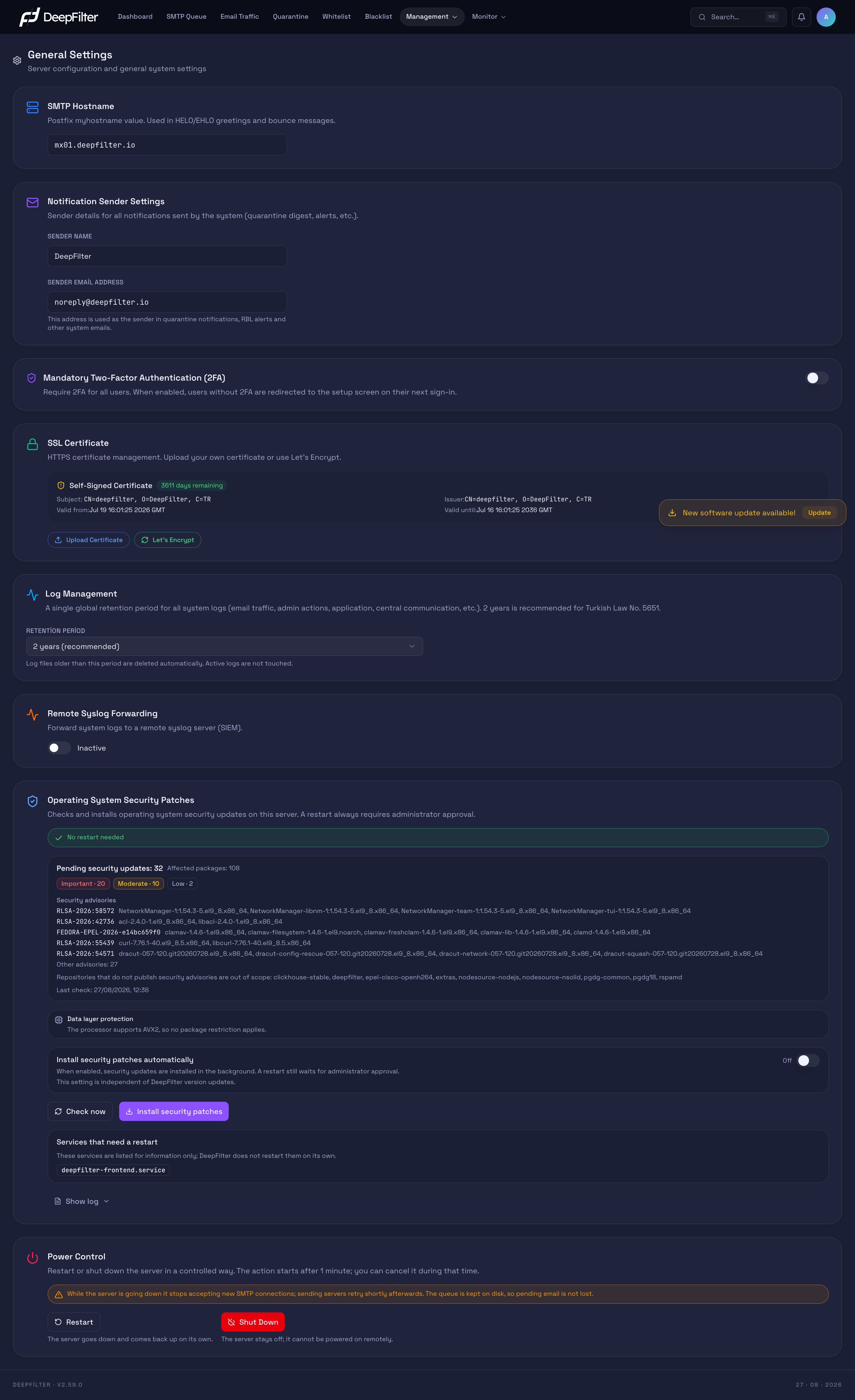
General Settings is the screen where you decide how DeepFilter introduces itself to the outside world, on whose behalf it sends system notifications, which security policy protects administrative sessions, which certificate proves its identity on encrypted connections, and how the security updates published for the server's operating system are monitored and installed. The settings here concern the whole server rather than a single email flow: they configure the server's identity and the security of administrative access, not the individual emails whose content is scanned. Power Control, at the very bottom of the screen, is not a setting but an action: it lets you restart or shut down the server from the management panel. You use this screen for the first configuration right after installation, when you later want to tighten your security policy, and when you need to stop the server in a controlled way. It sits under the Management menu.
Settings
The setting sections on this screen configure the server identity, the sender of system notifications, session security and the certificate used on encrypted connections. Below them is the Operating System Security Patches section, which manages the currency of the server's operating system, and at the very bottom the Power Control section, which is an action rather than a setting.
SMTP Hostname
Defines the fully qualified domain name (FQDN) of your server; this name becomes the HELO/EHLO name with which your email server introduces itself to remote servers. (default: there is no fixed preset; if the field is empty the server's current name is read and displayed, for example mx01.deepfilter.io)
Why it exists: Remote email servers check whether the name a connecting server introduces itself with really belongs to it. When this name is consistent with your domain's MX record, your server's reverse DNS (PTR) record and the SMTP greeting banner, your email looks legitimate. When it is inconsistent, the spam score rises or the connection is refused.
If you change the value: This single field propagates the name you enter to many points of the system at once: the HELO/EHLO name given to remote servers, the SMTP greeting banner, the sender domain of bounce messages, the domain the HTTPS certificate is obtained for, the connection addresses of the management panel and the end-user portal, and the server's system name. If you enter a correct fully qualified domain name, all these points line up in one go; when it matches your MX and PTR records, remote servers accept your email as legitimate. If you enter it wrongly or incompletely, HTTPS certificate issuance stops, the sender domain of bounce messages stays incorrect, and the mismatch with remote servers breaks delivery.
Note: Saving the SMTP Hostname does not just update a label; it also permanently changes the server's system name. The value must also be in fully qualified domain name form with at least one dot (for example mx01.deepfilter.io) — a dotless name such as localhost can be saved, but no HTTPS certificate can be obtained for it.
Notification Sender Settings
Determines the sender identity of every email the system sends on its own: Sender Name is the name that appears in the email and Sender Email Address is the sending address; together they form the sender line in Name <address> form. (default: name DeepFilter, address deepfilter@<server name>)
If the address field has never been changed, notifications are sent from the deepfilter@<server name> address derived from the server's fully qualified domain name (for example, if the server name is mx01.yourcompany.com, the address is deepfilter@mx01.yourcompany.com). The server name is taken first from the SMTP Hostname field above and, if that is empty, from the server name entered in the setup wizard. This keeps the sending address consistent with the name of the server that sends the email. If the server does not have a valid fully qualified domain name resolvable in public DNS (for example with internal network suffixes such as .local, .lan, .internal, or with only an IP address), the address stays noreply@deepfilter.io. When you enter an address in this field, the system always uses the address you entered exactly as it is.
Why it exists: DeepFilter does not only filter incoming email; it also sends email of its own, such as quarantine digests, blocklist (RBL) alerts, file security notifications, server monitoring alerts, backup notices, one-time sign-in codes and certificate expiry warnings. This setting defines, in one place, on whose behalf those emails go out.
If you change the value: If you move the address to your own corporate domain (for example noreply@yourcompany.com) and the SPF/DKIM records of that domain are aligned, system emails look trustworthy to recipients and are less likely to land in the spam folder. If you enter an address that does not belong to you or whose SPF/DKIM is not aligned, recipient servers may treat these emails as spoofed; quarantine digests in particular may go to spam or be rejected.
Mandatory Two-Factor Authentication (2FA)
A toggle that makes two-factor authentication mandatory for all users. While it is on, a user who has not set up 2FA is redirected straight to the 2FA setup screen at their next sign-in and cannot reach the panel without completing the setup. (default: off)
Why it exists: A password on its own can be compromised (leak, guessing, phishing). 2FA adds a second proof that the user possesses: a code in an authenticator app or a one-time code sent by email. Making it mandatory applies this protection to all administrative accounts without waiting for every user to enable 2FA on their own.
If you change the value: If you turn it on, no administrative account can be reached with a password alone; everyone without 2FA lands on the setup screen at their next sign-in. If you turn it off, 2FA remains optional: users who want it set it up, nobody is forced. Unlike the other fields, this toggle does not wait for the Save button at the top; it takes effect the moment you change it.
Turning the requirement on does not lock anyone out entirely: a user without 2FA is still allowed to sign in, they are only locked to the setup screen, where they can set up either an authenticator app or a one-time code by email. Even so, keep a second administrator account whose 2FA already works as a safety net: if a user gets stuck on the setup screen (because they cannot reach the authenticator or the mailbox), another administrator can recover them by resetting their 2FA from the user management screen.
SSL Certificate
The DeepFilter management panel, the end-user portal and incoming email traffic (SMTP STARTTLS) are served over encrypted TLS connections. The authentication side of that encryption is handled by an SSL/TLS certificate: it lets the browser and the remote email server verify that the address they are connecting to really is your server. If the certificate is not signed by a trusted certificate authority, browsers show a security warning, and some remote email servers hesitate to establish the encrypted connection.
A single certificate is used across three services at once:
| Service | Port | Role of the certificate |
|---|---|---|
| Management panel (HTTPS) | 9443 | Secure administrator access to the panel |
| End-user portal (HTTPS) | 9445 | Secure user access to the quarantine portal |
| Incoming email (SMTP STARTTLS) | 25 | Encrypted delivery with the remote email server |
Right after installation the system generates a temporary self-signed certificate; it appears on the card with a yellow shield icon and the Self-Signed Certificate label. The color of the remaining-days badge, on the other hand, depends on the remaining time rather than the certificate type: it turns yellow as the time runs short and stays green otherwise. This certificate provides encryption, but because it is not signed by a certificate authority no browser accepts it as trusted — you are expected to replace it with a real certificate using one of the methods below before moving to production.
The card shows a summary of the current certificate: its type (for example Self-Signed Certificate) and the number of days remaining, the Subject and Issuer information, and the Valid from and Valid until dates.
TLS is not mandatory for incoming email but opportunistic (STARTTLS): if the remote server supports TLS the connection is encrypted, and if it does not the email is still delivered. Certificate problems therefore affect access to the management panel first; they do not interrupt email flow.
Certificate Acquisition Methods
There are three methods; which one you choose depends on how your server is reached from the outside and where you obtain the certificate from.
- Uploading your own certificate — If you already have a certificate issued by a commercial certificate authority or by your organization's own authority, upload it directly. This suits wildcard certificates and corporate PKI scenarios.
- Let's Encrypt (HTTP-01) — If your server is reachable from the internet over port 80 and the domain's DNS A record points to this server, this is the shortest path to a free, automatically renewed certificate.
- Let's Encrypt (DNS-01) — If port 80 is closed to the outside or your domain uses Cloudflare DNS, choose this method, which validates with a DNS record instead of a port. It does not need port 80.
Both Let's Encrypt methods produce the certificate with an RSA key type. This is a deliberate choice: certificates that contain only ECDSA can cause the STARTTLS handshake to fail on older remote email servers that expect RSA, delaying delivery. An RSA key preserves compatibility with older clients.
Uploading Your Own Certificate
The certificate and private key you upload are saved on the server, verified to match each other, and distributed to all three services. You use this method when you already have a certificate issued by an authority.
Prerequisites
- A certificate in PEM format (the full chain is recommended) and the matching private key file.
- The certificate and private key must belong to each other; the system verifies the match before uploading and rejects the upload if they do not match.
Steps
- Open Management → General Settings and find the SSL Certificate card.
- Click Upload Certificate.
- Paste the certificate PEM (the block starting with
-----BEGIN CERTIFICATE-----) into the relevant field. - Paste the private key PEM (the block containing
-----BEGIN ... PRIVATE KEY-----) into the other field. - Click "Upload and Apply".
Verification — how to know it worked
- The card no longer shows the Self-Signed warning; the Issuer field shows the authority that signed the certificate and the new Valid until date.
- When you refresh the management panel in your browser, no security warning appears (provided the certificate comes from a publicly trusted authority).
Upload validation expects an RSA key. If your private key is of the ECDSA type, you will get a match or key-reading error and the upload will fail. In that scenario, use an RSA certificate/key pair.
Let's Encrypt with HTTP-01 Validation
Let's Encrypt verifies that the domain is under your control over port 80: DeepFilter publishes a temporary validation file on port 80, and once validation passes the certificate is obtained and distributed to all services. If your server is reachable from the internet on port 80, this is the shortest path.
Prerequisites
- A valid SMTP Hostname must be defined — a fully qualified domain name; a dotless name such as
localhostis not accepted. If it is not defined, the flow stops with an error asking you to define the SMTP Hostname first. - The domain's DNS A record must point to this server's public IP address.
- The server must be reachable from the internet on 80/tcp. The installation opens this port in the firewall; if there is a separate firewall or NAT in front of the server, it has to be opened there as well. Because automatic renewal also goes through this port, it must stay open permanently, not only for the first issuance.
Steps
- Open the Management → General Settings → SSL Certificate card.
- Click Let's Encrypt.
- Choose "HTTP (Port 80)" as the validation method.
- Obtain and save the certificate.
Verification — how to know it worked
- The card shows Let's Encrypt as the Issuer and a new Valid until date roughly 90 days out.
- The management panel does not raise a security warning in the browser.
HTTP-01 fails without external access to port 80 or a correct DNS A record. If you cannot open port 80 (ISP block, installation behind NAT), use the DNS-01 method.
Let's Encrypt with DNS-01 Validation (Cloudflare)
Validation is done with a temporary DNS TXT record instead of a port: DeepFilter creates the required record through the Cloudflare API and removes it after validation. It works even when port 80 is closed to the outside; automatic renewal is also performed the same way, over DNS. Prefer it if your domain uses Cloudflare DNS and/or port 80 cannot be opened.
Prerequisites
- A valid SMTP Hostname (the same rule as for HTTP-01).
- The domain must be managed in a Cloudflare DNS zone.
- A Cloudflare API token with DNS edit (Zone / DNS / Edit) permission on your domain's zone.
Steps
- Open Management → General Settings → SSL Certificate → Let's Encrypt.
- Choose "Cloudflare DNS" as the validation method.
- Enter your Cloudflare API token in the relevant field. The link in the interface opens Cloudflare's token creation page with the correct permissions preselected. DeepFilter verifies the token you entered with Cloudflare and checks that it is authorized for the zone covering your domain.
- Obtain and save the certificate.
Verification — how to know it worked
- The card shows the Let's Encrypt certificate and the new Valid until date.
- The token appears in the interface masked except for its last four characters. The token is not written to the database in full; it is kept in a file with restricted access on the server — this is why you should grant the token DNS edit permission only, not access to the whole account.
DNS-01 validation waits a fixed 30 seconds for the record to propagate. On DNS zones that update very slowly this can be too short and cause validation to fail; in that case, try the operation again.
Automatic Renewal
Let's Encrypt certificates are short-lived (roughly 90 days) and are renewed automatically: renewal is attempted on its own about 30 days before expiry, with no manual intervention needed.
- Renewal method: renewal uses the validation method you selected on the card (HTTP (Port 80) or Cloudflare DNS). Every fifteen minutes the system checks whether the renewal setting matches this selection; if it differs, it switches the setting to the method you selected and, if the certificate is due for renewal, renews it right away. The same check is also made when you obtain the certificate from the panel; if the setting cannot be switched to the selected method, the panel shows an error even though the certificate has been obtained and distributed. Fix the problem stated in the error and repeat the operation; otherwise renewal is attempted with the old method and may fail.
- Successful renewal: the new certificate is distributed automatically to all three services; the services other than the email service reload the new certificate, while the email service restarts briefly. This takes a few seconds: SMTP connections open at that moment may drop and the sending servers retry delivery. The same happens when you first obtain the certificate from the panel. The Valid until date on the card moves forward.
- Failed renewal: if fewer than 25 days remain until the certificate expires and it has still not been renewed, a single critical-priority SSL Renewal Failed alert is sent to the administrator; the same alert also arrives when the background check cannot switch the renewal setting to the method you selected. The email contains the certificate's expiry date, the number of days left and, if applicable, why the renewal setting could not be switched to the selected method.
In addition, DeepFilter checks the certificate's validity period every day and sends a critical SSL Certificate Expired alert if the certificate has expired. No advance warning is sent because the expiry date is approaching. For the alert recipients and how to turn alerts on or off, see Notifications.
Because the Let's Encrypt registration is made without providing an email address, Let's Encrypt's own expiry reminder emails do not reach you. The automatic renewal and daily check above take over that notification.
Automatic renewal applies only to certificates obtained with the Let's Encrypt methods. Certificates you upload yourself and the self-signed certificate from the installation are not renewed automatically; you have to renew them manually before they expire.
Troubleshooting
- The browser shows a "not secure" warning when I open the management panel. The certificate is still the self-signed certificate from the installation, or it has expired. Check the type and the Valid until date on the card; replace it with a real certificate.
- The Let's Encrypt certificate cannot be obtained, or a renewal failure alert arrived. The most common causes: port 80 is closed to the outside or forwarded to another device behind NAT (HTTP-01), the Cloudflare API token is invalid or not authorized for the domain's zone (DNS-01), or the DNS A record does not point to the server. The error details in the alert email show where it got stuck. If you cannot keep port 80 open, switch to DNS-01.
- The error "First define a valid SMTP Hostname on the Settings page". Let's Encrypt reads the domain to issue the certificate for from the SMTP Hostname. If this field is empty or invalid (a dotless name), the certificate cannot be obtained; first fill General Settings → SMTP Hostname with a valid fully qualified domain name.
- Certificate issuance is rejected with a rate limit after a few attempts. Let's Encrypt limits failed validations to 5 per hour and re-issuance of the same certificate to 5 per week. If you hit the limit, stop retrying back to back; wait about an hour, fix the root problem (DNS, port) and then try again — repeated attempts trigger the limit anew.
- The Cloudflare token is rejected, or a "not authorized for the zone" error. The token must be defined with DNS edit permission on the Cloudflare zone that contains your domain. Recreate the token with the correct zone and Zone / DNS / Edit permissions and enter it again.
Operating System Security Patches
DeepFilter is a separate piece of software from the operating system it runs on: the update applied from the Management → Software screen refreshes DeepFilter components only. The server's operating system publishes its own security updates for its own components; these concern not the filtering rules but the infrastructure underneath the server (encryption libraries, network components, the operating system kernel and so on). This section makes those updates visible: it lists pending security advisories with their severity levels, lets you start a check manually, install the updates, and if you wish configure the installation to happen on its own.
The section is drawn only for accounts with full administrator privileges; it is not visible at all to domain administrator and read-only accounts.
Why it exists: A security vulnerability at the operating system level puts the whole server at risk no matter how up to date DeepFilter is. Tracking these updates has traditionally been the job of a system administrator with direct access to the server; this section brings the same visibility into the management panel, so that you can see and install pending security updates without ever entering the server's command line.
Note: This section never restarts the server under any circumstances — not even when automatic installation is on. Some of the installed patches only take effect after a restart; the decision and the act of restarting belong solely to the Power Control section on the same screen, that is, to your approval.
Reading the Pending Updates
The top line of the section gives the number of pending security updates and the number of packages they affect. There are three distinct states and they do not all mean the same thing:
- Pending security updates: N — a check has been made and N security advisories are waiting to be installed.
- No pending security updates — a check has been made and the result is clean.
- The number of pending security updates is unknown — the server has not been checked yet, or the status could not be read.
"Unknown" and "none" are not the same thing. The unknown state, which comes with a warning icon, does not say that there are no pending updates; it says the system cannot answer that question yet. In this case start a check with Check now; the number is only meaningful after a check.
Severity badges. Pending advisories are grouped by severity level and each badge carries the number of advisories at that level (for example Critical · 3). DeepFilter does not calculate the level; it is reported by the source that publishes the security advisory.
| Badge | Meaning |
|---|---|
| Critical | Updates published with the highest severity rating in the advisory. Install these first. |
| Important | The rating just below Critical. |
| Moderate | Medium severity rating. |
| Low | The lowest severity rating. |
| Unspecified | Updates whose advisory reports no severity rating. |
The Critical and Important badges are shown in red, Moderate in amber and the rest in a neutral color; the color only makes prioritization easier at a glance and does not change the installation order — the installation applies all pending security updates together.
Advisory list. At most 5 of the pending advisories are listed with their advisory ID and the packages they affect; the rest are summarized as "Other advisories: N". The list is not an inventory but a sample of what is waiting; the full count is on the top line.
Scope note. The count covers only software repositories that publish security advisories. Some repositories do not mark their updates with a security label and therefore do not enter this count; the scope note in the section states this. The number here is therefore not the count of everything that could be updated on the server, but the count of what has been published as a security update.
Last check time. Below the number you see when the last check was made; if it has never been checked, it says "Not checked yet".
Excluded packages. If the server's processor does not support a particular instruction set, the reporting database packages are kept out of patch scope and the section shows the reason along with the list of excluded packages. This is a deliberate protection: upgrading to an incompatible version would leave the reporting database unable to start. If the processor is compatible, the note "no package restriction applies" is shown.
Services that need a restart. If, after the installation, there are services still using the updated libraries, they are listed. This list is for information only; DeepFilter does not restart these services on its own.
Installation log. Show log opens the log of the last installation. While the installation is running the log streams live, and when it finishes the final lines are collected as well. If the log cannot be read, the section says so with "The installation log could not be read." — it does not present an unreadable log as "no entries".
Installing Security Patches Automatically
A toggle that lets pending security updates be installed without waiting for administrator approval. (default: off)
What it does: The security check runs on its own every six hours even when the toggle is off, and it only looks. While the toggle is on, an installation is also triggered right after each check; the installation status is refreshed in the section roughly every ten minutes.
Why it exists: Closing a critical operating system vulnerability should not have to wait for an administrator to open the panel. The toggle makes sure security updates reach the field without delay.
What happens if you turn it on / off: If you turn it on, security updates are installed in the background without you being present; in return, you do not decide exactly when the installation runs. A restart still waits for administrator approval — this toggle does not grant permission to restart the server. If you leave it off (the default), the system only shows the pending updates; you start the installation manually each time.
This toggle is entirely independent of the DeepFilter automatic update setting on the Management → Software screen: one manages the operating system's security updates, the other DeepFilter's own version. Turning one on does not turn the other on. For DeepFilter version updates see Software.
Checking for Pending Updates
Used to find out whether there are pending security updates right now, without waiting for the six-hourly automatic check.
Prerequisites
- Be signed in with full administrator privileges.
- No patch installation must be running at the time; a check cannot be started while an installation is in progress ("A security check cannot start while an installation is running.").
Steps
- Open Management → General Settings and scroll down to the Operating System Security Patches section.
- Click Check now.
Verification — how to know it worked
- The status chip passes through the Check queued → Checking stages in turn. The check is not synchronous; it is queued in the background, so the result lands a few seconds later.
- When the check finishes, the last check time is updated and the number turns into either a value or "No pending security updates"; the word "unknown" disappears.
There is no benefit in pressing repeatedly: if you try again within one minute of a check, the system says "A check ran a moment ago. Please wait a minute." and does not start a new check.
Installing Security Patches
All pending security updates are installed together. The installation is not a single click: first a confirmation dialog summarizing what will be installed appears, and after approval the operation runs in the background on the server.
Prerequisites
- There must be at least one pending security update; otherwise the install button is unavailable.
- No check and no other installation must be running at the time.
- There must be no pending power action (a scheduled restart or shutdown); if there is, cancel it first or wait for it to finish.
- Do not run it at the same moment as a DeepFilter version update; if another package operation is running on the server, the installation is rejected.
Steps
- Open the Management → General Settings → Operating System Security Patches section.
- Click Install security patches.
- Read the summary in the "Install security patches?" dialog that opens: the number of pending advisories and packages, the exclusion note if any, and this information once more — operating system security updates will be installed, email flow continues and the server does not restart on its own.
- Click Install.
Verification — how to know it worked
- The section switches to the Installing patches state and states that the installation continues in the background and that you can leave the page. This state does not disappear even if you refresh the page; it is read from the server, not from the browser.
- When the installation finishes, the message "Security patches were installed." appears along with the number of installed packages and the date. If no pending updates remain, the number turns into "No pending security updates".
- If the installed updates require a restart, a restart warning appears at the top of every page of the panel (see Restart Warning).
Do not restart or shut down the server while the installation is running: an installation cut off halfway leaves the server in an inconsistent state. The system prevents this itself as well — throughout the installation the Restart and Shut Down buttons in the Power Control section are temporarily locked and the section shows the message "An operating system security patch installation is in progress. Restart and shutdown become available once it finishes." The lock is not only in the interface; the server also rejects incoming power requests during this time. The buttons unlock on their own once the installation finishes.
If the installation takes longer than expected, the section shows the warning "The installation is taking longer than expected. Check the server logs."; in that case you can use Show log to see which step the installation is at. If it turns out there is no update left to install, the message "No security updates were found to install." appears, and if the installation fails, "The patch installation failed."
Restart Warning
Some of the installed security updates — particularly those concerning the operating system kernel — only take effect after the server has been restarted. In that state the package looks installed but the vulnerability has not actually been closed; DeepFilter does not leave that gap invisible.
Persistent warning banner. If a restart is pending, a full-width yellow banner appears at the top of every page of the management panel: the message "The server is waiting for a restart" and a Schedule the restart button that takes you to the Power Control section on this screen. The banner deliberately has no dismiss button: because the state is held on the server, refreshing the page, signing in from another browser or looking with another administrator does not remove the banner. The only way out is to actually restart the server; after the restart the banner disappears on its own.
The banner is hidden in two cases: if a pending power action is already scheduled (the countdown appears in the Power Control section), and if a patch installation is in progress.
Reason information. The section also shows why the restart is needed: the running and installed versions of the operating system kernel, the components that require a restart, and the date the state was detected. In undecidable cases the system does not say "not needed"; it says "The restart requirement could not be determined." If the check could only be completed partially, the note "The component check could not complete; the result is based on the kernel comparison only." is added — this states clearly that the result was produced with incomplete data.
The restart is not done from here. There is no restart button in this section, and the server is not restarted on its own even when automatic installation is on. You schedule the restart yourself from the Power Control section at the bottom of the same screen, with a one-minute delayed and cancellable flow; for the steps see Restarting the Server.
Administrator email. When a pending restart is detected, a critical-priority alert email is also sent to the administrators. Subjected "The server is waiting for a restart — security patches", this email shows the running and installed kernel versions side by side and states that the restart will not happen on its own and that it is scheduled from the Power Control section on the Management → General Settings screen. The email is sent once at the first detection within the same boot of the server, then repeated every seven days for as long as the state persists, and it stops on its own when the server is restarted.
This alert email cannot be turned off: it has no toggle in the notification types list on the Management → Notifications screen and is always sent. Given that the vulnerability is effectively still open on a server waiting for a restart, this is a deliberate choice. The only way to stop the repetition is to restart the server.
Troubleshooting
- The section says "The operating system patch component is not installed on this server". The DeepFilter infrastructure components on the server are too old to include this feature. Update the server software from the Management → Software screen; after the update the section comes back with its functions.
- The pending update count appears as "unknown". The server has not been checked yet, or the status could not be read. Press Check now; this wording does not mean "there are no pending updates".
- The number looks too low to me; I know there are more updates on the server. The number here covers only updates for which a security advisory has been published. Software repositories that do not mark their updates with a security label, and reporting database packages excluded for processor compatibility reasons, do not enter the count; both are stated separately in the section.
- I get the warning "A check ran a moment ago. Please wait a minute." There is a one-minute guard between checks. Wait a minute and try again.
- The error "The check did not start; the background service is not responding." The background service that runs the check is not running at the moment. Try again after a while; if the problem persists, have the state of the server services checked.
- The install button is disabled. One of four reasons applies: there are no pending security updates, a check is in progress, an installation is already in progress, or there is a pending power action (a scheduled restart/shutdown). For the last one, the warning "A patch installation cannot start while a power action is pending." appears; cancel the action from the Power Control section or wait for it to finish.
- The error "Another package operation is in progress on the server." Most likely a DeepFilter version update is running at the same time. Wait for the update to finish on the Management → Software screen and start the patch installation again.
- The restart warning banner will not go away. The banner cannot be dismissed and does not disappear by refreshing the page, using another browser or another administrator account; the state is held on the server. It disappears on its own once you restart the server from the Power Control section.
Power Control
Lets you restart or completely shut down the server from the management panel. It sits at the very bottom of the screen and differs from the other sections in one way: what it holds is not a value but an operation that directly stops the server from running — which is why it works with its own confirmation and cancellation flow rather than the shared Save button at the top. This section is visible only to accounts with full administrator privileges; it is not drawn at all for domain administrator and read-only accounts.
Why it exists: You may need a restart after maintenance, a controlled shutdown before hardware work, or a safe stop before the server is moved. Without this section, those operations could only be performed by people with direct access to the server. Done from here, the operation runs from the management panel, who started it is recorded, and it is applied with a delay that gives you time to change your mind.
Depending on which operation you choose: Restart shuts the server down and brings it back up on its own; the panel and email flow return by themselves within a few minutes. Shut Down leaves the server off; DeepFilter does not come back on its own, and the server can only be powered on again with the physical power button or through the hardware's remote management interface (such as IPMI, iLO, iDRAC).
Effect on email traffic: While the server is going down, new SMTP connections are not accepted; sending servers retry the email they could not deliver after a while. A short restart therefore rarely causes delivery loss. Pending email on the server is not lost: the queue is kept on disk and delivery resumes where it left off when the server comes back up. If the server stays off for a long time, the sending servers' retry window expires and a delivery failure notice is returned to the sender.
Delay and cancellation: Both operations start 1 minute after approval; this period is fixed and cannot be changed from the interface. During that minute the section turns into a single band: the scheduled operation, the Time remaining countdown, the email address of the administrator who started it (Started by) and the Cancel Action button are shown. The band is yellow for a restart and red for a shutdown. The countdown is measured by the server clock, not by the administrator's computer clock. When the time is up, the cancel button disappears and the operation begins.
Note: Only one power action can be pending at a time. If you try to schedule a second one while an action is pending, you get the warning "A power action is already pending. Cancel the current one first."
The Shut Down operation creates an irreversible loss of access: a server that has been shut down cannot be powered on again from the management panel or from any other remote connection. Shut the server down only while you have access to the physical power button or to the hardware's remote management interface (IPMI, iLO, iDRAC). If you are not sure of that access, use Restart instead of Shut Down.
For shutdown the interface adds an extra gate: the confirmation dialog asks you to type the server's name, and the Shut Down Server button stays disabled unless the name you type matches the expected one. The comparison is case-insensitive and also ignores leading and trailing spaces. The purpose of this gate is to keep an administrator who manages several servers in separate tabs from shutting down the wrong one; and it is not merely interface decoration — a client that sends the request directly instead of using the panel passes through the same gate. There is no such gate for a restart; the single confirmation dialog is enough.
A pending power action is not visible on this screen only: on the other pages of the management panel a band carrying the same information appears in the bottom left corner — the scheduled operation, the time remaining, who started it and the Cancel Action button. The action can be cancelled from there as well; you do not need to return to General Settings for that. (While you are on the General Settings screen the band does not appear; there the section itself shows the same information.) That way another administrator working on the traffic or quarantine screen also notices that the server is about to stop.
The state of the pending action is read from the server rather than from your browser's memory: the same band appears even if you refresh the page or if another administrator signs in from another computer, and the action can be cancelled from there too. If the action was scheduled from the server's own console, the Started by line shows the message "The initiator is unknown — the action may have been scheduled from the server console." instead of a person's name; the system does not attribute it to the wrong person. When the status cannot be read at all, a yellow warning appears ("The power status could not be read; it cannot be confirmed whether an action is pending") and the cancel button is deliberately left enabled — so that you can still stop a pending action if there is one.
Restart, shutdown and cancellation are all three written to the audit trail; you can look back at who started which operation and when from the Monitor → Audit Logs screen.
Defining the SMTP Hostname
Prerequisites
- The name you enter must be a fully qualified domain name containing at least one dot (for example
mx01.deepfilter.io). Even if a dotless name such aslocalhostcan be saved, no HTTPS certificate can be obtained for it. - Make sure this name matches your domain's MX record and your server's reverse DNS (PTR) record exactly; a mismatch causes delivery problems.
Steps
- Open the Management → General Settings screen.
- Type your server's fully qualified domain name into the SMTP Hostname field.
- If you wish, also edit the Notification Sender Settings fields on the same screen; those fields are saved together with the button in the next step.
- Click the single Save button that appears at the top of the screen. The SMTP Hostname and the notification sender details are saved together with this shared button; the 2FA toggle, however, is separate and applies immediately.
Verification — how to know it worked
- When you refresh the screen, the field keeps the value you entered.
- When you try to obtain a Let's Encrypt certificate from the SSL Certificate card, the error "First define a valid SMTP Hostname on the Settings page" does not appear; this domain name is shown in the Subject field of the certificate you obtain.
Turning On Mandatory 2FA
Prerequisites
- Have a second administrator account whose 2FA already works; if a user gets stuck on the setup screen, you can reset their 2FA with that account.
Steps
- Open the Management → General Settings screen.
- Find the Mandatory Two-Factor Authentication (2FA) card.
- Move the toggle on the right to the on position.
Verification — how to know it worked
- The toggle switches to the on position immediately, without waiting for the Save button at the top.
- When you sign in with an account that has no 2FA (as a test), you see the 2FA setup screen come up directly instead of the panel.
Restarting the Server
The server goes down and comes back up on its own; when the operation finishes, the panel and email flow return without manual intervention.
Prerequisites
- Be signed in with full administrator privileges; the Power Control section is only visible with that privilege.
- There must be no other pending power action; if there is, cancel it first.
- Take into account that email flow will stop for a few minutes. Timing the restart for a period of low traffic reduces the retry load on sending servers.
Steps
- Open the Management → General Settings screen and scroll to the Power Control section at the bottom of the page.
- Click Restart.
- Read the information in the confirmation dialog that opens: the operation starts in 1 minute and can be cancelled during that time.
- Click Schedule Restart.
Verification — how to know it worked
- The section turns into a single yellow band: the heading "Restart scheduled", the Time remaining countdown, your email address as Started by and the Cancel Action button are shown.
- When the countdown ends, the cancel button disappears and the band reports that the restart has started. The panel is unresponsive for a short while; when you refresh the browser a few minutes later, the sign-in screen opens again.
Shutting Down the Server
The server goes down and stays down. There is no remote way to power it back on; that is why shutdown, unlike a restart, asks for a second confirmation gate where you type the server name.
Prerequisites
- Make sure you have physical access to the server or access to the hardware's remote management interface (IPMI, iLO, iDRAC). Do not shut the server down without that access.
- You need to know the server name the confirmation dialog expects; the dialog shows which name it wants.
- There must be no other pending power action.
- No email is accepted for as long as the server stays off. If the downtime is prolonged, the sending servers' retry window expires and delivery failure notices are returned to the senders; plan the downtime accordingly.
Steps
- Open the Management → General Settings screen and scroll to the Power Control section at the bottom of the page.
- Click Shut Down.
- Read the warning in the dialog that opens, which explains the consequences of the shutdown.
- Type the server name shown in the dialog into the confirmation field. If the name does not match, the warning "The name you typed does not match the server name" appears and the button stays disabled.
- Click Shut Down Server.
Verification — how to know it worked
- The section turns into a red band: the heading "Shutdown scheduled", Time remaining, Started by and the Cancel Action button are shown.
- When the countdown ends, the band reports that the shutdown has started and that from now on the server can only be powered on with physical or remote hardware access; shortly afterwards the panel stops responding.
At the end of these steps the server becomes unreachable and cannot be brought back from the management panel. Before shutting it down, make sure you can power it on physically or from the remote hardware interface; if you only want to stop it for a maintenance window, Restart is the safer choice.
Cancelling a Pending Power Action
A scheduled restart or shutdown can be cancelled until the countdown ends. Cancellation does not wait for the administrator who started the action: any account with full administrator privileges can cancel it from any computer.
Prerequisites
- The countdown must still be running. Once the time is up, the cancel button disappears and the action cannot be stopped.
Steps
- Find the band showing the pending action: in the Power Control section on the Management → General Settings screen, or in the bottom left corner on the other pages of the panel.
- Click Cancel Action. No further confirmation is asked.
Verification — how to know it worked
- The notification "The pending power action has been cancelled." appears; the band disappears and the Power Control section shows the Restart and Shut Down buttons again.
- The server does not go down when the scheduled time arrives, and the panel keeps working.
If you are not sure whether an action is pending, you can try the cancellation anyway: cancelling when there is no pending action produces no error and does not change the state of the system.
Troubleshooting
- System emails (quarantine digest, alerts) never arrive or land in the spam folder. Most likely the domain of the sender email address cannot pass the recipient servers' SPF/DKIM validation. Make sure the address in Notification Sender Settings belongs to a domain of yours whose SPF and DKIM records are properly defined.
- The mandatory 2FA toggle is greyed out and cannot be clicked. The current state of the policy cannot be read (usually a permission issue or a temporary connection problem); the system keeps the toggle locked to prevent it from being switched off by accident. Refresh the page; if the problem persists, confirm that you are signed in with full administrator privileges.
- A user gets stuck on the 2FA setup screen at every sign-in and cannot get past it. The user has no 2FA method at all but the requirement is on. The user can set up the one-time code by email method instead of an authenticator app; or another administrator can reset that user's 2FA from the user management screen.
- The wrong server name appears in bounce messages or in the greeting banner. The SMTP Hostname may have been left empty or saved with an incomplete value. Fill the field with a valid fully qualified domain name and save it; once the value is saved, it is reflected in the greeting banner and the sender domain.
- I cannot see the Power Control section on the screen at all. This section is drawn only for accounts with full administrator privileges; it is not visible to domain administrator and read-only accounts. Confirm that you are signed in with full administrator privileges.
- The Power Control section says "The power control component is not installed on this server" instead of showing buttons. The DeepFilter version on the server does not include this feature. Update the server software from the Management → Software screen; after the update the section comes back with its buttons.
- Both the Restart and Shut Down buttons are disabled. An operating system security patch installation is in progress at that moment; both buttons are locked for that period and an information band in the section reports that the installation is running. Because an installation cut off halfway would leave the server inconsistent, this lock is deliberate; the buttons unlock on their own once the installation finishes (see Operating System Security Patches).
- The Shut Down Server button is disabled and I cannot click it. The name you typed into the confirmation field does not match the server name shown in the dialog. Type the name letter by letter; case differences and leading or trailing spaces are not a problem, but a single differing letter keeps the button disabled.
- I get the warning "A power action is already pending". Only one power action can be pending at a time; most likely another administrator (or you, in another tab) has already scheduled one. Cancel the current action with Cancel Action on the band, then schedule the new one.