Firewall
The Firewall is there to stop unwanted connections to your server at the network level, before any email content is read at all. When you block a source here, connections from that address are dropped before they reach content and reputation scanning; this is the earliest and cheapest blocking layer against fixed sources that produce a constant stream of unwanted mail and against known malicious network blocks.
The module brings two jobs together. IP/CIDR Blocking puts a single IP address or an entire network block on the block list and cuts that source's access to the server. Port Management controls which network ports the server serves the outside world on; by keeping only the ports you genuinely need open, it narrows the attack surface.
The Firewall looks only at which network a source comes from and which port it connects to; it does not look at the sender address, the domain or the content of the email. In that respect it does not replace the blacklist tools that work at the sender and content level — it complements them from a lower layer.
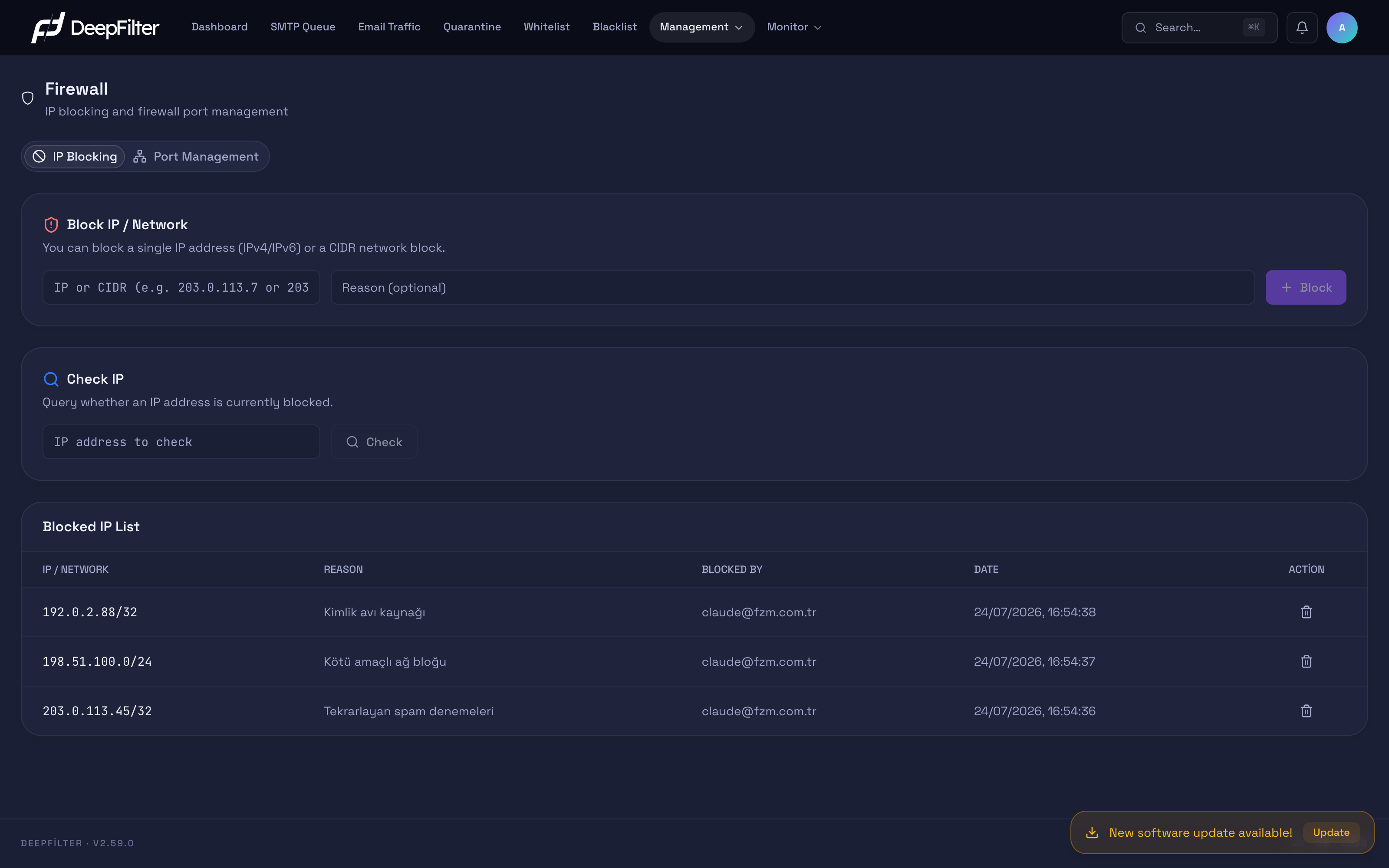
The Firewall screen is reached from Management → Firewall.
This screen is visible only to users with the global administrator role; domain administrators cannot reach it.
How It Differs from the Blacklist
IP/CIDR blocking in the Firewall and the blacklist are complementary tools that stop unwanted mail at two different levels. The essential difference is at which stage an email is evaluated, and what is being looked at.
| Criterion | IP/CIDR Blocking | Blacklist |
|---|---|---|
| What it looks at | Source IP address or network block | Sender address / domain, email content |
| Stage it works at | Network level, while the connection is being established | Sender and content evaluation |
| Outcome | The connection is rejected outright | Produces a score; the email is rejected or quarantined |
| Trace left behind | Produces no reason; no quarantine or log trace remains | Shows why it was caught, and it can be reviewed in Quarantine |
| Precision | Blunt and absolute, admits no exceptions | Granular; a single sender or domain can be targeted |
In short, IP/CIDR blocking is a crude but decisive tool for cases where you want to cut a source off entirely; the blacklist lets you target a single sender or domain without touching the legitimate senders on the same network. When a single unwanted sender is involved, the blacklist is the safer choice in most cases.
IP/CIDR Blocking
This section cuts a source off completely at the network level. All traffic from a blocked IP address or network block — not just email — is dropped while the connection is being established. The records are persistent: when the server restarts, the blocking rules are applied again automatically.
Blocking works at the network level and is not limited to a single service; every kind of connection from the blocked address is rejected. If you want to restrict a source for email only, add its sender or domain to the blacklist instead of blocking it at the network level.
Blocking an IP or Network
Prerequisites
- Make sure the address you are about to block really is an unwanted source. Do not try to block the network you connect from; the system refuses to let you block the connection you are using for administration (see Things to Watch Out For).
Steps
- Open Management → Firewall and go to the IP/CIDR Blocking section.
- In the IP / Network field, enter a single address (for example
203.0.113.10) or an entire network block (for example203.0.113.0/24). When you enter a block, every address on that network is targeted with a single record. - In the Reason field, write why you are blocking the address. It is not mandatory, but filling it in is recommended so that you can interpret the record correctly later.
- Click Block.
Verification — how to know it worked
- The address appears at the top of the blocked IP list. When you query the same address with Check IP, the result comes back as "blocked", and new connections from that source can no longer be established.
Check IP
This is for querying whether a particular address is on the block list. When you are investigating a sender's status, or want to make sure an address has not been blocked by mistake, enter the address and press Check — it reports the real result: if the address is blocked it shows the "blocked" state, the Reason recorded with it and the date it was blocked; if it is not blocked, the answer is "not blocked".
The query also takes subnet coverage into account. For example, while the
10.0.0.0/24 block is blocked, if you query a single address inside that block
(10.0.0.5) the result still comes back as "blocked", because the single
address falls within the scope of a blocked block.
Blocked IP List
This gathers the blocked addresses in a single table, newest record at the top. The columns:
- IP / Network — the blocked address or network block.
- Reason — the note entered while blocking.
- Blocked By — the email address of the administrator who performed the operation.
- Date — the moment the record was created.
- Action — the Unblock action that removes the address on that row from the block list.
If there are no blocked addresses yet, the table shows "No blocked IPs".
Unblocking an Address
Steps
- Find the relevant row in the Blocked IP List table.
- Click the Unblock button on the row.
- Confirm the operation in the Unblock this IP? window that opens. The window reminds you that the address will be removed from the block list and that connections from this IP will be allowed again.
Verification — how to know it worked
- The address disappears from the table, and querying it with Check IP returns "not blocked"; connections from that source are accepted again.
Unblocking removes only the network-level connection block. Emails that came from this IP and were quarantined earlier are not affected by this operation: they are not delivered and stay in quarantine. If you want to deliver them, release them separately from the Quarantine screen.
When you block an IP address or block, all connections from that address are rejected at the network level. Many legitimate senders share the same IP pools: shared hosting providers, large email services, corporate outbound server pools. When a broad block is blocked, emails from the legitimate senders sharing that pool are silently dropped too, and because no quarantine or log trace remains on your side, diagnosis is hard. Keep network blocks narrow and block only addresses whose source you are completely sure of.
Port Management
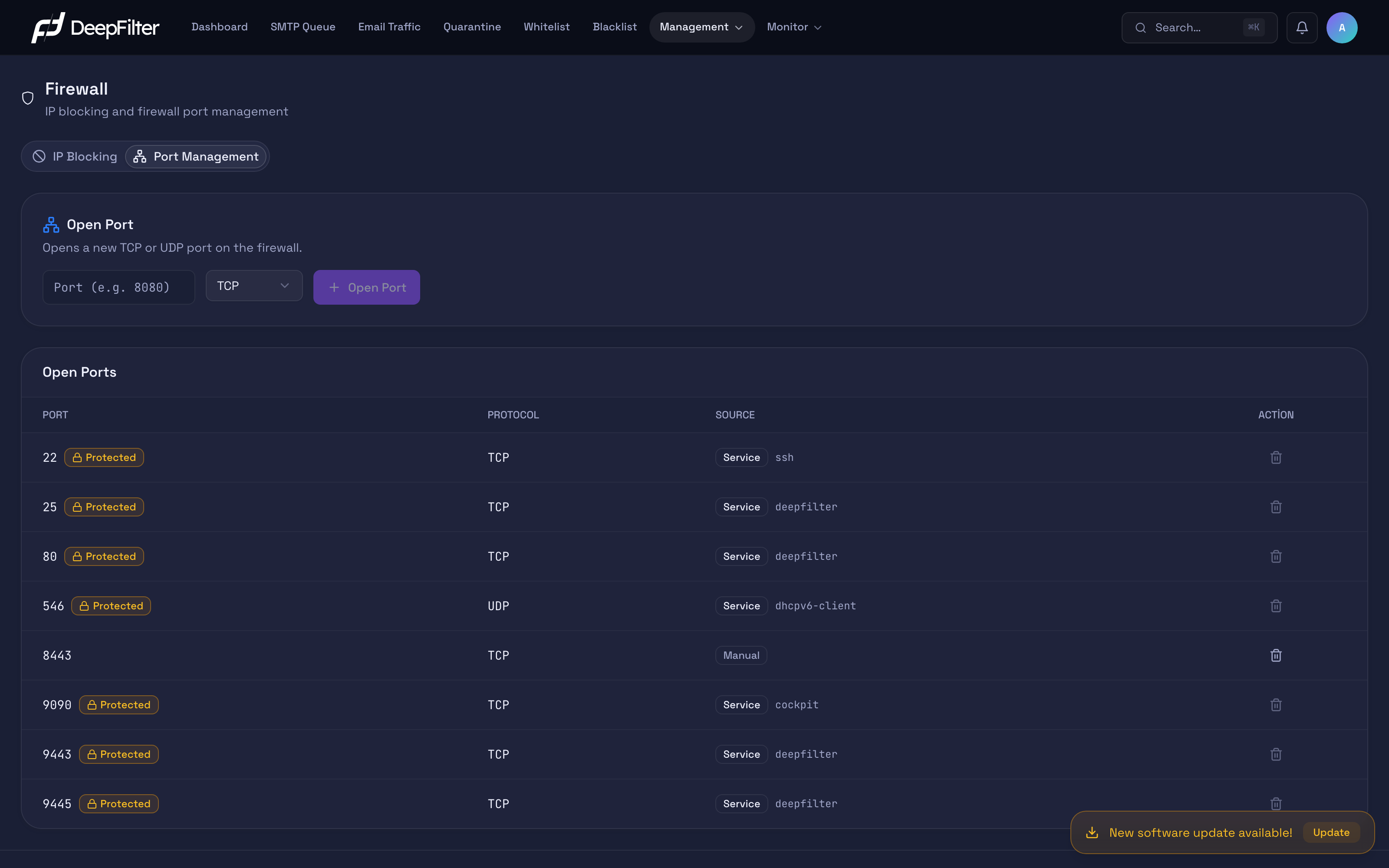
Port Management controls which network ports the server is reachable on from the outside. Every open port beyond the ones a service genuinely needs in order to run is an extra target for attackers; this section lets you narrow the server's attack surface by closing unnecessary ports and opening only the port you need.
Opening a Port
Steps
- Open Management → Firewall and go to the Port Management section.
- In the Port field, enter the port number you want to open (in the 1-65535 range).
- Select TCP or UDP as the Protocol.
- Click Open Port.
Verification — how to know it worked
- The port appears in the Open Ports list with Manual as its source.
If you enter a value outside the range, the operation is rejected with the warning "Enter a valid port number between 1 and 65535". Trying to reopen a port that is already open also returns an error.
Open Ports List
This lists the ports that are open on the server in a table. The columns: Port, Protocol, Source and Action.
The Source column distinguishes why the port is open:
- Manual — ports you opened by hand from this screen.
- Service — ports a system service opened in order to run; the name of the service is shown alongside. Which ports these are varies with the services installed on the server.
Some rows carry a Protected badge (a lock icon). Protected ports cannot be closed; on those rows the Close Port button is disabled, and hovering over it shows the hint "This port is required for the system to operate and cannot be closed." The ports counted as protected are the system ports — remote administration (SSH), email reception (SMTP), certificate renewal, the admin panel and the end-user portal — along with every port a service has opened.
Closing a Port
Only the ports you opened by hand (with Manual as the source) and that are not protected can be closed.
Steps
- In the Open Ports list, find the port row whose source is Manual and that does not carry the protected badge.
- Click the Close Port button on the row.
- Confirm the operation in the confirmation window that opens; the window reminds you that new connections to this port will be blocked.
Verification — how to know it worked
- The port disappears from the Open Ports list, and new connections to that port can no longer be established.
Things to Watch Out For
- The risk of locking yourself out. Blocking at the network level is absolute; a wrong address or block can cut off your access to the server entirely. The system prevents the most common lockout by refusing to let you block the source of the connection you use for administration (the operation stops with the message "The operation was rejected because you would be blocking your own access"); even so, when blocking broad blocks, make sure your own network does not fall within their scope.
- Protected ports exist for exactly this risk. The fact that ports such as SSH, SMTP, certificate renewal, the admin panel and the end-user portal cannot be closed prevents you from making the server unreachable to yourself and to your users through a configuration mistake.
Troubleshooting
There is a "Firewall service is not running" warning at the top of the page and my blocks are not being applied. While the system firewall service is stopped, a yellow warning banner appears at the top of the page and the IP blocking and port rules are temporarily not enforced. Your records are not lost; they simply stay dormant. Once the service is restarted, the saved rules are put back into effect automatically.
A port's Close Port button is disabled, I cannot close it. That port is protected (its row carries a lock badge). Ports required for the system to operate and ports opened by a service cannot be closed. Only ports whose source is Manual and that are not protected can be closed.
I tried to block an address but got the warning "The operation was rejected because you would be blocking your own access". The address or block you are trying to block covers the source you are currently connected to the admin panel from. The system rejects the operation to keep you from locking yourself out of the server. If that really is the source you want to block, connect from a different, safe network first.