Users
The DeepFilter management panel controls the email traffic, quarantine, filtering rules and system settings of every domain from a single place. Any account that can reach this panel is a serious risk in the wrong hands: one full-access account with a leaked password opens up the entire email security of the organization, and an administrator whose permissions have not been narrowed to their actual job can break a critical rule by accident.
The Users screen limits that risk with role-based access. Each administrator is given only as much authority as their job requires (the principle of least privilege): a domain administrator sees only their own domain, an auditor only watches their own scope, and full access stays with the people who genuinely need it. Granting access to a new administrator, changing an account's role, resetting its password, renewing its two-factor authentication or removing its access are all done from this screen.
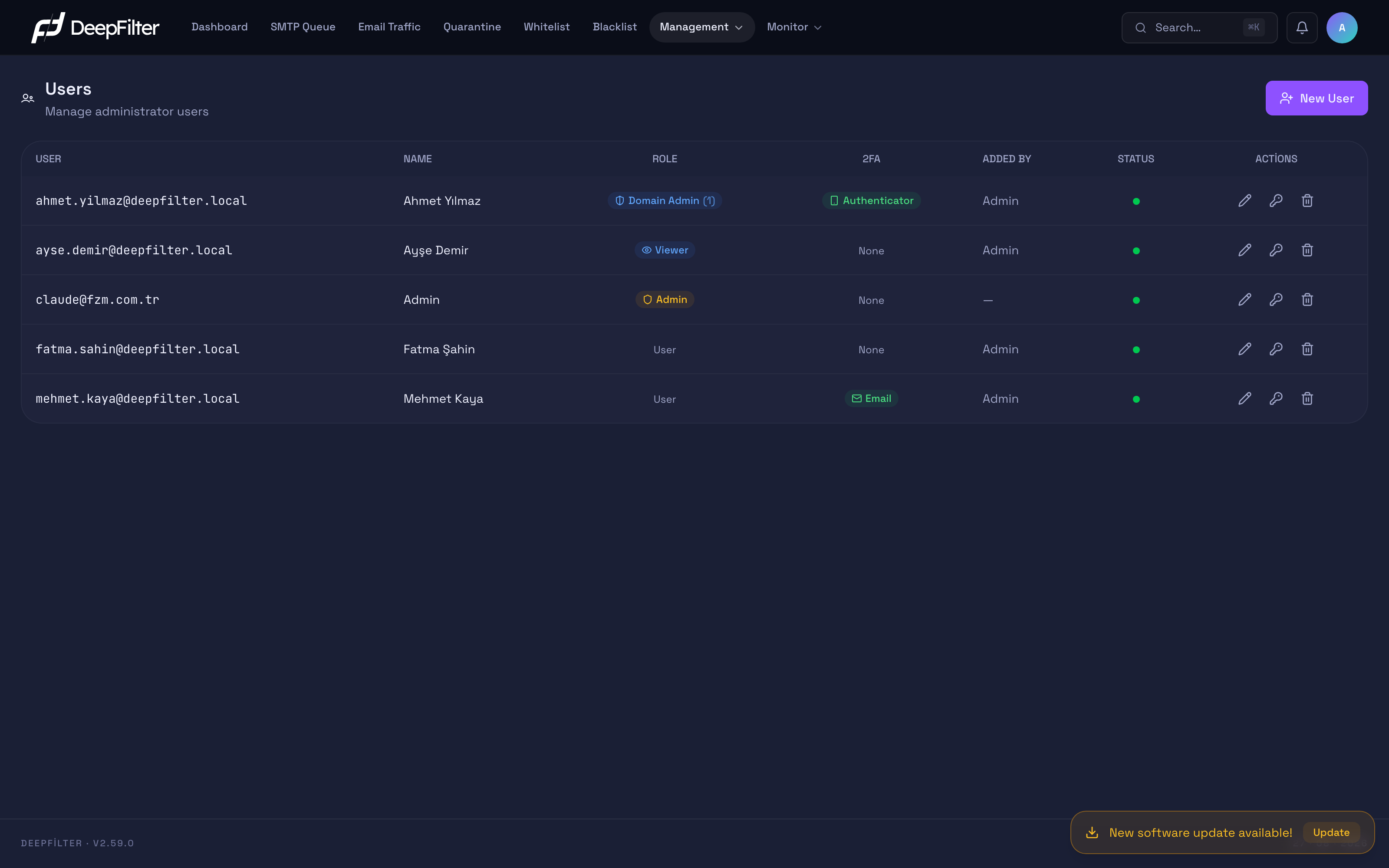
Every row in the list summarizes one administrator account together with its role, two-factor authentication method and active status. You reach the screen through Management → Users.
Roles
Every administrator account is assigned one of three roles, and the roles are mutually exclusive — an account cannot be both Admin and Domain Admin at the same time. Selecting a role is mandatory: if the Select a role field is left empty in the new user form, the record is rejected with the warning "A user role must be selected". The role determines which operations the user can perform. User management (adding accounts, deleting them, resetting passwords) is open only to the Admin role.
Admin (full access) — Full authority over all domains, all settings and all users. Only an Admin can perform any of the operations on this screen. Marked in the row with an amber shield badge.
Domain Admin — Responsible only for the domains and delivery servers assigned to them (see Authorized domains and servers). The numbers next to the badge show how many domains and servers are assigned. In the menu they see only the Dashboard, Email Traffic, Quarantine and Whitelist sections; the SMTP Queue, Blacklist, Management and Monitor groups are hidden from this role. They also cannot perform system-wide learning operations (filter training that affects every domain at once): the teaching they do from the quarantine does not change the server's classifier. The whitelist entries they add apply only to email arriving at their own domains, and they cannot grant Full Pass; they can see the global administrator's whitelist entries but cannot edit or delete them.
Read-only (Viewer) — A scoped account for monitoring and auditing. Like a Domain Admin, it is limited by assigning domains and/or delivery servers, and it sees only the data within that scope. Its menu contains only Dashboard and Email Traffic: it can review the overview and the email traffic of the domains in its scope, export the traffic list as CSV or PDF, and manage its own password, two-factor authentication and interface language. Quarantine, the whitelist/blacklist, settings and support tickets are closed to this role; the server-wide RBL summary is not shown either. When any change operation is attempted, the system denies access. Suitable for auditors, reporting teams or teams that only follow status. Marked in the row with an eye badge and the numbers of assigned domains/servers.
Hiding menu sections applies to the Domain Admin and Read-only (Viewer) roles. This is visibility only; the real protection is on the server side: when an account requests an operation outside its role, or the data of a domain outside its scope, the system rejects it.
Settings
The fields below are managed in the New User and Edit forms. The role selection is in the same form; for what each role does, see the Roles section above. The Require 2FA and Active status fields exist only in the Edit form; a new user is always created as active and without a two-factor requirement, and those two settings are applied from the Edit form after the account has been created.
Email address — The identity of the account and the sign-in username; the user signs in to the panel with this address. The address is converted to lowercase when it is stored. (required field)
Why it exists: It gives every administrator a unique identity and determines the address that password resets and one-time codes sent by email will go to.
If you change it: If you change the email while editing, the user's sign-in name changes with it; from then on the user must sign in with the new address. A second account cannot be created with the same email — the system rejects a duplicate address.
Authorized servers and Authorized domains — Appear when the Domain Admin or Read-only (Viewer) role is selected and determine the user's scope. When you select a delivery server, every domain attached to that server automatically falls within the scope — including domains added to the server later; those domains appear locked in the domain list as "Covered by server grant". You can also select individual domains. The user sees only the data within this scope. (required for Domain Admin and Read-only: at least one domain or server; at most 100 individually selected domains)
Why it exists: It confines a domain administrator and an auditor to their own area of responsibility and prevents them from seeing the data of another unit or customer. A server assignment removes the burden of keeping the list up to date one domain at a time for a team responsible for every domain behind a delivery server.
If you change it: Adding a domain or server widens the user's field of view; removing one narrows it. If you select no domain or server for a scoped role, the record is rejected with the warning "Select at least one domain or server for a domain admin" (for Read-only, "Select at least one domain or server for a read-only user"). Assignments are preserved when switching between Domain Admin and Read-only; if you make the user an Admin, the assignments are removed — if you return them to a scoped role, you must assign them again.
Require 2FA (Edit form only) — Forces this user to set up two-factor authentication (2FA) on their next sign-in. (default: off; recommended to be turned on for Admin accounts)
Why it exists: A password on its own can be stolen. A second factor protects the account even if the password leaks; on the most privileged accounts it makes that protection certain.
If you change it: If you turn it on, the user cannot use the panel without setting up 2FA. If you turn it off, 2FA is left to the user's own preference. This setting is specific to a single user and works independently of the system-wide 2FA requirement. Which method the user has set up (Authenticator, Email or None) appears in the 2FA column; that column is informational only and is not changed from here.
Require password change on first login — Forces the user to change their password on their first sign-in (or on the first sign-in after a password reset). (default: off for a new user, on for a password reset)
Why it exists: An initial password set by an administrator is also known to that administrator. Having the user move to a password only they know closes this shared-secret surface.
If you change it: On → the user renews their password at first sign-in. Off → the password you set stays in place.
Active status (Edit form only) — Makes the account active or inactive. The dot in the STATUS column reflects this value: green = active, red = inactive. (default: a new user is created as active)
Why it exists: It lets you temporarily remove an administrator's access without deleting their account and history (approved leave, a change of duties, a temporary suspension).
If you change it: If you make it inactive, the user cannot sign in but the account and the audit history are preserved; if you make it active again, access comes back. This is a safe alternative to permanent deletion (see Things to Watch Out For).
Adding a New User
Prerequisites
- You must be signed in with the Admin role; adding users is open only to an Admin.
- If you are going to add a Domain Admin or a Read-only user, the domain or delivery server you will assign must already be defined in the system.
Steps
- Open Management → Users and click New User at the top right.
- Enter the sign-in address in the Email field; this becomes the user's sign-in name.
- Optionally enter a Name (the display name; it may be left empty).
- Select a Role. If you selected Domain Admin or Read-only (Viewer), tick at least one server or domain in the Authorized servers / Authorized domains fields that appear.
- Set an initial password. By default the password must be at least 8 characters and contain a letter, a digit and a special character; a password that does not meet this condition is rejected.
- If necessary, tick the Require password change on first login option.
- Click Save.
Verification — how to know it worked
- The new account appears in the list and carries a green dot in the STATUS column. The user can sign in with the email and password you set.
Changing User Details and Role
Prerequisites
- Admin role.
Steps
- In the Management → Users list, click the pencil (Edit) icon on the relevant row.
- Update the email, name, role, authorized servers and domains, active status or the two-factor requirement.
- If you are making the role Domain Admin or Read-only, assign at least one domain or server. If you are changing the role to Admin, remember that the assigned domains and servers will be removed.
- Click Save.
Verification — how to know it worked
- The role and badge in the row are updated. A change of role and permissions takes effect on the user's next sign-in, not immediately.
Resetting a Password
If a user forgets their password or it has to be renewed for security reasons, this operation gives them a new initial password.
Prerequisites
- Admin role.
Steps
- In the Management → Users list, click the key icon on the user's row.
- Set the new password. By default the password must be at least 8 characters and contain a letter, a digit and a special character.
- Click Save.
Verification — how to know it worked
- The user can sign in with the new password and is asked to change it on their first sign-in.
On a password reset, "Require password change on first login" is on by default; the user replaces the temporary password you set with their own at first sign-in. Send the new password to the user over a secure channel only.
Resetting Two-Factor Authentication
If a user loses their two-factor authentication device (the authenticator app or access to their email), you reset their 2FA; the user sets up a new method at their next sign-in.
Prerequisites
- The user must have 2FA set up. If the 2FA column says None, there is nothing to reset and the reset button is disabled.
- You cannot reset the 2FA of your own account from here; use the Profile screen for that.
Steps
- In the Management → Users list, click the pencil (Edit) icon on the user's row.
- Click the Reset 2FA button in the form.
- Click Save.
Verification — how to know it worked
- The 2FA column returns to None; the user is directed to set up a new authentication method at their next sign-in.
The reset clears the user's authenticator app method and email method together, and it is written to the audit log. The operation is a button inside the Edit form, not an icon in the list.
Deleting a User
Deletion permanently removes an account and its access. If you want to remove access temporarily, make the account inactive instead of deleting it (see Active status).
Deleting a user cannot be undone, and the system does not stop you from deleting the last Admin account. If only one full-access Admin is left in the system and you delete it (or lower its role), access to the management interface is lost entirely. Before deleting, make sure at least one other active Admin account exists.
Steps
- In the Management → Users list, click the trash icon on the user's row.
- Confirm the confirmation prompt.
Verification — how to know it worked
- The account disappears from the list and that user can no longer sign in.
You cannot delete the account you are signed in with; the system does not allow it. If your own account has to be removed, another Admin must perform the operation.
Things to Watch Out For
- Account operations are recorded in the audit log. Creating, updating and deleting a user, resetting a password, resetting two-factor authentication, changing a Domain Admin's authorized domains and changing the password policy are written, together with the administrator who performed them, to the Monitor → Audit Logs screen (under the User Management heading); if SIEM forwarding is on, they are also sent to the SIEM together with the target account.
- Deactivate instead of deleting. When you remove an administrator's access, in most cases you do not need to delete the account. If you set the active status to inactive from the Edit screen, the user cannot sign in but the account, the role and the audit history are preserved; you can reactivate it later. Deletion is preferable only when the account must be removed completely.
- A role change is not immediate. If you change a user's role, the new permissions are applied at the user's next sign-in. If you need to cut off access right away, consider making the account inactive.
- Password requirements do not apply retroactively. The rules applied to an initial password (by default at least 8 characters, letter + digit + special character) are checked only when creating a new account and when resetting a password; they do not affect weak passwords that are already stored. To strengthen the password of an existing account, use the password reset operation.
Troubleshooting
- A Domain Admin or Read-only user cannot see some menus. This is by design. A Domain Admin sees only the Dashboard, Email Traffic, Quarantine and Whitelist sections, and a Read-only user sees only the Dashboard and Email Traffic sections. If the user needs access to other sections, review their role.
- A Read-only user sees no data at all. Either there is no traffic for the domains in their scope in that time range, or the wrong server/domain has been assigned. Check the Authorized servers and Authorized domains fields in the Edit form.
- The Reset 2FA button is disabled. The user has no two-factor authentication set up; since there is nothing to reset, the button is off. If the 2FA column says None, this is the expected state.
- I cannot delete my own account or reset my own 2FA. The system blocks these two operations on the account you are signed in with. For deletion, ask another Admin; to renew your own 2FA, use the Profile screen.
- A new user cannot be added. There are two common reasons: the email you entered is already registered (a duplicate address is rejected), or the password you set does not meet the requirements (by default at least 8 characters, letter + digit + special character).
- The ADDED BY column is empty (—) for one account. Because the first administrator account was created by the system installation rather than by an administrator, that row carries no "added by" information. Accounts added later show the name of the administrator who created them.