Reports
Following email security regularly means logging into the panel every day; in practice that habit slips. Reports remove the burden: on a schedule you define, they automatically produce the security summary of a completed period (a day or a week) and email it to the recipients you choose. That way the protection rate, threat breakdown, quarantine summary and system status land in your inbox every day or week without you opening the panel.
Every report definition carries a report type that it will produce. There are three types: the comprehensive Executive Report (General Report in the form), which summarizes the whole security picture of the organization, the Quarantine Report, which focuses on quarantine activity and portal usage, and the DMARC weekly summary, compiled from DMARC reports. The report type you choose determines a definition's content, the period (daily/weekly) determines the span it covers, and the format (HTML/PDF) determines how it reaches the recipient. The name you give a definition is a free-form label, only there to tell definitions apart in the list; the report's content is determined by the report type you choose, not by the name.
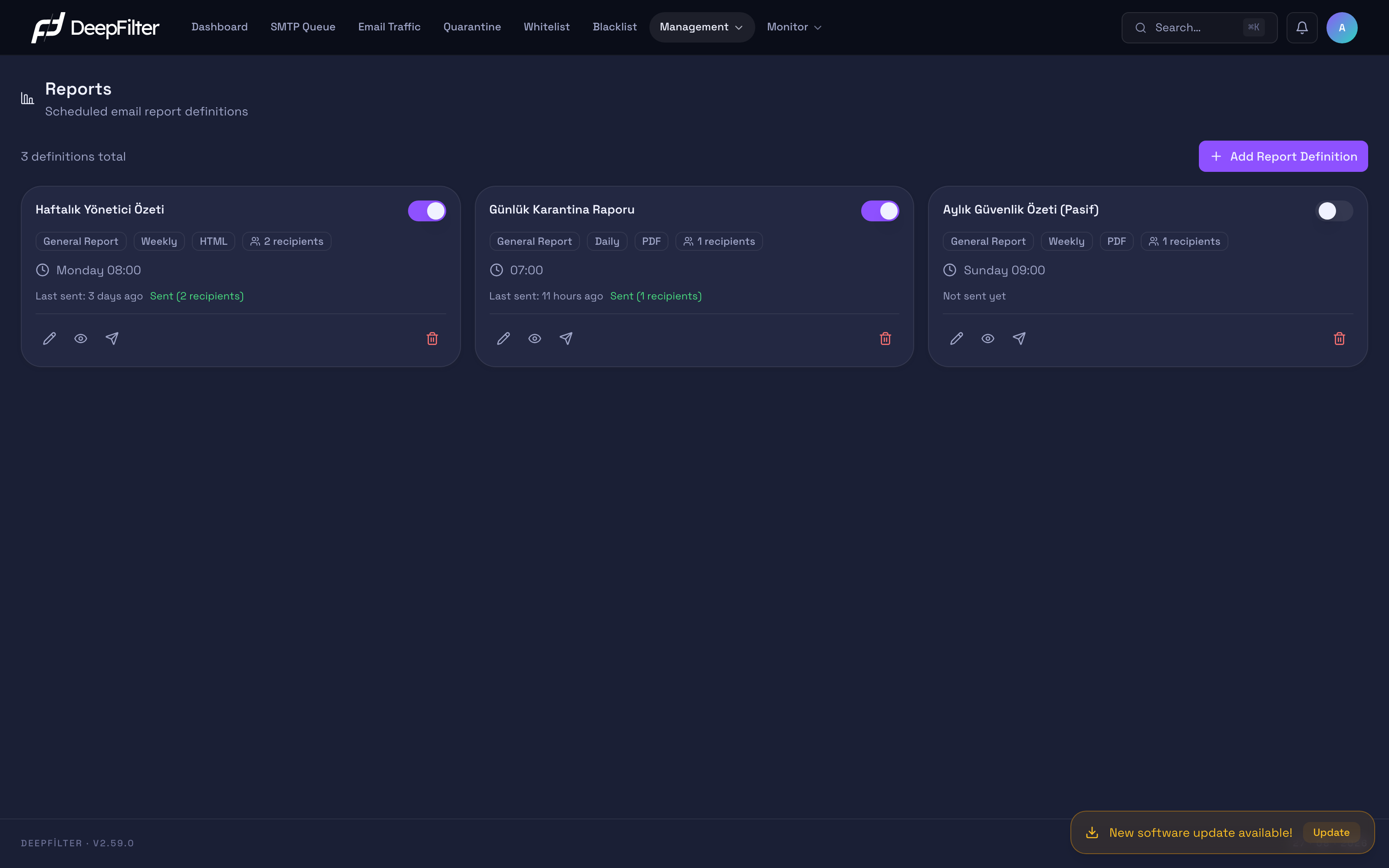
Each card shows one scheduled report definition, its delivery schedule and the status of the last delivery.
Executive Report
The Executive Report is a comprehensive security summary produced from the completed data of the period you choose; it is used to see the organization's overall protection picture at a glance and contains these sections:
- Overview: Protection rate, total emails processed and total threats; the number of emails delivered, quarantined and rejected — each with its percentage change against the previous period.
- Traffic: The inbound/outbound direction breakdown and a time series across the period (broken down hourly in the daily report, daily in the weekly report).
- Threat breakdown: The distribution of threats in the same language as the categories on the quarantine screen — Antivirus Signature Match, Phishing, RBL Blacklist, DeepFilter AI, SGB Threat Intelligence, Central Intelligence and DLP / Content Protection; each category is given as a count and a share.
- Top lists: Top email senders, senders that were temporarily rejected, top recipients, top spam source countries and IP addresses.
- Operations: Delivery performance (average/maximum time), quarantine summary (quarantined, released, deleted, pending), rate limit and security events (failed SMTP authentication, blocked IP addresses).
- System: License usage and system health; the footer carries the report number, the installed version and the server name.
The report is fault-tolerant: if the data for a section cannot be retrieved, that section appears as zero/empty, and the report is still produced and sent.
Quarantine Report
The Quarantine Report is a narrower report that focuses only on quarantine activity and end users' portal usage rather than the organization's overall security picture. Its sources are the quarantine data and the user portal visit records. It answers the questions "which addresses receive how much unwanted email, where does that email come from, and how often do users check their quarantine"; it exists as a separate type for administrators who want to monitor quarantine and end-user behaviour regularly.
The report contains these sections:
- Total blocked email — The total number of emails quarantined during the period.
- Top 10 addresses/domains receiving spam — The recipient addresses and domains that received the most unwanted email during the period.
- Top spam senders — The sender sources that dropped the most email into quarantine.
- Domain distribution — The distribution of quarantined emails across the protected domains.
- User (portal) visit frequency — How often end users visited the quarantine portal during the period.
Like the Executive Report, the Quarantine Report is produced daily or weekly: the daily report covers the previous full calendar day and is sent the next morning, the weekly report covers the previous full week. The output is received in the HTML email body or as a PDF attachment and reaches the recipients you choose by email. You can see the content before delivery with Preview, and send a trial copy to a single address with Test Send (see the Previewing a Report and Sending a Test section below).
Creating a Quarantine Report
The Quarantine Report is produced from the same form as the other reports; the only difference is the report type selection.
Steps
- Open a new definition with Management → Reports → Add Report Definition.
- Select Quarantine Report as the Report Type.
- Fill in the period (Daily/Weekly), the send time, the format, the language and at least one recipient, just as you would for the other reports (see Settings).
- Leave the definition Enabled and save.
Verification — how to know it worked
- In the report you open with Preview on the card, the total blocked email, top 10 addresses/domains receiving spam and user visit frequency sections come back filled in. You can verify delivery by sending a trial copy to a single address with Test Send.
DMARC Weekly Summary
The DMARC weekly summary summarizes the last 7 days of DMARC data for every domain with report collection enabled on the DMARC Management screen:
- the number of emails that passed and failed DMARC,
- sending services seen for the first time in the period,
- a warning about email sent from your own DeepFilter servers that failed DMARC,
- a policy transition recommendation (the same decision as the Policy transition readiness card on the DMARC Management screen; if there is no verified legitimate traffic in the period, it reads No verified legitimate traffic in this period; a policy recommendation needs reports. instead of a recommendation).
You create a definition of this type in one of two ways: by turning on the Weekly summary email option on the DMARC Management → Setup & Settings tab (the definition is set up for every Monday at 09:00, addressed to the administrator alert address), or by selecting DMARC weekly summary as the Report Type on this screen. When this type is selected in the form, the period comes as Weekly, because the summary always covers the last 7 days. The recipient, day and time are changed with Edit, as with other definitions. This definition also counts toward the limit of 20 definitions.
If no domain has report collection enabled when the delivery time comes, the report is not sent and the card shows Skipped: no DMARC-enabled domain.
Scheduling and the Data Window
The scheduler checks all definitions every 15 minutes in the background and sends those whose delivery time has come. A few behaviours matter for reading this screen correctly:
- The data window is always a completed period. The daily report covers the previous full day (from yesterday 00:00 to today 00:00), the weekly report the previous full week (from last Monday to this Monday). The report never contains partial data from today or this week — which is why the figures are fixed and do not change during the day.
- Times are Türkiye time (UTC+3). The send time is interpreted in that time zone.
- Delivery only happens in 15-minute slots — :00, :15, :30 and :45. Because the scheduler runs on that rhythm, an in-between minute cannot be selected.
- The same period is never sent twice. Even if the scheduler restarts or slots overlap, a period's report goes out only once (duplicate delivery protection). If a delivery fails, it is retried in the next slot.
Settings
The fields below appear in the form when you open it with Add Report Definition or by clicking Edit on a card; they determine when, to whom and in what form the definition is sent.
Report Type — Determines which report this definition produces. (default: General Report)
Why it exists: The organization's overall security picture, a quarantine/portal focused summary and a DMARC summary are different needs; the report type separates these contents.
Values:
- General Report — Produces the Executive Report. Comprehensive security summary: protection rate, traffic, threat breakdown, top lists, operations and system sections.
- Quarantine Report — A narrow report focused on quarantine activity and portal visit frequency (see the Quarantine Report section above).
- DMARC weekly summary — The last 7 days' DMARC summary for domains with report collection enabled (see the DMARC Weekly Summary section above).
If you change the value: The type changes only the content produced; the period, send time, format, recipients and language settings work the same way for all types.
Name — A free-text label that lets you tell the definition apart in the list and in the edit screen (at most 120 characters). (default: empty)
Why it exists: So that you can see which is which when you have several definitions with different periods, recipients or formats.
If you change the value: The name is only the visible label; it does not change the report's content, scope or email subject. The content is determined by the report type and period you choose, not by the name.
The name is only a label; the report's content is determined by the report type, not the name. Naming a definition "Quarantine" does not make it a Quarantine Report — for that you must also set the report type to Quarantine Report. The email subject is likewise produced from the type and period you choose, not from the name.
Period — Determines the data window the report covers and the delivery frequency. (default: Daily)
Why it exists: Daily operational monitoring and a periodic management summary are different needs; the period separates those two rhythms.
Values:
- Daily — Sent every day; the report covers the previous full day, and the time series is hourly.
- Weekly — Sent once a week on the day you choose; the report covers the previous full week, and the time series is daily.
There is no monthly period; the system offers only Daily and Weekly.
Send Time — The time the report is sent (Türkiye time, UTC+3). Only 15-minute slots can be selected: :00, :15, :30, :45. (default: 08:00)
Why it exists: So that you decide the moment of delivery and have the report on your desk at the start of the period.
If you change the value: An earlier time brings the report to your inbox before working hours. An in-between minute (08:07, for example) is not accepted; you must pick one of the 15-minute slots in the list.
Day of Week — Which day the weekly report is sent (Monday–Sunday). (default: Monday)
Why it exists: To set a fixed delivery day for the weekly summary.
If you change the value: It only takes effect on the Weekly period; it is ignored while the Daily period is selected.
Format — The form in which the report reaches the recipient. (default: HTML)
Why it exists: The format depends on how the recipient will use the report: quick reading in the inbox, or a single file to archive and share.
Values:
- HTML — The full report arrives directly in the email body; charts and the logo are embedded and there is no attachment.
- PDF — The report arrives as an A4-sized PDF attachment (file name
deepfilter-rapor-YYYYMMDD.pdf); the email body contains only a short cover note (period and server), and the full report is not repeated in the body.
Preview always shows HTML whatever the format is; there is no separate PDF preview. Also, if PDF generation fails for some reason the report is not lost: the full content drops into the email body as HTML and the delivery still completes. In that case the card's last delivery status appears in warning color as "Sent (N recipients, PDF failed — HTML body)".
Recipients — The email addresses the report is sent to. (at least 1, at most 50)
Why it exists: It determines who the report goes to; several administrators or stakeholders can receive the same report.
If you change the value: At least one recipient is required; a definition with no recipients cannot deliver and shows the "Recipient list is empty" state on its card. If the same address is repeated, it is reduced to one.
Report Language — The language of the report content and the email subject: Turkish or English. (default: Turkish)
Why it exists: So the report is produced in Turkish or English according to the language of the audience.
Enabled / Disabled — The switch that determines whether the definition delivers when its time comes (it is on the card and in the form). (default: Enabled)
Why it exists: So you can stop a report temporarily without deleting it.
If you change the value: When you set it to Disabled, all settings (recipients, time, format, language) are preserved but no delivery happens even when the time comes. When you set it back to Enabled, delivery resumes from the next available slot.
Creating a New Report Definition
Prerequisites
- At least one email address to receive the report must be ready.
- The total number of definitions must be under 20; the upper limit is 20 report definitions.
Steps
- Open Management → Reports.
- Click Add Report Definition at the top right.
- Give the definition a name you will recognize in the list.
- Select the Report Type: General Report for the comprehensive Executive Report, Quarantine Report for the quarantine/portal focused report, or DMARC weekly summary.
- Select the period (Daily or Weekly). If you chose Weekly, set the delivery day.
- Select the send time from the 15-minute slots.
- Select the format (HTML or PDF) and the language (Turkish or English).
- Add at least one recipient email address.
- Make sure the definition is Enabled and save.
Verification — how to know it worked
- The new definition is added to the list as a card and appears in the "Not sent yet" state.
- Use Preview on the card to see the content right away, and Test Send to try a real delivery (see below). The first scheduled delivery happens automatically when the period, day and time you chose arrive.
Previewing a Report and Sending a Test
You can try a definition in two ways without waiting for its scheduled delivery. Neither affects the defined recipients or the schedule.
Preview (eye icon)
- Click the eye icon at the bottom of the card. The report is produced there and then but not sent; the content opens safely in the "Report Preview" window. Even if the format is PDF, the preview shows HTML.
Test Send (paper plane icon)
- Click the paper plane icon at the bottom of the card. In the window that opens, enter a single test email address and send. The report is produced and reaches only that address immediately.
Verification — how to know it worked
- The report appears in the test address's inbox.
- The card's Last sent information does not change — because a test delivery does not affect the schedule or the defined recipients.
Test Send does not send the report to the defined recipients. It reaches only the single test address you enter at that moment; it does not update the "Last sent" time and does not affect the scheduled delivery. The only thing that gets the report to the real recipients is the automatic delivery at the definition's scheduled period/day/time.
Pausing and Deleting a Report
Pausing
- To stop a report temporarily, set the switch at the top of the card to Disabled. The definition and all its settings are preserved; no delivery happens even when the time comes. When you set it back to Enabled, delivery resumes from the next available slot.
Deleting
- To remove a definition permanently, click the red trash icon at the bottom of the card and confirm.
Deletion cannot be undone: the definition and all its settings (recipients, time, format, language) are removed, and you have to recreate it if you need it again. If you only want to stop a report temporarily, set it to Disabled instead of deleting it — all settings are preserved.
Troubleshooting
The card says "Not sent yet".
- Reason: The definition has never delivered — usually it was just created and the first scheduled slot has not arrived yet, or the definition is Disabled.
- Fix: Confirm that the definition is Enabled and that the period/day/time match the time you expect. Use Test Send to see the content right away.
The card says "Recipient list is empty".
- Reason: The definition has no recipients, so it cannot deliver.
- Fix: Add at least one recipient email address with Edit and save.
The card shows "Error" and a technical explanation.
- Reason: The last delivery attempt failed.
- Fix: Look at the detail in the explanation and confirm that the recipient addresses are valid. Delivery is retried automatically in the next scheduled slot.
The card says "Sent (N recipients, PDF failed — HTML body)".
- Reason: The report reached the recipients, but because the PDF attachment could not be generated, the full content was sent as HTML in the email body.
- Fix: The content is not incomplete; recipients can read the report in the email body. If the state persists in later deliveries, contact the support team to have PDF generation investigated.
The report did not arrive at the expected time.
- Reason: The time is in Türkiye time (UTC+3) and delivery only happens in 15-minute slots; the definition may also be Disabled or the recipient address may be wrong.
- Fix: Check that the send time falls on a 15-minute slot, that the definition is Enabled and that the recipient address is correct.
The card says "Skipped: no DMARC-enabled domain".
- Reason: The definition is of the DMARC weekly summary type, and at delivery time no domain has report collection enabled in DMARC Management.
- Fix: Enable report collection for at least one domain on the DMARC Management → Setup & Settings tab; the next delivery proceeds normally.
The figures do not reflect today's traffic.
- Reason: The report always covers a completed period; the daily report shows yesterday, the weekly report last week. This is by design.
- Fix: Follow current, live data from the panel; the report is the fixed summary of a closed period.