System
DeepFilter's email security rests on two infrastructure services that usually go unnoticed: the server's correct time and its ability to resolve names. If the clock drifts, DKIM signatures and TLS certificate validations appear invalid; if name resolution breaks, MX, SPF and certificate lookups fail and email flow slows down or stops altogether. These two services are not a cosmetic detail — they are the silent precondition for filtering.
The System screen lets you configure them from one place: the NTP tab manages how the server clock is synchronized over the network, the DNS tab sets the resolver addresses the server uses, and the VMware Tools tab manages the integration component between the server and its hypervisor when the server is a VMware virtual machine. The Network tab lets you change the server's IPv4 address, prefix and gateway with confirmation (see Network). The Multi-Server tab lets you pair several DeepFilter servers and monitor each other's connection status (see Multi-Server).
NTP — Time Synchronization
The server clock is continuously synchronized with trusted time sources on the network. Accurate time is critical: DKIM signature validation, the validity window of TLS certificates and the chronological consistency of log records all depend directly on the system clock. If the clock drifts by a few minutes, DKIM and DMARC validation of incoming email can fail, TLS certificates can be rejected as "not yet valid" or "expired", and timestamps across different records stop lining up, which makes incident investigation harder. This tab defines which time sources the server uses and shows the live state of synchronization.
Settings
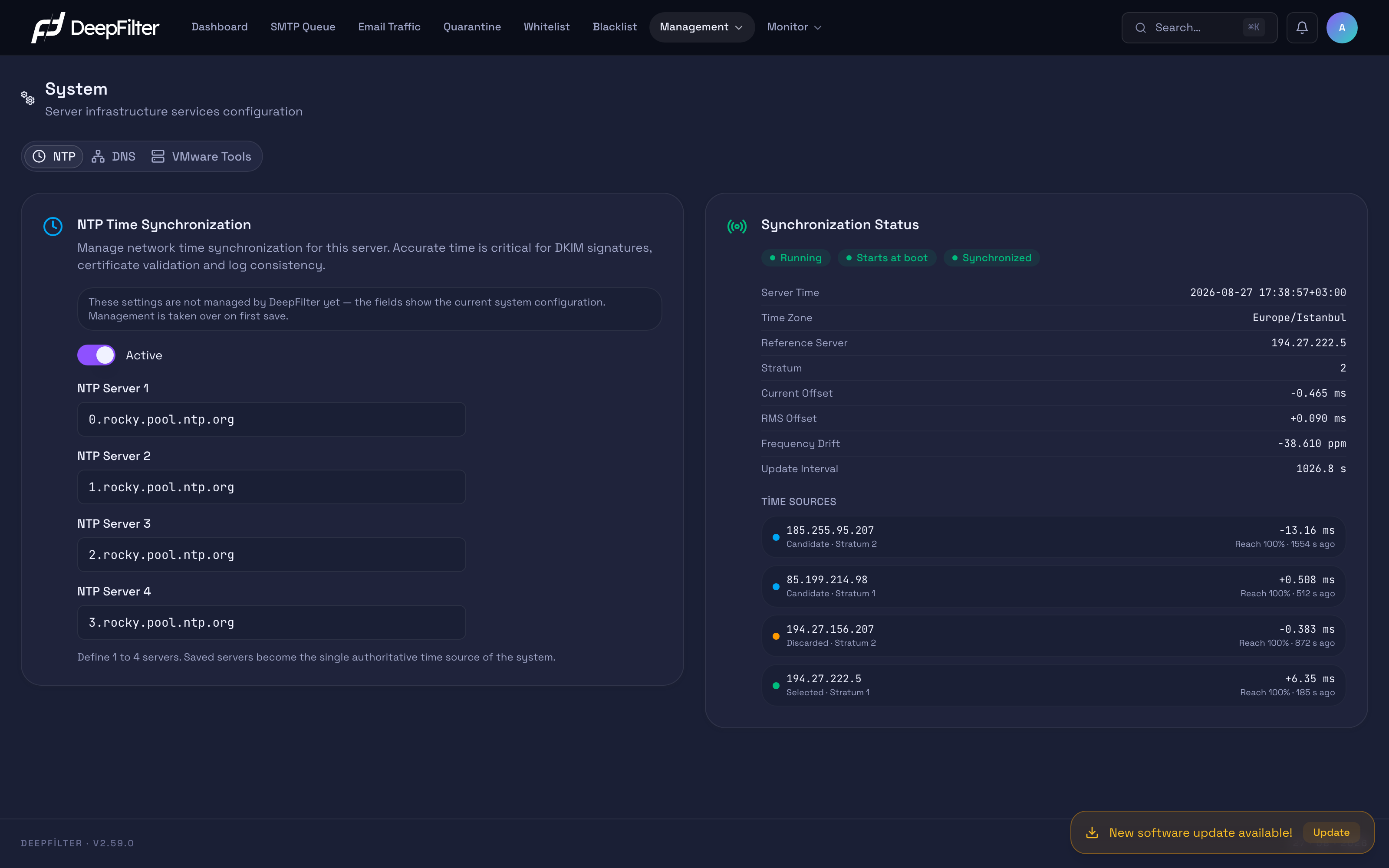
Until time management is saved for the first time, the fields show the server's current configuration and an information note states that the settings are not managed by DeepFilter yet. With the first save, time management passes to DeepFilter and the sources you define become the single authoritative time source of the system.
Active — Turns the server's time synchronization service on or off. While on, the server continuously corrects its clock from the defined sources. (default: on)
Why it exists: On virtual servers and on systems that run for a long time the hardware clock drifts on its own; synchronization corrects that drift continuously and keeps the time trustworthy.
If you change the value: If you turn it off, the clock is left uncorrected and drifts over time, which breaks DKIM/DMARC validation, TLS certificate checks and log consistency. Turning it off is not recommended without a specific reason. If you leave it on, the clock stays aligned continuously.
NTP Server 1 – 4 — The addresses of the time sources the server queries to
align its clock; define at least 1 and at most 4 sources. (default: the
operating system's default time pool, 0 – 3.rocky.pool.ntp.org)
Why it exists: Defining more than one source means the clock can still be verified against a reliable reference when a single source becomes unreachable; the service picks the most consistent source itself.
If you change the value: If you enter an internal time server, all your servers align to a common reference, which may be required on networks that are closed to the outside. If you reduce the list to a single address, there is nothing left to synchronize against when that address becomes unreachable — leaving several addresses is safer.
The sources you save become the system's single authoritative time source; any other sources previously defined on the server are disabled. If you use a separate time server on your internal network, make sure you add it to this list.
Synchronization Status
This section refreshes live data roughly every 10 seconds so that you can diagnose whether synchronization is working properly. All three status badges are expected to be green: Running (the service is running right now), Starts at boot (it comes up automatically when the server restarts) and Synchronized (the clock is actually locked to a source). If the clock has not locked to a source yet, this badge turns red and its label changes to Not Synchronized; in that case the time is not yet trustworthy.
| Indicator | What it tells you and when it needs attention |
|---|---|
| Server Time / Time Zone | The server's current date and time and the active time zone. If the zone differs from the expected one, DKIM and certificate interpretations shift with it. |
| Reference Server / Stratum | The source currently being followed and its stratum level. The reference stratum on screen is one higher than the source's (source stratum 2 → reference stratum 3); this is normal, not an error. |
| Current Offset / RMS Offset | The difference between the system clock and the source (ms). Current Offset is the difference right now; a positive value means the system is ahead. RMS Offset is the long-term average magnitude of the offset and carries no direction. Millisecond levels are normal; rising to seconds or minutes is a sign of trouble. |
| Frequency Drift | How much the clock frequency is being corrected. It is normal for as long as correction continues. |
| Update Interval | How often the server synchronizes. The interval widens as synchronization settles. |
The Time Sources list shows each source with its own status: Selected
(currently followed), Candidate (waiting in reserve), Discarded (not found
suitable) and Unreachable. The reach percentage states how many of the recent
queries were answered; 100% is ideal. If most sources appear as Discarded or
Unreachable, synchronization has no reliable foundation and you need to review the
source addresses or network access.
Updating the NTP Servers
Steps
- Open Management → System → NTP.
- Make sure the Active switch is on.
- Enter the time source addresses you want to use in the NTP Server fields (at least 1, at most 4).
- Click the Save button that appears once you change a field.
Verification — how to know it worked
- In the Synchronization Status information, see the Synchronized badge turn green and the Current Offset stay at millisecond level. The addresses you entered appear in the Time Sources list as Selected or Candidate.
DNS — Name Resolution
The server needs a resolver to translate domain names into addresses, to query the MX and SPF records of incoming email and to validate TLS certificates. This tab defines which resolver addresses the server uses for those lookups. If the resolver is unreachable or misconfigured, email flow slows down or stops; that is why DeepFilter verifies that the addresses you enter actually answer before saving them.
Settings
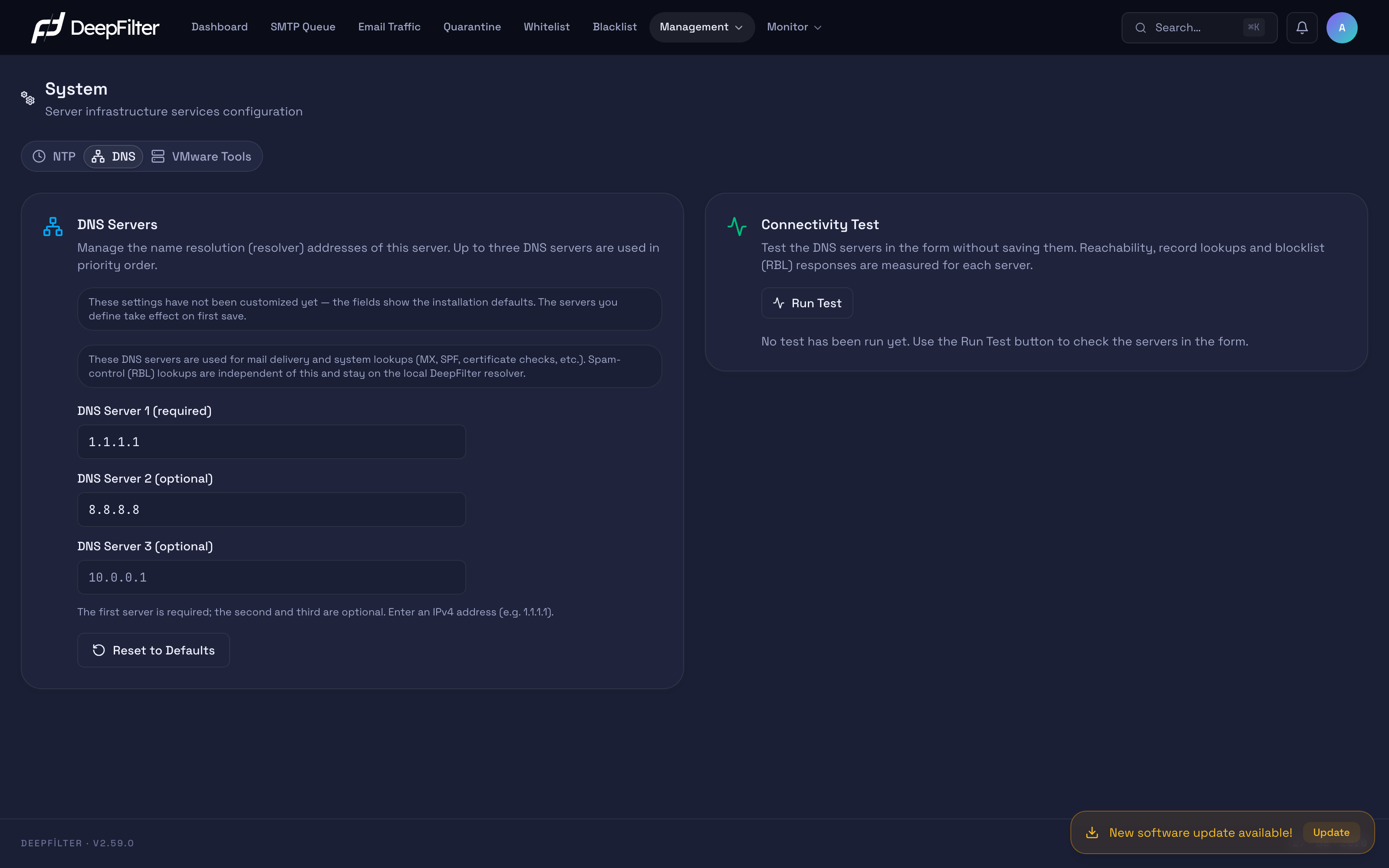
When the fields show the installation default and an information note states that these settings have "not been customized yet", DNS has not been defined manually on this server; the resolvers you enter take effect with the first save.
DNS Server 1 – 3 — The resolver addresses to which the server directs its name
resolution queries; up to three addresses are used in priority order. The first
address is required, the other two are optional, and addresses are entered in
IPv4 format. (default: 1.1.1.1 and 8.8.8.8; the third field is empty)
Why it exists: Without a resolver the server cannot resolve any domain name. Defining more than one address lets resolution continue from a backup address when the first becomes unreachable.
If you change the value: If you enter an internal or dedicated DNS, MX, SPF
and certificate lookups go to that resolver, which helps on networks closed to
the outside or when internal domain names have to resolve. If you enter an
unreachable or incorrect resolver, email flow may stall; to guard against that
risk the system does not accept the record unless at least one address answers.
The third field is empty by default; the faded 10.0.0.1 shown in it is only a
format example, not a saved address. If you leave the field empty, only the first
two resolvers are used.
If none of the resolvers you enter answer, the record is rejected and the server's current setting is preserved — this is how an email flow outage caused by a wrong address is prevented. If only some of them fail to answer, the setting is applied but a warning is shown; that warning does not disappear on its own, and you are expected to fix the address that does not answer.
Reset to Defaults — Refills the fields with the installation defaults
(1.1.1.1 / 8.8.8.8). This button only fills the fields; it does not save the
change. To make the reset permanent you have to click the Save button that
appears afterwards.
The DNS resolvers here are used for email delivery and system lookups (MX, SPF, certificate checks). Spam blocklist (RBL) lookups are independent of this and stay on the local DeepFilter resolver that belongs to this server. This behavior is a deliberate design: blocklist providers can return a misleading "listed" answer to queries coming from shared or public DNS servers, and that leads to legitimate email being marked false-positive in bulk. As a result, blocklist checking is not affected even if you define an internal DNS on this screen.
Connectivity Test
Saving a resolver means placing it in the server's entire name resolution path; a wrong address can stall email flow. The Connectivity Test lets you try the addresses in the fields without saving them: the test works only with the values in the form and does not touch the server's active setting. That way you see whether a change actually works before applying it.
Why it exists: The validation performed while saving only asks "does at least one address answer", which is enough to accept or reject the record. The connectivity test, on the other hand, tries each address separately with several record types and shows which address and which query type the problem is in — it makes visible in advance the failure you would otherwise have to diagnose after saving.
External Server Results
Five checks are reported separately for each address in the form, and the response time of each one is measured:
| Check | What it tells you |
|---|---|
| Reachability (A record) | Shows that the resolver can translate a domain name into an address; it is the basic functionality check. |
| MX record | Shows that it can query the records that determine which server incoming email goes to. |
| TXT record | Shows that it can read the text records that validations such as SPF and DKIM rely on. |
| PTR record | Shows that an address can be translated back into a name; used in sender reputation assessment. |
| RBL lookup | Shows how the resolver responds to blocklist lookups; see the note below for how to interpret it. |
For a server to count as Reachable, at least one of these queries needs to be answered. This is a deliberate flexibility: internal resolvers often answer only certain zones and do not serve some external queries; a single failed query should not mark a working resolver as Unreachable. If no query gets an answer, the server is marked Unreachable.
The summary line gives you, at a glance, how many servers are reachable, the number of RBL warnings if any, and the overall state of the blocklist path.
Seeing "no answer" or "the provider blocks it" in the RBL lookup check of an external server is not a failure and is shown in an informational tone. Spam control does not run blocklist lookups through these servers; this line only reports how that resolver behaves towards blocklist queries. The real blocklist path is tested in the local resolver block below.
By contrast, if a reachable external server returns an unexpected address for a blocklist lookup, that is flagged separately as a warning: it usually indicates that an intercepting resolver on the network path is answering the queries, or that the answers are being rewritten. If you see such a warning, review the DNS redirections along the network path.
Spam Control RBL Path — Local Resolver
At the top of the test, a separate block tests the local resolver (127.0.0.1)
and shows the result independently of the external server results. This
separation is a direct consequence of the blocklist note above: spam control's
blocklist (RBL) lookups do not go through the servers you define on this screen,
only through the local resolver that belongs to this server. This block runs on every
test — regardless of what you have typed in the form.
Why it is separate: In terms of blocklist checking, this is the only decisive path. Even if all the external servers look flawless, if the local resolver cannot answer blocklist queries then spam catch rate drops: senders that are on the blocklist are evaluated as if they were not listed, and unwanted email gets through the filter. That is why the state of the local resolver is reported on its own, without being mixed into the external server results.
The block reports one of three states:
- RBL working — blocklist lookups are being answered; spam control's blocklist path is healthy.
- RBL unanswered / Unexpected answer / Query did not complete — blocklist checking is weakened or effectively not working. Inspect the state of the local DNS service and whether this resolver can reach the blocklist providers.
- Unreachable — the local resolver answers no queries at all; blocklist checking does not work. Inspect the local DNS service and whether DNS traffic (port 53) can reach the outside.
If the local resolver block shows a warning or an error, do not postpone it: even if the external servers are working, the blocklist layer is disabled, and that leads directly to unwanted email getting through. This situation is not fixed by correcting the addresses in the form; the problem is in the server's own local resolution service.
Testing the Resolvers
Prerequisites
- At least one DNS server must be defined in the form and every filled field must contain a valid IPv4 address; otherwise the Run Test button is unavailable.
Steps
- Open Management → System → DNS.
- Enter the addresses you want to test in the DNS Server fields. You do not need to save them at this stage.
- Click the Run Test button in the Connectivity Test section.
Verification — how to know it worked
- Every server appears as Reachable and the query lines are listed together with their response times.
- The Spam control RBL path block is in the RBL working state.
- In the summary line the number of reachable servers equals the total number of servers and there is no RBL warning.
Test results belong to the form values at the moment you ran the test. If you change the fields after the test, a note states that the results now reflect the old values; run the test again to check the new ones.
Defining the DNS Resolvers
Prerequisites
- The resolvers you want to enter must be reachable from the server and able to resolve domain names; otherwise the record is rejected.
Steps
- Open Management → System → DNS.
- Enter the primary resolver address in IPv4 format in the DNS Server 1 field.
- If you wish, add backup resolvers in the DNS Server 2 and 3 fields.
- Use Run Test to check the addresses you entered without saving them, and see that the results are what you expect.
- Click the Save button that appears.
Verification — how to know it worked
- If the record is accepted, the setting takes effect immediately and the "not customized yet" information note disappears. Watch that domain name lookups and email flow continue without interruption.
VMware Tools
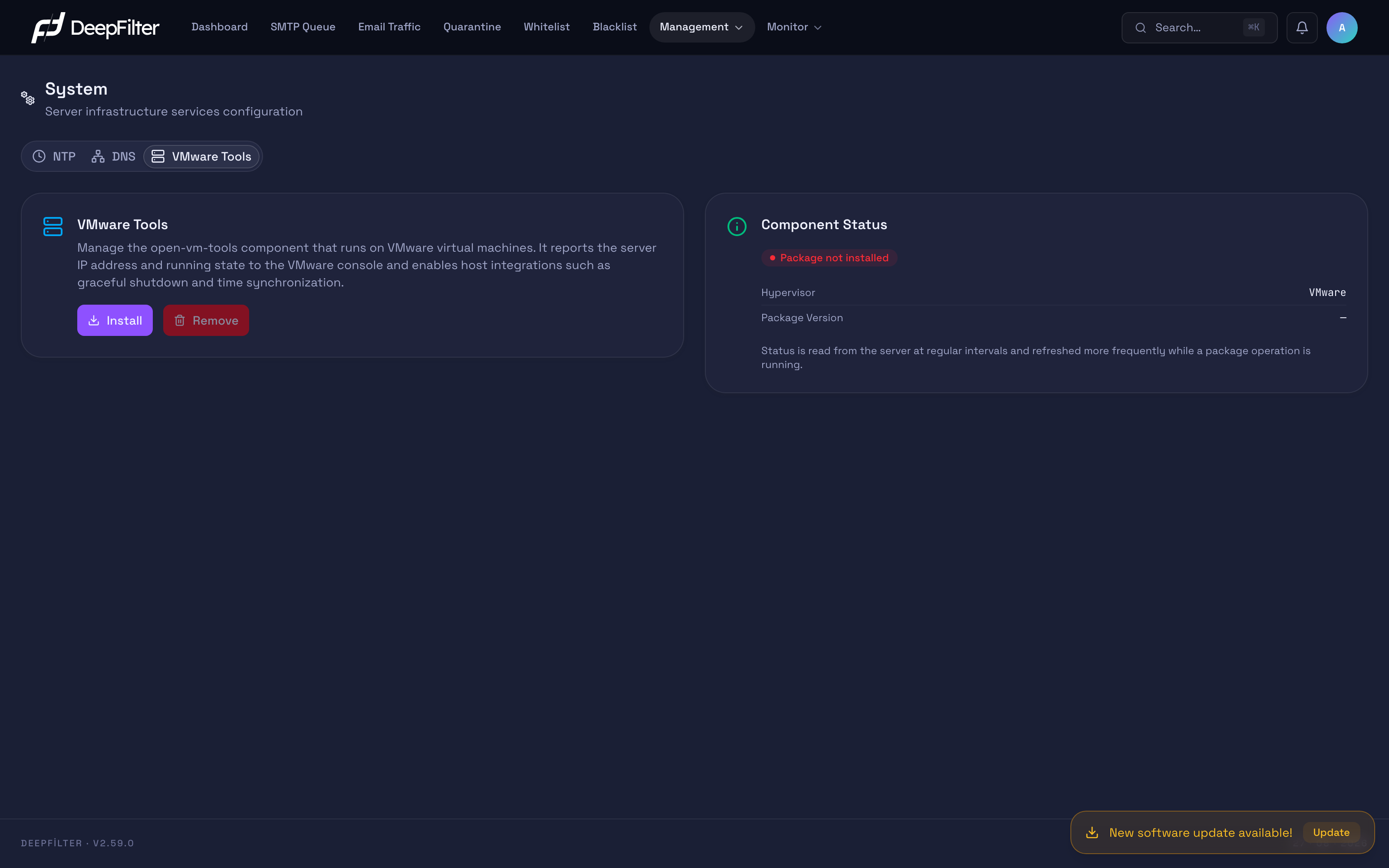
In most installations DeepFilter runs on a virtualization platform rather than on a physical server. Communication between the virtual machine and the hypervisor it runs on relies on an integration component installed in the guest operating system; in VMware environments that component is called open-vm-tools. This tab shows the state of that component on the server and lets you install or remove it from the management panel.
When the component is installed, three things become possible between the hypervisor and the virtual machine: graceful shutdown and restart commands issued from the virtualization platform are passed to the operating system (otherwise a shutdown is equivalent to cutting the power, and the queue and database can be left inconsistent), time synchronization with the host, and more efficient operation of the virtual hardware drivers. In addition, the server's IP address and running state become visible in the VMware console.
This tab is only for installations that run on VMware. DeepFilter detects which hypervisor the server runs on by itself; if the platform is not VMware, the tab is still visible but the detected platform is reported and the install and remove buttons stay disabled. On physical servers and on other virtualization platforms this component serves no purpose.
Component Status
This section reads the component's real state on the server; the information is refreshed from the server at regular intervals and updated more frequently while an install or remove operation is running.
| Indicator | What it tells you and when it needs attention |
|---|---|
| Hypervisor | The virtualization platform the server runs on. If a value other than VMware or Not detected is shown, the install and remove buttons are unavailable. |
| Package Version | The version of the installed component. Package not installed means the component is not present on the server at all. |
| Service status | Whether the component is running right now. If Service stopped is shown, hypervisor integration is effectively absent even though the package is installed. |
| Boot behavior | Whether the component comes up on its own when the server restarts. In the Does not start at boot state, the integration is lost at the first restart. |
If the package is installed but its service is not running, the section states that separately, and in that case the Install button tries to restart the service; nothing is downloaded again because the package is already installed.
Installing VMware Tools
Prerequisites
- Be signed in with full administrator privileges.
- The server must be a VMware virtual machine; if the Hypervisor indicator is not VMware, installation is not possible.
- No other package operation must be running on the server: the operation is rejected while an operating system security patch installation or a DeepFilter software update is in progress.
- There must be no pending restart or shutdown; if there is, cancel the power action first.
Steps
- Open Management → System → VMware Tools.
- In the Component Status section, confirm that the Hypervisor value is VMware.
- Click the Install button.
- Read the summary in the confirmation dialog that opens: the component is installed from the package repository and its service is started; the server is not restarted and email flow is not interrupted.
- Confirm the operation by clicking Install in the dialog.
Verification — how to know it worked
- The section switches to the Installing VMware Tools state; the operation runs in the background on the server and continues even if you leave the page.
- When it finishes, you are informed that the installation completed and the service was started; Package Version is filled in, the service status becomes Service running and the boot behavior becomes Starts at boot.
- The server's IP address and running state become visible in the virtualization platform's console.
If the operation takes longer than expected, the section says so; the most common cause is slow access to the package repository. You do not need to press the button again, the status updates by itself.
Removing VMware Tools
Prerequisites
- Be signed in with full administrator privileges.
- The component must be installed; if it is not, the remove button is unavailable.
- The same conflict conditions as for installation apply: removal is not possible while a patch installation, a software update or a pending power action is in progress.
Steps
- Open Management → System → VMware Tools.
- Click the Remove button.
- Read the summary in the confirmation dialog that opens and click Remove.
Verification — how to know it worked
- When the operation finishes, you are informed that the component was removed; Package not installed appears instead of Package Version and the service status is reported as stopped.
Once the component is removed, the server's IP address and running state are no longer visible in the VMware console, and integrations such as graceful shutdown and host time synchronization are disabled as well. From then on, a shutdown command issued from the virtualization platform is not passed properly to the operating system. Remove the component only if you are sure it is genuinely not needed.
Removal does not restart the server either, and it does not interrupt email flow.
Troubleshooting
- The Not Synchronized badge (red) is shown, or the offset is consistently large. The time sources may be unreachable or discarded; make sure time synchronization traffic (port 123) is not blocked on the network or firewall. Confirm that at least one source in the Time Sources list is in the Selected or Candidate state; if there is none, enter a reachable address.
- Synchronization Status says it "could not be retrieved". The time monitoring tools cannot be found on the server; make sure the time synchronization component is installed and up to date.
- The DNS record is rejected. None of the resolvers you entered can resolve domain names or they are unreachable. Verify the addresses and check that DNS traffic (port 53) reaches those addresses from the server.
- "I clicked Reset to Defaults but the setting did not change." This button only fills the fields, it does not save. To make the change permanent, click the Save button that appears.
- The Run Test button is unavailable. There is no valid address in the form. Enter at least one DNS server and make sure every filled field contains a valid IPv4 address.
- In the test, the RBL lookup line for external servers says "no answer" or "the provider blocks it". This is not a failure and does not affect spam control; blocklist lookups are not made through these servers. What you should look at is the Spam control RBL path block above the test.
- The Spam control RBL path block shows a warning or "Unreachable". Blocklist checking is weakened or has stopped entirely; this directly lowers the spam catch rate. Changing the addresses in the form does not fix this problem — check that the server's local resolution service is running and that DNS traffic (port 53) can reach the blocklist providers.
- The test shows an "unexpected answer" warning for a server. The answer that resolver gives to the blocklist lookup is outside the range the providers define; it usually means that an intercepting resolver on the network path is answering the queries or rewriting the answers. Review the DNS redirections on the network.
- The install and remove buttons on the VMware Tools tab are disabled. The most common cause is that the server does not run on VMware; the section reports the platform it detected. If the server is a VMware virtual machine, the other causes are: an operating system security patch installation in progress, a DeepFilter software update in progress, another package operation running on the server, or a pending restart/shutdown. For the last one, cancel the power action from Management → General Settings → Power Control or wait for it to finish.
- The section says the server component required for the operation is not present. The DeepFilter infrastructure on the server is too old to include this feature. Update the server software from the Management → Software screen; the buttons become available after the update.
- The VMware Tools package appears installed but its service is not running. The integration is effectively absent in this state. In this case the Install button tries to restart the service and does not download anything again because the package is installed; try that first.
- The VMware Tools status cannot be read. Status information is read live from the server; when the server is unreachable the section says so explicitly and does not show a misleading result such as "not installed". Check again after a while.