Software
DeepFilter's ability to catch spam and threats is not fixed: attackers keep changing their techniques, and scan rules and threat signatures are updated regularly against that change. Keeping the system current is the only way to benefit from the newest threat detection and improvements. The Software screen exists to manage that currency: it lets you confirm the installed version, check whether a new version has been published, apply the update and follow what each version brings.
Updates come from the DeepFilter central software repository and are fetched and applied through the operating system's standard package management; you do not need to download a separate file or install anything by hand. Because the system checks for updates regularly on its own, this screen usually just shows you the result; it also offers a manual check, a one-click update and — if you want it — fully automatic application of updates.
It sits under Management → Software in the menu.
This screen is available only with the full administrator (Admin) role. The domain administrator and end user roles cannot view or start a software update.
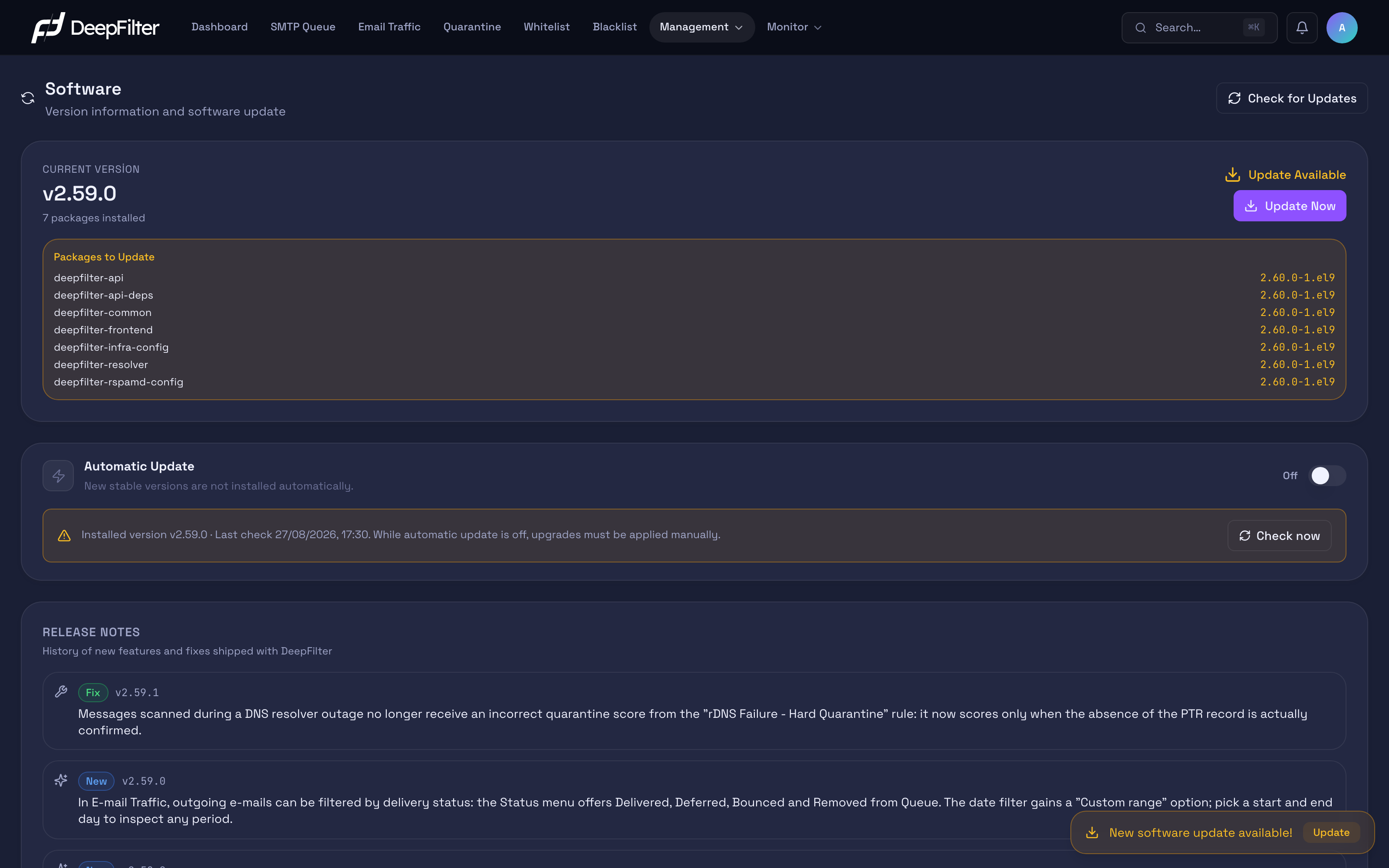
The screen with the system up to date; when an update is published, the update and progress areas are added to the same screen.
Version Status
The status card at the very top of the screen is designed so you can see at a glance whether the system is up to date. The card summarizes the currency of the installed version with a colored badge:
- System up to date (green) — the installed version is the newest published version; there is nothing to do.
- Update Available (yellow) — a newer version has been published. In this case the list of components to be updated and the Update Now button are added to the card.
- Update service unreachable (red) — the system cannot connect to the central update service right now; checking and updating are temporarily unavailable (see Troubleshooting).
- Automatic update paused — even though automatic update is on, the system has temporarily stopped upgrading; the reason can be traced from the update history.
Version flow — PREVIOUS → INSTALLED → NEXT CHECK. The card lets you read the version status as a three-stage flow:
- PREVIOUS — the version installed before this one. If an update causes a problem, the system automatically rolls back to this version (see Automatic Update).
- INSTALLED — the version running right now. This is the value you refer to when you open a support request or read release notes; it is the number from which you confirm which version line your system is on.
- NEXT CHECK — when the system will run its next automatic check for a new version. This value confirms that checks continue even if you never press a button.
The strip at the bottom of the card carries the summary information that completes the currency picture: the Last check time (when it was last checked; if no check has been run yet it reads "Not checked yet"), the Last update result and status badge, the release channel the system follows (Channel: Stable) and the current connection status of the central update service. The History › link on the same strip opens the history record listing all updates.
The packages installed count next to the version information (such as 6 packages installed) states how many components DeepFilter consists of. DeepFilter is not a single program but a set of components that work together (the management interface, the application service, filtering and infrastructure configurations, and so on), and an update updates those components together; the count is therefore not a fixed value but the number of installed components.
A check reports something as an "update" only if it is genuinely newer than the installed version. Even if an equal or older version appears in the repository, the system does not count it as an update and never downgrades to an older version; this prevents false "update available" warnings.
Automatic Update
DeepFilter is kept current by two separate capabilities, and it is important to keep them apart:
- Automatic checking — the system checks on its own every six hours whether a new version has been published. The check only looks: if it finds a version it shows the Update Available badge on the card, but it does not install it on its own. It leaves the upgrade decision to the administrator.
- Automatic update (installation) — when it is on, the system installs the new version it finds during a check on its own, without waiting for administrator approval. This capability is optional and off by default.
Do not confuse the two: checking always runs and only informs you; installation kicks in only when you turn it on.
When the check finds a new release, the global administrator sees a New software update available! notice in the lower-right corner, on whichever page of the panel they are, with an Update button that opens this screen. When you update the system from the command line on the server (see Updating), this notice and the Update Available information on the card do not wait for the next six-hour check: as soon as the panel sees that the installed release already contains the update (within about a minute at most), it removes both. If you updated only some of the components, only the ones not yet updated remain in the list.
Turning on automatic update
The Automatic Update switch sits on the update card. (default: off)
What it does: While on, the system moves on its own to the new stable version found during the six-hourly checks, without administrator intervention.
Why it exists: It relieves a large server estate or a busy administrator of the burden of applying every upgrade by hand; it makes sure security and threat detection improvements reach the field without delay.
If you turn it on/off: If you turn it on, upgrades are applied on their own; after every upgrade the system runs a health check, and if the check fails it automatically rolls back to the previous version — so you are not stuck on a broken version. In exchange, an upgrade can be applied at any moment without you watching, and services may restart briefly during the update (see Things to Watch); so in the environments most sensitive to interruption, keep this behaviour in mind when you turn the feature on. If you keep it off (the default) the system only informs you; you start every upgrade by hand with Update Now. While it is off, the card carries an amber warning strip summarizing the installed version and the last check time, plus a Check now button that starts a check directly.
Automatic update only upgrades to the newest published stable version; it never downgrades to an older one. The release channel being followed appears on the card as Channel: Stable.
Connection test. The moment you turn automatic update on, the system immediately tests access to the central update service: first Checking connection, then Service active (green) if it is reachable or Cannot reach the service (red) if it is not. That way you confirm, as soon as you turn the feature on, that automatic update can actually work.
Last update. The card summarizes the most recent update(s) with their result: the date, which version was moved to from which, what the result was (Successful / Failed with its reason / Rolled Back with its reason / In Progress) and whether the update was triggered as Automatic or Manual. For a full listing of all records, use the History › link on the meta strip.
If a target version is blocked, a Remove Block action appears on the card; this action removes the obstacle to upgrading to that version and makes the update possible again.
Checking for an Update
Used to find out immediately whether there is an update, without waiting for the automatic check.
Steps
- Open Management → Software.
- Click the Check now button on the update card. The button switches to Checking... while the check runs.
Verification — how to know it worked
- The Last check time is updated and the card shows a status badge: if it is System up to date (green) the version you have is the newest; if it is Update Available (yellow) the list of components to be updated and the Update Now button are added to the screen.
Applying an Update
Prerequisites
- The Update Available badge must be showing on the card; if there is no update the Update Now button does not appear.
- Because the update restarts some components, pick a time window without heavy email traffic (see Things to Watch).
Steps
- On Management → Software, confirm that the Update Available badge and the list of components to be updated are showing.
- Click the Update Now button.
- The update starts on the server. While it runs, a notification stating that the process is continuing and a link to the live log appear in the bottom right corner of the screen; because the update runs independently in the background, the process continues uninterrupted even if the management interface restarts briefly.
Verification — how to know it worked
- When the update has actually completed, a notification stating that the process has finished and a Refresh Page button appear again in the bottom right corner. Refresh the page once with that button to see the new interface; the system does not refresh the page on its own, it leaves the decision to you. After the refresh the INSTALLED version shows the new number and the status badge returns to System up to date.
Update History
Every update applied is recorded and shown in the list opened from the History › link. Each record states with a badge whether the update was triggered as Manual (an administrator started it with Update Now) or Automatic (the system applied it on its own) and shows its result: Successful, Failed, Rolled Back (the health check failed, so the previous version was restored) or In Progress. For manual updates the details of the administrator who started it are also kept; that way who updated the system, when and how can be traced.
Release Notes
Release Notes lists the history of new features and fixes that came with DeepFilter, newest first. Each record contains a version number, a colored label stating its type and a one-sentence description. Its purpose is to let the administrator quickly see what changed after an update.
The list shows only the notes of the last 10 versions that contain a visible change relevant to the user. Versions that carry only internal maintenance or a security fix do not enter the list; this keeps the list clean and meaningful. (For how this behaviour relates to the Current Version number, see Troubleshooting.)
The label at the start of each record states the type of the change:
| Label | Meaning |
|---|---|
| New | A new feature or capability was added. |
| Fix | An existing problem was resolved. |
| Improvement | An existing behaviour was improved or simplified. |
Things to Watch
When an update is applied, the relevant services are restarted automatically depending on the component being updated. If the filtering engine or the email delivery service restarts, email flow may be affected very briefly; if infrastructure and database components are updated, the restart may take a little longer. So apply the update in a quiet time window rather than during hours of heavy email traffic. If automatic update is on, these restarts can happen without you watching; in environments highly sensitive to interruption, keep this in mind when you turn the feature on.
When upgrading to release 2.86, the email delivery service is restarted once so that the
email log setting takes effect. This takes a few seconds: SMTP connections open at that
moment are dropped and the sending servers retry delivery; the emails in the queue are
kept. If a large number of emails are waiting in the queue, if email flow has been stopped
because of the license, or if the configuration check of the email delivery service fails,
the restart is skipped; a warning line starting with deepfilter-infra-config: appears in
the update log and the setting takes effect the next time the service starts. This line
does not mean the update failed.
Troubleshooting
The Current Version looks higher than the newest record in the Release Notes. This is normal. Maintenance releases that contain no visible change relevant to the user do not enter the Release Notes list; they are reflected only in the installed version number. For example, while the system is on v2.30.6, v2.30.4 may appear at the top of the list — the versions in between are not listed because they carry only internal fixes.
The card says "Update service unreachable". The system cannot connect to the central update service right now; checking and updating cannot be done during this time, and it is usually a temporary network or access problem. Check the server's internet access and firewall rules, then try again with Check now; once the connection is restored, the badge shows the currency status again.
An update has looked like it is "in progress" for a long time. The system regularly inspects update operations that take longer than expected and automatically concludes an operation that has actually completed or failed; an operation does not stay "in progress" forever. Wait a short while and refresh the page.