Backup
DeepFilter's configuration accumulates over time: domain definitions, email flow, whitelists and blacklists, users, quarantine thresholds and the DKIM signing keys belonging to your domains. All of that configuration is held on a single server; a hardware failure, a bad change or a move to a new server instantly turns it into work that has to be rebuilt by hand, one item at a time. Some data exists nowhere else: DKIM private keys are generated only on this server, and if they are lost you have to generate new keys, update your DNS records and accept the signing gap that opens up in the meantime.
Backup captures all of that configuration into a single file and restores it when needed. You use this screen when you are building the server from scratch, when you want a safe point to return to before a major change, or when you are moving the configuration to another server.
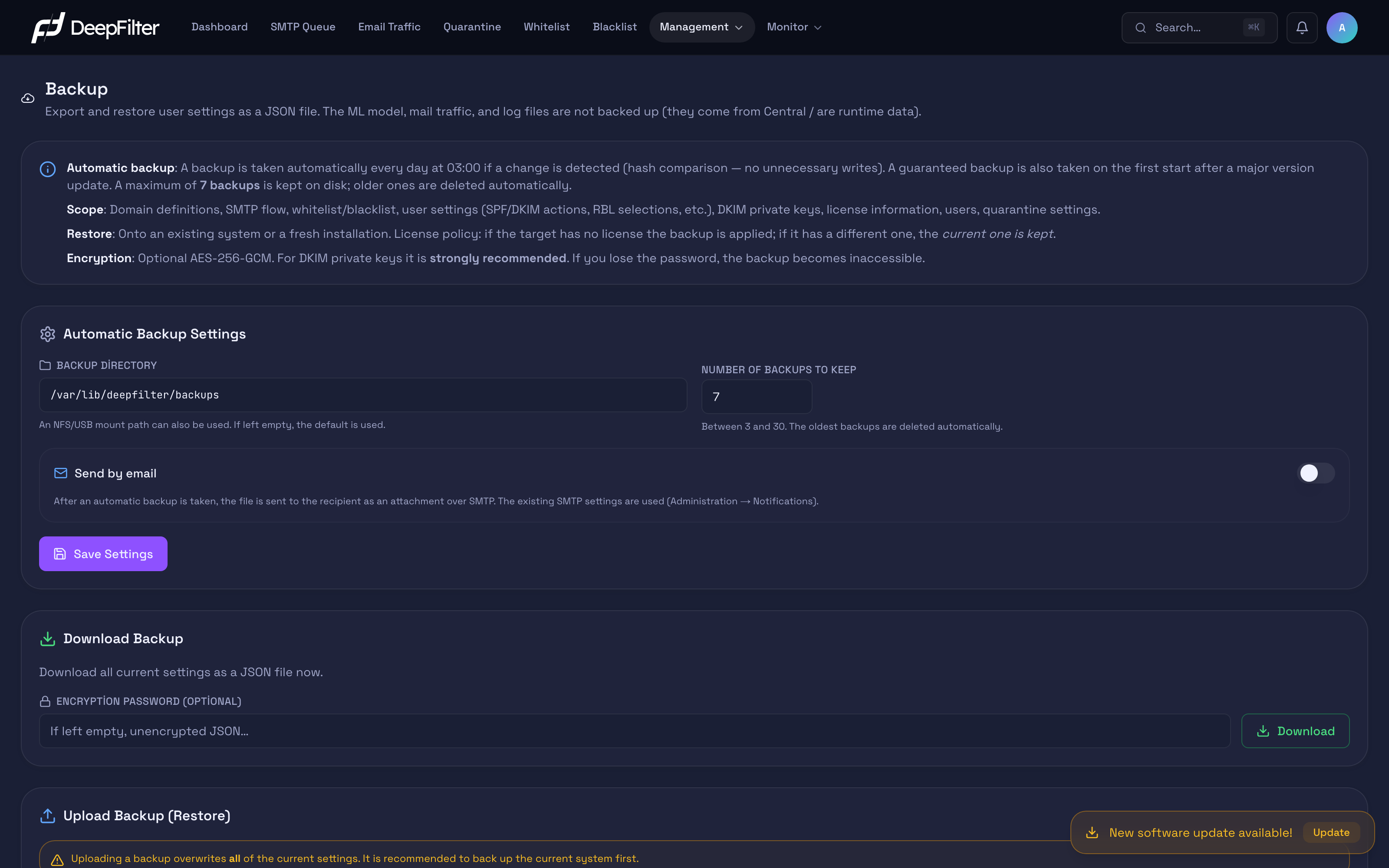
A backup is a configuration backup, not a data backup. The contents of quarantined emails, email traffic history, logs and the artificial intelligence model do not go into the backup; these are data produced at runtime or distributed by the central system.
| Included in the backup | Not included in the backup |
|---|---|
| General system settings | Contents of quarantined emails |
| Domain definitions | Email traffic history and analytics |
| Email flow (server and relay definitions) | Log files |
| Whitelist entries (together with their domain scopes) and the blacklist | Artificial intelligence model (comes from the central system) |
| Domain/user security actions (SPF, DKIM, RBL) | Learning data (produced at runtime) |
| Quarantine thresholds and settings | Pending email queues |
| Users and their roles | Security (TLS) certificates (renewed automatically) |
| Domain assignments of domain administrators and read-only users | Users' authorized server (delivery server) assignments (deleted on restore) |
| Domains excluded from LDAP recipient verification | Domain-specific LDAP profile assignments (deleted on restore) |
| DKIM private keys belonging to domains | End users' personal allow and block lists (unchanged by a restore) |
| Email templates | |
| License information |
A restore brings back only the configuration; it does not bring back lost quarantined emails, traffic history or logs. Do not rely on the backup for that data.
Settings
The three settings below determine where the daily automatic backup is written, how many copies are kept and in what form it reaches you, and they are stored permanently with Save Settings. The encryption password, on the other hand, is not a persistent setting: it is entered at the moment you download the backup (or send it by email) — see Backup Encryption.
Backup Directory
Determines the local folder on the server that automatic backups are written to. (default: /var/lib/deepfilter/backups)
Why it exists: You decide which disk the backups accumulate on; that way you can direct backups to a separate partition or to a persistent storage area.
If you change the value: The path you give becomes the sole target of subsequent backups; if you leave it empty the default is used. The path can only be under one of the permitted locations: /var/lib/deepfilter, /var/lib/backups, /mnt, /media, /srv, /opt/deepfilter. System folders (/etc, /root, /usr) are rejected for security reasons; if you give an invalid path the system silently falls back to the default directory.
Watch out: To back up to an external disk, USB drive or network share, you have to mount that storage under one of the permitted paths. A remote server or cloud address cannot be given directly from the screen; the ways to take a copy off the server are Send by Email and the manual Download Backup operation.
Number of Backups to Keep
Determines how many of the most recent copies are kept in the backup directory. (default: 7; permitted range 3–30)
Why it exists: Backups pile up with every change; without a limit the disk fills. This number strikes the balance of "enough to go back, not so many that the disk swells".
If you change the value: If you raise the number you can return to older states but more disk space is used; if you lower it you save disk space but the history you can go back to gets shorter. The oldest backups beyond the number are deleted automatically. If the value you enter is outside the 3–30 range, it is pulled into that range.
Send by Email
While on, it also sends the backup file to the recipient you specify as an email attachment after an automatic backup is taken. (default: off)
Why it exists: It makes sure a copy of the backup also exists off the server; even if the server becomes completely unreachable, you can get to the latest configuration from your mailbox.
If you turn it on: When you turn the switch on, fields for the recipient address and an optional encryption password appear. From then on, every automatic backup produces an email. On days when the configuration has not changed no backup is taken, so no email is sent on those days either. If you turn it off, backups stay only in the directory on the server.
Watch out: If the email delivery fails (the recipient is wrong, the delivery path is closed) the backup is still counted as successful — the file has been written to disk. In other words, the email not arriving does not mean the backup was not taken.
Backup Encryption
If you set an Encryption password while downloading a backup or sending it by email, the file is encrypted with that password to the AES-256-GCM standard; if the password is left empty, a plain (unencrypted) file is produced. (default: unencrypted)
Why it exists: The backup contains the DKIM private keys belonging to your domains. Those keys falling into third-party hands through a backup file opens the door to forged (impersonating) email being sent in your domain's name. Encryption protects the contents when the file leaves the server (email, download, external disk).
If you set one: The file can only be opened with that password. The password is processed with a strong key derivation (600,000 iterations), which slows down password-guessing attacks. If you do not set one, anyone who obtains the file can read the entire configuration, including the DKIM keys.
If you lose the encryption password you can never access the backup again — there is no other recovery path for an encrypted backup. Keep the password somewhere safe, separate from the backup itself. Because the backup contains DKIM private keys, setting a password is strongly recommended for every backup that will leave the server.
Automatic Backup
Automatic backup runs every day at 03:00 (Türkiye time). Each time, the current configuration is compared with the previous backup; if there is no change, no new file is written, so the disk does not fill with unnecessary copies. In addition, every time the software is updated, this comparison is skipped on the first start after the update and a guaranteed backup is taken — that way the configuration at the moment each new version comes into service is always recorded.
Prerequisites
- Review the Backup directory and Number of backups to keep values (see Settings).
Steps
- On Management → Backup, go to the Automatic Backup Settings section.
- Edit the Backup directory and Number of backups to keep values if needed.
- If you also want a copy of the backup by email, turn the Send by email switch on and enter the recipient address.
- Click the Save Settings button.
Verification — how to know it worked
- The settings take effect at the next 03:00 run. If you want to verify immediately, make any configuration change; you will see a new file appear among those accumulating in the backup directory.
Downloading a Backup
The Download Backup operation collects all of the current configuration on the spot and downloads it straight to your browser; it does not write a file to the backup directory on the server. It is used to grab a copy quickly or to move a backup to another server.
Prerequisites
- If you want to encrypt the file (recommended because of the DKIM keys), prepare a strong password and keep it somewhere safe.
Steps
- On Management → Backup, go to the Download Backup section.
- Enter a password in the Encryption password field (if you leave it empty the file downloads unencrypted).
- Click the Download button.
Verification — how to know it worked
- The configuration file downloads to your browser. This operation does not change the backup directory on the server.
Restoring a Backup
A restore applies the configuration in the backup file you select to the system. The operation runs as a single unit (atomically): all current settings are deleted and the values from the backup are written in their place. If an error occurs, no change is applied and the system stays as it was.
Prerequisites
- You must have a backup file to restore — either a file you downloaded earlier or one of the files accumulating in the backup directory on the server.
- If the file is encrypted, have the password you set during encryption to hand.
- A restore replaces the current configuration entirely; back up the current system first.
A restore overwrites all current settings — this is a full replacement, not a merge. If you do not back up the current system before restoring, you can never return to the configuration you had at that moment.
Steps
- On Management → Backup, go to the Upload Backup (Restore) section.
- Select the backup file to restore.
- If the file is encrypted, enter the password.
- Confirm the restore.
Verification — how to know it worked
- When the operation completes you see the Restore successful summary: the number of tables and rows applied, the DKIM keys written back to the server, the license decision and, if any, warnings under the Warnings: heading.
- After the restore, the email flow and filtering settings (including the whitelist rules) are automatically rebuilt from the restored records. If a problem occurs during that rebuild, the restore is still counted as successful and the relevant problems are listed separately within the summary.
- The operation is written to the Monitor → Audit Logs screen as Backup restored; a failed attempt is recorded as Backup restore failed. If SIEM forwarding is on, both records are also sent to the SIEM (see Audit Logs and Log Management).
Restore Warnings
The warnings in the summary tell you that the restore completed but some settings need to be reviewed again. The warning texts are shown in Turkish regardless of the interface language. The most common ones:
- Lost assignments. Users' authorized server (delivery server) assignments and domain-specific LDAP profile assignments are not backed up; when users and domains are reloaded from the backup, these assignments are deleted. If any records were deleted, the system reports their number (for example "Kullanıcılar yedekten yeniden yüklendiği için 3 kullanıcı–teslim sunucusu yetki ataması kayboldu (bu atamalar yedeğe alınmıyor)" — 3 user–delivery server assignments were lost because users were reloaded from the backup). Redo these assignments in the Authorized servers field on the Management → Users screen and in the Domain scope list of recipient verification on the Management → Inbound Mail screen. This is a known limitation of restoring; it also occurs with an up-to-date backup.
- Backup taken with an older version. Domain administrator assignments, LDAP exclusions and whitelist domain scopes are only present in backups taken by recent versions. When you load an older backup that does not carry this information, the related records may be deleted and the warning starts with "… tablosu yedekte yok (eski sürümle alınmış yedek)" (the table is not in the backup — backup taken with an older version); the warning states what was lost and on which screen to define it again. In this case domain-specific whitelist entries remain visible in the list but apply to no domain; since an entry's scope cannot be edited, delete these entries and add them again with the relevant domain administrator account.
- DKIM keys. Even though the database was restored, some DKIM keys may not be written to the server (invalid key format or a file permission problem). The warning lists the affected domains and notes that outgoing email for these domains may go out without a DKIM signature. Import or regenerate the keys of these domains in the DKIM Signing section; because a newly generated key is different, you also need to update the DNS record.
- License. If the backup has no license record, or the license in the backup differs from this server's license, the server's current license is kept and the warning says so.
You will not hit a license conflict when moving a backup to another server: if the target system has no license, the license in the backup is applied; if the target already has a different license, the backup's license is skipped and the current license is kept. If it is the same license, nothing changes.
Troubleshooting
The backup directory I gave is not accepted, the setting reverts to the default. — The backup directory can only be under one of the permitted locations (/var/lib/deepfilter, /var/lib/backups, /mnt, /media, /srv, /opt/deepfilter); system folders are rejected for security reasons. Mount an external disk or network share on one of these paths and point the directory there.
No new automatic backup file is being created. — If the configuration has not changed since the previous backup, this is expected behaviour; the system does not write the same content a second time. A new backup is created when you change a setting or when the software is updated. If you want a copy to hand right away, you can download the current configuration to your browser with Download Backup.
A new backup file was created after a software update although I did not change the configuration. — This is expected. The first automatic backup after an update is always written as a new file; when the new version adds new information to the backup, the file's content also differs from the previous one.
After a restore, a domain administrator cannot see their domains or some users cannot access their delivery servers. — Check the warnings in the restore summary. Delivery server assignments are not backed up and are therefore deleted on every restore; with a backup taken by an older version, domain assignments may be lost as well. On the Management → Users screen, fill in the user's Authorized servers and Authorized domains fields again.
I cannot restore an encrypted backup, I get a password error. — An encrypted backup can only be opened with the correct password. Make sure you entered the password correctly; if the password is lost, there is no recovery path for the backup.
The license in the backup I restored was not applied. — If the target system already has a different license, the backup's license is deliberately skipped and the current license is kept. To change the license, use the Management → License screen.